
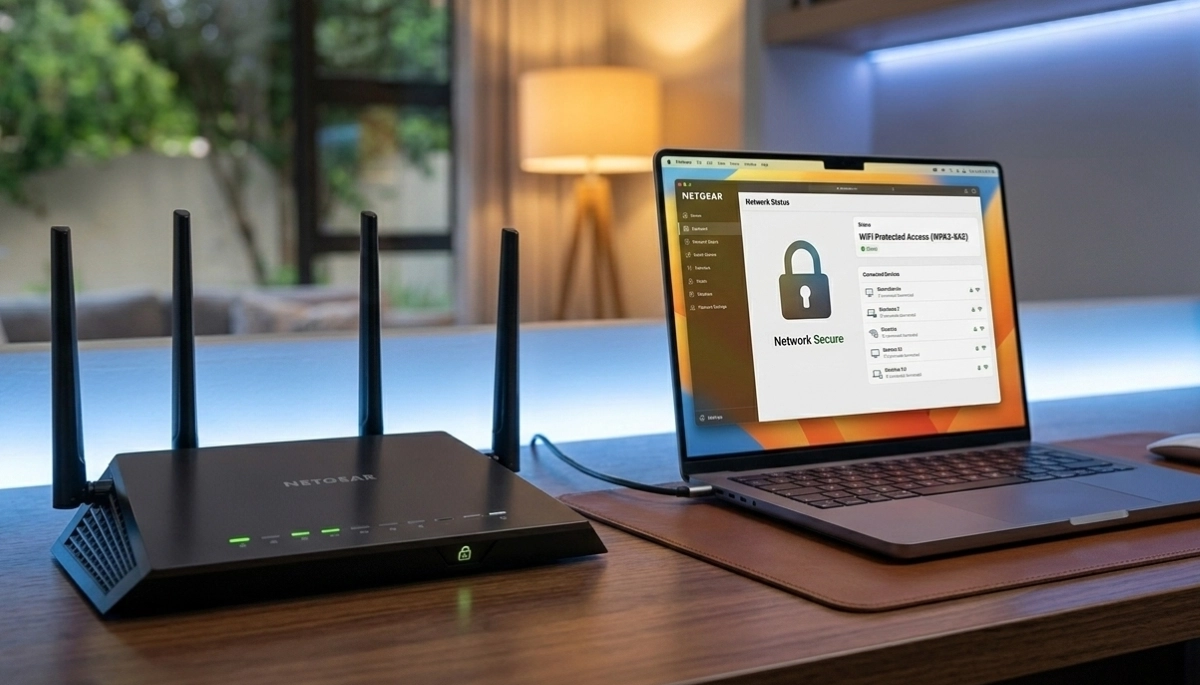
Home Network Security – How to Protect Your WiFi in South Africa
🔒 Your Sandton home’s WiFi could be an open door to hackers. Here’s how to secure your network, protect your data, and keep neighbours out.
You’ve got fibre in your Fourways home. Smart devices everywhere. Your kids do homework online. You bank from your laptop. But is your network secure?
Many South African homes have WiFi networks with weak security – default passwords, outdated encryption, no guest network. This leaves you vulnerable to hackers, neighbours freeloading, and even legal liability if someone uses your connection for illegal activity.
Home network security protect WiFi isn’t just about keeping neighbours out – it’s about protecting your personal data, your financial information, and your family’s privacy. This guide covers everything you need to know to secure your home network properly.
We’ll walk you through router settings, encryption choices, guest networks, and advanced security measures. Whether you’re in Cape Town or Durban, these steps will dramatically improve your network security.
If you’re ready for professional help, explore our Services Overview or visit our network security page to find security specialists near you. For more on how we work, see How It Works.
📡 SECURITY STANDARDS: The Wi-Fi Alliance sets global security standards. WPA3 is the latest encryption protocol, but WPA2 remains secure when properly configured. Professional security audits follow these standards.
Worried About Your Network Security?
Get a free security assessment from vetted network specialists. They’ll check your settings, identify vulnerabilities, and secure your home network.
Servicing Johannesburg, Pretoria, Cape Town, Durban, and nationwide
📋 Table of Contents – Home Network Security Guide
🔐 Why Home Network Security Matters
Your home network is the gateway to your digital life. Every device – computers, phones, smart TVs, security cameras, even your fridge – connects through it. A compromised network puts all of them at risk.
What’s at Stake
- Personal data: Bank details, passwords, emails, photos
- Financial information: Online banking, credit card details
- Privacy: Smart cameras, microphones in devices could be accessed
- Identity theft: Hackers can use your info to commit fraud
- Legal liability: If someone uses your WiFi for illegal activity, you could be implicated
- Bandwidth theft: Neighbours freeloading slows your connection
- Botnets: Your devices could be used in cyberattacks without your knowledge
Securing your network isn’t paranoid – it’s essential. A few simple steps dramatically reduce your risk.
Learn more about our approach on our About Us page or read why clients choose us on our Benefits page.
🔑 WPA2 vs WPA3 – Choosing the Right Encryption
WiFi encryption is your primary defense. The WPA2 vs WPA3 decision affects how secure your network is.
WPA2 (Wi-Fi Protected Access 2)
- Current standard: Used by most devices, still secure when properly configured
- AES encryption: Strong encryption, not easily cracked
- Vulnerability: KRACK attack (mostly patched in updates), vulnerable to weak passwords
- Compatibility: Works with virtually all devices
WPA3 (Wi-Fi Protected Access 3)
- Newest standard: More secure, harder to crack
- Simultaneous Authentication of Equals (SAE): Protects against weak password attacks
- Forward secrecy: Even if password is compromised, past traffic remains secure
- Improved encryption: 192-bit security in WPA3-Enterprise mode
- Compatibility: Newer devices only (2019+), older devices may not connect
What to Choose
- If all your devices support WPA3: Use it – it’s more secure
- Mixed devices: Use WPA2/WPA3 mixed mode if available
- Older devices only: WPA2 with AES is still secure
- Never use WEP or WPA: These are broken and easily hacked
Check your router settings – ensure you’re using at least WPA2-AES, not WPA2-TKIP (which is weaker).
🔤 Strong Passwords – Your First Line of Defense
A strong WiFi password is essential. Yet many people use easy-to-guess passwords or never change the default.
What Makes a Strong Password
- Length: At least 12-15 characters (longer is better)
- Complexity: Mix of uppercase, lowercase, numbers, symbols
- Random: Not dictionary words, names, or common phrases
- Unique: Not used for any other account
Examples
- Weak: “password123”, “smithfamily”, “0825551234”
- Strong: “J8#k9$mP2@qR5&vL” (random characters)
- Strong passphrase: “Purple-Monkey-Dishwasher-Bookcase-87!” (long, easy to remember)
Two Passwords to Change
- WiFi network password: What guests and devices use to connect
- Router admin password: What you use to access router settings – this is critical and often left as default
Many people forget to change the router admin password. Default passwords like “admin/admin” are widely known – change yours immediately.
📡 SSID Broadcast – To Hide or Not to Hide?
SSID broadcast disable means your network name doesn’t appear in lists of available networks. Some think this adds security. Does it?
Arguments for Hiding SSID
- Casual users won’t see your network
- Adds minor obscurity (not real security)
Arguments Against Hiding SSID
- Determined hackers can still find hidden networks with simple tools
- Your device constantly probes for hidden networks – can actually make you more detectable
- More annoying for legitimate users (guests, new devices)
- May cause connection issues with some devices
- Security experts generally recommend against it
Verdict
Don’t bother hiding your SSID. It provides minimal security benefit and creates inconvenience. Focus on strong encryption and passwords instead.
👥 Guest Network Setup for Security – Essential Protection
A guest network setup for security is one of the most important things you can do. It creates a separate WiFi network for visitors, keeping them away from your main devices.
Why You Need a Guest Network
- Isolation: Guests can’t access your computers, printers, NAS drives
- Protection from compromised devices: If a guest’s device is infected, it can’t spread to your network
- Limited access: You can give guests internet without exposing your internal network
- Separate password: Change guest password frequently without affecting your devices
- Bandwidth control: Some routers let you limit guest bandwidth
How to Set Up
Most modern routers have a guest network option. Enable it, give it a separate password (different from your main network), and ensure “Allow guests to access my local network” is disabled.
This is especially important for homes in Sandton and Umhlanga with frequent visitors and smart home devices.
📱 MAC Address Filtering – Pros and Cons
MAC address filtering lets you specify which devices can connect to your network based on their unique MAC address. Sounds secure – but is it?
How It Works
You create a list of allowed MAC addresses. Only devices with those addresses can connect. All others are blocked.
Pros
- Adds an extra layer of control
- Prevents casual connection attempts
- Useful for limiting which devices can connect
Cons
- MAC addresses can be spoofed (faked) – determined hackers can bypass it
- Management headache – every new device needs to be added manually
- Not a replacement for strong encryption
- Can cause frustration when devices won’t connect
Verdict
MAC filtering is useful as an additional layer, but don’t rely on it as your primary security. Use it in addition to strong encryption and passwords, not instead of them.
🧱 Firewall Configuration – What It Does
Your router includes a firewall that blocks unwanted incoming connections. Proper firewall configuration ensures it’s working effectively.
What a Firewall Does
- Blocks unsolicited incoming connection attempts
- Prevents hackers from scanning your network
- Can block certain types of outgoing traffic (if configured)
- Protects devices from direct internet attacks
Key Settings
- SPI (Stateful Packet Inspection): Ensure it’s enabled – tracks connection states
- Block anonymous internet requests: Usually enabled by default
- Filter multicast: Can block some streaming protocols – usually safe to leave default
- Respond to ping: Disable to make your network less visible (optional)
Most routers have good default firewall settings. The main risk is opening ports for gaming or applications – only open what’s absolutely necessary.
🔄 Firmware Updates – Critical for Security
Router manufacturers release firmware updates to fix security vulnerabilities. Ignoring them leaves you exposed.
Why Updates Matter
- Patch known security holes
- Fix bugs that could be exploited
- Improve performance and stability
- Add new security features
How to Update
- Check router admin panel for update section
- Enable automatic updates if available
- Check every few months if no auto-update
- Some routers update automatically – verify it’s working
When to Replace
If your router no longer receives security updates (typically after 3-5 years), consider replacing it. An unpatched router is a security risk.
Professional router setup includes checking for and applying the latest firmware.
🚫 Disable WPS – A Known Vulnerability
WPS (Wi-Fi Protected Setup) was designed to make connecting devices easier – press a button or enter a PIN. But it has serious security flaws.
The Problem with WPS
- PIN vulnerability: The 8-digit PIN can be brute-forced in hours, revealing your WiFi password
- Many routers don’t lock out after failed attempts – makes brute-forcing easy
- Attack tools widely available – anyone can crack WPS
What to Do
Disable WPS completely. It’s not worth the convenience. Most modern routers have this option in wireless settings. If your router doesn’t let you disable it, consider replacing it.
The push-button method is slightly more secure but still has issues. Best to disable entirely and connect devices manually with the password.
🌐 Remote Management – Keep It Off
Many routers offer remote management – the ability to access router settings from outside your home network. This is a major security risk.
The Risk
- If enabled, anyone on the internet could try to access your router
- If you have a weak admin password, hackers can break in
- Once in, they can change settings, monitor traffic, or use your router in attacks
What to Do
Disable remote management. There’s rarely a legitimate need to access your router from outside your home. If you absolutely need it (very rare), use a VPN to access your home network first, then manage locally.
Check your router settings for “Remote Management,” “Access from WAN,” or similar – ensure it’s disabled.
🔄 UPnP – Convenience vs Security
UPnP (Universal Plug and Play) allows devices to automatically open ports in your router for applications like gaming, messaging, and streaming.
The Convenience
- Games and apps work without manual port forwarding
- Plug-and-play for many devices
- Simplifies setup for non-technical users
The Security Risk
- Malware on a device can use UPnP to open ports without your knowledge
- Opens potential pathways for attackers
- Some routers have vulnerable UPnP implementations
- Devices may open more ports than needed
What to Do
- If you’re security-conscious: Disable UPnP and manually forward ports for applications that need them
- If you value convenience: Keep UPnP but ensure all devices are secure and malware-free
- Compromise: Check router logs occasionally for unexpected port openings
📱 IoT Network Segmentation – Protect Your Smart Home
Smart home devices (IoT) are notoriously insecure. Many have weak security, don’t get updates, and can be hacked. IoT network segmentation isolates them from your main devices.
The Problem with IoT Devices
- Manufacturers often prioritise features over security
- Many stop receiving updates after a year or two
- Some have known vulnerabilities that never get patched
- Compromised IoT devices can be used to attack your network
The Solution: VLANs or Guest Networks
Advanced routers let you create VLANs (virtual networks) to separate devices. For most homes, a simpler approach works:
- Put all IoT devices on your guest network (if it allows device-to-device communication)
- Or create a separate IoT network if your router supports multiple SSIDs
- Ensure IoT network can’t access your main network
This way, even if a smart plug or camera is hacked, your computers and phones remain safe.
🌍 DNS Security – Blocking Malicious Sites
Your router uses DNS (Domain Name System) to translate website names to IP addresses. Using secure DNS can block access to malicious sites.
Secure DNS Options
- Cloudflare (1.1.1.2 and 1.0.0.2): Blocks malware
- Cloudflare (1.1.1.3 and 1.0.0.3): Blocks malware and adult content
- OpenDNS (208.67.222.222, 208.67.220.220): Customizable filtering
- Quad9 (9.9.9.9): Blocks known malicious domains
How to Set
In your router’s internet settings, change DNS servers from “automatic” to manual and enter your chosen secure DNS addresses. This protects all devices on your network.
For homes with children, OpenDNS or Cloudflare family filters can block inappropriate content network-wide.
🛡️ VPN for Home Networks – Extra Privacy
A VPN (Virtual Private Network) encrypts all your internet traffic and hides your IP address. For home networks, you have options:
VPN on Individual Devices
Install VPN software on each device. Gives you control but must be managed per device.
VPN on Router
Configure your router to connect to a VPN service. All devices on your network are automatically protected. Pros:
- Protects every device, even those that can’t run VPN software (smart TVs, consoles)
- Single point of configuration
- Always-on protection
Cons: May slow connection, some streaming services block VPNs, router must support it.
When to Consider
- Privacy-conscious users
- When using public WiFi (but that’s for mobile, not home)
- To bypass geographic restrictions
- For an extra layer of security
🏘️ How to Secure Home WiFi From Neighbors
How to secure home WiFi from neighbors is a common concern, especially in dense areas like Sandton and Fourways.
Essential Steps
- Use WPA2 or WPA3 encryption – prevents casual access
- Strong password – at least 12 random characters
- Disable WPS – prevents PIN brute-forcing
- Guest network – if you want to share internet, use guest network with limited access
- Reduce signal strength – if your signal reaches far beyond your property, you can lower transmit power (advanced setting)
- Check connected devices regularly – spot unknown devices
What About MAC Filtering?
As discussed, MAC filtering adds a layer but can be bypassed. Use it as additional protection, not primary.
Following these steps makes it highly unlikely a neighbor will access your network. Most will move on to an easier target.
👪 Parental Controls & Content Filtering
Modern routers include parental controls to manage children’s internet access.
What You Can Control
- Time limits: Set when certain devices can access internet (e.g., bedtime)
- Content filtering: Block adult content, gambling, social media
- Device pauses: Pause internet to specific devices with a tap
- Activity logs: See what sites are visited (privacy considerations apply)
How to Set Up
- Use router’s built-in parental controls (often in app)
- Use secure DNS with filtering (Cloudflare family, OpenDNS)
- Third-party apps for more detailed control
Professional network security services can help configure these appropriately for your family.
✅ Home Network Security Checklist
Use this checklist to verify your network is secure:
🔒 Essential Settings
- ⬜ WPA2-AES or WPA3 encryption enabled
- ⬜ Strong WiFi password (12+ random characters)
- ⬜ Router admin password changed from default
- ⬜ Guest network enabled (with separate password)
- ⬜ WPS disabled
- ⬜ Remote management disabled
- ⬜ Firmware up to date
- ⬜ Firewall enabled (default settings)
📋 Advanced Options
- ⬜ UPnP disabled (if security priority)
- ⬜ MAC filtering enabled (optional extra layer)
- ⬜ IoT devices on separate network
- ⬜ Secure DNS configured
- ⬜ Router logs checked periodically
- ⬜ Unknown devices checked in connected list
- ⬜ VPN configured (if needed)
- ⬜ Parental controls set (if needed)
Run through this checklist every few months. Security isn’t a one-time task.
👨🔧 When to Call a Professional
Consider professional help if:
- You’re unsure about your current security settings
- You suspect you’ve been hacked or have unknown devices on your network
- You need help setting up guest networks or VLANs for IoT devices
- You want a comprehensive security audit
- You’re setting up a home office with sensitive data
- You have a complex network with many devices
- Your router is old and needs replacement advice
- You want peace of mind that everything is configured correctly
Professional security assessments typically cost R500-R1,500 and can identify vulnerabilities you might miss. Use our free quote system to find specialists.
📍 Regional Security Considerations
📶 Johannesburg & Sandton
High-density living means more potential for casual snooping. Strong passwords and guest networks are essential. Many residents also benefit from IoT segmentation as smart home adoption is high.
📶 Pretoria & Fourways
Larger properties may have more devices and family members. Parental controls and content filtering are popular. Guest networks for frequent visitors.
📶 Cape Town & Stellenbosch
Tech-savvy residents often want advanced security. VPNs and secure DNS are common requests. Remote work security is a priority.
📶 Durban & Umhlanga
Coastal homes with many smart devices benefit from IoT segmentation. Guest networks for holiday visitors are essential.
❌ 10 Common Home Network Security Mistakes
Avoid these errors that leave your network vulnerable:
- Mistake #1: Never changing default router password. Default passwords like “admin/admin” are widely known – change immediately.
- Mistake #2: Using weak WiFi passwords. “password123” or your street name can be guessed in minutes.
- Mistake #3: Using WEP or WPA encryption. These are broken – use WPA2 or WPA3.
- Mistake #4: Never updating firmware. Unpatched routers have known vulnerabilities.
- Mistake #5: No guest network. Visitors get access to your entire network – including your devices.
- Mistake #6: WPS enabled. Easy to brute-force – disable it.
- Mistake #7: Remote management enabled. Opens your router to internet attacks.
- Mistake #8: Ignoring connected devices list. Unknown devices could be freeloaders or hackers.
- Mistake #9: Not segregating IoT devices. Insecure smart devices can compromise your network.
- Mistake #10: Using old router past end of support. If it no longer gets security updates, replace it.
Avoid these with professional security assessments.
❓ Frequently Asked Questions
How do I secure my home WiFi network?
Home network security protect WiFi starts with: use WPA2 or WPA3 encryption, set a strong password (12+ random characters), change default router admin password, disable WPS, enable guest network for visitors, keep firmware updated, and check connected devices regularly. These steps prevent most common attacks.
What’s the difference between WPA2 and WPA3?
WPA2 vs WPA3 – WPA3 is newer and more secure, with better protection against weak password attacks and forward secrecy. WPA2 is still secure when properly configured with a strong password. Use WPA3 if all your devices support it; otherwise use WPA2-AES. Never use WEP or original WPA.
How do I set up a guest network?
Guest network setup for security – log into your router, find wireless or guest network settings, enable guest network, set a separate password, and ensure “allow guests to access my local network” is disabled. This gives visitors internet access while keeping your computers, printers, and smart devices safe.
Can neighbors hack my WiFi?
How to secure home WiFi from neighbors – with proper security (WPA2, strong password, WPS disabled), it’s extremely difficult for neighbors to hack your WiFi. Casual freeloading is prevented. Advanced hackers might find ways, but they’re unlikely to target a random home when easier targets exist.
What is IoT network segmentation?
IoT network segmentation means putting smart devices (cameras, lights, speakers) on a separate network from your computers and phones. This prevents a hacked smart plug from accessing your personal data. Use a guest network or VLAN for IoT devices if your router supports it.
Should I disable UPnP?
UPnP makes gaming and apps work easily but can be a security risk. If you’re security-conscious and willing to manually forward ports, disable it. If convenience matters more, keep it but ensure all devices are secure. Check router logs occasionally for unexpected port openings.
How often should I update router firmware?
Check for firmware updates every 1-2 months, or enable automatic updates if your router supports them. Security updates are critical – when your router stops receiving updates (typically after 3-5 years), consider replacing it for security reasons.
What is MAC address filtering?
MAC address filtering lets you specify which devices can connect based on their unique MAC address. It adds an extra layer of security but can be bypassed by determined attackers. Use it as additional protection, not your primary security. Management can be tedious with many devices.
✅ Final Thoughts – Your Network Security Action Plan
Securing your home network isn’t complicated, but it requires attention to detail. Most routers have good security features – they just need to be enabled and configured properly.
Key takeaways:
- Encryption first: WPA2 or WPA3 with strong password
- Change defaults: Router admin password must be changed
- Guest network: Essential for visitors and IoT devices
- Disable WPS: It’s a vulnerability, not a feature
- Keep updated: Firmware updates patch security holes
- Check regularly: Review connected devices occasionally
- Segment IoT: Keep smart devices separate from your main devices
🔒 The Bottom Line:
A few minutes of configuration
is all it takes to secure your home network – protecting your data, privacy, and family from online threats.
Your 5-Step Action Plan
- Log into your router – find the admin page (usually 192.168.0.1 or 192.168.1.1)
- Change admin password – set a strong, unique password
- Check wireless security – ensure WPA2/WPA3, strong WiFi password, WPS disabled
- Enable guest network – for visitors and IoT devices
- Update firmware – check for and install updates
Want Professional Peace of Mind?
Let experts secure your network. Get free quotes from vetted security specialists who will audit, configure, and protect your home network.
📞 Call us: 073 138 4726 for urgent security concerns
Free security assessments •
Beat-your-quote guarantee •
Our guarantees
📚 Official resources & standards:
- Wi-Fi Alliance – WiFi security standards and certification
- ESET South Africa – Antivirus and network security solutions
- Kaspersky – Home network protection and cybersecurity resources
Information accurate as of publication. Security is an ongoing process – stay informed about new threats. This guide is for informational purposes.
Written by: Innocent T Hanyani
21+ years construction and digital industry experience, ServiceLink SA
Innocent has secured hundreds of home networks across South Africa, following Wi-Fi Alliance standards and working with leading security vendors. His expertise ensures this guide reflects current best practices for protecting your digital life.