
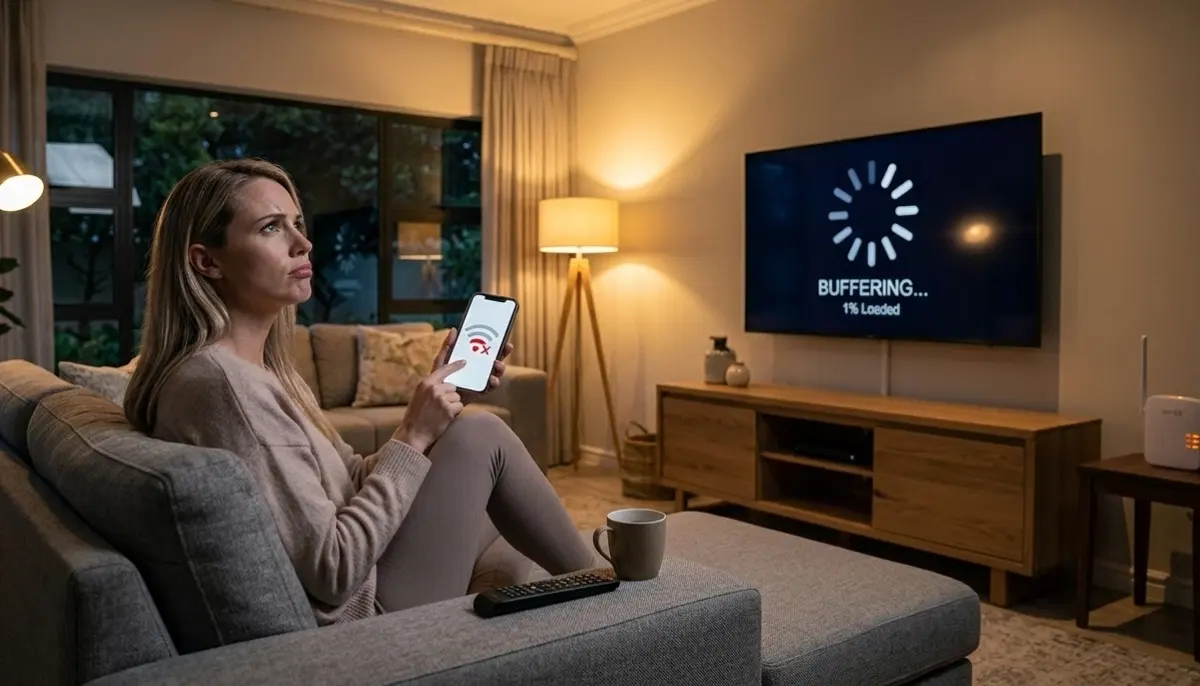
Signs You Need a WiFi Repair Specialist South Africa – When to Call a Professional
📶 Router rebooting itself? WiFi keeps disconnecting in Sandton? Certain devices won’t connect in Cape Town? Here’s when to call a professional.
Your WiFi was working fine last week. Now, video calls drop constantly. Your Fourways home office loses connection mid-meeting. The router in your Sandton apartment keeps rebooting itself. You’ve tried restarting everything – twice. Nothing helps.
These are classic signs you need a WiFi repair specialist South Africa. While many issues can be solved with basic troubleshooting, some problems indicate deeper hardware or configuration failures that require professional diagnosis.
This guide helps you distinguish between minor glitches you can fix yourself and serious problems that need expert attention. We’ll cover the specific symptoms that warrant a service call, what professionals look for, and how to choose the right technician.
If you’re experiencing any of these issues, explore our Services Overview or visit our WiFi Extensions page to find network repair specialists near you. For emergency situations, check our emergency services.
🔧 HARDWARE STANDARDS: According to Dell and Intel hardware diagnostic guidelines, persistent network issues often indicate hardware failure or serious configuration problems requiring professional diagnosis.
Experiencing WiFi Problems?
Don’t keep rebooting – get it fixed. Free quotes from vetted WiFi repair specialists who can diagnose and resolve your network issues.
Emergency and same-day service available in Johannesburg, Pretoria, Cape Town, Durban
📋 Table of Contents – WiFi Repair Guide
📞 When to Call a WiFi Technician – The 80/20 Rule
About 80% of WiFi issues can be solved with basic troubleshooting: restarting, moving the router, updating firmware. The other 20% need professional diagnosis. Here’s when you’re in that 20%:
- You’ve tried basic steps and nothing changed – restarting, repositioning, checking cables
- The problem is consistent and unexplained – it happens at specific times or under specific conditions
- Hardware shows physical signs of failure – unusual noises, burning smell, extreme heat
- Multiple devices are affected – not just one phone or laptop
- The router keeps rebooting itself – without you touching it
- WiFi works but there’s no internet – devices connect but can’t access websites
- Certain devices cannot connect while others work fine
- You suspect interference but can’t identify source
- The problem started after a power outage or storm
If any of these sound familiar, it’s time to call a professional. Continuing to struggle wastes time and may indicate a failing component that needs replacement.
Learn more about our approach on our About Us page or read why clients choose us on our Benefits page.
🔄 Router Keeps Rebooting Itself – Critical Warning Sign
If your router keeps rebooting itself randomly, this is a serious problem. It’s not normal and indicates one of several issues:
Possible Causes
- Overheating: Router is too hot and shutting down to protect itself
- Power supply failure: Faulty power adapter not providing stable power
- Firmware corruption: Software is corrupted, causing crashes
- Hardware failure: Internal components are failing
- Overload: Too many devices or high traffic causing the router to crash
- Short circuit: Physical damage to the router
What to Do
- Check if router is hot to touch – if so, move to better-ventilated area
- Try a different power outlet
- Check if problem occurs at specific times (maybe when AC or heater runs)
When to call a professional: If the router continues rebooting after basic checks, it needs diagnosis. Continuing to use a router that keeps rebooting can cause data corruption and may be a fire risk if overheating. A technician can determine if it’s repairable or needs replacement.
🌐 WiFi Works But No Internet – The Router-Internet Disconnect
This is confusing: your device shows connected to WiFi with strong signal, but you can’t load websites or use apps. This usually means:
Common Causes
- ISP outage: Your internet provider has an issue – check with neighbours
- DNS failure: Router can’t translate domain names to IP addresses
- DHCP failure: Router isn’t assigning IP addresses to devices
- WAN connection down: The connection between router and ONT/modem is down
- Account suspended: Bill not paid (check with ISP)
- MAC address filtering: Your router’s MAC might be blocked
Quick Tests
- Test on multiple devices – if all have no internet, it’s the router or ISP
- Check if you can access router admin panel – if yes, internet connection is the issue
- Look at router lights – internet/WAN light should be on or blinking
When to call a professional: If your ISP confirms no outage, but you still have no internet, a technician can diagnose the router configuration, check for DNS/DHCP issues, and verify the physical connection to your ONT. See our router setup guide for more.
📱 WiFi Keeps Disconnecting – Intermittent Connection
WiFi keeps disconnecting randomly – sometimes for seconds, sometimes for minutes. This is one of the most frustrating issues.
Possible Causes
- Interference: Neighbour networks, microwaves, cordless phones
- Channel congestion: Too many networks on same channel
- Router overload: Too many devices connected
- Outdated drivers: Device WiFi drivers need updating
- Power saving settings: Device turns off WiFi to save power
- Range issues: Device is at edge of coverage
- Faulty router: Hardware problem
Quick Tests
- Does it happen on all devices or just one? (If one, device issue)
- Does it happen at specific times? (Maybe when neighbour uses microwave)
- Does it happen only in certain rooms? (Range issue)
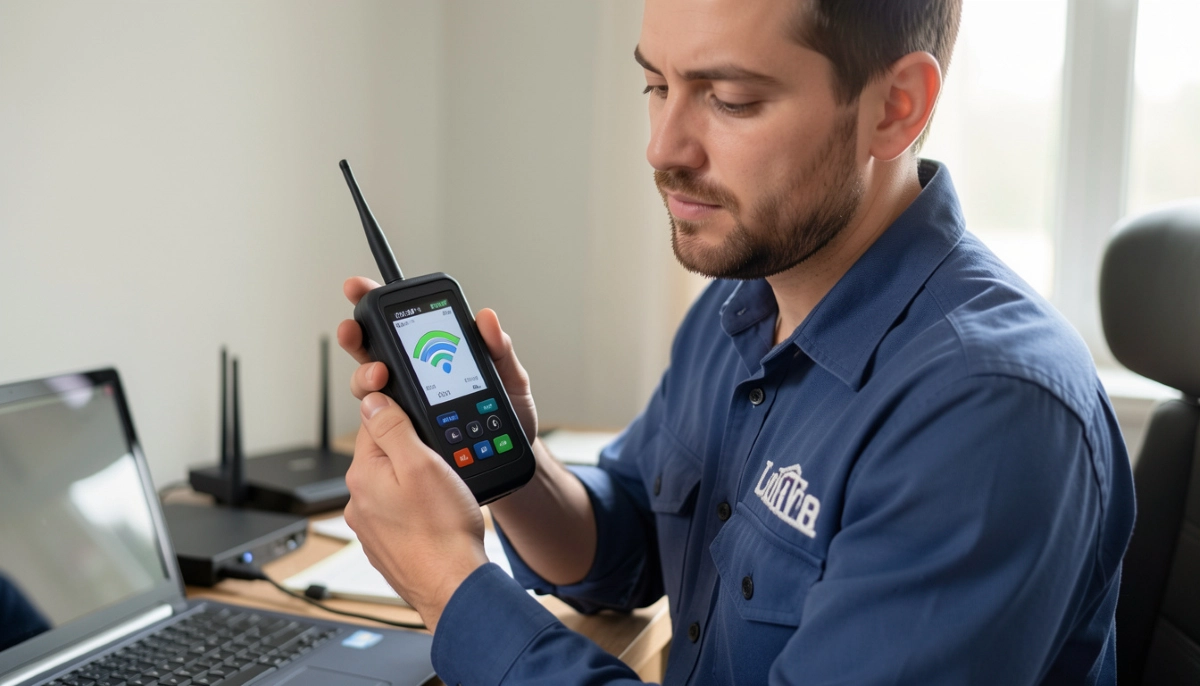
When to call a professional: If disconnections affect multiple devices and occur frequently, professional diagnosis can identify the root cause – whether interference, configuration, or hardware. A technician with spectrum analyser can see interference you can’t detect with apps.
📱 Certain Devices Cannot Connect – Selective Connection Failure
Your laptop connects fine, but your smart TV won’t. Your phone works, but your tablet doesn’t. This selective failure points to specific issues:
Common Causes
- MAC filtering: Router is set to allow only specific devices (by MAC address)
- Device limit reached: Router can only handle a certain number of connected devices
- WiFi standard mismatch: Very old device doesn’t support modern WiFi standards
- Incorrect password: Device may have wrong password stored
- IP conflict: Two devices trying to use same IP address
- Band mismatch: Device only supports 2.4GHz, router set to 5GHz only
Quick Checks
- Check router settings – is MAC filtering enabled?
- How many devices are already connected? Check router admin page
- Forget network on the problem device and reconnect with correct password
- Ensure router is broadcasting both 2.4GHz and 5GHz
When to call a professional: If you’ve checked these and the device still won’t connect, a technician can diagnose deeper issues like IP conflicts, DHCP problems, or router configuration errors.
⚠️ DHCP Failure – Devices Can’t Get IP Addresses
DHCP (Dynamic Host Configuration Protocol) is what your router uses to assign IP addresses to devices. When it fails, devices connect to WiFi but show “No IP address” or “Obtaining IP address” indefinitely.
Signs of DHCP failure
- Devices connect to WiFi but have no internet
- Devices show “No IP address” or “Self-assigned IP” (starts with 169.254)
- Only some devices get addresses while others don’t
- Restarting router temporarily fixes it, then problem returns
Common Causes
- DHCP server on router is disabled or malfunctioning
- DHCP pool is exhausted (all available IP addresses are in use)
- Firmware bug causing DHCP server to crash
- IP conflict with another device on network
When to call a professional: DHCP issues often require logging into router and checking settings. If you’re not comfortable with router configuration, a technician can quickly diagnose and fix the problem – or identify if the router needs replacement.
🌍 DNS Timeout – Websites Won’t Load
DNS timeout means your devices can’t translate website names (like google.com) into IP addresses. You’re connected to the internet, but nothing loads.
Signs of DNS Issues
- Messaging apps (WhatsApp) may work while websites don’t
- Loading websites takes forever, then times out
- Different websites fail at different times
- Restarting router temporarily helps
Common Causes
- ISP’s DNS servers are down or slow
- Router’s DNS settings are incorrect
- Malware or virus changing DNS settings
- Network congestion causing DNS packets to drop
Quick Test
Try changing your device’s DNS to Google’s (8.8.8.8 and 8.8.4.4) manually. If websites load, the problem is DNS-related.
When to call a professional: If DNS issues persist, a technician can reconfigure your router with reliable DNS servers, check for malware, and ensure your network is properly set up.
🔄 IP Conflict – Address Already in Use
IP conflict occurs when two devices on the same network try to use the same IP address. This causes one or both devices to lose connectivity.
Signs of IP Conflict
- A pop-up on Windows: “There is an IP address conflict with another system”
- Device connects but then disconnects randomly
- Only certain devices have issues at certain times
- Problem started after adding a new device
Common Causes
- Static IP addresses manually set on some devices
- DHCP server issues assigning duplicate addresses
- Two routers on same network both acting as DHCP servers
- Device waking from sleep and requesting same IP as another
When to call a professional: IP conflicts can be tricky to resolve, especially in networks with mixed static and dynamic IPs. A technician can properly configure your network to prevent conflicts and ensure smooth operation.
🔒 MAC Filtering – Accidentally Blocked Your Own Devices
MAC filtering is a security feature that allows only specific devices (by their MAC address) to connect. It’s easy to accidentally enable and block yourself.
Signs of MAC Filtering Issues
- New devices can’t connect, but existing ones work
- After restarting router, some devices can’t reconnect
- You enabled a “security feature” recently and now have problems
- Guest network works but main network doesn’t for some devices
What to Do
Log into router and check Wireless MAC Filtering settings. If enabled, you need to add your devices’ MAC addresses or disable filtering.
When to call a professional: If you can’t access router admin or don’t know how to find MAC addresses, a technician can quickly resolve this and advise on better security practices. See our network security page for more.
💾 Firmware Corruption – Router Not Responding
Your router runs on firmware – software that controls its operation. If that becomes corrupted, the router may behave strangely or stop working entirely.
Signs of firmware corruption
- Router lights blink in unusual patterns
- Can’t access router admin page (even with correct IP)
- Settings keep resetting themselves
- Router freezes and requires hard reboot
- After power outage, router never works the same
Causes
- Interrupted firmware update (power cut during update)
- Age-related flash memory failure
- Power surges corrupting firmware
- Manufacturing defect
When to call a professional: Firmware corruption often requires reflashing the firmware, which can be technical. If the router is completely unresponsive, it may need replacement. A technician can diagnose and attempt recovery or recommend a new router.
🌡️ Heat Throttling – Router Overheating
Routers generate heat. If ventilation is poor, they can overheat, causing performance drops or crashes – a phenomenon called heat throttling.
Signs of Overheating
- Router is hot to touch (should be warm, not burning)
- Problems worse in summer or during hot days
- Router slows down after being on for a while, then recovers after cooling
- Router crashes or reboots when under heavy use
Solutions
- Move router to open, ventilated area – not inside cabinets
- Ensure vents aren’t blocked by papers or other devices
- Point a small fan at router in extreme cases
- Elevate router for airflow underneath
When to call a professional: If moving and ventilation don’t help, the router may have internal cooling failure. A technician can advise on replacement or more drastic cooling solutions.
⏱️ Intermittent Internet Issues – The Hardest to Diagnose
Problems that come and go are the most frustrating and hardest to diagnose. They might be caused by:
- Intermittent interference: Neighbour’s microwave, garage door opener, etc.
- Loose connections: Cable slightly unplugged, jiggles and loses connection
- ISP issues: Network congestion at peak times
- Failing hardware: Component that works sometimes, fails when hot
- Software conflicts: Specific applications causing network issues
- Power fluctuations: Slight voltage drops affecting router
Why Professionals Help
Intermittent issues are where professional diagnosis shines. Technicians can:
- Leave monitoring equipment to log connection drops
- Use spectrum analysers over time to catch intermittent interference
- Check for patterns you might not notice
- Test different components to isolate the fault
If you have intermittent internet issues that come and go without explanation, it’s time to call a specialist.
📅 Router Age – When to Replace vs Repair
Sometimes “repair” means replacement. Here’s when it makes more sense to buy a new router:
| Router Age | Repair Worth It? | Reason |
|---|---|---|
| Less than 1 year | Yes, under warranty | Contact manufacturer for warranty replacement |
| 1-2 years | Maybe | If repair cost is less than 50% of new router |
| 2-3 years | Probably not | Newer routers have better speed, features, security |
| 3-5 years | No – replace | Technology has advanced significantly |
| 5+ years | Definitely replace | Likely bottlenecking your speed, security risks |
A good quality router costs R1,000-R3,000. Spending that on a 4-year-old router repair rarely makes sense. A technician can advise whether repair or replacement is better for your situation.
👨🔧 What a WiFi Repair Specialist Does
When you call a professional, here’s what to expect:
- Interview: They’ll ask about symptoms, when problems started, what you’ve tried
- Physical inspection: Check router, cables, connections, lights, signs of damage
- Signal testing: Use meters to measure signal strength, SNR, interference
- Spectrum analysis: Identify interference sources you can’t see
- Configuration check: Log into router, verify settings, look for errors
- Wired test: Check if problem exists on wired connection
- ISP check: Verify with your provider if needed
- Diagnosis: Explain the problem and recommended solution
- Fix/repair: Either reconfigure, repair, or replace equipment
- Verification: Test to ensure problem is resolved
A good technician will explain what they found and what they did, so you understand the fix. See our contractor guide for what to look for in a specialist.
💰 WiFi Repair Costs – What to Expect
Professional WiFi repair costs vary by issue and location:
| Service | Typical Cost | What’s Included |
|---|---|---|
| Diagnosis only (call-out) | R500 – R800 | Technician visits, diagnoses problem, provides quote for repair |
| Configuration fix | R600 – R1,200 | Diagnosis plus fixing settings (DNS, DHCP, channels, etc.) |
| Router replacement (you supply) | R600 – R1,000 | Install and configure your new router |
| Router replacement (technician supplies) | R1,500 – R3,000 | Includes mid-range router, installation, configuration |
| Emergency/after-hours | +25-50% surcharge | Same-day or after-hours service |
| Travel fee (outlying areas) | R200 – R500 | For locations outside major centres |
Many companies credit the diagnosis fee against any repair work you approve. Always ask about this policy. Use our free quote system to compare prices.
📍 Regional WiFi Repair Services by City
📶 Johannesburg & Sandton
High-density living means interference issues are common. Local technicians in Johannesburg and Sandton specialise in diagnosing channel congestion and neighbour interference. Many offer same-day service for urgent business needs.
📶 Pretoria & Fourways
In Pretoria and Fourways, larger properties may need coverage solutions alongside repairs. Technicians here often combine repair with optimisation for whole-home coverage.
📶 Cape Town & Stellenbosch
In Cape Town and Stellenbosch, multi-storey homes create unique challenges. Local specialists understand how to diagnose signal issues between floors and recommend appropriate solutions.
📶 Durban & Umhlanga
In Durban and Umhlanga, coastal humidity doesn’t directly affect WiFi, but building materials and layouts vary. Local technicians know the common issues in area homes.
❌ 8 Common DIY WiFi Repair Mistakes
Even well-intentioned DIY efforts can make things worse:
- Mistake #1: Repeatedly restarting without diagnosing. If restarting fixes it temporarily but problem returns, you’re not addressing root cause.
- Mistake #2: Factory reset without backing up settings. If you don’t know your ISP settings (PPPoE, VLAN), you may not get back online.
- Mistake #3: Ignoring physical signs. Burning smell, extreme heat, unusual sounds – these indicate hardware failure needing replacement.
- Mistake #4: Buying new router before diagnosing. If problem is interference or ISP issue, new router won’t help. Diagnose first.
- Mistake #5: Changing settings you don’t understand. Randomly changing DHCP, DNS, or IP settings can break connectivity.
- Mistake #6: Using wrong power supply. Using a different adapter with wrong voltage can destroy your router.
- Mistake #7: Ignoring cable issues. Damaged Ethernet cables cause intermittent problems – check physically.
- Mistake #8: Living with the problem too long. If you’ve had issues for weeks, it’s time to call a professional.
For more guidance, see our contractor selection guide.
❓ Frequently Asked Questions
When should I call a WiFi repair specialist?
Signs you need a WiFi repair specialist South Africa include: router keeps rebooting itself, WiFi works but no internet, certain devices cannot connect, intermittent disconnections, physical signs of damage, or problems persisting after basic troubleshooting. If you’ve tried restarting and checking connections without success, it’s time to call a professional.
Why does my router keep rebooting itself?
If your router keeps rebooting itself, common causes are overheating, power supply failure, firmware corruption, or hardware failure. Check if it’s hot to touch and ensure ventilation. If the problem continues, a technician can diagnose whether it’s repairable or needs replacement. Continuing to use a router that reboots repeatedly may indicate a serious issue.
Why does my WiFi work but I have no internet?
WiFi works but no internet usually indicates a connection issue between your router and ISP. Possible causes: ISP outage, DNS failure, DHCP failure, or WAN connection down. Test with multiple devices – if all have no internet, the problem is your router or ISP. Check router lights and contact your ISP first. If they confirm no outage, a technician can diagnose router configuration.
Why do certain devices not connect to my WiFi?
Certain devices cannot connect while others work fine – this points to device-specific issues or router settings. Possible causes: MAC filtering (device blocked), device limit reached, WiFi standard mismatch, incorrect password saved, or IP conflict. Check router settings and try forgetting the network on the problem device. A technician can quickly identify and resolve the issue.
How much does WiFi repair cost in South Africa?
WiFi repair costs R500-R1,500 depending on the issue. Diagnosis-only visits are R500-R800, configuration fixes R600-R1,200, and router replacement with installation R1,500-R3,000 including hardware. Many companies credit the diagnosis fee against repairs. Emergency or after-hours service costs 25-50% more. Get multiple quotes to compare – use our free quote system.
Should I repair or replace my old router?
If your router is over 3 years old, replacement is usually better than repair. Newer routers offer faster speeds, better WiFi standards, improved security, and handle more devices. A quality router costs R1,000-R3,000 – similar to what you might spend repairing an old one. A technician can advise based on your specific situation and needs.
What is DHCP failure and how do I fix it?
DHCP failure means your router isn’t assigning IP addresses to devices. Signs: devices connect to WiFi but show “No IP address” or have self-assigned IPs (169.254.x.x). Common causes: DHCP server disabled, DHCP pool exhausted, or firmware bug. Fixing it requires logging into router and checking DHCP settings. If you’re not comfortable with that, a technician can resolve it quickly.
What causes intermittent WiFi disconnections?
WiFi keeps disconnecting intermittently can be caused by interference (neighbour networks, microwaves), channel congestion, router overload, outdated drivers, or range issues. If it affects multiple devices, professional diagnosis with spectrum analysis can identify interference sources you can’t detect with apps.
✅ Final Thoughts – Your WiFi Repair Action Plan
Persistent WiFi problems aren’t just annoying – they can affect your work, entertainment, and peace of mind. Recognising the signs you need a WiFi repair specialist saves you time and frustration.
Key takeaways:
- Router rebooting itself – serious, needs professional diagnosis
- WiFi but no internet – DNS, DHCP, or ISP issue
- Certain devices can’t connect – MAC filtering, IP conflict, or device limit
- Intermittent issues – hardest to diagnose, professionals have tools
- Age matters – routers over 3 years may be better replaced
- Don’t live with problems – if basic steps don’t work, call a pro
🔧 The Bottom Line:
R500 – R1,500
is what professional WiFi diagnosis costs – a small investment to finally resolve frustrating network issues and get back to reliable internet.
Your 5-Step Action Plan
- Document the problem – when it happens, which devices, what you’ve tried
- Try basic steps – restart, check cables, update firmware
- If problem persists – don’t keep struggling
- Call a professional – get diagnosis from qualified technician
- Implement solution – whether repair, reconfiguration, or replacement
Stop Struggling – Get Your WiFi Fixed
Connect with trusted, vetted WiFi repair specialists in your area. Fast, professional diagnosis and repair for all your network issues.
📞 Call us: 073 138 4726 for urgent assistance
Free site surveys •
Beat-your-quote guarantee •
Our guarantees
📚 Official resources & standards:
- Dell Support – Hardware diagnostic standards and troubleshooting guides
- Intel Support – WiFi chipset troubleshooting and driver information
- ICASA – Interference complaint process and spectrum regulations
Information accurate as of publication. Prices are indicative and may vary by location and technician. This guide is for informational purposes.
Written by: Innocent T Hanyani
21+ years construction and digital industry experience, ServiceLink SA
Innocent has diagnosed and resolved thousands of WiFi issues across South Africa, working with certified network technicians and following hardware diagnostic standards from Dell, Intel, and ICASA. His expertise ensures this guide accurately reflects when professional help is needed.