
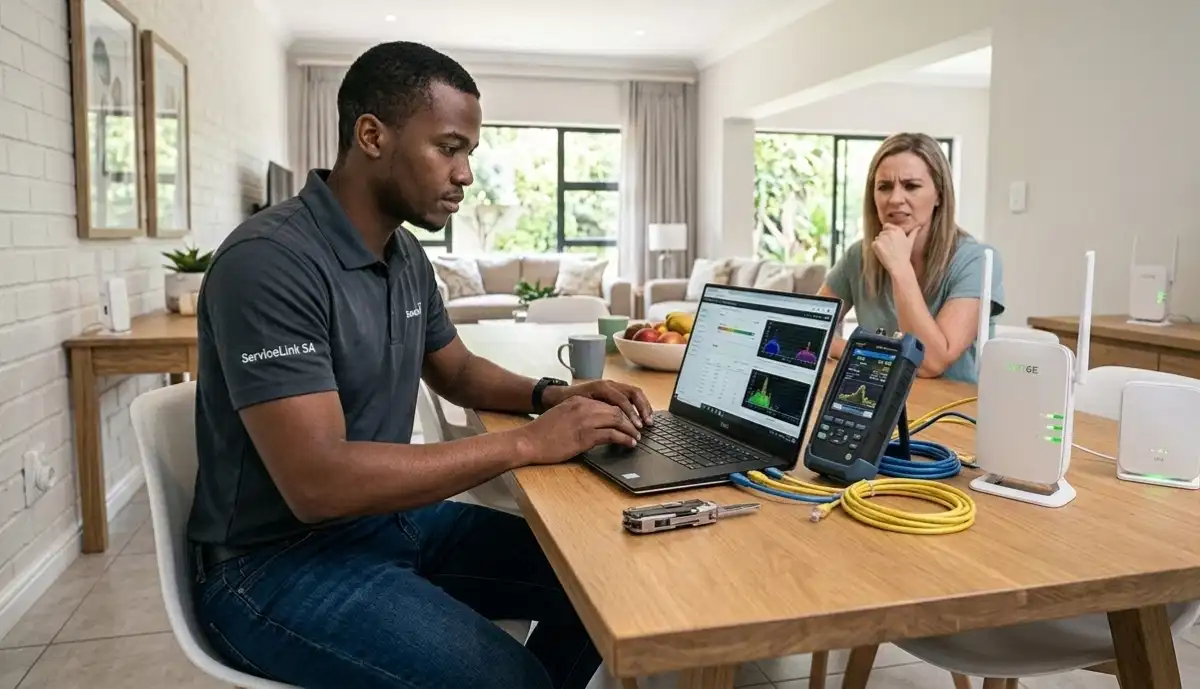
Fix Slow WiFi – Professional Troubleshooting Guide for South African Homes
📶 Buffering videos? Dropped calls in Sandton? Slow internet at night? Here’s how to diagnose and fix slow WiFi permanently.
You pay for fibre, but your Netflix buffers. Your office in Sandton has 100Mbps, but your video call freezes. And why does your WiFi always slow down after 6pm when the family is home?
Slow WiFi is frustrating, but it’s rarely random. There’s always a cause – and almost always a solution. Whether you’re in a Fourways estate, a Cape Town suburb, or a Durban apartment, this guide will help you fix slow WiFi professional troubleshooting step by step.
We’ll cover how to diagnose the problem, common causes of slow speeds, and when to call a professional. You’ll learn about interference, hardware issues, configuration problems, and the tools professionals use to identify root causes.
If you’re ready for professional help, explore our Services Overview or visit our WiFi Extensions page to find network specialists near you. For more on how we work, see How It Works.
📊 INDUSTRY STANDARD: According to the Wi-Fi Alliance, optimal home WiFi performance requires proper channel selection, minimal interference, and up-to-date hardware. Professional troubleshooting follows these standards.
Tired of Slow WiFi?
Stop guessing – get professional diagnosis. Free quotes from vetted network technicians who will find and fix the root cause.
Servicing Johannesburg, Pretoria, Cape Town, Durban, and nationwide
📋 Table of Contents – WiFi Troubleshooting Guide
🔍 Diagnosis First – Is It Your WiFi or Your Internet?
Before anything else, determine whether the problem is your WiFi network or your internet connection itself. This saves hours of wasted effort.
The Wired Test
Connect a computer directly to your router with an Ethernet cable. Run a speed test using Speedtest.net or similar. Compare the result to what you’re paying for.
- If wired speed matches your plan: Your internet is fine. The problem is your WiFi.
- If wired speed is also slow: The issue is your internet connection or router. Contact your ISP.
What’s Normal?
- Fibre: 90-100% of advertised speed achievable
- WiFi: Typically 50-80% of wired speed depending on distance and interference
- If your WiFi is below 30% of wired speed, something’s wrong
Learn more about our approach on our About Us page or read why clients choose us on our Benefits page.
📊 WiFi Speed Test Analysis – What the Numbers Mean
Running a WiFi speed test analysis isn’t just about the number – it’s about understanding what affects it.
Test in Multiple Locations
Run speed tests in different rooms and note the results:
- Next to router: Should be close to wired speed (within 10-20% loss)
- Living room (1-2 rooms away): Expect 50-70% of router speed
- Bedrooms/dead zones: If below 10-20% of router speed, you have coverage issues
Test at Different Times
If WiFi speed drops after 6pm, test throughout the day:
- Morning (low usage)
- Afternoon (medium usage)
- Evening (peak usage)
Patterns reveal whether the issue is congestion (neighbour interference) or your own network usage.
Key Metrics
- Download speed: What matters for streaming, browsing
- Upload speed: Important for video calls, gaming, cloud backups
- Ping/latency: High ping affects gaming, video calls – aim for under 50ms
- Jitter: Variation in ping – high jitter causes stuttering
Document your results – they help professionals diagnose faster.
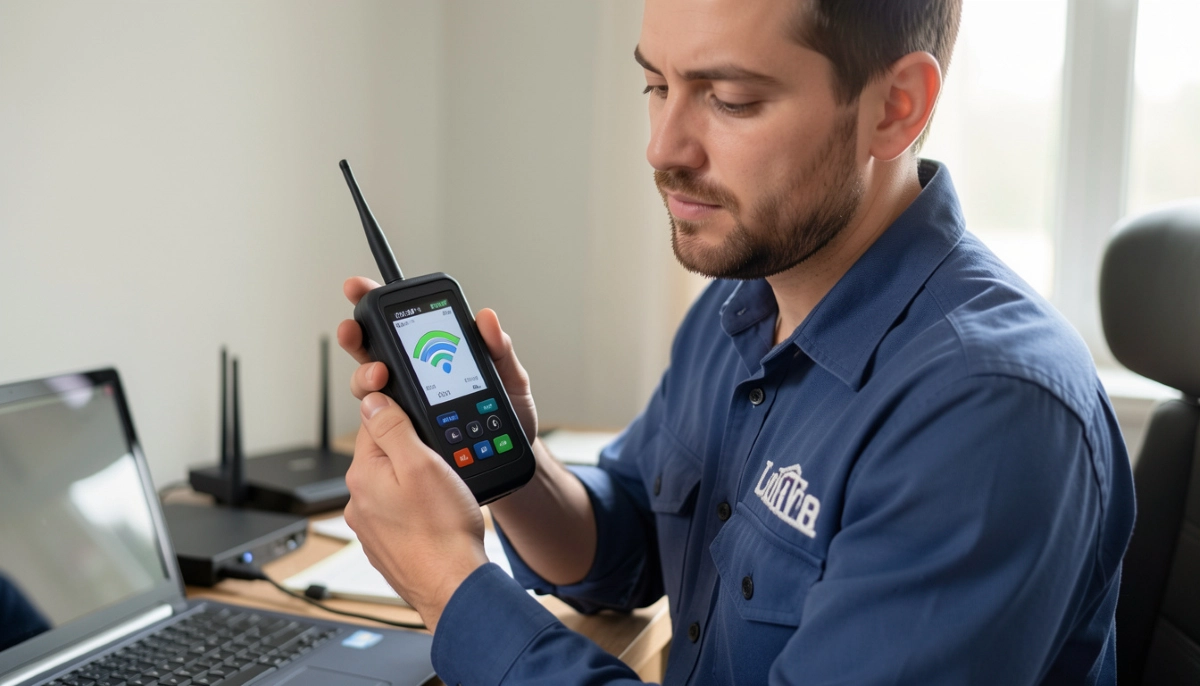
⚠️ 7 Common Causes of Slow WiFi
Most slow WiFi issues fall into these categories:
- Channel congestion: Too many neighbouring networks on the same channel – common in complexes, townhouses
- Router placement: Router in a corner, cupboard, or behind furniture
- Outdated hardware: Old router can’t handle modern speeds or multiple devices
- Interference: Microwaves, cordless phones, baby monitors, neighbours’ WiFi
- Distance and obstacles: Thick walls, metal, floors block signal
- Too many devices: Router overwhelmed by 20+ connected devices
- Bandwidth hogs: One device streaming 4K or downloading large files
Identifying which cause applies to you is the first step to fixing it. Many homes have multiple causes working together.
📡 Channel Congestion & Neighbour Interference
In dense areas like Sandton apartments or Fourways complexes, channel congestion is the #1 cause of slow WiFi.
How Channels Work
- 2.4GHz band has 3 non-overlapping channels (1, 6, 11) in South Africa
- 5GHz band has many more channels, but they’re shorter range
- If 10 neighbours are all on channel 6, they’re all interfering with each other
How to Check
Use WiFi analyser apps (WiFi Analyzer for Android, NetSpot for Windows) to see:
- How many networks are on each channel
- Signal strength of neighbouring networks
- Which channels are least crowded
Solutions
- Change channel: Select the least crowded channel manually (not auto)
- Use 5GHz: Less congestion, more channels – but shorter range
- Band steering: Modern routers guide devices to best band automatically
- Professional channel planning: For severe congestion, professionals use spectrum analysers to find optimal settings
Professional WiFi signal optimization includes comprehensive channel planning.
📍 Router Placement Issues – The Most Common Mistake
Where you put your router dramatically affects performance. Yet most people hide it in a corner, cupboard, or behind the TV.
Optimal Router Placement
- Central location: As close to the centre of your home as possible
- Elevated: On a shelf or table, not the floor
- Away from walls: Signal radiates in all directions – walls block it
- Away from metal: Mirrors, filing cabinets, appliances block signal
- Away from interference: Keep away from microwaves, cordless phones, baby monitors
- Clear line of sight: Minimise obstacles between router and where you use WiFi
Quick Fixes
- Move router to a better location – even 2 metres can make a huge difference
- Elevate it – bookshelf height is better than floor level
- Orient antennas vertically (if adjustable) – perpendicular for best coverage
If relocation isn’t possible, consider WiFi extenders or mesh systems.
⚙️ Outdated Hardware & Firmware
Your router is a small computer. Like any computer, it gets slower and less secure over time.
When to Upgrade Your Router
- Router is more than 3-4 years old
- You’ve upgraded to faster fibre (100Mbps+) but router is old
- You have many devices (10+) and router struggles
- Router frequently crashes or needs rebooting
- It only supports WiFi 4 (802.11n) – WiFi 5 (AC) or WiFi 6 (AX) is much better
Firmware Updates
Outdated firmware causes performance issues and security vulnerabilities. Check for updates:
- Log into router admin panel
- Look for firmware update section
- Update if available – or enable automatic updates
Professional router setup ensures firmware is current and configured optimally.
🏠 Why is My WiFi Slow in Certain Rooms?
This is the most common complaint: “The WiFi works fine in the lounge, but the bedroom is hopeless.”
Common Causes of Room-Specific Slow WiFi
- Distance: Signal weakens with distance – each room away loses strength
- Walls: Brick, concrete, plasterboard all absorb signal. Thick walls are worse.
- Metal: Ducting, pipes, mirrors, or appliances in walls block signal
- Floor transitions: Going upstairs or downstairs loses significant signal
- Building materials: Some homes have foil-backed insulation that blocks WiFi entirely
Solutions for WiFi dead zone solution
- Move router: Sometimes a few metres makes a huge difference
- WiFi extender: For one or two dead zones
- Mesh system: For whole-home coverage, multiple dead zones
- Ethernet cabling: Run cable to the room, add access point – best performance
- Powerline adapters: Use electrical wiring to extend network (varies by house wiring)
A professional site survey identifies exactly why specific rooms are slow and recommends the best solution.
🌙 WiFi Speed Drops After 6pm – Why?
This pattern is extremely common. If your WiFi speed drops after 6pm, here’s why:
Peak Usage Times
- Evenings are when everyone is home – streaming, gaming, video calls
- Your own household bandwidth gets shared among more users
- Neighbours are also using their networks heavily – increasing interference
- Your ISP’s local infrastructure may be congested at peak times
How to Diagnose
- Run wired speed test during evening – if wired is also slow, it’s ISP congestion
- If wired is fine but WiFi slow, it’s local congestion/interference
- Check how many devices are connected to your network in the evening
Solutions
- Quality of Service (QoS): Prioritise important traffic (video calls, streaming)
- Upgrade router: Better routers handle multiple devices more efficiently
- Move to 5GHz: Less congestion than 2.4GHz in dense areas
- Schedule downloads: Set large downloads for off-peak times
- Contact ISP: If wired speed is consistently slow, they may have capacity issues
📻 Interference Sources You Can Control
Not all interference comes from neighbours. Common household devices wreak havoc on WiFi:
- Microwaves: Operating at 2.4GHz – can kill WiFi when in use. Keep router away from kitchen.
- Cordless phones: Older models use 2.4GHz – switch to DECT 6.0 (1.9GHz) if possible.
- Baby monitors: Many use 2.4GHz – check frequency and move if possible.
- Bluetooth devices: Also use 2.4GHz – can cause minor interference.
- Wireless speakers: Some use WiFi frequencies.
- Fluorescent lights: Can generate electrical noise.
- Neighbour’s WiFi: Already covered under channel congestion.
What You Can Do
- Move router away from these devices
- Use 5GHz where possible (less affected by common household interference)
- Replace old cordless phones with DECT 6.0 models
- Turn off devices when not needed
Professional troubleshooting includes identifying and mitigating these interference sources.
⚖️ QoS Settings – Prioritising Important Traffic
Quality of Service (QoS) lets you prioritise certain types of traffic or specific devices. This is especially useful when bandwidth is limited.
What QoS Can Do
- Prioritise video calls (Zoom, Teams, WhatsApp) over background downloads
- Ensure gaming traffic gets low latency
- Limit bandwidth for certain devices (guest network, IoT devices)
- Prevent one device from hogging all bandwidth
How to Configure
Log into your router admin panel and look for QoS, Traffic Management, or Bandwidth Control. Options vary by router:
- Automatic QoS: Router detects and prioritises traffic types
- Manual QoS: Set priority levels for specific devices or applications
- Bandwidth limits: Cap maximum speed for certain devices
Professional router configuration includes optimising QoS for your specific needs.
🔄 Band Steering – Getting Devices on the Right Band
Modern routers are dual-band: 2.4GHz and 5GHz. Each has strengths:
- 2.4GHz: Longer range, better through walls, but slower, more congested
- 5GHz: Faster, less congested, but shorter range, worse through walls
Band Steering Explained
Band steering is a feature that automatically guides devices to the best band. It encourages capable devices to use 5GHz when close to router, and lets them fall back to 2.4GHz when farther away.
Why It Matters
Without band steering, many devices default to 2.4GHz even when 5GHz would be better. This causes slower speeds and more congestion on 2.4GHz. Band steering balances the load and improves overall performance.
How to Enable
Check your router settings under WiFi or Advanced settings. May be called “Band Steering,” “Smart Connect,” or similar. Enable it if available.
For homes in Stellenbosch and Umhlanga with many devices, band steering significantly improves performance.
📶 SNR Ratio – Understanding Signal Quality
Signal strength alone doesn’t tell the whole story. SNR (Signal-to-Noise Ratio) measures signal quality – the difference between your WiFi signal and background noise.
What Good SNR Looks Like
- 40dB+: Excellent – maximum speeds possible
- 25-40dB: Good – solid performance
- 15-25dB: Fair – usable but may have issues
- Below 15dB: Poor – frequent drops, slow speeds
Why SNR Matters
You might have “-50dBm” signal (strong), but if noise is “-45dBm” (SNR only 5dB), your connection will be terrible. The noise drowns out the signal. This happens in noisy environments – apartments with many networks, or near electrical interference.
Improving SNR
- Reduce noise sources (interference)
- Move router away from noise
- Change channels to avoid overlapping networks
- Use 5GHz where noise may be lower
Professional troubleshooting includes measuring SNR and addressing poor signal quality, not just strength.
🔧 Tools Professionals Use for WiFi Troubleshooting
Professional technicians use tools far beyond smartphone apps:
- Spectrum analysers: Measure interference across all frequencies, identify noise sources
- WiFi survey tools: Create heat maps of your home showing signal strength, SNR, interference
- Ethernet testers: Verify cabling integrity if wired backhaul is used
- throughput testers: Measure actual throughput, not just speed test numbers
- Packet analysers: Identify network issues like packet loss, high latency
- Thermal cameras: Sometimes used to identify overheating routers
These tools provide objective data, not guesswork. They identify exactly what’s wrong and where. A professional site survey using these tools typically costs R500-R1,000 and is often credited back if you proceed with recommended work.

📋 Step-by-Step WiFi Troubleshooting
Follow this systematic approach before calling a professional:
- Run wired speed test – confirm if problem is internet or WiFi
- Check all devices – is it one device or all devices?
- Restart everything – router, modem, devices – in correct order (modem first, then router, then devices)
- Check router placement – is it central and elevated?
- Check for interference – move router away from electronics, microwaves
- Update firmware – log into router and check for updates
- Change WiFi channel – use analyser app to find least crowded channel
- Enable band steering – if available
- Check for bandwidth hogs – who’s using all the data?
- Consider age of router – if 3+ years old, upgrade may help
Document what you tried – it helps professionals if you still need assistance.
📞 When to Call a Professional
Some situations are best left to experts:
- You’ve tried basic steps and nothing worked
- Problem is intermittent and hard to diagnose
- You suspect structural issues (walls, building materials)
- You need whole-home coverage solutions (mesh, cabling)
- You’re in a dense area with severe interference
- Your router is configured correctly but speeds are still poor
- You need Ethernet cabling installed
- You want a guarantee that the problem will be fixed
Professional troubleshooting typically costs R500-R1,200 for a site visit and diagnosis, often credited back if you proceed with recommended work. See our guide to choosing a WiFi installer for what to look for.
💰 Cost of Professional WiFi Troubleshooting
What you can expect to pay for professional diagnosis:
| Service | Typical Cost | What’s Included |
|---|---|---|
| Basic site visit & diagnosis | R500 – R800 | Visual inspection, speed tests, basic recommendations |
| Comprehensive WiFi survey | R800 – R1,500 | Heat mapping, spectrum analysis, detailed report |
| Troubleshooting + configuration | R800 – R1,500 | Diagnosis plus router optimisation, channel changes, QoS setup |
| Emergency/after-hours call-out | +25-50% surcharge | Evenings, weekends, urgent issues |
| Travel fee (outlying areas) | R200 – R500 | For locations outside major centres |
Many companies credit the diagnosis fee against any repair or installation work you approve. Always ask about this policy.
📍 Regional WiFi Issues by City
Different areas have different challenges:
📶 Johannesburg & Sandton
High-density living means severe channel congestion. Apartments and townhouses have dozens of overlapping networks. 2.4GHz is often unusable in peak times. Solutions: 5GHz prioritisation, professional channel planning, mesh systems with dedicated backhaul.
📶 Pretoria & Centurion
Larger properties with thick walls – signal penetration issues. Many homes have concrete walls that block WiFi. Solutions: Multiple access points, mesh systems, strategic router placement.
📶 Cape Town & Stellenbosch
Multi-storey homes and heritage buildings with thick walls. Signal struggles between floors. Solutions: Mesh systems, Ethernet backhaul between floors, powerline adapters where cabling difficult.
📶 Durban & Umhlanga
Humidity doesn’t directly affect WiFi, but coastal building materials and open-plan layouts create unique challenges. Solutions: Strategic placement, high-power access points for larger spaces.
❌ 8 Common DIY Troubleshooting Mistakes
Even well-intentioned DIY efforts can make things worse:
- Mistake #1: Only testing speed, not diagnosing cause. Speed tests tell you it’s slow, not why. Professional diagnosis finds root cause.
- Mistake #2: Buying a new router before confirming it’s the problem. If the issue is interference, a new router won’t help. Diagnose first.
- Mistake #3: Placing extender in dead zone. Extenders need good signal from router – place halfway, not in dead zone.
- Mistake #4: Ignoring firmware updates. Old firmware causes performance issues and security holes.
- Mistake #5: Using default channels. Auto-channel selection often picks crowded channels. Manual selection based on analysis is better.
- Mistake #6: Not considering wired options. For fixed devices (smart TVs, consoles), Ethernet is always better than WiFi.
- Mistake #7: Blaming the ISP without testing wired speed. Always test wired first – if wired is fine, problem is your network.
- Mistake #8: Giving up too soon. Many issues are fixable with proper diagnosis. Don’t live with slow WiFi.
For more guidance, see our contractor selection guide.
❓ Frequently Asked Questions
Why is my WiFi slow in certain rooms?
Why is my WiFi slow in certain rooms – signal weakens with distance and is blocked by walls, especially brick or concrete. Metal objects, appliances, and even furniture can block signal. The solution depends on the cause: moving the router, adding a WiFi extender, or installing a mesh system. A professional site survey can identify exactly why specific rooms are problematic and recommend the best fix.
Why does my WiFi slow down at night?
WiFi speed drops after 6pm is usually due to peak usage – everyone in your neighbourhood is home using their internet. This causes both channel congestion (interference from neighbours) and potential ISP congestion. Test wired speed in the evening – if wired is also slow, contact your ISP. If wired is fine, the issue is local interference – try moving to 5GHz, changing channels, or enabling QoS.
How do I run a proper WiFi speed test?
Use Speedtest.net or similar. Test in multiple locations: next to router, in commonly used rooms, and in problem areas. Test at different times: morning, afternoon, evening. Compare to your wired speed (Ethernet connection) to see if the problem is WiFi or internet. Document results – patterns help diagnose the issue.
How do I check for WiFi interference?
Use WiFi analyser apps (WiFi Analyzer for Android, NetSpot for Windows) to see neighbouring networks and channel usage. Look for many networks on the same channel – that’s congestion. Also identify potential interference sources: microwaves, cordless phones, baby monitors. Move your router away from these. For thorough analysis, professional spectrum analysers detect interference that apps miss.
How often should I restart my router?
For most modern routers, you shouldn’t need to restart regularly. If you’re restarting weekly, something’s wrong – possibly overheating, outdated firmware, or hardware failure. Try updating firmware first. If problems persist, consider professional diagnosis. Some people schedule weekly restarts as maintenance, but this shouldn’t be necessary with quality equipment.
Will a WiFi extender fix slow speeds?
A WiFi extender can fix coverage issues (dead zones), but it won’t increase speed – in fact, it typically reduces speed by up to 50% because it uses the same bandwidth to communicate with the router and serve devices. For slow speeds caused by weak signal, an extender can help by providing a usable connection where there was none. For speed issues caused by congestion or old hardware, other solutions are needed.
How do I know if my router is too old?
If your router is more than 3-4 years old, you’ve upgraded to faster internet (100Mbps+), you have many devices (10+), or it frequently needs rebooting, it may be time to upgrade. Look for WiFi 5 (AC) or WiFi 6 (AX) routers. A professional can test whether your current router is capable of your internet speed – often older routers bottleneck at 50-80Mbps even on fast fibre.
How much does professional WiFi troubleshooting cost?
Professional troubleshooting costs R500-R1,500 depending on complexity. Basic site visits with visual inspection and speed tests are R500-R800. Comprehensive surveys with heat mapping and spectrum analysis are R800-R1,500. Many companies credit this fee against any repair work. Given the time and frustration saved, professional diagnosis is often worth the investment.
✅ Final Thoughts – Your WiFi Troubleshooting Action Plan
Slow WiFi is frustrating, but rarely a mystery. With systematic diagnosis, most issues can be identified and fixed – often permanently.
Key takeaways:
- Diagnose first: Wired test tells you if problem is WiFi or internet
- Common causes: Congestion, placement, interference, old hardware
- Patterns matter: Evening slowdowns suggest congestion; room-specific issues suggest coverage
- Tools help: Analyser apps for DIY, professional tools for complex cases
- Don’t guess: Professional troubleshooting saves time and money in the long run
- Solutions exist: From simple channel changes to mesh systems, every problem has a fix
📶 The Bottom Line:
R500 – R1,500
is what professional WiFi diagnosis costs – a small investment to finally fix slow speeds and enjoy reliable internet everywhere.
Your 5-Step Action Plan
- Run wired speed test – confirm if problem is WiFi or internet
- Document patterns – when and where is WiFi slow?
- Try basic fixes – restart, move router, update firmware
- Use analyser apps – check for congestion, find best channels
- Call a professional – if issues persist, invest in proper diagnosis
Ready to Finally Fix Your Slow WiFi?
Stop living with buffering and dropped connections. Connect with trusted WiFi specialists who will diagnose and fix the root cause.
📞 Call us: 073 138 4726 for personalised assistance
Free site surveys •
Beat-your-quote guarantee •
Our guarantees
📚 Official resources & standards:
- Speedtest.net – Global speed test benchmark and network insights
- Wi-Fi Alliance – Performance standards and certification information
- Microsoft Windows Network Diagnostics – Built-in troubleshooting tools
Information accurate as of publication. Prices are indicative and may vary by location and technician. This guide is for informational purposes.
Written by: Innocent T Hanyani
21+ years construction and digital industry experience, ServiceLink SA
Innocent has diagnosed thousands of WiFi issues across South Africa, working with certified network technicians and following Wi-Fi Alliance standards. His expertise ensures this guide reflects current best practices for troubleshooting and optimisation.