
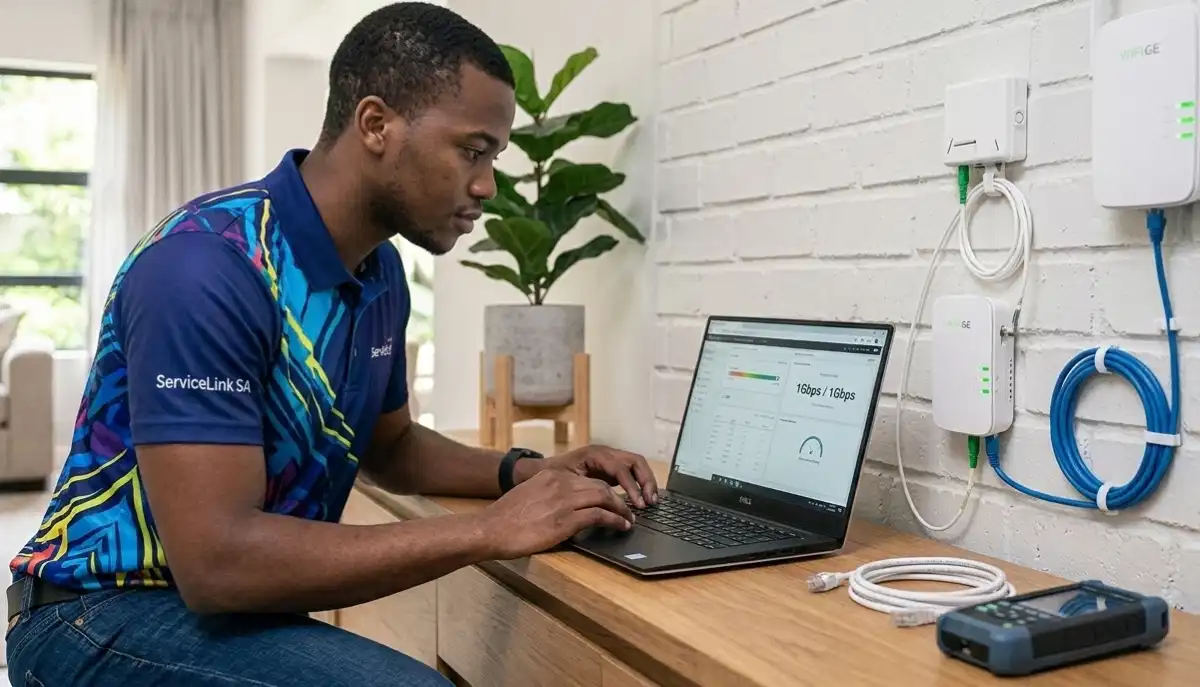
Planning to Switch Internet Providers?
Get professional help from local specialists who understand switch ISP without downtime and ISP migration processes.
Servicing Centurion, Sea Point, Hillcrest, and across South Africa
How to Switch ISP Without Losing Internet: Downtime Explained
🔄 Changing internet providers doesn’t have to mean days without connectivity—here’s how to do it right.
You’ve decided to switch internet service providers. Maybe you’ve found a better deal, faster speeds, or better customer service. But there’s one thing holding you back: the fear of being without internet for days or even weeks.
This is one of the most common concerns I hear from homeowners across South Africa. The question how to switch ISP without losing internet downtime explained is one I answer almost daily. The good news is that with the right approach, you can change fibre provider without losing internet or at least minimise downtime significantly.
In this comprehensive guide, I’ll walk you through the entire ISP migration process. I’ll explain how to switch from Linked to Openserve fibre, how to switch fibre provider in South Africa, and answer the critical question: can I switch fibre provider without losing WiFi? Whether you’re in Centurion, Sea Point, or Hillcrest, this guide will help you transition smoothly.
For more on fibre, check out our fibre ONT and router guide and best fibre packages guide. Let’s get you switched without the headache.
📋 Table of Contents – ISP Switching Guide
🔄 Why Switch Internet Providers?
Before we dive into how to switch ISP without losing internet downtime explained, let’s understand why people switch.
Common Reasons for Switching:
- Better pricing: New providers often offer promotional rates or better value.
- Faster speeds: You may need more bandwidth for streaming, gaming, or work.
- Poor customer service: Frustration with your current provider’s support.
- Better reliability: Frequent outages or slow speeds during peak hours.
- New offers: Bundled services or additional features.
- Moving homes: Your new area may have different providers available.
When Switching Makes Sense:
- You’re paying more than the market rate.
- You’re not getting the speeds you’re paying for.
- Your current provider’s service is unreliable.
- A new provider offers significantly better value.
When to Stay:
- You’re happy with your current service.
- The savings aren’t worth the hassle.
- You’re on a contract with cancellation penalties.
For more on comparing providers, see our fibre vs LTE comparison.
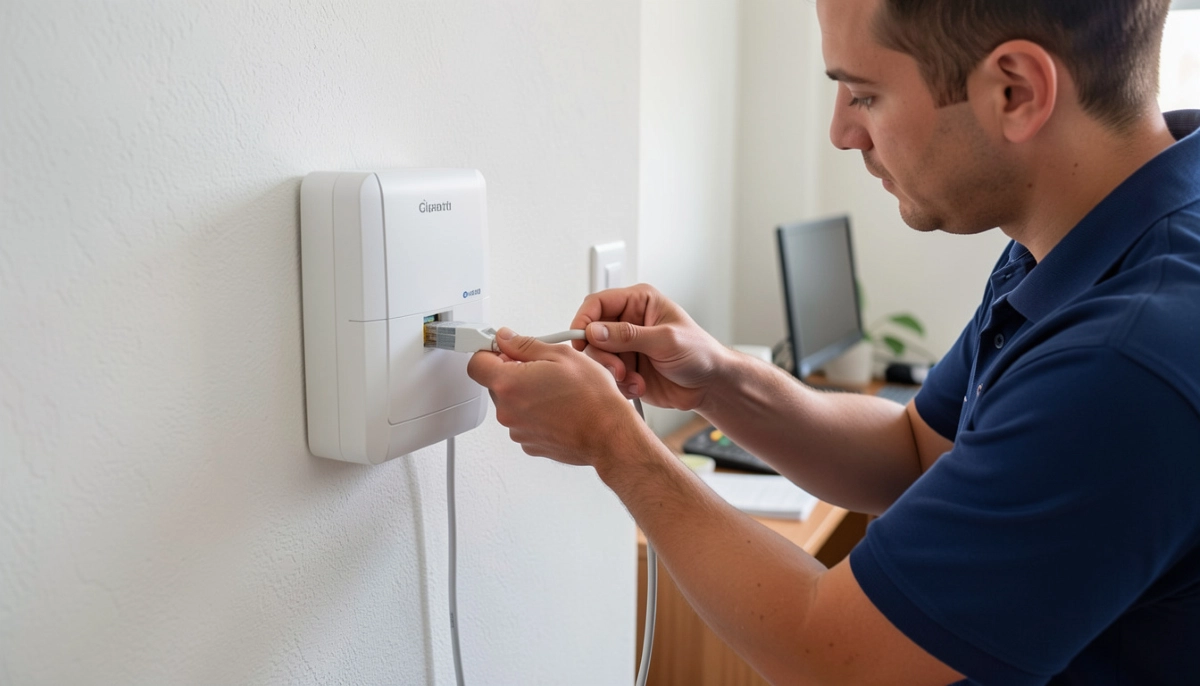
⏱️ Understanding ISP Migration Downtime
To master how to switch ISP without losing internet downtime explained, you need to understand where downtime comes from.
What Causes Downtime During ISP Migration:
- Administrative processing: Your new ISP needs to set up your account and request the line from the network operator.
- Network operator delays: The fibre network operator (Openserve, Vumatel, Frogfoot) needs to provision the line.
- Hardware changes: You may need a new router or ONT configuration.
- Technical issues: Problems during the transfer can cause delays.
- Installation appointments: If a technician visit is required, you’ll be without internet until the appointment.
Types of Downtime:
- Zero downtime: Some switches can happen seamlessly with no interruption.
- Minimal downtime: A few hours or a day without service.
- Extended downtime: Several days or more if issues arise.
Realistic Expectations:
In South Africa, ISP migration typically takes 1-3 days from requesting the switch to having the new service active. However, with proper planning, you can minimise actual downtime to a few hours.
For more on fibre installation, see our fibre installation delays guide.
📋 Preparation Before Switching
Proper preparation is key to switch ISP without downtime.
Step 1: Research Your Options
Compare ISPs available in your area. Consider:
- Speed offerings
- Monthly costs
- Contract terms
- Customer reviews
- Data caps and fair usage policies
Step 2: Check Cancellation Terms
Review your current ISP’s contract. Look for:
- Notice period (usually 1 month).
- Early termination fees.
- Equipment return requirements.
Step 3: Understand Your Network
Know who your fibre network operator is (Openserve, Vumatel, Frogfoot, etc.). This affects how to switch fibre provider in South Africa.
Step 4: Gather Information
Have ready:
- Your current account number.
- Your fibre line details.
- Your ONT serial number (if applicable).
- Contact information for both ISPs.
Step 5: Choose Your New Provider
Select your new ISP and check if they can provide service on your existing fibre line. This is crucial for how to switch from Linked to Openserve fibre or other combinations.
For more on choosing, see our best fibre packages guide.
🔧 Step-by-Step Switching Process
Here’s a complete switch ISP without downtime process.
Step 1: Contact Your New ISP
Sign up with your new ISP. Inform them you’re switching from another provider. They’ll start the ISP migration process.
Step 2: Don’t Cancel Your Old ISP Yet
This is critical for change fibre provider without losing internet. Keep your old service active until your new service is confirmed working.
Step 3: Coordinate the Switch
Your new ISP will work with the network operator to provision your line. This typically takes 1-3 days.
Step 4: Test Your New Service
Once your new ISP confirms the service is active, test it thoroughly. Ensure you’re getting the speeds you signed up for.
Step 5: Cancel Your Old ISP
Only after confirming your new service is working correctly should you cancel your old ISP. Provide the required notice period.
Step 6: Return Equipment
Return any equipment (routers, ONTs) to your old ISP. This avoids equipment charges.
Step 7: Update Your Details
Update your contact information with your new ISP. Set up auto-payments if desired.
This approach minimises downtime and ensures you’re never without internet.
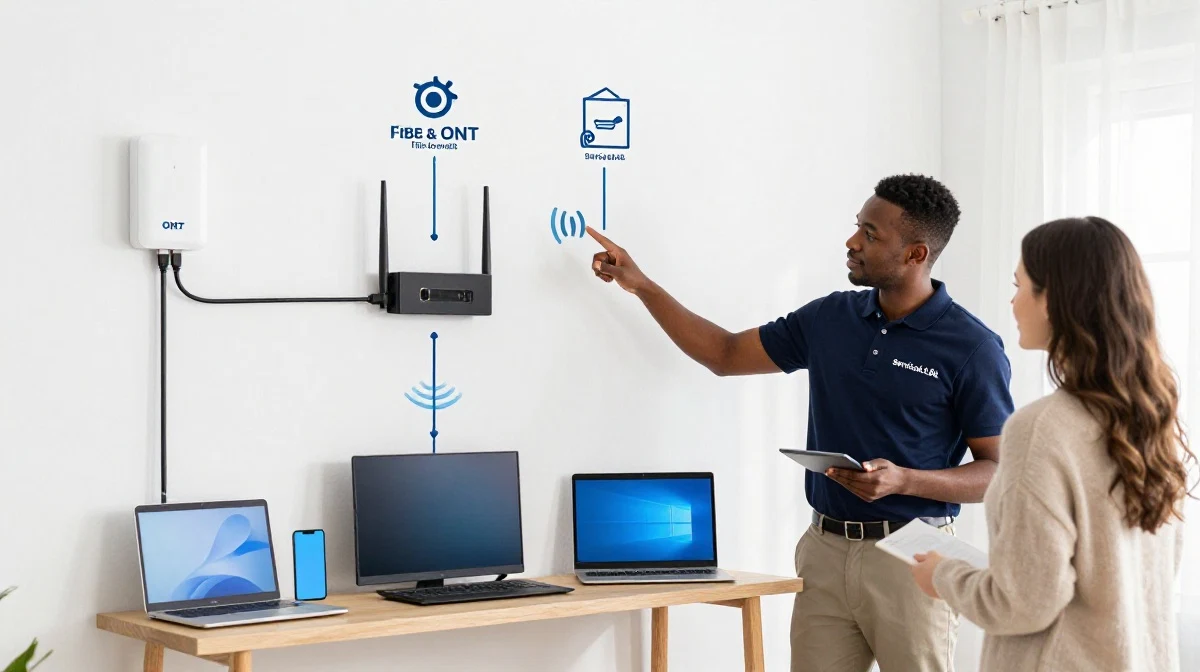
Worried About Internet Downtime When Switching?
Get professional help from local specialists who can manage your ISP migration and ensure minimal downtime.
Free consultations available for switch ISP without downtime.
⏱️ How to Minimise Downtime
Here are strategies to switch ISP without downtime or minimise it significantly.
Strategy 1: Overlap Your Services
Keep your old service active until your new service is confirmed working. This may mean paying for both for one month, but it guarantees no downtime.
Strategy 2: Use a Backup Connection
Have a mobile hotspot or LTE backup ready. This ensures you stay connected even if the switch takes longer than expected. See our LTE backup guide.
Strategy 3: Schedule the Switch
Plan the switch for a time when being without internet is least disruptive (e.g., not during work hours or important events).
Strategy 4: Coordinate with Both ISPs
Ensure both ISPs are aware of the switch and coordinate the timing. Your new ISP should confirm when the line is active.
Strategy 5: Test Early
As soon as your new ISP says the line is active, test it. If there are issues, you can address them while your old service is still active.
Strategy 6: Have a Backup Plan
If you absolutely cannot afford downtime, have a backup internet solution ready (LTE, mobile hotspot, or a neighbour’s WiFi).
For more on staying connected, see our WiFi during loadshedding guide.
🔌 Setting Up Your New ISP
Once the switch is complete, here’s how to set up your new service.
Step 1: Connect Your Equipment
If you’re using the same ONT, it should already be connected. If you have a new router, connect it to the ONT using an Ethernet cable.
Step 2: Configure Your Router
Follow your new ISP’s instructions for router configuration. This may involve:
- Setting the WAN connection type (usually DHCP).
- Entering a PPPoE username and password (if required).
- VLAN settings (if required by your network operator).
Step 3: Test Your Connection
Run a speed test to confirm you’re getting the speeds you’re paying for. Test at different times of day.
Step 4: Update Your WiFi Settings
You may want to use the same network name (SSID) and password as before so your devices auto-connect. This is part of WiFi setup after changing ISP.
Step 5: Check All Devices
Ensure all your devices can connect to the new network. Check smart home devices, printers, and other connected devices.
For more on router setup, see our router setup guide.
⚙️ WiFi Setup After Changing ISP
WiFi setup after changing ISP is a critical step in the how to switch ISP without losing internet downtime explained process.
Option 1: Keep Your Existing Router
If your old router is compatible with your new ISP (most are), you can keep it. You’ll just need to update the WAN settings.
Option 2: Use the New ISP’s Router
Your new ISP may provide a router. Set it up according to their instructions. You may want to keep the same network name and password for convenience.
Important Configuration Steps:
- WAN connection type: Set to DHCP (Automatic IP) for most fibre connections, or PPPoE if required.
- VLAN settings: Some network operators require specific VLAN tags (e.g., VLAN 10 for Vumatel).
- WiFi settings: Configure your network name (SSID) and password.
- Security: Use WPA2 or WPA3 encryption.
If You’re Having Issues:
Contact your new ISP’s support. They can guide you through the WiFi configuration process for their specific network.
For more on configuration, see our fibre ONT setup guide.

🛠️ Common Challenges and Solutions
Here are common challenges during ISP migration and how to overcome them.
Challenge 1: Delays in Activation
Solution: Contact your new ISP to check on the status. They can escalate with the network operator. Plan for delays and have a backup connection ready.
Challenge 2: Compatibility Issues
Solution: If your router doesn’t work with your new ISP, you may need to use their provided router or configure your router with the correct settings. Check how to switch from Linked to Openserve fibre or other specific combinations.
Challenge 3: Speed Discrepancies
Solution: If your speeds are lower than expected, check your router settings, test with a wired connection, and contact your new ISP.
Challenge 4: Equipment Return
Solution: Don’t forget to return equipment to your old ISP. Missing this can result in charges.
Challenge 5: Billing Issues
Solution: Keep records of your cancellation and payments. Follow up with your old ISP to ensure your account is closed.
For more on troubleshooting, see our fibre installation delays guide.
📅 Realistic Timeline for ISP Migration
Here’s what to expect when you switch fibre provider in South Africa.
| Step | Timeframe | Notes |
|---|---|---|
| Research and choose new ISP | 1-2 days | Compare packages and read reviews |
| Sign up with new ISP | 1 day | Complete application and provide details |
| Line provisioning | 1-3 days | Network operator provisions the line |
| Service activation | Same day | New ISP activates service |
| Test and confirm | Hours | Test speeds and connectivity |
| Cancel old ISP | 1 day | Provide notice, return equipment |
| Total time | 2-5 days | Minimal downtime if planned well |
Key Takeaway: With proper planning, you can switch ISP without downtime by overlapping services and having a backup connection ready.
❓ Frequently Asked Questions About Switching ISPs
How do I switch ISPs without losing internet?
How to switch ISP without losing internet downtime explained starts with overlapping your services. Keep your old ISP active while your new ISP sets up. Only cancel your old ISP after confirming your new service works. This is the most reliable way to switch ISP without downtime.
Can I change fibre provider without losing internet?
Yes, you can change fibre provider without losing internet by overlapping services. Your new ISP can provision the line while your old service remains active. Once the new service is confirmed working, you cancel the old one. This is the key to switch fibre provider in South Africa without downtime.
How long does it take to switch fibre providers?
Switching fibre providers typically takes 2-5 days. The ISP migration process involves your new ISP requesting the line from the network operator. Actual downtime can be minimal if you overlap services. Fibre installation isn’t required if you’re keeping the same physical line.
Do I need a new router when I switch ISPs?
Not necessarily. Most routers work with any ISP. However, you may need to update your WiFi configuration settings (WAN type, VLAN tags). Some ISPs provide a router as part of the package. WiFi setup after changing ISP may require some configuration changes.
Can I switch from Linked to Openserve fibre?
Yes, you can switch from Linked to Openserve fibre if your new ISP uses the Openserve network. The process is the same as any ISP migration—your new ISP will provision the line through Openserve. Ensure your new ISP confirms they can provide service on your existing fibre line.
What happens to my email address when I switch ISPs?
If your email address is provided by your ISP, you may lose it when you cancel. Back up important emails and contacts before switching. Consider using a free email service (Gmail, Outlook) to avoid this issue in the future. This is an important consideration in how to switch ISP without losing internet downtime explained.
Will my WiFi setup change when I switch ISPs?
Your WiFi setup after changing ISP can remain the same if you keep your router and use the same network name and password. However, you may need to update your router’s WAN settings. Your devices should auto-connect if you use the same network name and password.
What is the cancellation notice period for ISPs in South Africa?
Most ISPs require a 30-day cancellation notice. Check your contract for specific terms. If you’re on a month-to-month contract, you may only need 30 days’ notice. Some ISPs may have longer notice periods or early termination fees. Plan your switch fibre provider in South Africa with this in mind.
✅ Final Thoughts: Switch ISPs Without the Headache
Knowing how to switch ISP without losing internet downtime explained makes the process much less stressful. The key is planning—overlapping services, having a backup connection, and coordinating with both ISPs.
Key Takeaways:
- Plan ahead: Research, compare, and choose your new ISP carefully.
- Overlap services: Keep your old ISP active until your new service is confirmed.
- Prepare for delays: Have a backup connection ready.
- Configure carefully: Ensure your WiFi configuration is correct for your new ISP.
- Test thoroughly: Confirm speeds and connectivity before cancelling your old ISP.
- Return equipment: Avoid charges by returning your old ISP’s equipment.
Your Next Step: If you’re considering switching ISPs, start researching your options now. Check availability in your area and compare packages. For personalised advice or help with the switch, ServiceLink SA can connect you with local specialists who understand switch ISP without downtime and ISP migration processes.
Ready to Switch ISPs Without Downtime?
Get free advice from verified local specialists for ISP migration and fibre installation support.
📞 Call us: 073 138 4726 for immediate help finding a specialist near you.
📢 Are You an Internet Installation Professional?
Join ServiceLink SA’s network of verified contractors and get access to qualified leads for fibre installation and ISP migration support projects.
📚 Official resources & standards referenced:
- SANS 10400 – Guidelines for electrical and networking installations in South African homes.
- SABS – Standards for electronic equipment and safety.
Information provided for general guidance. For professional how to switch ISP without losing internet downtime explained advice, always consult a qualified local technician.
Written by: Innocent T Hanyani
Construction & Home Services Industry Specialist | 21+ Years Experience
Innocent T Hanyani has over two decades of experience working across South Africa’s construction, telecommunications, and home services sectors. Throughout his career, he has worked closely with fibre installers, network technicians, and homeowners, gaining practical insight into how to switch ISP without losing internet downtime explained. His expertise helps homeowners understand the complexities of ISP migration and switch ISP without downtime, from how to switch from Linked to Openserve fibre to how to switch fibre provider in South Africa and WiFi setup after changing ISP.