
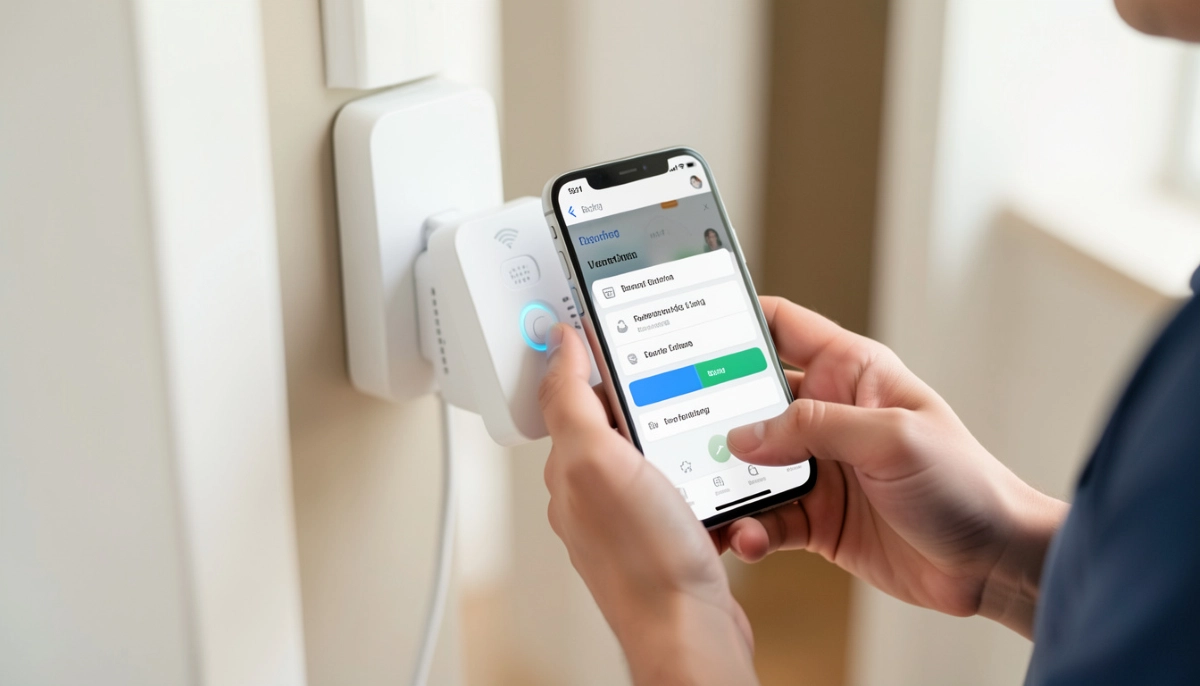
Need Help Installing a WiFi Extender?
Get professional help from local specialists who understand wifi extender installation guide and wifi extender setup.
Get Free Extender Installation Help
Servicing Benoni, Johannesburg, Gqeberha, and across South Africa
How to Install a WiFi Extender Step-by-Step: The Complete Guide
📡 Dead zones are frustrating—but installing a WiFi extender is easier than you think. Here’s how.
You have a dead zone in your home. The WiFi doesn’t reach your bedroom, home office, or garden. You’ve bought a WiFi extender, but now you need to install it. The question how to install a wifi extender step by step might seem daunting, but it’s actually straightforward.
A WiFi extender is one of the easiest ways to eliminate dead zones. With the right wifi extender installation guide, you can have it set up in 10-15 minutes. Whether you’re a tech novice or an experienced user, this guide will walk you through every step.
In this comprehensive wifi extender installation guide, I’ll show you exactly how to install a wifi extender step by step. I’ll cover wifi signal booster setup, wifi extender setup with and without apps, how to install wifi extender in house south africa, and wifi extender installation near router. I’ll also explain wifi extender setup without app and the best place to install wifi extender in double storey.
For more on extenders, check out our WiFi extender installation and best budget extenders guides. Let’s get your extender installed.
📋 Table of Contents – WiFi Extender Installation Guide
🛠️ What You Need Before Starting
Before you begin how to install a wifi extender step by step, gather what you need.
What You’ll Need:
- WiFi extender: Your new device.
- Power outlet: Near your router and in the final location.
- Router details: Your WiFi network name (SSID) and password.
- Device: A smartphone, tablet, or computer.
- WiFi extender app: If your extender uses one.
Check Your Extender:
- Unbox the extender.
- Read the quick start guide (if available).
- Identify the WPS button (if present).
- Note the default network name (SSID) on the label.
Check Your Router:
- Know your WiFi network name and password.
- Identify the WPS button on your router (if present).
- Ensure your router is working properly.
For more on wifi extender basics, see our WiFi extender installation guide.
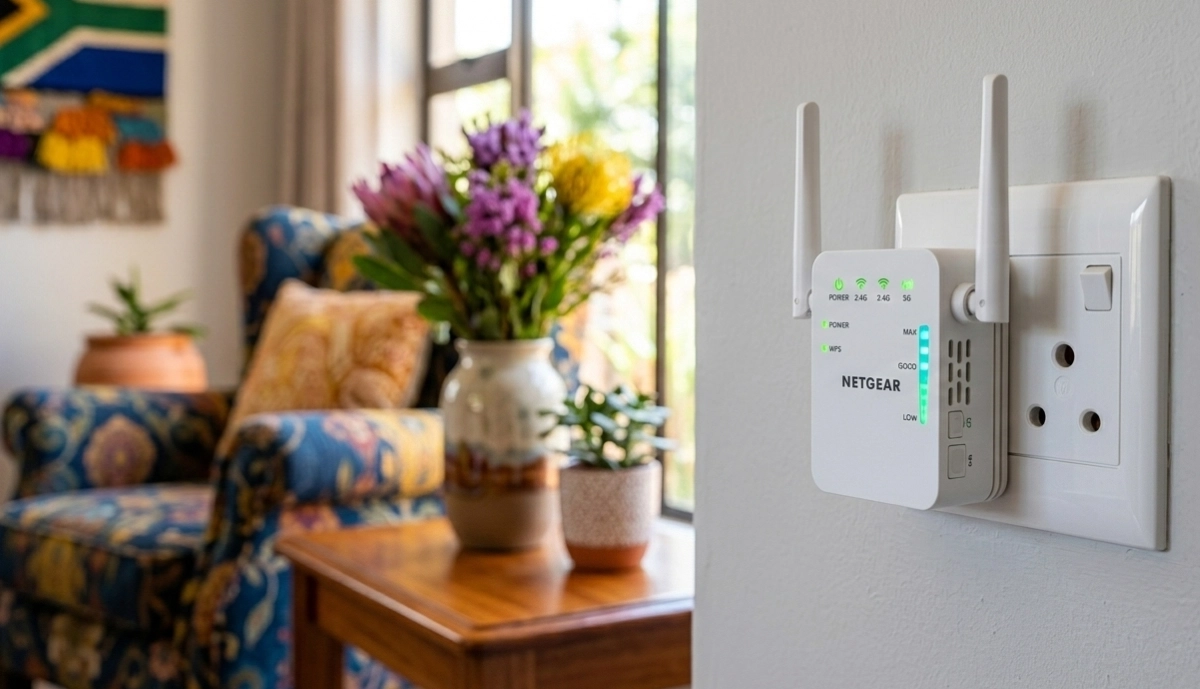
📍 Choose the Right Location
Location is crucial for wifi signal booster setup.
The Golden Rule:
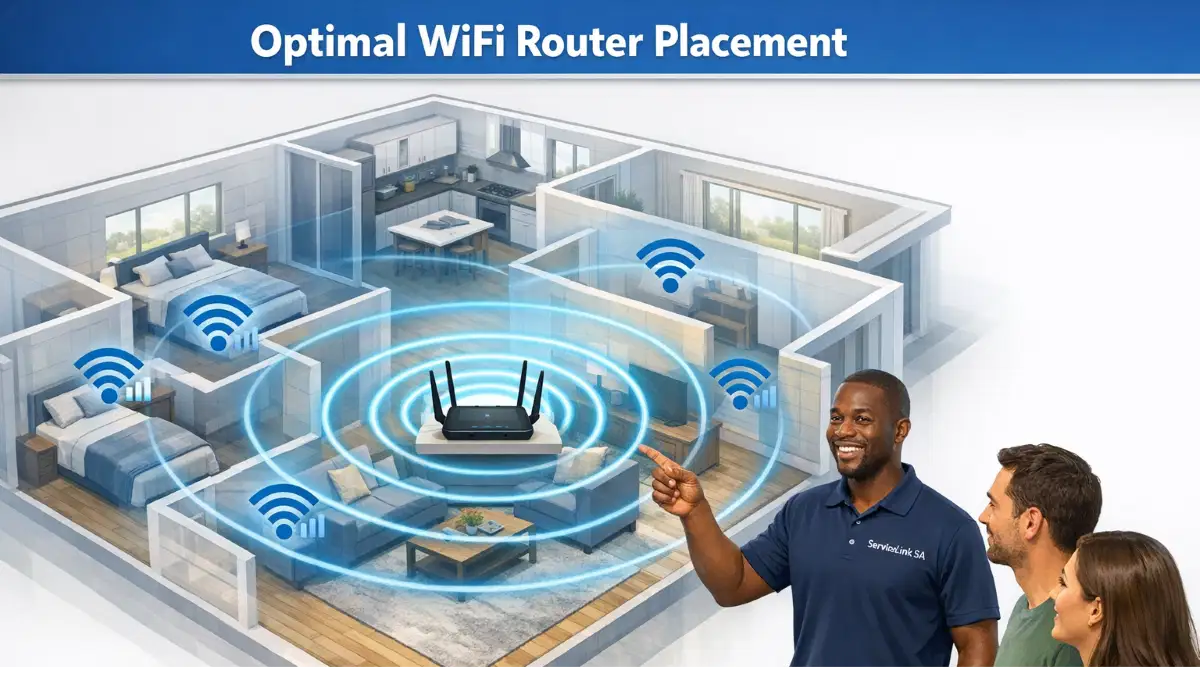
Place the extender halfway between your router and the dead zone. It needs a strong signal from the router to extend effectively.
How to Find the Right Spot:
- Walk from your router toward the dead zone.
- Find a spot where your WiFi signal is still strong (3-4 bars).
- Place the extender there.
What to Avoid:
- In the dead zone: The extender needs a signal to extend.
- Behind furniture: Blocks the signal.
- In corners: Reduces coverage.
- Near interference: Microwaves, cordless phones.
Testing Signal Strength:
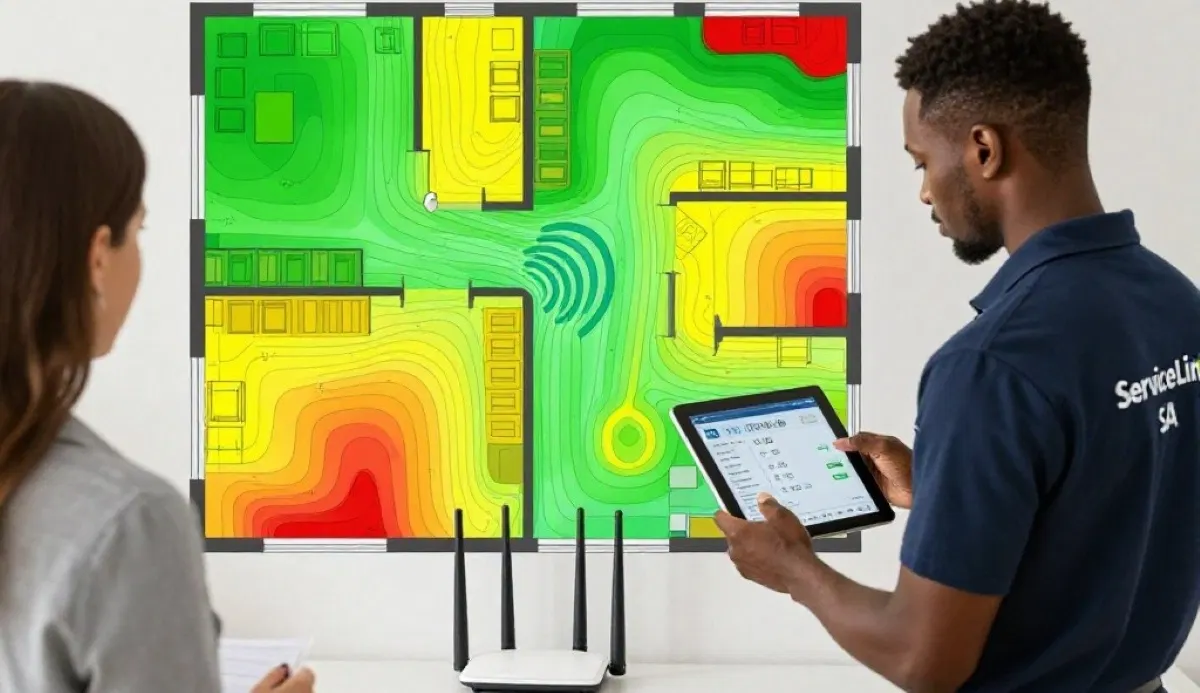
Use your phone to check the WiFi signal strength. Move the extender to where the signal is strongest.
For more on placement, see our router placement guide.
🔘 WPS Setup (Easiest Method)
WPS is the easiest wifi extender setup method.
What Is WPS?
WPS (WiFi Protected Setup) is a feature that allows devices to connect to your router with a button press. It’s the simplest how to install a wifi extender step by step method.
Step-by-Step WPS Setup:
- Plug in the extender: Plug it into a power outlet near your router.
- Wait for it to boot: Wait 1-2 minutes for the extender to start.
- Press WPS on your router: Press the WPS button on your router.
- Press WPS on the extender: Within 2 minutes, press the WPS button on the extender.
- Wait for connection: Wait for the extender’s lights to show a successful connection (usually solid green).
- Move the extender: Unplug the extender and move it to its final location.
What If Your Router Doesn’t Have WPS?
Use the app or web setup method (Section 4).
Important: The WPS button on your router might be labelled differently (e.g., “WPS/Reset” or just a symbol).
For more on wifi extender setup, see our WiFi extender installation guide.
📱 App or Web Setup
If WPS isn’t available, use the app or web interface for wifi extender setup.
App Setup (TP-Link Tether, Huawei AI Life, etc.):
- Plug in the extender: Near your router.
- Download the app: Search for the app for your extender brand.
- Connect to the extender: Connect your phone to the extender’s default network (check the label).
- Open the app: Follow the app’s setup wizard.
- Select your network: Choose your WiFi network and enter the password.
- Wait for connection: Wait for the extender to connect and reboot.
Web Setup (Browser Method):
- Connect to the extender: Connect your device to the extender’s default network.
- Open a browser: Enter the extender’s IP address (check the label).
- Follow the wizard: Follow the setup wizard on the screen.
- Select your network: Choose your WiFi network and enter the password.
- Wait for connection: Wait for the extender to connect and reboot.
Important: The extender’s default network name and password are on the label.
For more on wifi extender setup, see our WiFi extender installation guide.
Struggling to Install Your WiFi Extender?
Get professional help from local specialists who understand wifi extender installation guide and wifi extender setup.
Get Free Extender Installation Help
Free consultations available for wifi signal booster setup.
📱 WiFi Extender Setup Without App
Wifi extender setup without app is possible using the browser method.
Why You Might Not Have an App:
- You don’t have a smartphone.
- The app isn’t available in your region.
- You prefer the browser method.
Step-by-Step Without App:
- Plug in the extender: Near your router.
- Connect to the extender: Use your computer or phone to connect to the extender’s default network (SSID on the label).
- Open a browser: Enter the IP address from the label (e.g., 192.168.1.254).
- Log in: Use the default username and password (on the label).
- Follow the wizard: The setup wizard will guide you through connecting to your router’s WiFi.
- Enter your WiFi password: When prompted, enter your router’s WiFi password.
- Wait for connection: Wait for the extender to connect and reboot.
Important: Keep the label information handy—you’ll need the default IP, username, and password.
For more on wifi signal booster setup, see our WiFi extender installation guide.
📍 Final Placement and Testing
Once configured, move the extender to its final location.
Step 1: Unplug the Extender
Unplug the extender from the power outlet near your router.
Step 2: Move to Final Location
Plug it into a power outlet in the location you identified earlier (halfway between router and dead zone).
Step 3: Wait for Boot
Wait 1-2 minutes for the extender to start up and connect.
Step 4: Test the Connection
- Go to the dead zone area.
- Connect your device to the extender’s network.
- Test the internet connection.
- Check the signal strength.
Step 5: Adjust If Needed
If the signal is still weak, move the extender closer to the router. If the signal is strong but the dead zone is still dead, move the extender closer to the dead zone.
For more on placement, see our WiFi signal optimisation guide.
🏠 Best Place to Install Extender in Double Storey
The best place to install wifi extender in double storey requires specific placement.
Double Storey Challenges:
- Signals struggle to travel between floors.
- Concrete floors block signals.
Best Placement for Double Storey:
- On the upper floor: Place the extender on the upper floor, near the stairs.
- Central location: Aim for a central spot on the upper floor.
- Above the router: If possible, place the extender above the router.
For a Double Storey Home:
- Place the extender on the upper floor.
- Position it near the centre of the house.
- Ensure it has a strong signal from the router.
Realistic Example:
A double storey home in Benoni: Place the extender on the upper floor landing. This provides coverage to both floors.
For more on double storey, see our double storey WiFi guide.
🛠️ Troubleshooting Common Issues
Even with the best wifi extender installation guide, issues can arise.
Issue 1: Can’t Connect to Extender
Fix: Ensure you’re connecting to the correct network (check the label). Reset the extender and try again.
Issue 2: Extender Doesn’t Connect to Router
Fix: Move the extender closer to the router. Check your WiFi password. Restart both the router and extender.
Issue 3: Slow Speeds
Fix: Move the extender closer to the router. Reduce the number of connected devices. Use a dual-band extender.
Issue 4: Intermittent Connection
Fix: Check for interference from other devices. Change the WiFi channel.
Issue 5: Extender Keeps Disconnecting
Fix: Update the extender’s firmware. Move it to a better location.
For more troubleshooting, see our WiFi disconnecting guide.
🚫 Common Mistakes to Avoid
⚠️ Warning: These Mistakes Ruin Your Extender’s Performance
Avoid these errors when doing how to install a wifi extender step by step.
- Placing in the dead zone: The extender needs a signal to extend.
- Too far from the router: Weak signal in means weak signal out.
- Not testing placement: Test the signal before final placement.
- Using the same network name: Some devices struggle with the same name.
- Not updating firmware: Performance improvements and security fixes.
- Expecting magic: An extender won’t fix a slow internet plan.
For more on avoiding mistakes, see our WiFi extender installation guide.
❓ Frequently Asked Questions About WiFi Extender Installation
How do I install a WiFi extender step by step?
How to install a wifi extender step by step involves choosing the right location, connecting via WPS or app, and testing coverage. Follow the wifi extender installation guide for your specific model. The process is usually simple and takes 10-15 minutes.
Where is the best place to install a WiFi extender?
The best place to install wifi extender in double storey is on the upper floor, centrally located. For single storey, place it halfway between the router and the dead zone. It needs a strong signal from the router to work effectively.
How do I set up a WiFi extender without an app?
Wifi extender setup without app uses the browser method. Connect to the extender’s default network, open a browser, and enter the IP address from the label. Follow the setup wizard. Most wifi extender devices support this method.
Do I need to install a WiFi extender near my router?
Wifi extender installation near router is temporary. You first set it up near the router (for configuration), then move it to its final location. The wifi extender setup process requires a strong signal for configuration.
How do I test if my WiFi extender is working?
Connect a device to the extender’s network and test the connection. Check the signal strength in the dead zone area. The wifi signal booster lights should indicate a good connection.
What is the difference between a WiFi extender and a WiFi repeater?
The terms wifi extender and wifi repeater are often used interchangeably. Both extend the range of your WiFi signal. They are essentially the same device with different names.
Can I use a WiFi extender with any router?
Yes, wifi extender devices work with most routers. They are compatible with all major brands. Check compatibility if you have a very old router.
Will a WiFi extender help with gaming?
A wifi signal booster can help with gaming if the issue is coverage. However, it may increase latency. For gaming, a wired connection or mesh system is better.
✅ Final Thoughts: Install Your WiFi Extender with Confidence
Now you know how to install a wifi extender step by step. With the right wifi extender installation guide, you can eliminate dead zones and improve your WiFi coverage in under 30 minutes.
Key Takeaways:
- Choose the right location: Halfway between router and dead zone.
- Use WPS for easiest setup: The fastest wifi extender setup method.
- Test and adjust: Move the extender for the best coverage.
- For double storey: Place on the upper floor.
- Troubleshoot: Common issues are usually placement-related.
Your Next Step: Follow the steps in this wifi signal booster setup guide. If you need professional help, ServiceLink SA can connect you with local specialists who understand wifi extender installation guide and how to install wifi extender in house south africa.
Ready to Install Your WiFi Extender?
Get free advice from verified local specialists for wifi extender installation guide and wifi extender setup.
📞 Call us: 073 138 4726 for immediate help finding a specialist near you.
Extender Installation •
Signal Optimisation •
Best Budget Extenders
📢 Are You a WiFi Installation Professional?
Join ServiceLink SA’s network of verified contractors and get access to qualified leads for wifi extender installation and wifi signal booster projects.
📚 Official resources & standards referenced:
- SANS 10400 – Guidelines for electrical and networking installations in South African homes.
- SABS – Standards for electronic equipment and safety.
Information provided for general guidance. For professional how to install a wifi extender step by step advice, always consult a qualified local technician.
Written by: Innocent T Hanyani
Construction & Home Services Industry Specialist | 21+ Years Experience
Innocent T Hanyani has over two decades of experience working across South Africa’s construction, telecommunications, and home services sectors. Throughout his career, he has worked closely with network installers, IT professionals, and homeowners, gaining practical insight into how to install a wifi extender step by step. His expertise helps homeowners understand the complexities of wifi extender installation guide and wifi extender setup, from wifi signal booster setup to how to install wifi extender in house south africa, wifi extender installation near router, wifi extender setup without app, and the best place to install wifi extender in double storey.