
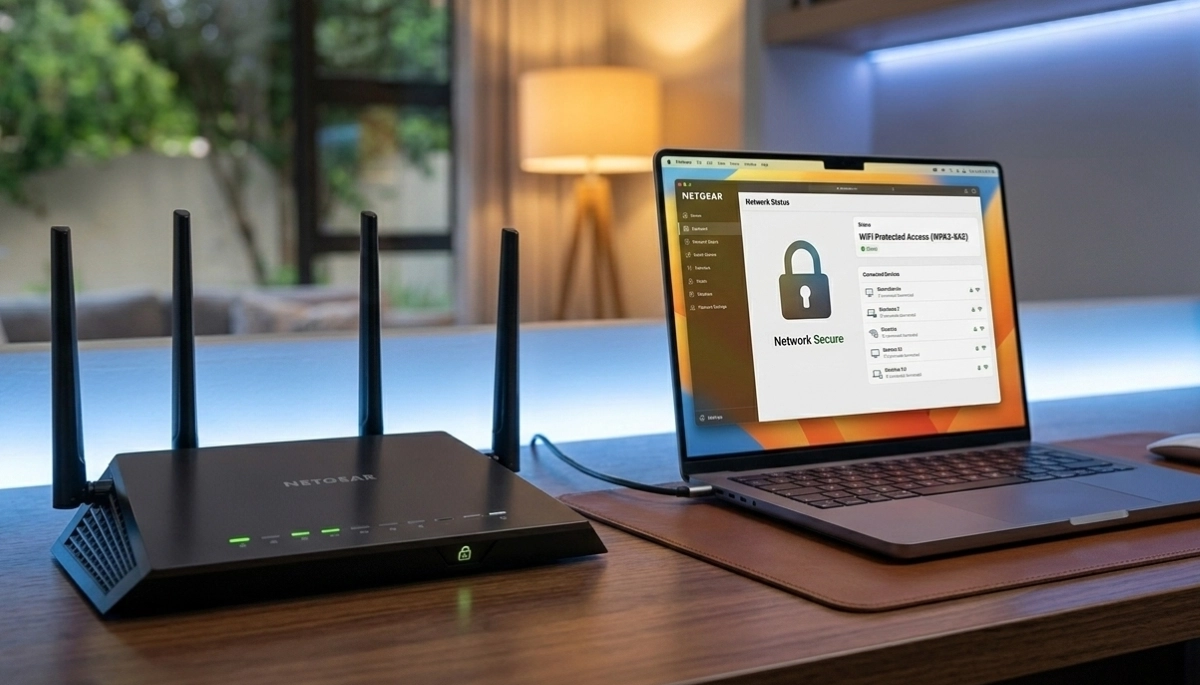
Worried About Your WiFi Security?
Get professional help from local specialists who understand secure wifi settings and router security settings.
Servicing Kempton Park, Hermanus, Pietermaritzburg, and across South Africa
Best WiFi Security Settings for Home Users South Africa: The Complete Guide
🔒 Protect your home network from hackers—here are the essential security settings every homeowner needs.
Your home WiFi network is the gateway to your digital life. It connects your computers, phones, smart TVs, and even your security cameras. But if your network isn’t properly secured, you’re leaving the door open for hackers.
Finding the best wifi security settings for home users South Africa is essential for protecting your personal information and devices. In this guide, I’ll show you exactly what secure wifi settings you need to enable, how to choose the best wifi encryption, and which router security settings matter most. Whether you’re in Kempton Park, Hermanus, or Pietermaritzburg, these settings will protect your home network.
For more on network security, check out our how hackers access WiFi and block unknown devices guides. Let’s secure your network.
📋 Table of Contents – WiFi Security Settings Guide
🔒 Why WiFi Security Matters
Before we dive into the best wifi security settings for home users South Africa, let’s understand why wifi security matters.
What’s at Risk:
- Personal data: Passwords, banking details, emails, photos.
- Identity theft: Hackers can steal your identity.
- Device access: Hackers can access your cameras, smart home devices, and computers.
- Bandwidth theft: Unauthorised users can slow down your internet.
- Legal liability: Illegal activities on your network could be traced back to you.
Common Security Threats:
- Unauthorised access: Neighbours or strangers using your WiFi.
- Data interception: Hackers capturing data transmitted over your network.
- Malware: Infected devices can spread malware through your network.
- Router attacks: Hackers exploiting router vulnerabilities.
Who Is at Risk?
Everyone with a WiFi network is at risk. The difference is whether you’ve taken steps to secure it. The best wifi security settings for home users South Africa can significantly reduce your risk.
For more on wifi security, see our how hackers access WiFi guide.
🔐 Choose the Best WiFi Encryption
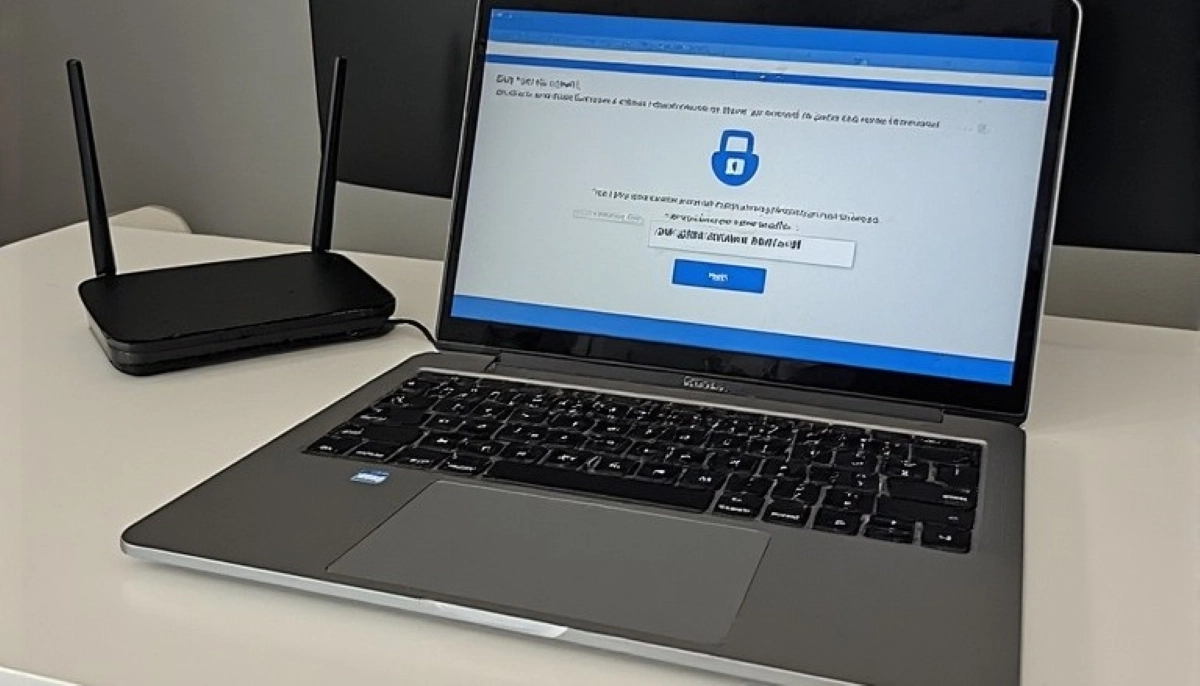
Choosing the best wifi encryption is the most important router security setting.
What Is WiFi Encryption?
WiFi encryption scrambles data transmitted over your network so hackers can’t read it. Without encryption, data can be intercepted and read by anyone within range.
Types of WiFi Encryption:
- WEP: Outdated and easily broken. Don’t use it.
- WPA: Better than WEP but has vulnerabilities.
- WPA2: The current standard. Good security.
- WPA3: The latest standard. Best wifi encryption available.
How to Check Your Encryption:
- Access your router’s settings (usually 192.168.1.1).
- Find wireless or security settings.
- Check the encryption type.
- If it’s WEP or WPA, upgrade to WPA2 or WPA3.
How to Change Encryption:
- Access your router’s settings.
- Find wireless or security settings.
- Select WPA2 or WPA3.
- Enter a strong password.
- Save and apply the settings.
Important: Older devices may not support WPA3. If you have older devices, WPA2 is a good alternative. This is a key secure wifi settings decision.
For more on encryption, see our WPA3 vs WPA2 guide.
🔑 Create Strong Passwords
A strong password is essential for secure wifi settings.
Why Passwords Matter:
Your WiFi password is the first line of defence. If it’s weak, hackers can crack it easily using brute force attacks.
How to Create a Strong WiFi Password:
- Use at least 12 characters.
- Use uppercase and lowercase letters.
- Include numbers and symbols.
- Avoid common words or personal information.
- Use a passphrase (e.g., “BlueElephantJumpsHigh22!”).
What to Avoid:
- “password” or “123456” (the most common passwords).
- Your name, address, or phone number.
- Common words from the dictionary.
- The same password you use for other accounts.
How Often to Change Your Password:
Change your WiFi password every 3-6 months. This is especially important if you’ve had guests or suspect unauthorised access.
For more on passwords, see our block unknown devices guide.
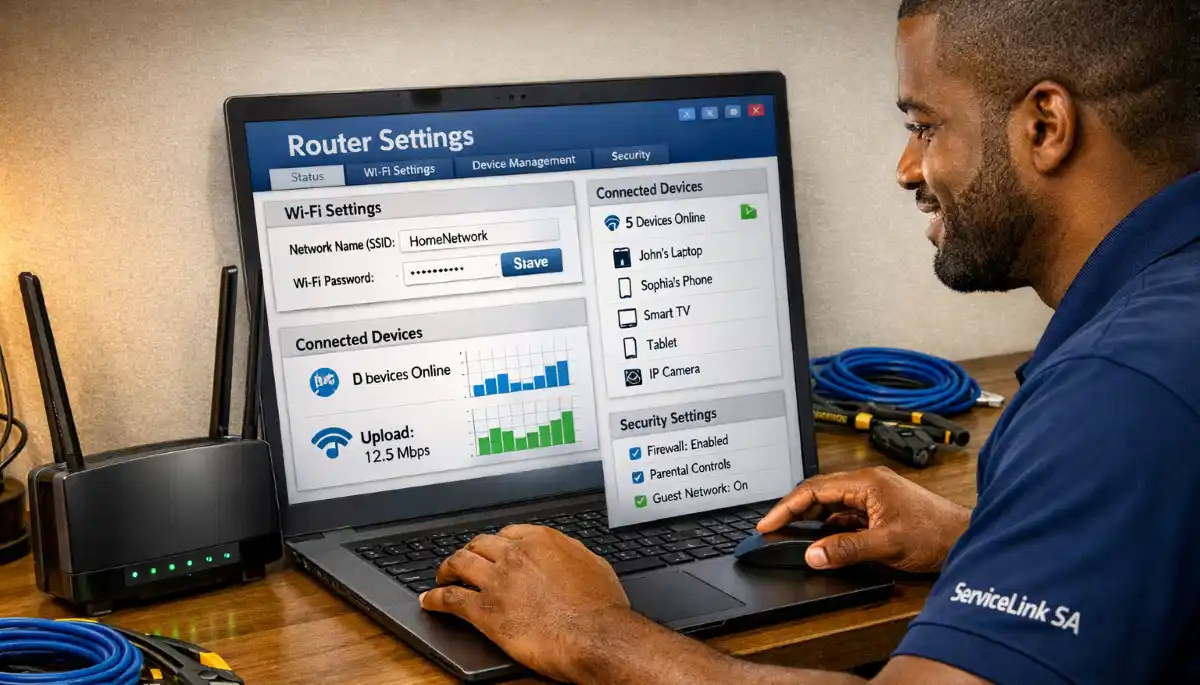
Worried Your WiFi Isn’t Secure Enough?
Get professional help from local specialists who understand best wifi security settings for home users South Africa.
Free inspections available for wifi security.
🔑 Change Default Router Credentials
Changing default credentials is one of the most overlooked router security settings.
Why Default Credentials Are a Problem:
Routers come with default admin usernames and passwords (like “admin/admin”). Hackers know these defaults. If you haven’t changed them, anyone can access your router settings.
How to Change Default Credentials:
- Access your router’s settings (usually 192.168.1.1).
- Look for administration or system settings.
- Change the admin username (if possible).
- Create a strong admin password.
- Save and apply the settings.
What to Avoid:
- Using the same password for admin and WiFi.
- Using common passwords for admin.
- Leaving the default username.
Pro Tip: Write down your admin password and store it in a safe place. You’ll need it to access router settings in the future.
For more on router security, see our router setup guide.
🚫 Disable WPS
Disabling WPS is a critical secure wifi settings step.
What Is WPS?
WiFi Protected Setup (WPS) is a feature that allows devices to connect to your WiFi by pressing a button or entering a PIN. While convenient, it has serious vulnerabilities.
Why WPS Is a Security Risk:
Hackers can exploit the WPS PIN vulnerability to bypass your password entirely. This is one of the most common wifi security weaknesses.
How to Disable WPS:
- Access your router’s settings.
- Find wireless or WPS settings.
- Disable WPS.
- Save and apply the settings.
What If You Need WPS for a Device?
If you need WPS for an older device, enable it temporarily, connect the device, then disable it again. This minimises the security risk.
For more on this, see our how hackers access WiFi guide.
👤 Set Up a Guest Network
A guest network is an important wifi security feature.
What Is a Guest Network?
A guest network is a separate WiFi network for visitors. It’s isolated from your main network, so guests can’t access your devices or data.
Why Use a Guest Network:
- Security: Guests can’t access your devices.
- Bandwidth: You can limit guest bandwidth.
- Privacy: Your main network remains private.
- Convenience: Guests can get online easily.
How to Set Up a Guest Network:
- Access your router’s settings.
- Find guest network or guest WiFi settings.
- Enable the guest network.
- Set a separate password for guests.
- Enable network isolation (so guests can’t access your main network).
- Save and apply the settings.
Important: Use a different password for your guest network than your main network.
For more on guest networks, see our guest WiFi setup guide.
🛡️ Enable Firewall
Enabling your router’s firewall is an important router security setting.
What Is a Firewall?
A firewall monitors and controls incoming and outgoing network traffic. It blocks unauthorised access while allowing legitimate traffic.
Why Use a Firewall:
- Blocks unauthorised access attempts.
- Prevents malware from communicating with hackers.
- Protects your devices from external threats.
- Adds an extra layer of wifi security.
How to Enable Firewall:
- Access your router’s settings.
- Find security or firewall settings.
- Enable the firewall (most routers have it on by default).
- If off, turn it on.
- Save and apply the settings.
Important: Most routers have a firewall enabled by default. If it’s off, turn it on immediately.
For more on firewalls, see our network security guide.
⚙️ Update Router Firmware
Regular firmware updates are essential for secure wifi settings.
Why Firmware Updates Matter:
Router manufacturers release updates to fix security vulnerabilities, improve performance, and add features. Outdated firmware can leave your network exposed.
How to Check for Updates:
- Access your router’s settings.
- Look for firmware update or system update.
- Check for updates.
- If available, install the update.
- Wait for the router to reboot.
How Often to Check:
Check for updates every 3-6 months. Some routers have automatic updates—enable them if available.
For more on firmware, see our router setup guide.
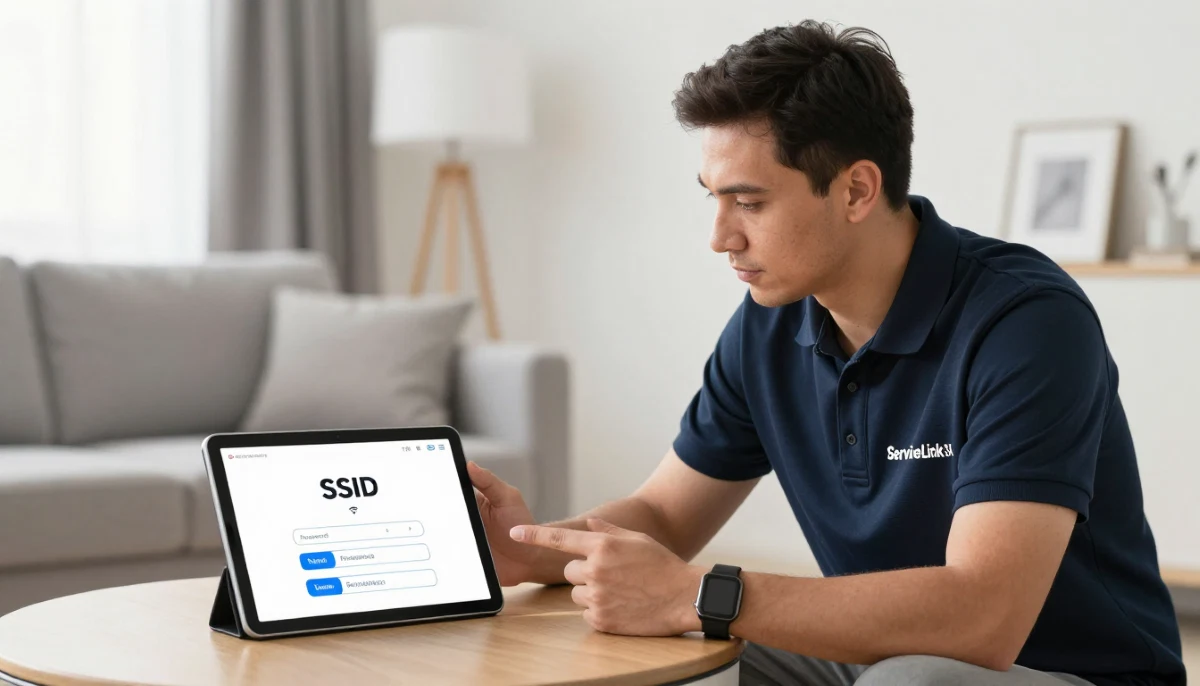
🛡️ Advanced Security Settings
These advanced router security settings provide additional protection.
1. MAC Address Filtering:
Allow only specific devices to connect to your network. This adds an extra layer of wifi security.
2. Disable SSID Broadcast:
Hide your network name so it doesn’t appear in WiFi lists. This adds a layer of obscurity.
3. Enable VPN on Router:
A VPN encrypts all traffic from your network, adding privacy and security.
4. Disable Remote Management:
If you don’t need remote access, disable it. This prevents hackers from accessing your router from outside your home.
5. Enable Logging:
Monitor who’s connecting to your network. Some routers log connection attempts.
6. Use a Separate Network for Smart Home Devices:
Keep smart home devices on a separate network to isolate them from your main network.
For more on advanced settings, see our block unknown devices and hide WiFi network guides.
❓ Frequently Asked Questions About WiFi Security Settings
What are the best WiFi security settings for home users in South Africa?
The best wifi security settings for home users South Africa include WPA2 or WPA3 wifi encryption, a strong password, disabled WPS, changed default admin credentials, and a guest network. These secure wifi settings protect against common wifi security threats.
Which WiFi encryption is best for home users?
The best wifi encryption for home users is WPA3, followed by WPA2. WPA3 is the latest and most secure wifi encryption standard. If your devices don’t support WPA3, WPA2 is a good alternative. This is a key router security setting.
How do I make my WiFi network secure?
How to make wifi network secure starts with enabling WPA2 or WPA3 encryption, using a strong password, changing default admin credentials, disabling WPS, and enabling firewall. Also, set up a guest network for visitors. These are the best wifi security settings for home users.
What is the best router security settings for home users?
The best router security settings include WPA2/WPA3 encryption, a strong admin password, disabled WPS, enabled firewall, and firmware auto-updates. Also, disable remote management and set up a guest network. These router security settings protect your wifi security.
Should I use a guest network for smart home devices?
Yes, using a separate network for smart home devices is a wifi security best practice. This isolates your smart devices from your main network, so if one device is compromised, hackers can’t access your personal data. This is an important wifi security settings for smart home consideration.
How often should I change my WiFi password?
Change your WiFi password every 3-6 months for optimal wifi security. Also change it immediately if you suspect unauthorised access or after guests have used your network. This is part of good secure wifi settings practices.
What is WPS and why should I disable it?
WPS (WiFi Protected Setup) allows devices to connect easily but has serious vulnerabilities. Hackers can exploit WPS to access your network. Disabling WPS is a critical router security setting and one of the best wifi security settings for home users South Africa.
What is MAC address filtering and should I use it?
MAC address filtering allows only specific devices to connect to your network. While it adds an extra layer of wifi security, it’s not foolproof (MAC addresses can be spoofed). Use it alongside other secure wifi settings for best protection.
✅ Final Thoughts: Secure Your Home WiFi Network Today
Implementing the best wifi security settings for home users South Africa is essential for protecting your personal information and devices. With the right secure wifi settings, you can significantly reduce your wifi security risks.
Key Takeaways:
- Use WPA2 or WPA3 encryption: The best wifi encryption options.
- Create strong passwords: 12+ characters, mix of characters.
- Change default credentials: Admin username and password.
- Disable WPS: A known security vulnerability.
- Set up a guest network: For visitors and smart home devices.
- Enable firewall: Adds an extra layer of protection.
- Update firmware: Fixes security vulnerabilities.
Your Next Step: Check your router settings today. Ensure you’re using the best wifi security settings for home users South Africa. If you need help, ServiceLink SA can connect you with local specialists who understand router security settings and wifi security.
Ready to Secure Your Home WiFi?
Get free quotes from verified local specialists for secure wifi settings and router security settings.
📞 Call us: 073 138 4726 for immediate help finding a specialist near you.
How Hackers Access WiFi •
Block Unknown Devices •
Guest WiFi Setup
📢 Are You a Network Security Professional?
Join ServiceLink SA’s network of verified contractors and get access to qualified leads for wifi security and router security projects.
📚 Official resources & standards referenced:
- SANS 10400 – Guidelines for electrical and networking installations in South African homes.
- SABS – Standards for electronic equipment and safety.
Information provided for general guidance. For professional best wifi security settings for home users South Africa advice, always consult a qualified cybersecurity professional.
Written by: Innocent T Hanyani
Construction & Home Services Industry Specialist | 21+ Years Experience
Innocent T Hanyani has over two decades of experience working across South Africa’s construction, telecommunications, and home services sectors. Throughout his career, he has worked closely with network installers, IT security professionals, and homeowners, gaining practical insight into the best wifi security settings for home users South Africa. His expertise helps homeowners understand the complexities of secure wifi settings and router security settings, from choosing the best wifi encryption to implementing effective wifi security measures for smart homes.