Decoder Still Not Booting?
Get a free quote from a verified, accredited DSTV installer near you.
Same-day service available across South Africa.
Servicing KwaZulu-Natal, Durban, Umhlanga, Ballito, Westville, Pinetown, and across South Africa
DSTV Decoder Not Booting? Dead Screen Fix (Power Supply & Software Solutions)
🔌 Your decoder won’t turn on or is stuck on the boot screen? Here’s how to diagnose and fix the problem.
You press the power button on your DSTV remote. Nothing happens. You check the decoder – no lights,
no display, no sound. Or worse, the lights come on, but the screen stays black or shows a frozen logo.
Your dstv decoder not booting and you have no idea why.
A decoder that won’t boot is one of the most frustrating DSTV problems. Unlike signal issues,
you can’t just realign a dish or tighten a cable. The problem is inside the decoder itself.
But before you throw it away and buy a new one, there are several fixes you can try.
In this guide, I’ll walk you through everything about dstv decoder stuck on boot issues.
You’ll learn how to diagnose power problems, perform hard resets, check for software corruption,
and when to call a professional. If you’re asking “why won’t my dstv decoder start”,
you’ve come to the right place.
For general DSTV problems, read our
why is my DSTV not working guide.
For reset instructions, see how to reset your decoder.
And for picture issues, read picture freezing fix.
📋 Table of Contents – DSTV Decoder Not Booting Guide
🔍 Symptoms: What “DSTV Decoder Not Booting” Looks Like
Dstv decoder not booting can manifest in several ways. Here’s how to identify your specific problem.
Type 1: Completely dead (no power)
- No lights on the decoder front panel
- No display on the decoder screen
- No response to remote or power button
- Decoder is completely lifeless
Type 2: Lights on but no picture
- Decoder has power lights but TV shows “No Signal”
- Decoder display shows something but TV is black
- Problem may be TV input or HDMI cable, not the decoder
Type 3: Stuck on boot screen (boot loop)
- Decoder shows logo or loading screen but never finishes
- Screen flashes or restarts repeatedly
- Decoder gets stuck in a boot loop
Type 4: Turns on then off immediately
- Decoder powers on briefly then shuts down
- Often indicates power supply or hardware failure
💡 Quick Check:
Before assuming your decoder is dead, check your TV input source. Many “decoder not working”
complaints are actually TVs set to the wrong input. Press “Source” or “Input” on your TV remote
and make sure you’re on the correct HDMI channel.
⚡ Quick Fixes: Do These First (2 Minutes)
Before diving into complex troubleshooting, try these quick fixes for decoder not turning on.
✅ Emergency Quick Fix Checklist:
- Check the power cable: Ensure it’s firmly plugged into both the decoder and the wall outlet.
- Test the wall outlet: Plug a lamp or phone charger into the same outlet to confirm it has power.
- Check your TV input: Press “Source” or “Input” on your TV remote – ensure you’re on the correct HDMI channel.
- Try a different HDMI cable: A faulty HDMI cable can cause “No Signal” even if the decoder is working.
- Perform a hard reboot: Unplug the decoder for 60 seconds, then plug back in.
🔌 Fix #1: Check Power Supply
The most common cause of a completely dead dstv decoder stuck on boot is a power issue.
Here’s how to diagnose.
Step-by-step power diagnosis:
- Check the power cable: Ensure it’s firmly connected to the decoder and the wall outlet. Try a different power cable if available.
- Test the wall outlet: Plug a known working device (lamp, phone charger) into the same outlet.
- Check for power surges: If you recently had load shedding or a storm, a power surge may have damaged the decoder.
- Listen for sounds: Can you hear any fan or hard drive noise? If yes, the decoder has power but may have other issues.
- Check the power brick (if external): Some decoders have external power supplies. If it feels hot or smells burnt, it may be faulty.
If the outlet has power but the decoder is dead:
- Try a different power outlet in another room
- Try a different power cable (if you have one)
- The decoder’s internal power supply may have failed – professional repair needed
🔄 Fix #2: Hard Reboot (Power Cycle)
A hard reboot solves many decoder not turning on issues by clearing temporary glitches.
How to perform a hard reboot:
- Unplug your decoder from the power outlet (don’t just turn it off with the remote)
- Wait a full 60 seconds (allows capacitors to discharge)
- While waiting, unplug the satellite cable from the decoder
- Plug the decoder back in and wait 30 seconds
- Reconnect the satellite cable
- Wait 2-3 minutes for the decoder to fully boot
Why this works:
Decoders are small computers. A hard reboot clears temporary memory, resets software,
and forces the decoder to re-initialise all components. This fixes many boot issues.
For more reset instructions, read our
complete reset guide.
Decoder Still Not Booting?
Don’t replace your decoder yet – get a professional diagnosis first.
Free quotes from verified, accredited DSTV installers near you.
Free quotes. Verified installers. No obligation.
🔄 Fix #3: Fix DSTV Decoder Boot Loop Issues
A boot loop is when your decoder starts to boot, shows the logo, then restarts repeatedly.
This is often caused by corrupted software or a failing hard drive (on Explora models).
How to fix a boot loop:
- Hard reboot: Unplug for 60 seconds, then plug back in. Sometimes this breaks the loop.
- Disconnect peripherals: Unplug any USB drives, external hard drives, or other accessories.
- Disconnect the satellite cable: Sometimes a signal issue can cause boot loops. Try booting without the satellite cable connected.
- Leave it running: Some boot loops resolve themselves after 15-30 minutes (software recovery).
- Factory reset (if you can access the menu): If you can get to the menu before it restarts, perform a factory reset.
If boot loop persists:
The hard drive may be failing (Explora models) or the software may be corrupted beyond recovery.
Professional repair or decoder replacement may be needed.
🔌 Fix #4: Check Cable Connections
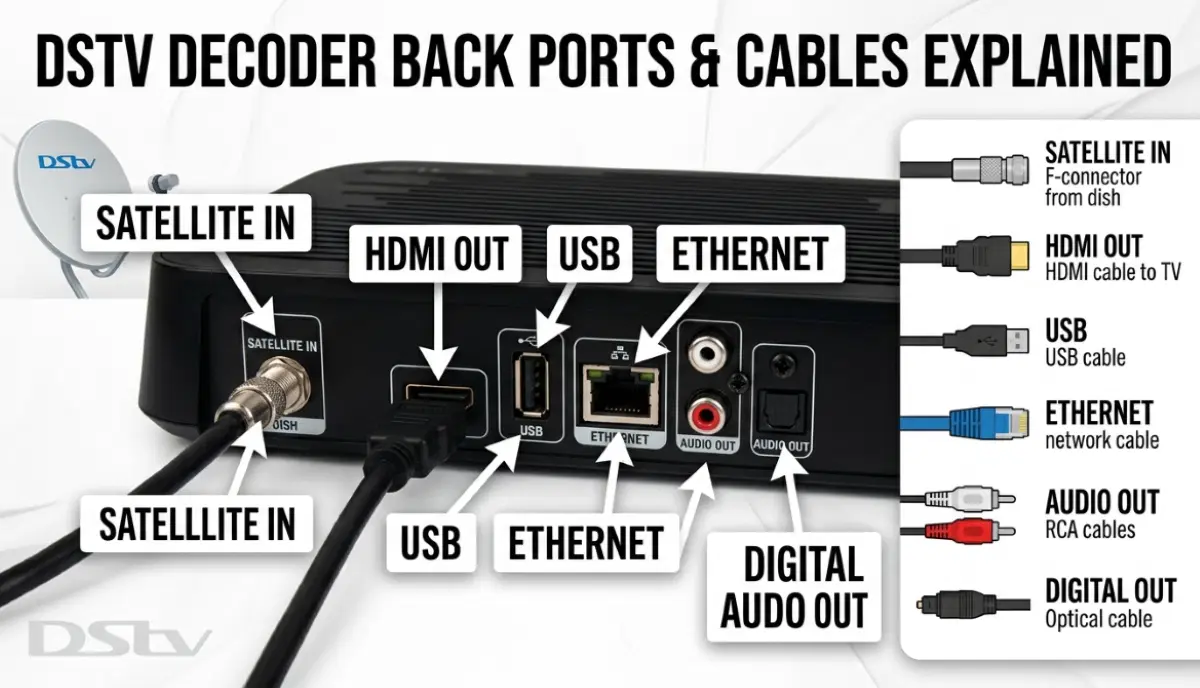
Sometimes the decoder is working fine, but the TV isn’t receiving the signal due to cable issues.
This is often mistaken for dstv decoder not booting.
What to check:
- HDMI cable: Ensure it’s firmly connected to both the decoder and TV. Try a different HDMI port on your TV.
- HDMI cable condition: Look for bent pins or damage. Try a different HDMI cable if available.
- TV input source: Press “Source” or “Input” on your TV remote and cycle through options until you see the decoder screen.
- AV cables (if using red/white/yellow): Ensure colours match and cables are fully inserted.
Quick test:
If you have another TV, try connecting your decoder to it. If it works on the other TV,
the problem is your original TV or HDMI cable – not the decoder.
⚠️ Fix #5: Factory Reset (Last Resort)
A factory reset erases all settings and returns your decoder to its original state.
This can fix dstv decoder stuck on boot caused by corrupted settings.
Warning: This will erase all recordings on Explora decoders.
How to perform a factory reset (if you can access the menu):
- Press “Menu” on your remote
- Navigate to Settings → System Settings → Factory Reset
- Enter your PIN (default is 1234 or 0000 unless changed)
- Confirm the reset
- Wait for the decoder to reboot and go through first-time setup
If you can’t access the menu (decoder won’t boot at all):
Some decoders have a button combination for force reset. Check your decoder’s manual.
On some models, holding the power button for 30 seconds while unplugged, then plugging back in, triggers recovery mode.
⚠️ Warning:
A factory reset erases all recordings, timers, and settings. On Explora decoders,
you will lose any saved shows on the hard drive. Back up important recordings before resetting if possible.
💾 Fix #6: Software Update via USB
If your decoder is stuck in a boot loop and won’t respond to normal resets,
you may be able to update the software using a USB drive.
How to perform a USB software update:
- On a computer, download the latest software for your decoder model from the DSTV website
- Copy the software file to a FAT32-formatted USB drive
- Insert the USB drive into your decoder’s USB port
- Power on the decoder – it should detect the USB drive and begin updating automatically
- Wait 10-20 minutes for the update to complete – DO NOT power off during the update
- Once complete, the decoder will reboot normally
💡 Pro Tip:
If you’re not comfortable with USB updates, contact DSTV customer care or a professional installer.
Incorrect software updates can permanently damage your decoder.
📺 Decoder-Specific Issues: HD vs Explora vs Explora Ultra
Different decoder models have different common failure modes.
Here’s what to expect for each decoder not turning on scenario.
Standard HD Decoder (9S):
- Most common issue: power supply failure (no lights at all)
- Second most common: dead remote or IR sensor (decoder works but won’t respond)
- Less common: software corruption (fix with reboot or USB update)
- Usually cheaper to replace than repair (R600-R1,000 new)
Explora (2, 3, Ultra):
- Most common issue: hard drive failure (causes boot loops or recording failures)
- Second most common: power supply failure (especially after load shedding)
- Third: software corruption (fix with reboot or USB update)
- Often worth repairing due to higher value (R1,800-R3,200 new)
- Read our Explora Ultra upgrade guide
DSTV Streama:
- Most common issue: network connectivity (not a boot issue)
- Can freeze or become unresponsive – reboot fixes most issues
- Less common: power supply failure
For decoder types, read our
decoder types explained guide
and best decoder for your home guide.
⚡ Signs of Power Supply Failure
Power supply failure is a common cause of dstv decoder not booting,
especially after load shedding or power surges.
Signs of power supply failure:
- Decoder is completely dead – no lights, no display, no sound
- Decoder turns on briefly then shuts off immediately
- Decoder works intermittently – sometimes boots, sometimes doesn’t
- You hear clicking or buzzing from the decoder
- The decoder feels hot even when off
- Problem started after load shedding or a storm
What to do:
- Try a different power outlet and power cable
- If still dead, the internal power supply has likely failed
- Professional repair is possible (R400-R800) or decoder replacement
- For standard HD decoders, replacement is often cheaper than repair
- For Explora, repair is usually worthwhile
💾 Signs of Hardware Failure (Hard Drive, Motherboard)
For Explora decoders, hard drive failure is a common cause of dstv decoder stuck on boot.
Signs of hard drive failure:
- Decoder gets stuck on boot screen (logo appears but never finishes)
- You hear clicking or grinding noises from the decoder
- Recordings fail or won’t play back
- Decoder is slow to respond to remote commands
- Error code E16-4 appears
What to do:
- If you can access the menu, check Storage Manager for errors
- Try disconnecting the hard drive (if you’re technically inclined) – if the decoder boots without it, the hard drive is faulty
- Professional hard drive replacement is possible (R800-R1,500)
- If the motherboard has failed, decoder replacement is usually the only option
🛡️ Preventing Future DSTV Decoder Boot Issues
Here’s how to prevent decoder not turning on problems in the future.
Power protection:
- Use a surge-protected power strip (protects against load shedding surges)
- Consider a UPS for load shedding backup (keeps decoder running during outages)
- Unplug the decoder during severe thunderstorms
- Don’t plug the decoder into an outlet controlled by a light switch
Ventilation:
- Ensure decoder has proper ventilation (not in a closed cabinet)
- Keep decoder away from heat sources (other electronics, direct sunlight)
- Clean dust from vents regularly
Software maintenance:
- Allow software updates to complete without interruption
- Don’t power off during updates
- Reboot decoder monthly to clear temporary memory
For electrical safety standards, refer to SABS guidelines.
Read our electrical services guide.
❓ Frequently Asked Questions About DSTV Decoder Not Booting
Why won’t my DSTV decoder turn on?
Why won’t my dstv decoder start is usually a power issue. Check the power cable,
test the wall outlet with another device, and try a hard reboot (unplug 60 seconds).
If still dead, the internal power supply may have failed – professional repair or decoder replacement needed.
What causes a DSTV decoder to get stuck on the boot screen?
A dstv decoder stuck on boot is usually caused by corrupted software,
a failing hard drive (Explora models), or a power supply issue.
Try a hard reboot first. If that doesn’t work, a factory reset or USB software update may help.
If the problem persists, the hard drive may need replacement.
How do I reset a DSTV decoder that won’t boot?
For decoder not turning on, try a hard reboot: unplug for 60 seconds,
then plug back in. If that doesn’t work, some decoders have a force reset button combination
(check your manual). As a last resort, try a USB software update.
Read our complete reset guide.
Can load shedding damage my DSTV decoder?
Yes. Power surges when electricity returns after load shedding can damage your decoder’s power supply.
Always use a surge-protected power strip. If your decoder won’t boot after load shedding,
try a hard reboot. If still dead, the power supply may need repair.
How much does it cost to repair a DSTV decoder?
Repair costs for dstv decoder not booting: power supply repair R400-R800,
hard drive replacement R800-R1,500, motherboard repair R1,000-R2,000 (often not cost-effective).
For standard HD decoders, replacement (R600-R1,000) is often cheaper than repair.
Get a free quote from verified repair technicians.
What is a boot loop on a DSTV decoder?
A boot loop is when your decoder starts to boot, shows the logo,
then restarts repeatedly without ever reaching the main menu.
This is often caused by corrupted software or a failing hard drive.
Try a hard reboot first – if that doesn’t work, professional repair may be needed.
How can I tell if my decoder has power but won’t display?
If your decoder not turning on but you can hear fan noise or see lights,
the decoder has power. The issue is likely the HDMI cable, TV input, or decoder video output.
Try a different HDMI cable, different TV input, or test on another TV.
Will a factory reset fix my DSTV decoder boot issue?
A factory reset can fix dstv decoder stuck on boot caused by corrupted settings.
However, it will erase all recordings and settings.
If you can’t access the menu to perform a reset, try a USB software update first.
Factory reset is a last resort before professional repair.
How long should a DSTV decoder take to boot?
A normal boot takes 1-3 minutes. If your dstv decoder not booting takes longer than 5 minutes
or gets stuck on the logo screen, there’s a problem.
Try a hard reboot. If the problem persists, the decoder may need repair.
When should I replace my DSTV decoder instead of repairing it?
Replace your decoder if: it’s a standard HD decoder (replacement cost R600-R1,000 vs repair R400-R800),
the motherboard has failed (repair cost often exceeds replacement), it’s more than 5 years old,
or you want to upgrade to a newer model (e.g., Explora Ultra for 4K).
Read our best decoder guide.
✅ Final Thoughts: Get Your Decoder Booting Again
A dstv decoder not booting is frustrating, but many issues can be fixed with simple troubleshooting.
Start with the basics: check power, try a hard reboot, and verify your TV input.
If those don’t work, work through the fixes in this guide. For boot loops, try a factory reset or USB software update.
For hardware failures (power supply, hard drive), professional repair or decoder replacement may be needed.
Don’t throw away a decoder that might be repairable. Get a professional diagnosis first.
ServiceLink SA connects you with verified, accredited technicians who can diagnose and repair decoders.
Decoder Still Not Booting?
Get a free quote from a verified, accredited DSTV repair technician near you.
We’ll diagnose the problem and recommend the best solution – repair or replacement.
📞 Call us: 073 138 4726 for immediate decoder advice.
Free inspection •
How to choose a repair technician •
12-month warranty on repairs
📚 Official resources & standards referenced:
- Official DSTV decoder troubleshooting – Official decoder problem diagnosis.
- SABS – South African Bureau of Standards electrical safety standards.
Information provided for general guidance. DSTV is a registered trademark of MultiChoice.
Decoder repair costs are estimates – always get a written quote before proceeding.
Written by: Innocent T Hanyani
Satellite & Home Entertainment Installation Specialist | 21+ Years Experience
Innocent T Hanyani has over two decades of experience in satellite television installations and decoder repairs across South Africa.
He has diagnosed and fixed thousands of decoder boot issues, from simple power problems to complex hard drive and motherboard failures.
His practical approach helps homeowners determine whether to repair or replace their decoders.
For more help with DSTV decoder problems, explore our related resources:
why is my DSTV not working,
how to reset decoder,
picture freezing fix,
decoder types explained,
best decoder for your home.
See our service areas page for coverage in your region.