
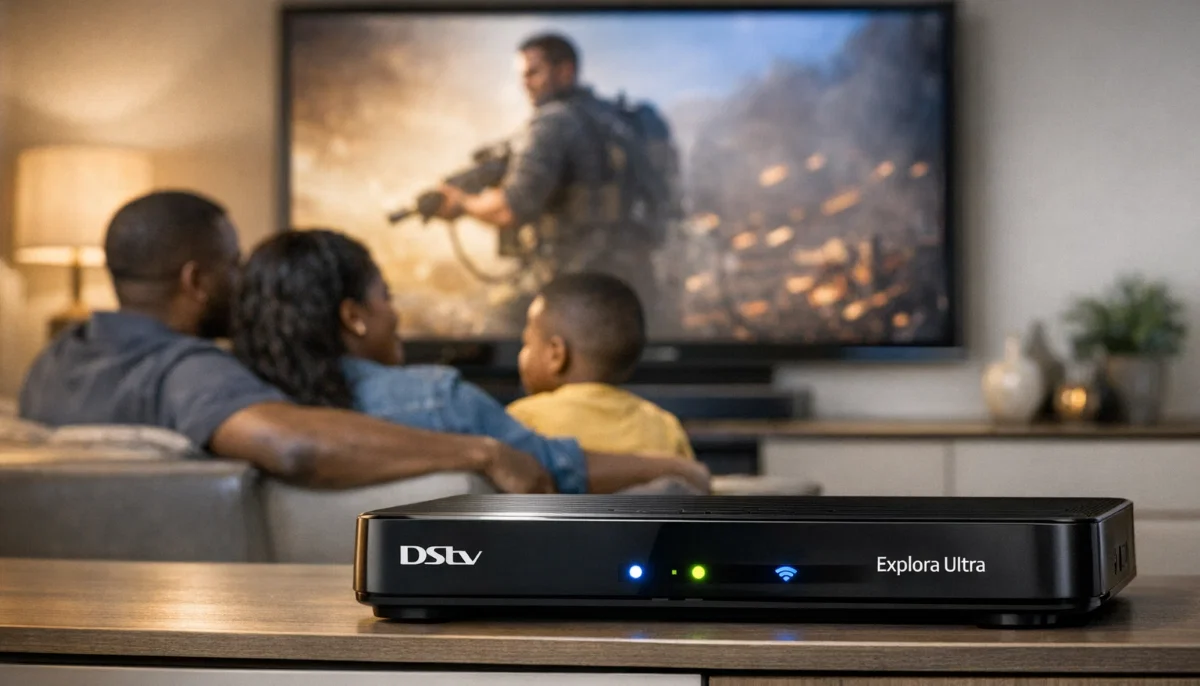
Reset Didn’t Fix Your Problem?
Get a free quote from a verified, accredited DSTV installer near you.
We’ll diagnose and fix your decoder issues.
Servicing North West, Potchefstroom, Brits, Klerksdorp, Mahikeng, Hartbeespoort, and across South Africa
How to Reset Your DSTV Decoder: Hard Reset vs Soft Reset (Fix Most Issues)
🔄 Your decoder is frozen, glitching, or showing errors – here’s how to reset it and get back to watching.
Your DSTV picture freezes. The remote stops responding. The decoder gets stuck on the boot screen.
You’re about to call a technician and pay for a service call. But before you do, there’s one thing you should try first:
resetting your decoder.
A simple reset dstv decoder can fix 70% of common problems – freezing, pixelation,
remote issues, “No Signal” errors, and slow performance. It’s free, it takes two minutes,
and you don’t need any tools or technical knowledge.
In this guide, I’ll explain the difference between a soft reset and a hard reset dstv,
show you exactly how to perform each one, and tell you when a factory reset dstv decoder
is necessary. If you’re looking for “how to hard reset dstv decoder”, you’ve come to the right place.
For other DSTV problems, read our
why is my DSTV not working guide.
For decoder boot issues, see decoder not booting fix.
And for remote problems, read remote not working guide.
📋 Table of Contents – DSTV Decoder Reset Guide
🔍 When Should You Reset Your DSTV Decoder?
A reboot decoder can fix many common problems. Here’s when to try it.
Try a reset if you have:
- Frozen picture or constant pixelation
- Decoder not responding to remote
- Decoder stuck on boot screen (logo appears but never loads)
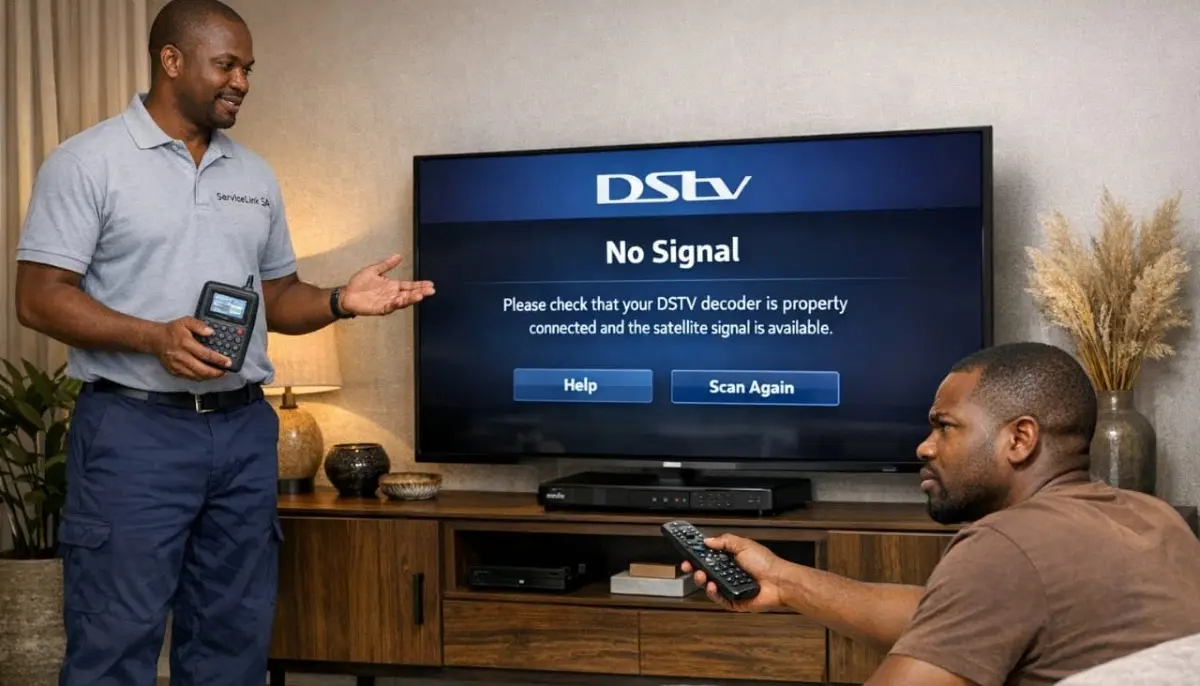
- “No Signal” or E48-32 error after checking cables
- Slow channel changes or menu navigation
- Recording failures or playback issues (Explora)
- Catch Up or streaming apps not working
- Decoder working fine but suddenly stopped
- Problems started after load shedding or power outage
Don’t bother resetting for:
- Complete signal loss that persists after reboot (likely dish or LNB issue)
- Physical damage to decoder (cracked case, burnt smell)
- Decoder completely dead with no lights (power supply issue)
✅ Pro Tip:
Before resetting, check if the problem is actually your TV. Press “Source” or “Input” on your TV remote
to ensure you’re on the correct HDMI channel. Many “decoder problems” are just TV input issues.
🔄 Soft Reset (Reboot) – The Quick Fix
A soft reset is the simplest way to reboot decoder – it restarts the software without erasing anything.
How to perform a soft reset:
- Press and hold the power button on your remote or decoder for 5-10 seconds
- The decoder will turn off, then turn back on automatically
- Wait 2-3 minutes for the decoder to fully boot
- Check if your problem is resolved
Alternative method (using remote menu):
- Press “Menu” on your remote
- Navigate to Settings → System Settings → Reboot
- Confirm reboot
- Wait 2-3 minutes for reboot to complete
When soft reset works best:
- Decoder is slow or unresponsive
- Remote not responding (if decoder responds to front panel buttons)
- Minor glitches after extended use
🔌 Hard Reset (Power Cycle) – The Most Effective
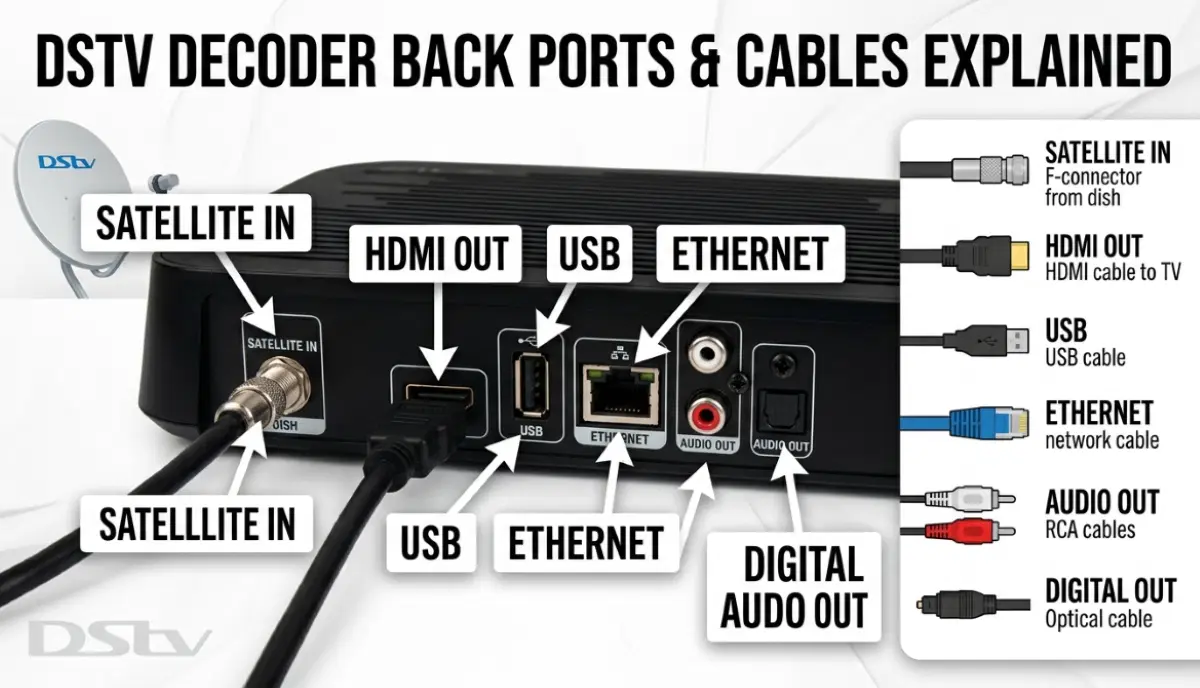
A hard reset dstv (also called power cycling) completely cuts power to the decoder,
clearing temporary memory and forcing a full restart. This is the most effective reset method.
How to perform a hard reset:
- Unplug the decoder from power – pull the plug from the wall outlet OR from the back of the decoder
- Wait a full 60 seconds – this allows capacitors to discharge completely
- While waiting, unplug the satellite cable from the decoder (optional but helps clear some issues)
- Plug the decoder back in
- Wait 2-3 minutes for the decoder to fully boot and acquire channels
- Reconnect the satellite cable if you unplugged it
- Test if your problem is resolved
💡 Why 60 seconds?
Waiting 60 seconds is critical. Decoders have capacitors that store electrical charge.
If you plug back in too quickly, the capacitors still hold charge and the decoder doesn’t fully reset.
A full 60 seconds ensures all power is drained and the decoder starts completely fresh.
When hard reset works best:
- Decoder is frozen completely (no response to any buttons)
- Stuck on boot screen (logo appears but never loads)
- “No Signal” error that persists
- Problems started after load shedding or power outage
- Soft reset didn’t help

Reset Didn’t Work?
Get a free quote from a verified, accredited DSTV installer near you.
We’ll diagnose and fix your decoder issues.
Free quotes. Verified installers. No obligation.
⚠️ Factory Reset – Last Resort (Warning!)
A factory reset dstv decoder erases all your settings, recordings, and preferences,
returning the decoder to its original state. Use this ONLY as a last resort.
⚠️ CRITICAL WARNING:
A factory reset will ERASE:
• All recorded shows on your Explora hard drive
• All scheduled recordings (timers)
• All parental controls and settings
• Your favourite channels list
• Any personalised settings
This cannot be undone. Back up anything important before proceeding.
How to perform a factory reset (if decoder boots):
- Press “Menu” on your remote
- Navigate to Settings → System Settings → Factory Reset
- Enter your PIN (default is 1234 or 0000 unless you changed it)
- Confirm that you want to reset
- Wait 5-10 minutes for the reset to complete
- The decoder will reboot and go through first-time setup
- You’ll need to re-scan channels and re-enter your settings
How to perform a factory reset (if decoder won’t boot):
Some decoders have a button combination for force reset. Check your decoder’s manual.
On some models, holding the power button for 30 seconds while unplugged, then plugging back in,
triggers recovery mode. Professional help may be needed.
When factory reset is appropriate:
- Persistent software corruption that hard reset didn’t fix
- Decoder works but has constant glitches
- Before selling or giving away your decoder
- After trying all other troubleshooting steps
📊 Reset Types Compared
| Reset Type | What It Does | Loses Settings? | Loses Recordings? | When to Use |
|---|---|---|---|---|
| Soft Reset (Reboot) | Restarts software only | ❌ No | ❌ No | Minor glitches, slow performance |
| Hard Reset (Power Cycle) | Clears temporary memory, full restart | ❌ No | ❌ No | Most problems – frozen decoder, No Signal, boot issues |
| Factory Reset | Erases everything, returns to original state | ✅ Yes | ✅ Yes (Explora) | Last resort – persistent corruption, before selling |
📋 Step-by-Step Reset Instructions
For a hard reset (recommended for most problems):
- Locate the power cord at the back of your decoder
- Unplug it from the wall outlet OR from the decoder itself
- Set a timer for 60 seconds – wait the full time
- While waiting, unplug the satellite cable from the decoder (optional)
- After 60 seconds, plug the decoder back in
- Wait 2-3 minutes for the decoder to fully boot
- If you unplugged the satellite cable, reconnect it now
- Wait another 1-2 minutes for channels to load
- Test if your problem is resolved
Important tips:
- Don’t just press the power button – this puts the decoder in standby, it doesn’t reset it
- Don’t rush – wait the full 60 seconds
- Don’t interrupt the boot process – let it complete fully
- If your decoder has an external power brick (power supply), unplug that too
📺 Decoder-Specific Reset Instructions
Explora Ultra / Explora 3 / Explora 2:
- Hard reset: Unplug for 60 seconds as described above
- Factory reset: Menu → Settings → System Settings → Factory Reset
- PIN is usually 1234 or 0000
- Read our Explora Ultra guide
HD Decoder (9S):
- Hard reset: Unplug for 60 seconds
- Factory reset: Menu → Settings → Installation → Factory Reset
- PIN is usually 1234
DSTV Streama:
- Hard reset: Unplug for 60 seconds
- Factory reset: Settings → Device Preferences → Factory Reset
- Note: This is an Android-based device, reset process differs
For more on decoder types, read our
decoder types explained guide.
📝 What to Do After a Reset
After a reset dstv decoder, here’s what to check.
After a soft or hard reset (no settings lost):
- Wait 2-3 minutes for full boot – don’t rush
- Check if your problem is resolved
- If channels are missing, perform a channel scan: Menu → Settings → Scan for Channels
- If remote isn’t working, try fresh batteries
- If signal is weak, check your dish alignment
After a factory reset (settings lost):
- Go through first-time setup (language, location, etc.)
- Perform a channel scan to find all channels
- Re-enter your parental control PIN if you changed it
- Recreate any scheduled recordings (timers)
- Reconnect to your Wi-Fi network (for streaming features)
- Re-pair your Bluetooth remote if needed (Explora Ultra)
✅ What Problems Does a DSTV Decoder Reset Fix?
A reboot decoder can fix many common issues.
- Frozen picture or pixelation: Often caused by temporary software glitches
- Decoder not responding to remote: Clears remote pairing issues
- Stuck on boot screen: Forces decoder to restart correctly
- “No Signal” after power outage: Resets decoder’s signal acquisition
- Slow channel changes: Clears memory fragmentation
- Recording failures: Resets hard drive connection
- Catch Up not working: Refreshes network connection
- Audio sync issues: Resets audio processing
- Menu freezing: Clears temporary data
❌ What Problems Won’t a Reset Fix?
If resetting doesn’t help, the problem is likely hardware-related.
- Complete signal loss after reset: Dish misalignment, LNB failure, or cable damage
- Decoder completely dead (no lights): Power supply failure
- Burning smell or smoke: Internal hardware failure – unplug immediately
- Physical damage: Cracked case, broken ports, liquid damage
- Hard drive clicking noise (Explora): Failing hard drive
- Persistent E16-4 error: Hard drive failure
- Missing channels after reset: LNB polarity failure or subscription issue
🛡️ Preventing Future DSTV Decoder Problems
Here’s how to reduce the need for frequent reset dstv decoder operations.
- Reboot monthly: Perform a hard reset once a month as preventative maintenance
- Use surge protection: Protects against power surges during load shedding
- Keep decoder ventilated: Ensure proper airflow – don’t stack other devices on top
- Allow software updates: Don’t interrupt updates – they fix bugs and improve stability
- Keep remote batteries fresh: Low batteries can cause intermittent issues
- Check signal regularly: If signal is dropping, address it early
- Use a UPS: Protects against power fluctuations and keeps decoder running during load shedding
❓ Frequently Asked Questions About Resetting DSTV Decoders
How do I reset my DSTV decoder if it’s frozen?
To reset dstv decoder when frozen, perform a hard reset: unplug the decoder from power,
wait 60 seconds, then plug back in. Wait 2-3 minutes for it to fully boot.
This fixes most frozen decoder issues. If it’s still frozen after reset, the decoder may have hardware problems.
What’s the difference between a hard reset and a factory reset?
A hard reset dstv (power cycle) unplugs the decoder for 60 seconds – it clears temporary memory
but keeps all your settings and recordings. A factory reset erases EVERYTHING – settings, recordings,
favourites – and returns the decoder to its original state. Use hard reset for most problems.
Factory reset only as a last resort.
How long should I wait when resetting my DSTV decoder?
When performing a hard reset, wait a full 60 seconds before plugging back in.
This allows capacitors to discharge completely. After plugging back in,
wait 2-3 minutes for the decoder to fully boot before trying to use it.
Rushing the process may not fully reset the decoder.
Will a factory reset delete my recordings on Explora?
Yes. A factory reset dstv decoder will erase all recordings on your Explora’s hard drive.
It also deletes scheduled recordings, favourites, and all settings.
Only perform a factory reset if absolutely necessary – after trying soft and hard resets first.
Back up any important recordings before factory resetting.
How often should I reset my DSTV decoder?
As preventative maintenance, a hard reset once a month is beneficial – it clears temporary memory
and prevents glitches. You don’t need to wait for problems to occur.
A monthly reboot decoder takes 3 minutes and can prevent many common issues.
Why does my DSTV decoder need resetting after load shedding?
Load shedding causes sudden power loss. When power returns, there can be a surge that confuses your decoder’s software.
A hard reset clears the glitch and allows the decoder to start fresh.
Always use a surge-protected power strip to reduce the risk of damage.
What is the PIN for DSTV factory reset?
The default PIN for factory reset dstv decoder is usually 1234 or 0000.
If you’ve changed it and forgotten it, you may need to contact DSTV customer care.
Some decoders allow PIN reset by holding certain buttons – check your manual.
Will resetting my decoder fix “No Signal” error?
Sometimes. A hard reset can fix “No Signal” caused by decoder software glitches.
If the problem is signal-related (dish alignment, LNB failure, cable damage), resetting won’t help.
Try the reset first – it’s free and takes 3 minutes. If it doesn’t work,
the problem is likely physical and needs professional attention.
How do I reset my DSTV remote after resetting the decoder?
For IR remotes (standard), no pairing is needed – they work automatically.
For Bluetooth remotes (Explora Ultra), re-pair by pressing and holding “EXIT” and “MENU”
for 10 seconds while standing within 1 metre of the decoder.
Read our remote troubleshooting guide.
My decoder still isn’t working after reset – what now?
If how to hard reset dstv decoder didn’t solve your problem, the issue is likely hardware-related:
power supply failure, hard drive failure (Explora), LNB failure, or dish alignment.
Request a professional diagnosis from a verified DSTV installer.
Don’t keep resetting – it won’t fix hardware problems.
✅ Final Thoughts: Reset First, Call Later
A simple reset dstv decoder can fix 70% of common problems – and it’s completely free.
Before you call a technician, spend 3 minutes trying a hard reset. You might save yourself a service call.
Start with a hard reset (unplug for 60 seconds). If that doesn’t work, try a soft reset.
Only use factory reset as a last resort – it erases your recordings and settings.
If resetting doesn’t solve your problem, don’t keep trying. The issue is likely hardware-related
and needs professional attention. Request a free quote from ServiceLink SA.
We’ll connect you with verified, accredited DSTV installers who can diagnose and fix your decoder.
Reset Didn’t Fix Your Problem?
Get a free quote from a verified, accredited DSTV installer near you.
We’ll diagnose and fix your decoder issues fast.
📞 Call us: 073 138 4726 for immediate assistance.
Free inspection •
How to choose an installer •
12-month warranty on repairs
📚 Official resources & standards referenced:
- Official DSTV reset instructions – Official decoder reset information.
- MyDSTV account management – Manage your subscription and account.
Information provided for general guidance. DSTV is a registered trademark of MultiChoice.
Factory reset instructions vary by decoder model – check your manual for model-specific instructions.
Written by: Innocent T Hanyani
Satellite & Home Entertainment Installation Specialist | 21+ Years Experience
Innocent T Hanyani has over two decades of experience in satellite television installations and troubleshooting across South Africa.
He has performed thousands of decoder resets, from simple power cycles to complex factory resets.
His practical guidance helps homeowners resolve common issues without unnecessary service calls.
For more help with DSTV decoder problems, explore our related resources:
why is my DSTV not working,
decoder not booting fix,
remote not working guide,
picture freezing fix,
MyDSTV app guide.
See our service areas page for coverage in your region.