
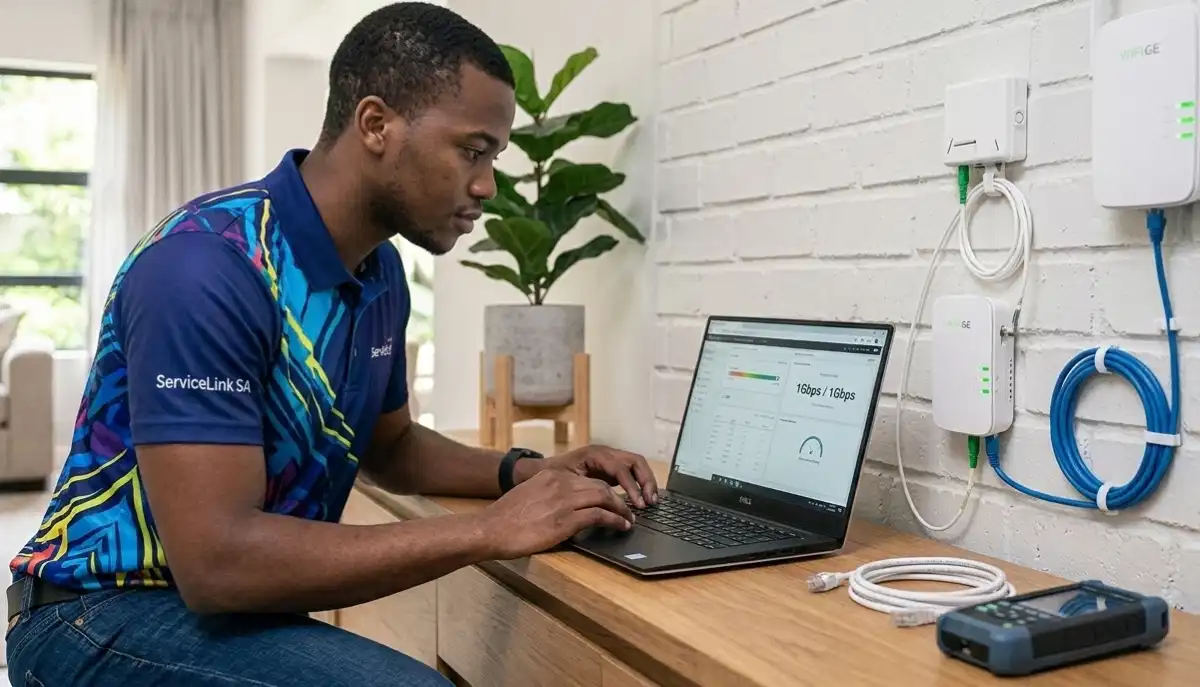
Struggling with Your Fibre ONT Setup?
Get professional help from local specialists who understand fibre ONT setup and configuration.
Servicing Sandton, Constantia, Ballito, and across South Africa
Fibre ONT Setup and Configuration Explained South Africa: The Complete Guide
🔌 Confused by the little white box? Here’s everything you need to know about your fibre ONT.
You’ve just had fibre installed. The technician left, and you’re staring at a small white box with blinking lights. You know it’s important, but what exactly does it do? And how do you set it up correctly?
This little box is your Optical Network Terminal, or ONT. It’s the bridge between the fibre optic cable coming into your home and your WiFi router. Getting your fibre ONT setup and configuration explained South Africa is essential if you want to get the most out of your fibre connection.
I’ve helped many homeowners across South Africa understand their fibre equipment. In this guide, I’ll walk you through everything you need to know about fibre ONT setup, from understanding what the lights mean to configuring your router correctly. Whether you’re in Sandton, Constantia, or Ballito, these principles apply.
For more detailed information, check out our guides on fibre ONT and router explained and fibre installation delays. Let’s demystify your fibre ONT.
📋 Table of Contents – Fibre ONT Setup Guide
🔍 What Is a Fibre ONT and Why Do You Need It?
Before we dive into fibre ONT setup, let’s understand what this device actually does.
ONT Stands for Optical Network Terminal
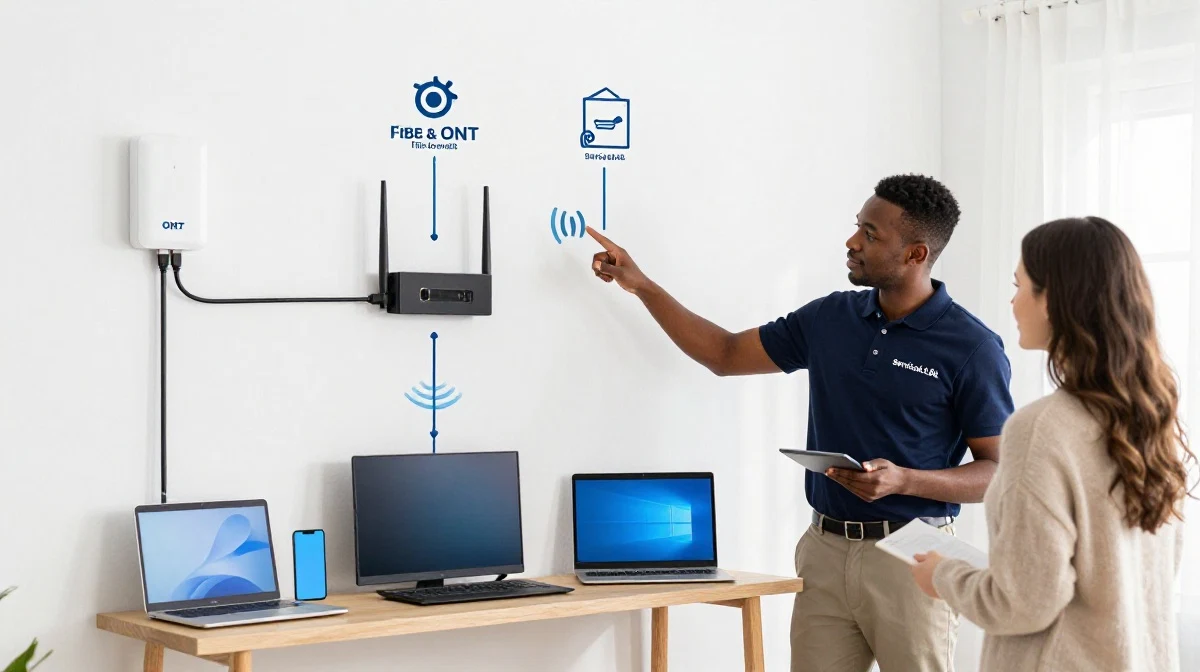
Your ONT is the device that converts the optical (light) signals coming through your fibre optic cable into electrical signals that your router can understand. Think of it as a translator between the fibre network and your home network.
Why Do You Need an ONT?
- Signal Conversion: Fibre optic cables use light to transmit data. Your ONT converts these light signals into data your devices can use.
- Connection Point: It’s the physical termination point for the fibre cable entering your home.
- Network Interface: It provides the connection point for your router via an Ethernet cable.
- ISP Management: Your Internet Service Provider (ISP) uses the ONT to manage your connection.
What’s the Difference Between an ONT and a Router?
This is a common point of confusion. The fibre ONT and router are two different devices:
- ONT: Converts fibre signals to Ethernet signals. It’s provided by your fibre network operator (e.g., Openserve, Vumatel, Frogfoot).
- Router: Distributes the internet connection to your devices via WiFi or Ethernet cables. You usually provide your own router, or your ISP provides one.
For a deeper dive into the differences, read our guide on fibre ONT vs router explained.
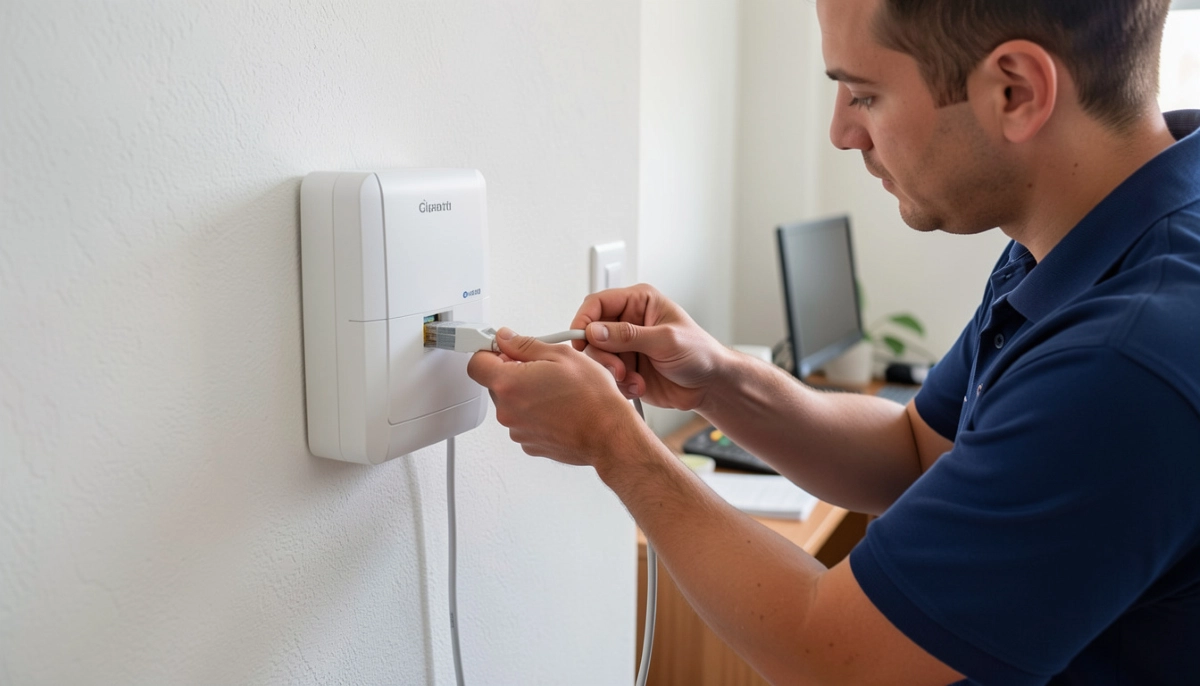
💡 Understanding ONT Lights and What They Mean
One of the most confusing parts of fibre ONT setup is understanding the lights on the device. Here’s what each light means:
| Light Label | Solid Green | Blinking Green | Red or Off |
|---|---|---|---|
| Power | Device is on and working | Device is booting up | No power – check outlet or adapter |
| PON or Optical | Fibre connection is active and working | Device is registering with network | No fibre signal – contact your ISP |
| LAN or Internet | Connected to router via Ethernet | Data is being transmitted | No Ethernet connection – check cable |
| LOS (Loss of Signal) | (Should be off) | (Should be off) | Flashing red – fibre cable issue |
What to Do If Lights Are Wrong:
- PON light off or red: Your fibre connection isn’t active. Contact your ISP.
- LAN light off: Check the Ethernet cable between your ONT and router.
- LOS light flashing: There’s a problem with your fibre cable. Contact your ISP immediately.
For more troubleshooting, see our fibre ONT troubleshooting guide.
🔧 Fibre ONT Setup: Step-by-Step Guide
Here’s how to set up your fibre ONT correctly. This is the fibre ONT setup process for most South African homes.
Step 1: Unbox and Inspect
Your ONT should come with:
- The ONT device itself
- A power adapter
- An Ethernet cable (usually yellow)
- Quick start guide
Step 2: Position the ONT
Place the ONT near where the fibre cable enters your home. It should be in a well-ventilated area, away from heat and moisture.
Step 3: Connect the Fibre Cable
The fibre cable from outside your home will have a connector that plugs into the ONT. This is usually a green or blue SC/APC connector. Handle it carefully—fibre cables are fragile.
Step 4: Connect the Power Adapter
Plug the power adapter into the ONT and then into a wall socket. The Power light should turn on.
Step 5: Connect Your Router
Take the Ethernet cable and plug one end into the LAN or Internet port on the ONT. Plug the other end into the WAN/Internet port on your router.
Step 6: Power On Your Router
Plug in your router and wait for it to boot up. The ONT’s LAN light should turn solid green.
Step 7: Configure Your Router
Follow your router’s setup instructions. This usually involves connecting to the router’s WiFi and completing a setup wizard.
For more detailed router configuration, check our router setup guide.

Need Help with Your Fibre Setup?
Get professional assistance from local specialists who understand fibre ONT configuration and router setup.
Free inspections available for fibre installations.
⚙️ Fibre ON Router Configuration Guide
Once your fibre ONT setup is complete, you need to configure your router. This is the fibre on router configuration process.
Option A: Using Your Router’s App
Most modern routers have a companion app (e.g., TP-Link Tether, Huawei AI Life). Download the app, follow the prompts, and you’ll be online in minutes.
Option B: Using a Web Browser
- Connect your device to the router via WiFi or Ethernet.
- Open a web browser and enter your router’s IP address (usually 192.168.1.1).
- Log in with the admin credentials (found on the router’s sticker).
- Follow the setup wizard to configure your WiFi network name (SSID) and password.
Important Configuration Settings for Fibre:
- Internet Connection Type: For fibre, this is usually set to DHCP (Automatic IP) or PPPoE depending on your ISP. Most fibre connections use DHCP.
- VLAN Settings: Some fibre networks require VLAN tagging. Check with your ISP if this is needed.
- MTU Size: Usually set to 1500 for fibre connections.
What If Your ISP Requires Specific Settings?
Some ISPs require specific configurations. For example, Openserve often uses DHCP, while some other providers may require PPPoE with a username and password. Your ISP should provide these details.
For more information on ISP switching, read our guide on how to switch ISP without losing internet.
🛠️ Common Fibre ONT Issues and Troubleshooting
Even with proper fibre ONT setup, you might encounter issues. Here’s how to troubleshoot common problems.
Issue 1: No Internet After Setup
- Check the ONT lights: Ensure the PON light is solid green. If not, contact your ISP.
- Check the Ethernet cable: Make sure it’s securely connected to both the ONT and router.
- Reboot both devices: Unplug the ONT and router, wait 30 seconds, then plug them back in (ONT first, then router).
Issue 2: Slow Internet Speeds
- Check your internet plan: You might be on a slower package.
- Check for interference: WiFi interference can slow your speeds.
- Test with a wired connection: Connect a device directly to the router via Ethernet to rule out WiFi issues.
Issue 3: Intermittent Connection
- Check for loose connections: Ensure all cables are securely connected.
- Check for overheating: Ensure the ONT and router have adequate ventilation.
- Contact your ISP: There might be a network issue in your area.
Issue 4: Red Light on ONT
- If LOS is flashing red: This indicates a fibre cable issue. Contact your ISP immediately.
- If PON is red: Your ONT isn’t registered. Contact your ISP.
For more fibre ONT troubleshooting, check our dedicated guide.
🏢 Understanding Your Fibre Provider Setup
Different fibre providers have slightly different setups. Here’s what you need to know:
Openserve:
Openserve typically uses a standard ONT with DHCP configuration. Your router should be set to DHCP for internet access. For more details, see our WiFi setup for Openserve, Vumatel, and Frogfoot guide.
Vumatel:
Vumatel generally uses DHCP as well. Some Vumatel installations may require VLAN tagging (usually VLAN 10). Check with your ISP for specific settings.
Frogfoot:
Frogfoot often uses DHCP. Some areas may require specific configurations, so it’s best to check with your ISP.
Choosing Your ISP:
When choosing a fibre provider, consider factors like speed, price, and customer service. Our best fibre packages guide can help you compare options.
If you’re considering switching providers, read our guide on fibre vs LTE comparison to make an informed decision.
🔌 Ethernet Wiring for Your Fibre Connection
Proper ethernet wiring is essential for a stable fibre connection. Here’s what you need to know:
Cable Types:
- Cat5e: Supports speeds up to 1 Gbps. Suitable for most home fibre connections.
- Cat6: Supports speeds up to 10 Gbps. Future-proof and recommended for new installations.
- Cat6a: Supports 10 Gbps over longer distances. Overkill for most homes.
Best Practices for Ethernet Cabling:
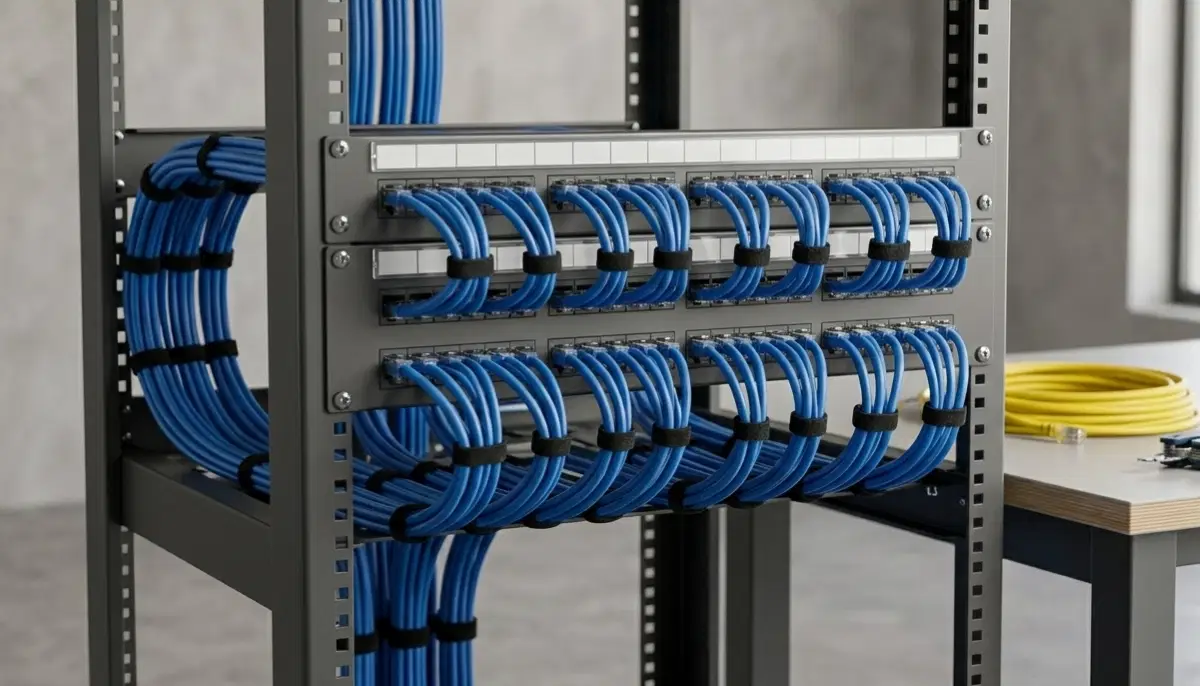
- Keep cables neat: Use cable ties to manage cables and prevent tangling.
- Avoid tight bends: Sharp bends can damage cables and reduce signal quality.
- Use quality connectors: Poor quality connectors can cause connection issues.
- Don’t exceed length limits: Maximum length for Ethernet is 100 metres.
Common Ethernet Issues:
- Loose connections: Ensure cables are firmly plugged in.
- Damaged cables: Check for visible damage or kinks.
- Wrong cable type: Cat5 or lower may not support gigabit speeds.
For more on cabling, see our ethernet wiring guide.
🚫 Common Fibre ONT Setup Mistakes to Avoid
⚠️ Warning: These Mistakes Ruin Your Fibre Setup
Avoid these errors when doing your fibre ONT setup and configuration.
- Handling the Fibre Cable Carelessly: Fibre cables are fragile. Bending or kinking them can break the glass core, requiring a full reinstall.
- Placing the ONT in a Poor Location: Place the ONT in a well-ventilated area away from heat and moisture. Avoid putting it in a cupboard.
- Using the Wrong Ethernet Cable: Cat5 or lower cables won’t support gigabit speeds. Use Cat5e or Cat6.
- Not Rebooting in the Correct Order: Always reboot the ONT first, wait for it to fully start, then reboot the router. This ensures the router gets the correct IP address.
- Ignoring Firmware Updates: Keep your router’s firmware updated for security and performance improvements.
- Not Checking for VLAN Settings: Some fibre providers require VLAN tagging. Check with your ISP if this is needed.
For more help, check our fibre installation delays guide and fibre ONT troubleshooting resources.
❓ Frequently Asked Questions About Fibre ONT Setup
What is a fibre ONT and what does it do?
An ONT (Optical Network Terminal) is the device that converts fibre optic light signals into data your router can use. It’s the bridge between your fibre line and your home network. Understanding fibre ONT setup is essential for getting online.
How do I set up my fibre ONT in South Africa?
How to set up fibre ONT in South Africa involves connecting the fibre cable to the ONT, plugging in the power adapter, and connecting your router via Ethernet. Then, configure your router’s WiFi settings. Follow our step-by-step guide for detailed fibre ONT configuration steps.
What do the lights on my fibre ONT mean?
The PON light should be solid green (fibre signal active). The LAN light should be solid green (connected to router). If the LOS light is red, there’s a fibre cable issue. If PON is red or blinking, contact your ISP. This is a key part of fibre ONT setup and configuration explained South Africa.
Can I use my own router with a fibre ONT?
Yes, you can use your own router with your fibre ONT. Simply connect your router’s WAN port to the ONT’s LAN port using an Ethernet cable. You may need to configure your router’s internet settings (usually DHCP). This is a common ONT router setup configuration.
Why is my fibre internet not working after ONT setup?
If your internet isn’t working, check that the ONT’s PON light is solid green. If not, contact your ISP. Also, check the Ethernet cable between the ONT and router, and reboot both devices. These are common fibre ONT troubleshooting steps.
What is the difference between an ONT and a router?
The ONT converts fibre signals to Ethernet signals, while the router distributes the internet to your devices via WiFi or Ethernet cables. The fibre ONT is provided by your fibre provider, while you usually provide your own router. For more, see our fibre ONT vs router guide.
How do I troubleshoot my fibre ONT?
Fibre ONT troubleshooting steps: check the lights (PON should be green, LOS should be off), ensure all cables are secure, reboot the ONT and router (ONT first), and check for any physical damage to the fibre cable. If issues persist, contact your ISP.
Do I need a specific router for fibre?
Most modern routers work with fibre. However, ensure your router has a gigabit WAN port for fibre speeds. Some fibre providers require specific VLAN settings, so check with your ISP. Our best fibre packages guide can help you choose a compatible router.
✅ Final Thoughts: Master Your Fibre ONT Setup
Your fibre ONT setup and configuration explained South Africa doesn’t have to be complicated. With the right knowledge, you can get your fibre connection up and running quickly.
Key Takeaways:
- Understand the ONT: It’s the bridge between your fibre line and your home network.
- Know the Lights: PON solid green = good. LOS flashing red = call your ISP.
- Setup Order: Connect fibre cable, power on ONT, connect router via Ethernet, configure router.
- Use Quality Cables: Cat5e or Cat6 Ethernet cables are essential for gigabit speeds.
- Troubleshoot Methodically: Check lights, secure connections, reboot in correct order.
- Contact Your ISP: For persistent issues, your ISP can help diagnose and fix problems.
Your Next Step: If you’re still struggling with your fibre ONT setup, don’t hesitate to get professional help. ServiceLink SA can connect you with local specialists who understand fibre ON configuration and router setup.
Ready to Get Your Fibre Setup Right?
Get free quotes from verified local specialists for fibre ONT setup and configuration.
📞 Call us: 073 138 4726 for immediate help finding a specialist near you.
📢 Are You a Fibre Installation Professional?
Join ServiceLink SA’s network of verified contractors and get access to qualified leads for fibre ONT setup and installation projects.
📚 Official resources & standards referenced:
- SANS 10400 – Guidelines for electrical and networking installations in South African homes.
- Department of Energy – Information on energy-efficient electronic equipment.
Information provided for general guidance. For professional fibre ONT configuration, always consult a qualified local technician.
Written by: Innocent T Hanyani
Construction & Home Services Industry Specialist | 21+ Years Experience
Innocent T Hanyani has over two decades of experience working across South Africa’s construction, telecommunications, and home services sectors. Throughout his career, he has worked closely with fibre installers, network technicians, and homeowners, gaining practical insight into how fibre ONT setup and network infrastructure are installed and maintained. His expertise helps homeowners understand the complexities of fibre on router configuration and fibre installation, from understanding ONT lights to achieving optimal WiFi configuration for fibre homes.