
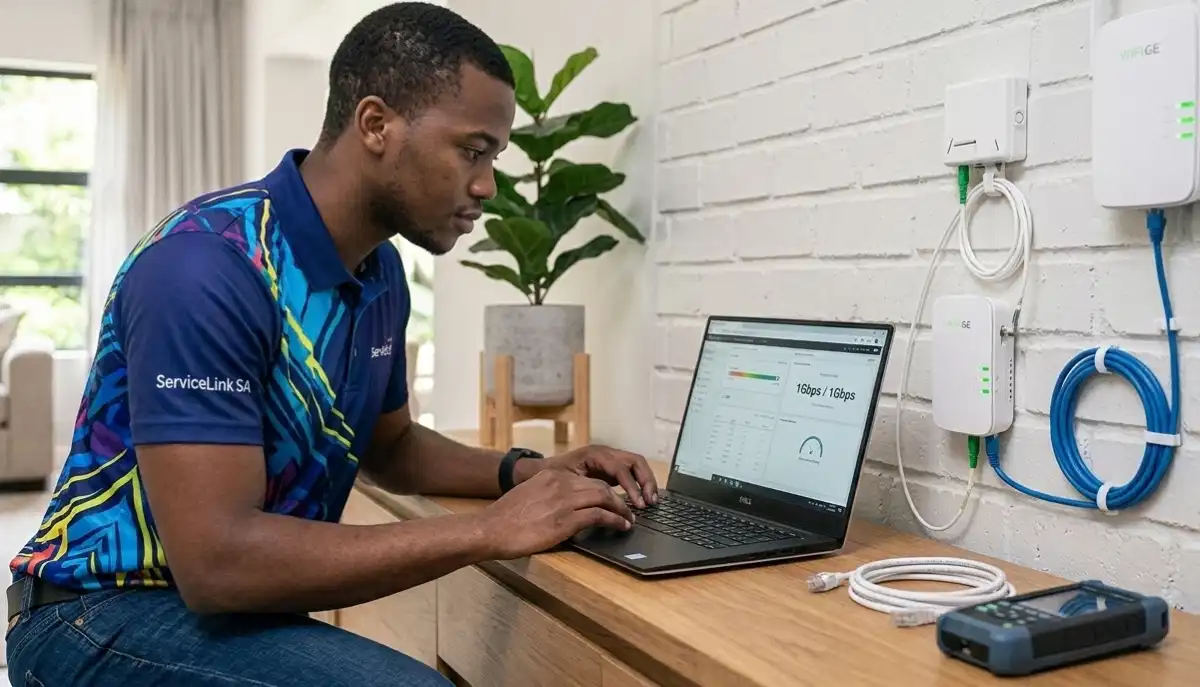
Fibre to WiFi Setup South Africa – Complete Guide to Connecting Your Home Network
🔆 Fibre is installed – now what? From ONT to router to whole-home WiFi, here’s everything you need to know about fibre to WiFi setup in South Africa.
You’ve finally got fibre in your Sandton home. The technician installed the ONT, ran the cable, and left. Now you’re staring at a box with blinking lights, wondering how to get WiFi to your bedroom in Fourways or your home office in Cape Town.
Fibre to WiFi setup South Africa involves more than just plugging in a router. Proper configuration ensures you get the speeds you’re paying for, reliable coverage throughout your home, and secure internet for all your devices.
This comprehensive guide covers everything: understanding your ONT, choosing the right router, connecting and configuring your network, optimising WiFi coverage, and troubleshooting common issues. Whether you’re a new fibre subscriber or looking to improve your existing setup, you’ll find practical, step-by-step advice.
If you’re looking for trusted local specialists, explore our Services Overview or visit our WiFi Extensions page to find network experts near you. For more on how we work, see How It Works.
📡 INDUSTRY STANDARDS: Fibre installations in South Africa follow guidelines from the Fibre Industry Association. Each network operator (like Vumatel or Openserve) has specific requirements for CPE (Customer Premises Equipment).
Need Help With Your Fibre Setup?
Get free, no-obligation quotes from vetted network technicians who specialise in fibre to WiFi configuration. Ensure you’re getting the speeds you pay for.
Find Fibre Specialists Near Me
Servicing Johannesburg, Pretoria, Cape Town, Durban, and nationwide
📋 Table of Contents – Fibre to WiFi Guide
🔆 Fibre Basics – Understanding Your Connection
Before diving into setup, it helps to understand the components of a fibre connection:
- Fibre cable: The glass fibre that comes from the street to your home – carries data as light pulses
- ONT (Optical Network Terminal): The box where the fibre terminates – converts light signals to electrical signals (Ethernet)
- Router: Connects to ONT via Ethernet cable – creates your WiFi network and manages connected devices
- Modem (not needed): Unlike ADSL, fibre doesn’t use a modem – the ONT replaces it
Your Internet Service Provider (ISP) provides the fibre connection and usually supplies a basic router. However, the supplied router may not be optimal for your home size or speed requirements.
Learn more about our approach on our About Us page or read why clients choose us on our Benefits page.
📦 The ONT – Fibre Termination Point Explained
The ONT (Optical Network Terminal) is installed by your fibre network operator (Vumatel, Openserve, Octotel, etc.). It’s the box where the fibre cable from the street enters your home.
What the ONT Does
- Converts optical signals (light) to electrical signals (Ethernet)
- Provides one or more Ethernet ports to connect your router
- May have phone ports if you have VoIP service
- Powered by electricity – needs a plug point
- Usually remains property of the network operator
Common ONT Brands in South Africa
- Vumatel: Usually Huawei or Nokia ONTs
- Openserve: Huawei, ZTE, or Nokia models
- Octotel: Various models depending on area
- Frogfoot: Usually Huawei or MikroTik
The ONT is the starting point of your home network. Everything else connects to it – directly or through your router.
📍 ONT Placement – Critical for Your Whole Network
Where the installer places your fibre termination point affects everything: where your router can go, how far WiFi reaches, and whether you can easily wire devices.
Optimal ONT Placement
- Central location: Ideally near the centre of your home – router will be nearby
- Near power: ONT needs electricity – ensure a plug point is available
- Accessible: Not hidden behind furniture – you may need to access it
- Near where you want your router: Router connects via Ethernet cable (max 100m, but shorter is better)
- Away from interference: Keep away from large appliances, but this matters less for the ONT itself
If Placement Is Suboptimal
Sometimes installers place the ONT in impractical locations (garage, corner, outside). If this happens:
- Ask if it can be moved (may cost extra)
- Run Ethernet cable from ONT to a better router location
- Consider Ethernet wiring to extend network
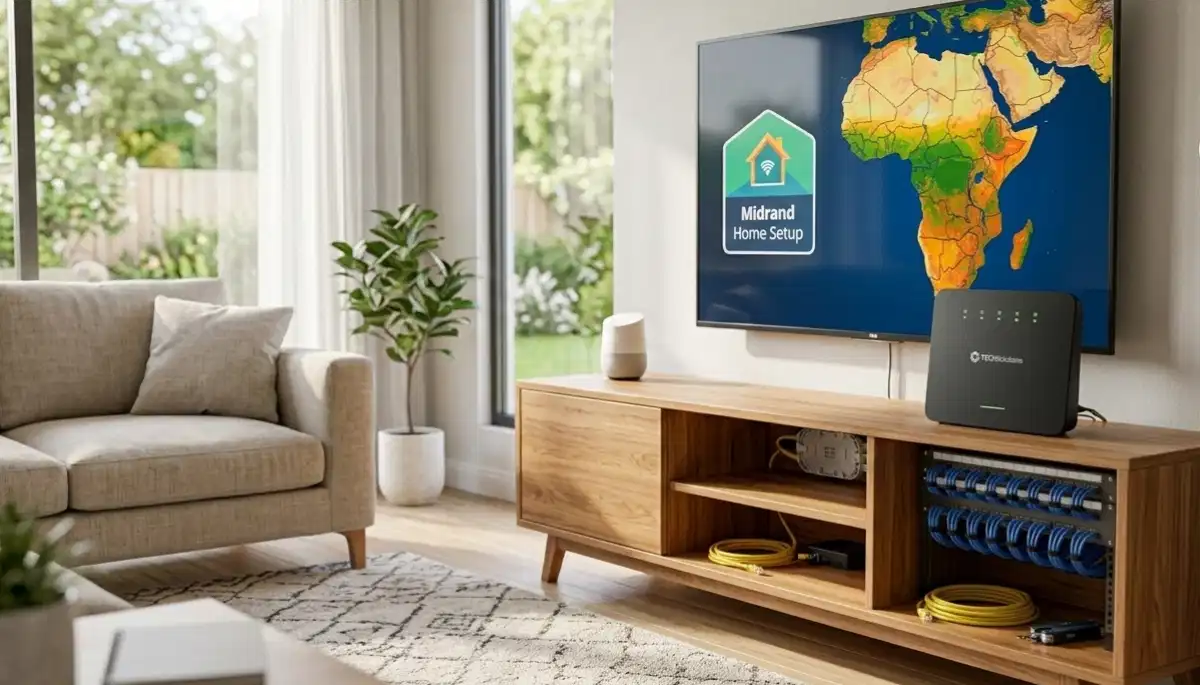
For homes in Fourways and Midrand with open-plan layouts, ONT placement is especially important for whole-home coverage.
📶 Choosing the Right Router for Fibre Speeds
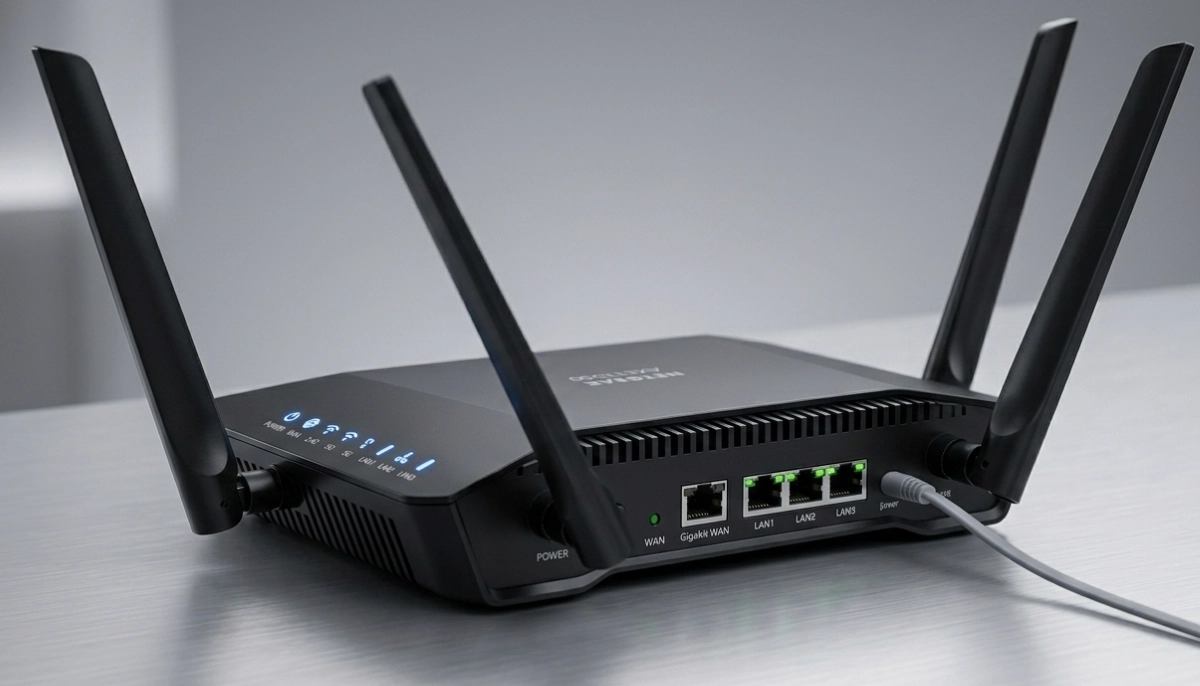
The router your ISP supplies is often basic. To get the most from your fibre, consider upgrading. Here’s what to look for in a fibre router installation:
Key Specifications
- Gigabit ports: All Ethernet ports must be gigabit (1000Mbps) – 100Mbps ports will bottleneck your speed
- WiFi standard: WiFi 5 (AC) minimum, WiFi 6 (AX) recommended for future-proofing
- Speed rating: Look for AC1200 or higher – first number is 2.4GHz speed, second is 5GHz total
- Dual-band: Essential for separating traffic and reducing congestion
- Processor/RAM: Faster processors handle multiple devices better
Router Recommendations by Speed
- Up to 100Mbps fibre: AC1200 router – R600-R1,000
- 100-200Mbps fibre: AC1750-AC1900 – R1,000-R1,800
- 200-500Mbps fibre: AC2300+ or WiFi 6 – R1,800-R3,000
- 500Mbps-1Gbps fibre: WiFi 6 (AX3000+) – R2,500-R5,000
For homes in Sandton and Cape Town with gigabit fibre, a quality router is essential to realise those speeds.
🔌 How to Connect Fibre Router – Step by Step
Connecting your router to the ONT is straightforward, but getting it right ensures optimal performance.
Physical Connection
- Ensure ONT is powered on (lights should be on)
- Take an Ethernet cable (Cat5e or Cat6 recommended)
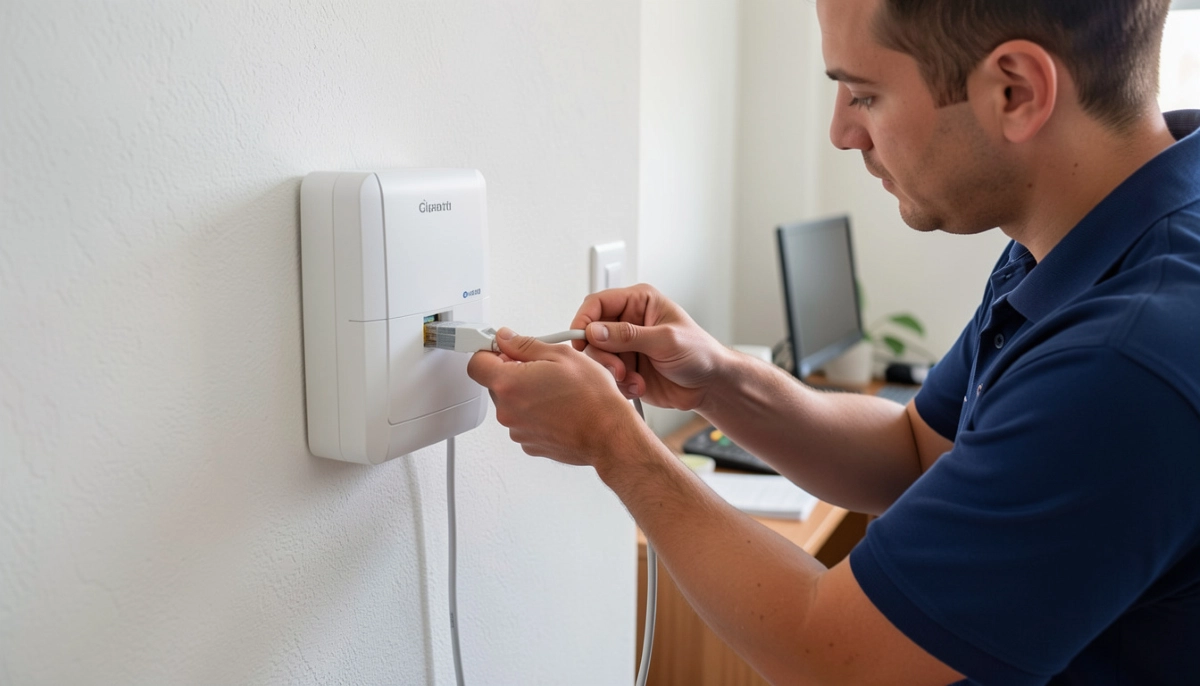
- Plug one end into the ONT’s Ethernet port (usually labelled LAN1 or Ethernet)
- Plug the other end into your router’s WAN/Internet port (usually a different colour)
- Power on your router
- Wait 2-3 minutes for devices to negotiate connection
Initial Configuration
- Connect a device to the router (WiFi or Ethernet)
- Open browser – you may be redirected to setup page, or need to enter router’s IP address (usually 192.168.0.1 or 192.168.1.1)
- Follow setup wizard – you’ll need:
- Admin password (set a strong one)
- WiFi network name (SSID)
- WiFi password (WPA2 or WPA3)
- Internet connection type – usually DHCP or PPPoE (see next section)
Professional router setup ensures all settings are optimised for your specific connection.
⚙️ PPPoE Settings & VLAN Tagging – ISP Requirements
Some South African ISPs require specific settings for your router to connect. The two most common are PPPoE settings and VLAN tagging.
PPPoE (Point-to-Point Protocol over Ethernet)
Some ISPs use PPPoE, which requires a username and password to connect. This is similar to how ADSL worked.
- Username: Usually your account number or email address
- Password: Provided by your ISP
- Enter these in your router’s internet settings under “PPPoE” or “PPP over Ethernet”
VLAN Tagging
VLAN tagging is required by many fibre networks (especially Vumatel and Openserve) to separate different types of traffic.
- Common VLAN IDs:
- Vumatel: Often VLAN 10 or 30 (check with ISP)
- Openserve: Often VLAN 835 or 100
- Octotel: Usually no VLAN required
- Set VLAN ID in your router’s WAN/Internet settings – look for “VLAN,” “802.1Q,” or similar
Important: These settings vary by ISP and network operator. If unsure, ask your ISP or a professional installer. Incorrect settings = no internet.
🔄 ISP Bridge Mode – Using Your Own Router
If your ISP supplied a router that’s also a modem (common with some providers), you may need to enable ISP bridge mode to use your own router effectively.
What Bridge Mode Does
- Disables the router functions on the ISP device
- Turns it into just a modem/ONT passthrough
- Allows your own router to handle all routing, WiFi, and firewall functions
- Prevents double NAT issues (which can affect gaming, port forwarding)
When to Use Bridge Mode
- You have a separate ONT (most fibre installations) – no need for bridge mode
- Your ISP supplied a combined ONT/router device and you want to use your own router
- You’re experiencing performance issues with the ISP router
- You need advanced features not available on ISP router
How to Enable
Log into your ISP router, look for “Bridge Mode,” “IP Passthrough,” or “Modem Mode.” Settings vary by device. If unsure, ask your ISP or a professional.
📡 WiFi Configuration for Fibre Speeds
Getting the full benefit of your fibre requires proper WiFi configuration:
Band Selection
- 2.4GHz: Use for older devices, IoT, and where range is needed – set channel width to 20MHz for stability
- 5GHz: Use for modern devices, streaming, gaming – set channel width to 80MHz for speed
- Band steering: Enable if available – automatically directs devices to best band
Channel Selection
- 2.4GHz: Use channels 1, 6, or 11 – the only non-overlapping channels
- 5GHz: Many more options – use WiFi analyser to find least crowded channel
- Auto-channel can work, but manual selection often better in congested areas
Security Settings
- Use WPA2-AES or WPA3 (if supported) – not WPA/WPA2 mixed mode
- Disable WPS – security vulnerability
- Set strong admin password for router
Quality of Service (QoS)
Enable QoS to prioritise important traffic (video calls, gaming) over background downloads. Set your fibre upload/download speeds in QoS settings for it to work effectively.
Professional WiFi signal optimisation includes all these configurations.
🏠 Whole-Home WiFi Coverage with Fibre
Fibre brings fast internet to your ONT, but getting that speed to every room requires proper WiFi coverage planning.
Assessing Your Coverage Needs
- Small home/apartment (under 100m²): Single good router may suffice
- Medium home (100-200m²): Quality router or basic mesh system
- Large home (200-350m²): Mesh system or multiple access points
- Estate home (350m²+): Multiple access points with Ethernet backhaul
Solutions for Whole-Home Coverage
- Mesh WiFi systems: Multiple nodes create single network – easy setup, good coverage
- WiFi extenders: Budget option for specific dead zones – but speed loss
- Wired access points: Best performance – run Ethernet to key locations, install APs
- Powerline adapters: Use electrical wiring – varies by house wiring quality
For homes in Bellville and Umhlanga with multiple floors, mesh systems or wired APs are usually best.
🔌 RJ45 Cabling from ONT – Wired for Performance
While WiFi is convenient, wired connections are always faster and more reliable. RJ45 cabling from ONT to key locations creates a backbone for your network.
Where to Run Ethernet Cables
- Home office: For work-from-home reliability
- Smart TV/streaming devices: 4K streaming is better wired
- Gaming consoles/PCs: Lower latency, no packet loss
- Access point locations: For best WiFi performance
- Future expansion: Run cables during renovations
Cabling Considerations
- Cat5e: Gigabit to 100m – sufficient for most homes
- Cat6: 10Gbps to 55m – future-proof
- Termination: Should end in wall plates with keystone jacks
- Patch panel: For multiple runs, terminate in central location
Cost: Professional cabling R800-R1,800 per drop depending on complexity. See our cost guide for details.
⚡ Fibre WiFi Speed Issues – Why You’re Not Getting Full Speed
You pay for 100Mbps fibre, but your WiFi speed test shows 30Mbps. This is common – here’s why:
Common Causes of fibre WiFi speed issues
- Router bottleneck: Old router can’t handle full fibre speed – especially 100Mbps+
- WiFi limitations: WiFi is always slower than wired – expect 50-80% of wired speed
- Distance/interference: Far from router = slower speed
- Device limitations: Old phone/laptop may have slow WiFi chips
- Congestion: Neighbour interference, especially in complexes
- Wrong settings: Old WiFi standards, narrow channels, security settings
Troubleshooting Steps
- Test wired speed from router – should be near your fibre speed
- If wired is fine, problem is WiFi – see our slow WiFi guide
- If wired is also slow, check router capabilities or contact ISP
- Update router firmware
- Optimise WiFi settings as above
Professional troubleshooting can identify exactly where the bottleneck is.
📈 When to Upgrade Your Router for Fibre
Many people have fibre but still use an old router that can’t handle the speed. Here’s when to upgrade:
- You have 100Mbps+ fibre but router is 3+ years old
- Router only has 100Mbps Ethernet ports (not gigabit) – these limit to 100Mbps max
- WiFi is WiFi 4 (802.11n) only – WiFi 5 or 6 is much faster
- You have many devices (15+) and router struggles
- Router frequently crashes or needs rebooting
- You’re not getting expected speeds even when close to router
A new router (R1,000-R3,000) can transform your fibre experience. Professional router installation ensures optimal configuration.
👨🔧 Professional Fibre to WiFi Setup – What’s Included
Hiring a professional for your fibre to WiFi setup South Africa ensures everything is done right first time.
What a Professional Does
- Site assessment: Evaluate home size, construction, dead zones
- ONT placement advice: If not yet installed, advise optimal location
- Router selection: Recommend appropriate router for your speed and home
- Physical installation: Connect and position router optimally
- Configuration: Set up PPPoE, VLAN, WiFi settings, security
- Cabling (if needed): Run Ethernet to key locations
- Coverage testing: Verify WiFi reaches all areas
- Speed testing: Confirm you’re getting expected speeds
- Education: Show you how to manage your network
When to Call a Professional
- New fibre installation – get it right from day one
- Unsure about router selection or configuration
- Need Ethernet cabling
- Existing WiFi doesn’t cover whole home
- Not getting expected speeds
💰 Fibre Setup Costs – What to Budget
Professional fibre to WiFi setup costs vary by what’s needed:
| Service | Typical Cost | What’s Included |
|---|---|---|
| Basic router installation (you supply router) | R600 – R1,200 | Connect and configure existing router |
| Router + installation (installer supplies mid-range router) | R1,500 – R2,500 | Router, connection, configuration |
| Full home WiFi setup (mesh system) | R3,500 – R6,500 | Mesh nodes, installation, optimisation |
| Ethernet cabling (per drop) | R800 – R1,800 | Cable, termination, wall plate |
| Site survey & consultation | R500 – R1,000 | Assessment, recommendations, quote |
Many companies offer package deals combining router, installation, and cabling. Use our free quote system to compare.
📍 Regional Fibre Considerations by City
📶 Johannesburg & Sandton
Multiple fibre operators (Vumatel, Openserve, Frogfoot) – check which serves your area. High-density complexes need careful channel planning to avoid interference.
📶 Pretoria & Centurion
Vumatel and Openserve are common. Large properties may need mesh systems or multiple access points.
📶 Cape Town & Bellville
Octotel is common in many areas, with Vumatel and Openserve also present. Multi-storey homes need coverage planning between floors.
📶 Durban & Umhlanga
Vumatel and Openserve serve most areas. Coastal homes may have different building materials affecting WiFi.
Local specialists in each city understand the specific requirements of your fibre operator. Search for WiFi extensions Johannesburg or your local area.
❌ 8 Common Fibre Setup Mistakes
Avoid these errors that limit your fibre experience:
- Mistake #1: Using the ISP’s basic router in a large home. ISP routers are often entry-level – upgrade for better coverage and speed.
- Mistake #2: Placing router in a corner or cabinet. Router needs central, elevated position – not hidden away.
- Mistake #3: Ignoring Ethernet backhaul opportunities. If you can run cables during building/renovation, do it – best performance.
- Mistake #4: Wrong VLAN or PPPoE settings. Incorrect settings = no internet. Double-check with your ISP.
- Mistake #5: Not updating router firmware. Old firmware causes performance and security issues.
- Mistake #6: Using old Ethernet cables. Cat5 (not Cat5e) may not support gigabit – use Cat5e or Cat6.
- Mistake #7: Not securing your network. Default passwords, no guest network – security risks.
- Mistake #8: Assuming WiFi will match wired speed. WiFi is always slower – manage expectations.
Professional installation avoids all these mistakes. See our contractor guide for choosing the right expert.
❓ Frequently Asked Questions
What is fibre to WiFi setup?
Fibre to WiFi setup South Africa refers to connecting your fibre ONT (optical network terminal) to a wireless router and configuring the network to provide internet throughout your home. It involves physical connections (Ethernet cabling), router configuration (including PPPoE and VLAN settings if required), and WiFi optimisation for coverage and speed.
How do I connect my fibre router to the ONT?
How to connect fibre router – use an Ethernet cable (Cat5e or Cat6) to connect the ONT’s Ethernet port to your router’s WAN/Internet port. Power on both devices. Then configure your router with your ISP’s settings (may include PPPoE username/password or VLAN tagging). Finally, set up your WiFi name and password. A professional can ensure all settings are correct.
Why is my fibre WiFi slower than wired?
Fibre WiFi speed issues are normal – WiFi is always slower than wired due to signal loss, interference, and sharing the medium. Expect 50-80% of your wired speed on WiFi. If speeds are much lower, possible causes: old router, wrong settings, interference, or distance from router. A professional can diagnose and optimise.
What router do I need for fibre?
Your router must have gigabit Ethernet ports (1000Mbps) to handle fibre speeds. For WiFi, look for dual-band, WiFi 5 (AC) or WiFi 6 (AX). Match router speed to your fibre plan: AC1200 for up to 100Mbps, AC1750+ for 200Mbps+, WiFi 6 for 500Mbps+. Quality routers cost R1,000-R3,000 – a worthwhile investment.
What is VLAN tagging for fibre?
VLAN tagging is a setting some fibre networks (like Vumatel and Openserve) require to separate traffic. You set a VLAN ID in your router’s WAN settings – common IDs: Vumatel VLAN 10 or 30, Openserve VLAN 835 or 100. Check with your ISP for the correct VLAN. Incorrect setting = no internet.
Do I need a special router for fibre?
Not “special,” but it must have a gigabit Ethernet WAN port – many old routers only have 100Mbps ports, which limit your speed. Most modern routers (past 5 years) have gigabit ports. Check your router’s specs – if it’s old, consider upgrading to fully utilise your fibre speed.
How much does professional fibre setup cost?
Professional fibre to WiFi setup costs R600-R1,200 for basic router installation (you supply router), R1,500-R2,500 including a mid-range router, and R3,500-R6,500 for full home mesh systems. Ethernet cabling is R800-R1,800 per drop. Many companies offer package deals – get multiple quotes to compare.
Can I use my own router with fibre?
Yes, absolutely. In fact, using your own quality router often gives better performance than ISP-supplied routers. Connect it to the ONT via Ethernet and configure with your ISP’s settings (PPPoE, VLAN if required). If your ISP supplied a combined ONT/router, you may need to enable bridge mode on their device first.
✅ Final Thoughts – Your Fibre Setup Action Plan
Fibre brings incredible speed to your doorstep – but getting that speed to your devices requires proper setup. With the right equipment and configuration, you can enjoy reliable, fast internet throughout your home.
Key takeaways:
- ONT placement matters: It determines where your router can go
- Choose the right router: Gigabit ports, dual-band, WiFi 5 or 6
- Configure correctly: PPPoE, VLAN, WiFi settings all affect performance
- Plan for coverage: Single router may not suffice for larger homes
- Consider wired: Ethernet for fixed devices, access points for best WiFi
- Professional help saves time: Especially for complex setups or cabling
🔆 The Bottom Line:
R1,500 – R3,500
is what most South Africans pay for professional fibre to WiFi setup – ensuring they actually get the speeds they’re paying for.
Your 5-Step Action Plan
- Check your ONT location – is it central? Can you move router nearby?
- Assess your current setup – are you getting expected speeds? Wired test first.
- Choose appropriate equipment – router that matches your fibre speed and home size
- Configure properly – ISP settings, WiFi optimisation, security
- Test and verify – speed tests in all rooms, ensure coverage
Ready for Perfect Fibre WiFi?
Stop guessing – get professional setup and actually enjoy the speeds you pay for. Connect with trusted fibre specialists in your area today.
📞 Call us: 073 138 4726 for personalised assistance
Free site surveys •
Beat-your-quote guarantee •
Our guarantees
📚 Official resources & standards:
- Fibre Industry Association – Fibre installation and termination standards
- Vumatel – CPE guidelines and network requirements
- Openserve – ONT configuration and support
Information accurate as of publication. Prices are indicative and may vary by location and technician. This guide is for informational purposes.
Written by: Innocent T Hanyani
21+ years construction and digital industry experience, ServiceLink SA
Innocent has advised thousands of homeowners on fibre installations, working with all major South African fibre operators including Vumatel, Openserve, and Octotel. His expertise ensures this guide reflects current fibre network requirements and best practices.
📖 Related Guides: