
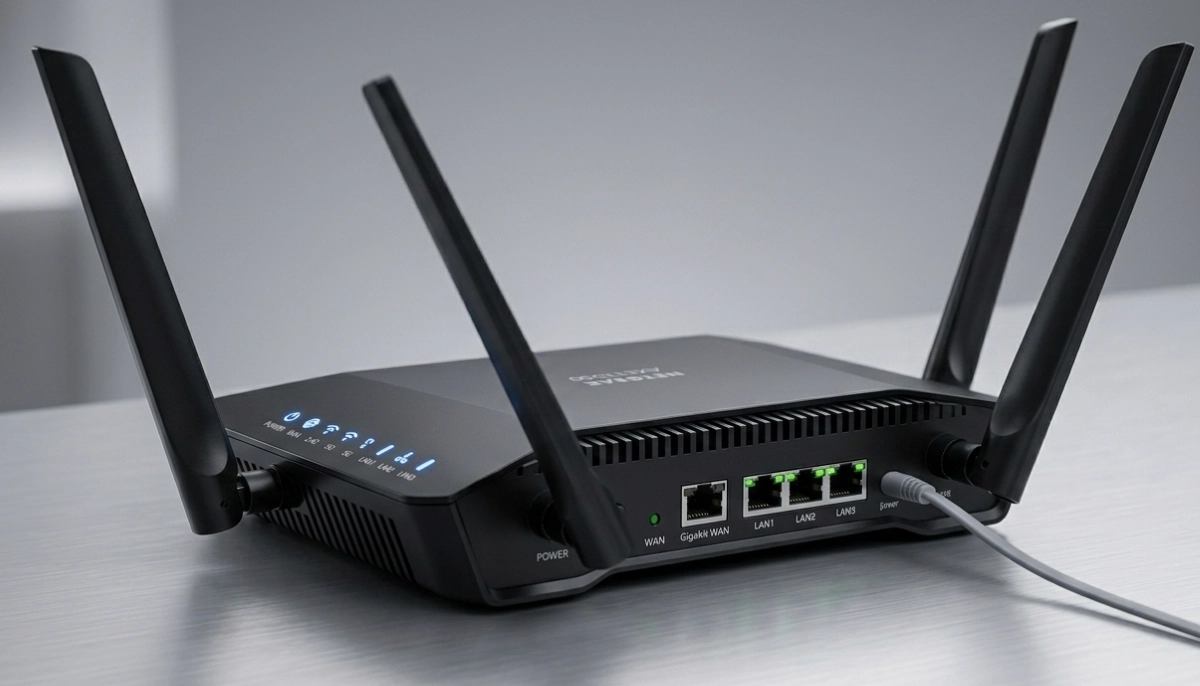
Confused About WiFi Bands?
Get professional help from local specialists who understand dual band router setup and optimisation.
Servicing Midrand, Stellenbosch, Pietermaritzburg, and across South Africa
How to Set Up Dual Band WiFi: 2.4GHz vs 5GHz Explained
📡 Two frequencies, one router—here’s how to use both for the best WiFi experience.
You’ve just bought a new dual band router. You plug it in, set it up, and notice something: two WiFi networks appear. One has “2.4GHz” in the name, the other “5GHz.” Which one do you connect to? And what’s the difference anyway?
This is one of the most common questions I get from homeowners across South Africa. The answer isn’t complicated, but understanding the difference between 2.4GHz vs 5GHz WiFi can completely transform your internet experience. The right WiFi band selection means faster streaming, smoother gaming, and fewer connection drops.
In this guide, I’ll explain how to set up dual band WiFi, when to use each band, and how to get the most out of your dual band router. Whether you’re in Midrand, Stellenbosch, or Pietermaritzburg, these tips will help you optimise your home network.
For more detailed configuration help, check out our router setup guide and WiFi signal optimisation resources. Let’s demystify dual band WiFi.
📋 Table of Contents – Dual Band WiFi Setup Guide
📶 What Is Dual Band WiFi?
Before we dive into how to set up dual band WiFi, let’s understand what it actually means.
Dual Band Router Definition:
A dual band router broadcasts two separate WiFi networks simultaneously: one on the 2.4 GHz frequency band and one on the 5 GHz frequency band. This gives you the flexibility to connect different devices to the band that best suits their needs.
Why Two Bands?
Different devices have different needs. Some need long range (like smart home devices), while others need high speed (like gaming consoles and streaming TVs). A dual band router lets you serve both types of devices optimally.
How to Identify a Dual Band Router:
- Look for “2.4GHz” and “5GHz” on the packaging or specifications.
- Check your router’s settings page—you’ll see options for both bands.
- When you scan for WiFi, you might see two networks with similar names.
If you’re unsure whether your router is dual band, check our router setup guide for more information on identifying your router’s capabilities.
⚡ 2.4GHz vs 5GHz WiFi: Key Differences Explained
Understanding the difference between 2.4GHz vs 5GHz WiFi is essential for proper WiFi band selection.
| Feature | 2.4 GHz Band | 5 GHz Band |
|---|---|---|
| Range | Long range (up to 45m indoors) | Short range (up to 15m indoors) |
| Speed | Slower (up to 450 Mbps) | Faster (up to 1300 Mbps+) |
| Wall Penetration | Excellent (penetrates walls well) | Poor (blocked by walls easily) |
| Interference | High (microwaves, cordless phones, neighbours) | Low (fewer devices use this band) |
| Best For | Web browsing, emails, smart home devices | Gaming, 4K streaming, large file downloads |
| Device Compatibility | All devices support 2.4 GHz | Newer devices only (not all support 5 GHz) |
Key Takeaway: Use 2.4 GHz for range and compatibility. Use 5 GHz for speed and performance. The best dual band router setup uses both effectively.
📏 2.4GHz vs 5GHz Range: Which Goes Further?
One of the most important differences is 2.4GHz vs 5GHz range. Understanding this helps with WiFi band selection for different areas of your home.
2.4 GHz Range:
The 2.4 GHz band has a longer range because its lower frequency can penetrate walls and obstacles more effectively. In a typical South African home, you can expect coverage of about 30-45 metres indoors. This makes it ideal for:
- Connecting devices in rooms far from the router
- Smart home devices (plugs, lights, thermostats)
- Homes with thick brick walls
- Outdoor areas like gardens
5 GHz Range:
The 5 GHz band has a shorter range because its higher frequency is more easily absorbed by walls and obstacles. Coverage is typically about 10-15 metres indoors. This makes it ideal for:
- Devices in the same room as the router
- High-bandwidth activities like streaming and gaming
- Homes with open floor plans
Real-World Example:
In a typical double-storey house in Grahamstown or Thohoyandou, the 2.4 GHz band will likely reach both floors, while the 5 GHz band might only cover the floor where the router is located.
For more on range and coverage, see our WiFi signal optimisation guide.
🎮 Which WiFi Band to Use for Gaming and Streaming
Knowing which WiFi band to use for gaming and streaming can make a huge difference in your experience.
For Gaming:
The best WiFi band for gaming is the 5 GHz band. Here’s why:
- Lower latency: 5 GHz has less interference and lower ping times.
- Higher speed: Essential for downloading game updates and patches.
- Less congestion: Fewer devices use 5 GHz, reducing competition for bandwidth.
For Streaming:
The best WiFi band for streaming is also the 5 GHz band for 4K content. However, for standard definition or if you’re far from the router, 2.4 GHz might be sufficient.
For Smart Home Devices:
Most smart home devices (lights, plugs, thermostats) only support 2.4 GHz. This is because they prioritise range over speed, and 2.4 GHz is more universally compatible.
General Recommendations:
- 2.4 GHz: Smart home devices, web browsing, email, social media, devices in distant rooms.
- 5 GHz: Gaming consoles, 4K streaming TVs, laptops for heavy downloads, video conferencing.
If you notice 5GHz WiFi slower than 2.4GHz in a particular room, it’s likely because you’re too far from the router. In that case, switch to 2.4 GHz for that location.
Need Help Setting Up Your Dual Band Router?
Get professional assistance from local specialists who understand dual band router setup and optimisation.
Free inspections available for network optimisation.
🔧 How to Set Up Dual Band WiFi: Step-by-Step
Here’s a complete guide on how to set up dual band WiFi on your router.
Step 1: Access Your Router’s Settings
- Connect to your router via WiFi or Ethernet cable.
- Open a web browser and enter your router’s IP address (usually 192.168.1.1).
- Log in with your admin credentials (found on the router sticker).
Step 2: Locate the Wireless Settings
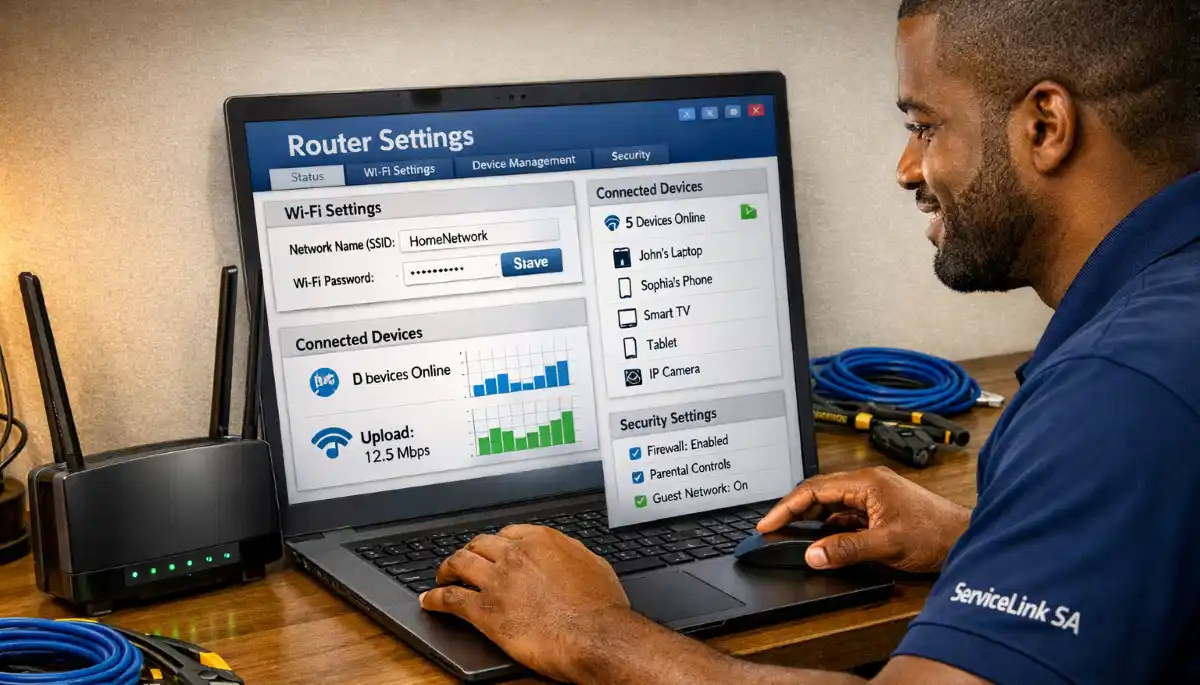
Look for a tab or section labelled “Wireless,” “WiFi,” or “Network Settings.” You should see options for both 2.4 GHz and 5 GHz bands.
Step 3: Configure the 2.4 GHz Network
- Set a network name (SSID) like “MyWiFi-2.4”.
- Choose a security type (WPA2 or WPA3).
- Create a strong password.
- Select a channel (auto is usually fine).
Step 4: Configure the 5 GHz Network
- Set a network name (SSID) like “MyWiFi-5”.
- Choose the same security type and password or a different one.
- Select a channel (auto is usually fine).
Step 5: Save and Reboot
Save your settings and reboot the router. Both networks should now be available to connect to.
Step 6: Connect Your Devices
Connect devices to the appropriate band based on their location and needs. For more detailed instructions, see our router setup guide.
🔄 Understanding Band Steering: Should You Use It?
Many modern dual band routers have a feature called band steering. Here’s what it does and whether you should use it.
What Is Band Steering?
Band steering automatically directs your devices to the best available band (2.4 GHz or 5 GHz) based on signal strength and device capability. The router decides which band each device should connect to.
Pros of Band Steering:
- Simpler setup (one network name instead of two).
- Devices automatically get the best connection.
- Less manual management required.
Cons of Band Steering:
- Some older devices struggle with band steering.
- Less control over which band each device uses.
- Can cause connection issues with some smart home devices.
Should You Use It?
If you have mostly modern devices and want simplicity, band steering is great. If you have older devices or want precise control over WiFi band selection, manually manage each band separately.
For help with band steering configuration, check our WiFi signal optimisation guide.
📡 WiFi Channel Selection for Optimal Performance
Proper WiFi channel selection can significantly improve your dual band router performance.
What Is a WiFi Channel?
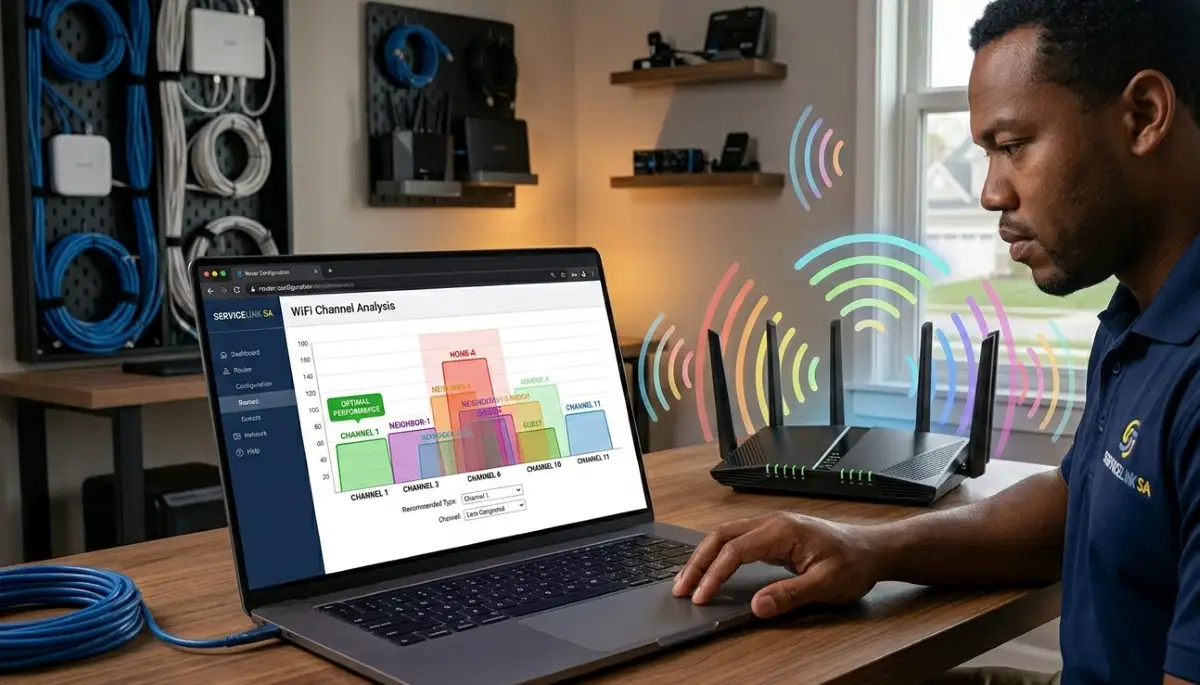
WiFi channels are like lanes on a highway. Each band has multiple channels. If too many routers use the same channel, it causes WiFi interference and slows down your connection.
Channels for 2.4 GHz Band:
- Channels 1, 6, and 11 are the only non-overlapping channels.
- Always use one of these three channels for best performance.
- Use a WiFi analyser app to find the least congested channel.
Channels for 5 GHz Band:
- The 5 GHz band has many more channels with no overlap.
- Channels 36, 40, 44, and 48 are commonly used.
- Higher channels (149-161) often have more power.
How to Change Your Channel:
- Access your router’s settings page.
- Go to wireless settings.
- Find the channel selection option (set to “Auto” by default).
- Manually select a channel based on your analysis.
- Save and reboot your router.
For more on this, check our best router settings guide.
🛠️ Common Dual Band Issues and Fixes
Here are common issues with dual band router setup and how to fix them.
Issue 1: 5GHz WiFi Slower Than 2.4GHz
If you’re experiencing 5GHz WiFi slower than 2.4GHz, it’s usually because you’re too far from the router. The 5 GHz band has shorter range. Connect to 2.4 GHz when you’re far from the router.
Issue 2: Devices Can’t Find the 5 GHz Network
Some older devices don’t support 5 GHz. Check your device specifications. If it doesn’t support 5 GHz, you’ll need to connect to the 2.4 GHz band.
Issue 3: Frequent Disconnections
This can be caused by WiFi interference or incorrect channel selection. Try changing your WiFi channel to a less congested one. For more help, see our WiFi disconnecting solutions guide.
Issue 4: Band Steering Problems
If devices keep connecting to the wrong band, try disabling band steering and manually managing each band. This gives you full control over WiFi band selection.
📊 Tri-Band vs Dual Band: What’s the Difference?
If you’re considering upgrading, you might be wondering about tri band vs dual band routers.
What Is a Tri-Band Router?
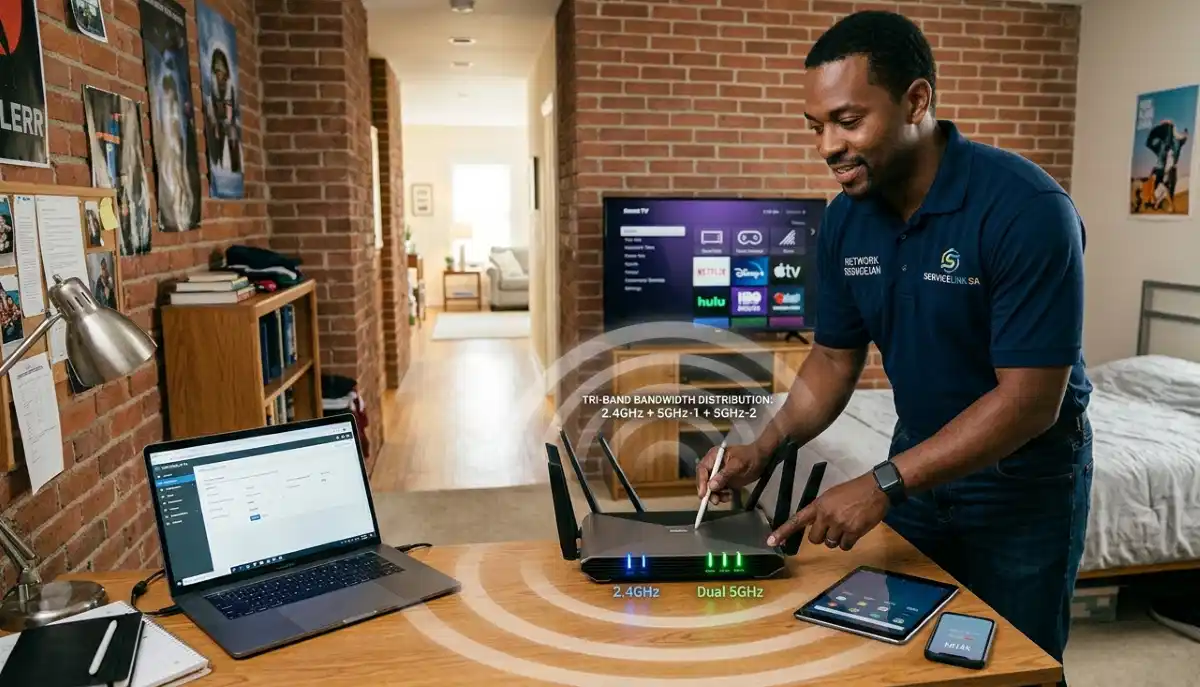
A tri band router has three bands: one 2.4 GHz band and two 5 GHz bands. This provides more capacity for multiple devices. For more details, see our tri band routers explained guide.
When to Choose Tri-Band:
- Large households with many devices (15+).
- Heavy gaming and 4K streaming simultaneously.
- Homes with many smart home devices.
When Dual Band Is Enough:
- Typical households with 5-10 devices.
- Most homes in Secunda or Klerksdorp.
- Budget-conscious buyers.
For more on router types, read our best router settings guide.
❓ Frequently Asked Questions About Dual Band WiFi
What is the difference between 2.4GHz and 5GHz WiFi?
The 2.4GHz vs 5GHz WiFi difference is simple: 2.4 GHz has longer range but slower speeds, while 5 GHz has shorter range but much faster speeds. 2.4 GHz penetrates walls better, making it ideal for distance. 5 GHz is better for high-bandwidth activities like gaming and 4K streaming. Understanding 2.4GHz vs 5GHz range helps with WiFi band selection.
Which WiFi band is best for gaming?
The best WiFi band for gaming is 5 GHz. It offers lower latency, faster speeds, and less interference than 2.4 GHz. This means smoother gameplay and faster downloads. If you’re far from your router and 5GHz WiFi slower than 2.4GHz, you may need to switch to 2.4 GHz or move closer to the router.
Which WiFi band is best for streaming?
The best WiFi band for streaming 4K content is 5 GHz due to its higher speeds. For standard definition streaming, 2.4 GHz is usually sufficient. If your streaming device is far from the router, use 2.4 GHz for a more stable connection. This is a key consideration in dual band router setup.
Does 5GHz WiFi go through walls?
5 GHz WiFi does not go through walls as well as 2.4 GHz. Higher frequency signals are more easily absorbed by walls, especially brick and concrete. This is why 2.4GHz vs 5GHz range differs so significantly. In South African homes with thick walls, 2.4 GHz is often the better choice for whole-home coverage.
Should I use the same WiFi name for both bands?
This depends on your preference. Using the same name enables band steering, which automatically directs devices to the best band. However, using different names gives you manual control over WiFi band selection. For most users, different names (e.g., “MyWiFi-2.4” and “MyWiFi-5”) make it easier to manage which devices connect to which band.
Why is my 5GHz WiFi slower than 2.4GHz?
If you’re experiencing 5GHz WiFi slower than 2.4GHz, it’s almost always because you’re too far from the router. The 5 GHz band has shorter range and can’t penetrate walls as effectively. Move closer to the router or switch to 2.4 GHz for that location. This is a common issue in dual band router setup.
What is WiFi channel selection and why does it matter?
WiFi channel selection is choosing which channel your router broadcasts on. In congested areas, many routers on the same channel cause WiFi interference and slow speeds. Changing your channel to a less congested one (like 1, 6, or 11 for 2.4 GHz) can dramatically improve performance. Use a WiFi analyser app to find the best channel.
What is the difference between dual band and tri band routers?
A dual band router has two bands (2.4 GHz and 5 GHz). A tri band router has three bands (one 2.4 GHz and two 5 GHz). Tri band routers are better for households with many devices or heavy simultaneous usage. For most South African homes, a dual band router is sufficient. Read our tri band routers explained guide for more details.
✅ Final Thoughts: Master Your Dual Band WiFi
Understanding how to set up dual band WiFi is one of the most impactful things you can do for your home internet experience. The difference between 2.4GHz vs 5GHz WiFi is significant, and using both bands correctly can transform your network.
Key Takeaways:
- 2.4 GHz: Long range, slower speed, better wall penetration. Use for smart home devices, web browsing, and distance.
- 5 GHz: Short range, faster speed, less interference. Use for gaming, 4K streaming, and devices near the router.
- Channel Selection: Choose non-overlapping channels (1, 6, 11 for 2.4 GHz) to reduce WiFi interference.
- Band Steering: Use it for simplicity or disable it for manual control over WiFi band selection.
- Tri-Band: Consider it for households with many devices or heavy usage.
Your Next Step: Take a look at your router settings. Are you using both bands effectively? If not, make the changes we’ve discussed. You’ll notice the difference. If you need professional help, ServiceLink SA can connect you with local specialists who understand dual band router setup and optimisation.
Ready to Optimise Your Dual Band Router?
Get free quotes from verified local specialists for dual band router setup and WiFi optimisation.
📞 Call us: 073 138 4726 for immediate help finding a specialist near you.
📢 Are You a WiFi Installation Professional?
Join ServiceLink SA’s network of verified contractors and get access to qualified leads for dual band router setup and network optimisation projects.
📚 Official resources & standards referenced:
- SANS 10400 – Guidelines for electrical and networking installations in South African homes.
- SABS – Standards for electronic equipment and safety.
Information provided for general guidance. For professional dual band router setup, always consult a qualified local technician.
Written by: Innocent T Hanyani
Construction & Home Services Industry Specialist | 21+ Years Experience
Innocent T Hanyani has over two decades of experience working across South Africa’s construction, telecommunications, and home services sectors. Throughout his career, he has worked closely with network installers, IT professionals, and homeowners, gaining practical insight into how dual band router setup and WiFi band selection affect home networks. His expertise helps homeowners understand the complexities of 2.4GHz vs 5GHz WiFi, from choosing the right band to achieving optimal WiFi channel selection and minimising WiFi interference.