
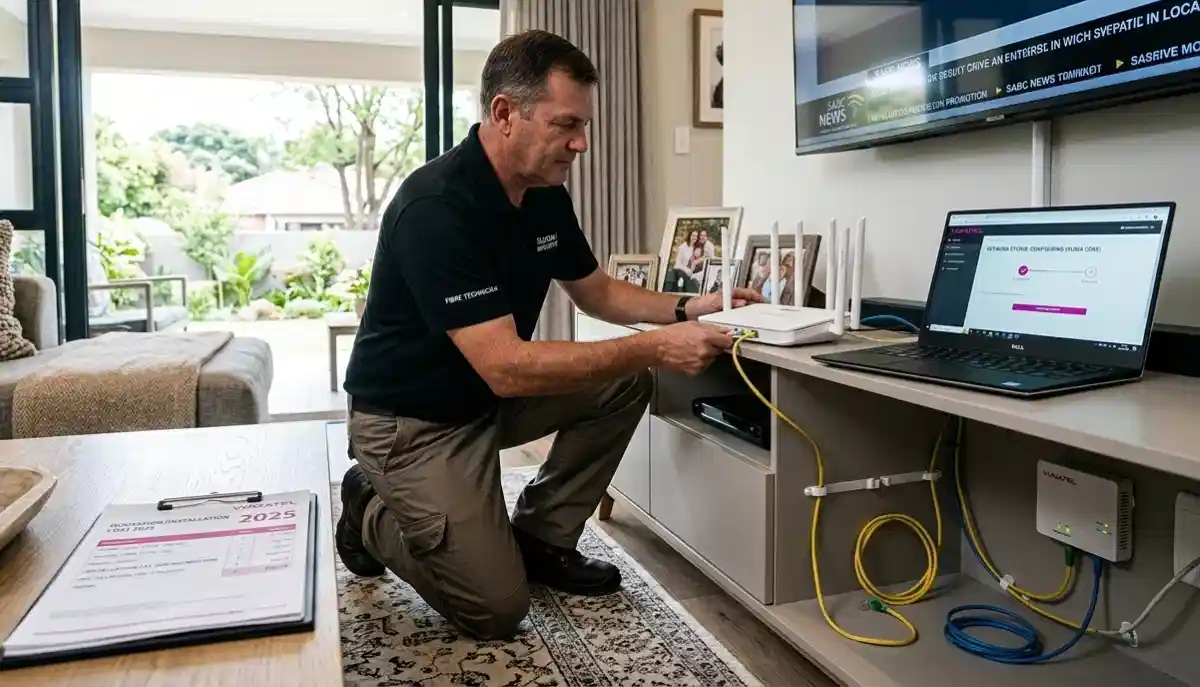
Struggling with Your WiFi Setup?
Get hassle-free installation from verified local specialists. We handle everything from router placement to device connection.
Servicing Gauteng, Cape Town, Durban, and across South Africa
Complete Home WiFi Setup Guide for Beginners South Africa
📶 From unboxing to full coverage – the ultimate, no-nonsense guide to getting your home online
Let’s be honest: setting up a home WiFi network can feel overwhelming. Between the blinking lights, cryptic passwords, and technical jargon, it’s easy to feel lost. I’ve been there myself, staring at a router manual that seems to be written in another language.
The good news? Setting up your home WiFi doesn’t have to be a headache. With the right guidance, you can get your home WiFi setup up and running in under an hour, without needing a degree in IT. In this complete home WiFi setup guide South Africa, I’ll walk you through every step, from choosing the right spot for your router to connecting all your devices and securing your network.
Whether you’ve just moved into a new place, upgraded to fibre, or want to finally fix those dead zones in your home, this guide has you covered. For more tailored WiFi network setup help in your specific area, check out our WiFi installation services in Gauteng, Western Cape, KwaZulu-Natal, or Free State. Let’s dive in and get you connected.
📋 Table of Contents – Home WiFi Setup Guide
🔌 Step 1: Check Your Internet Connection
Before you even touch your router, ensure your internet service is actually active. This is a surprisingly common oversight, especially with fibre.
For Fibre Connections:
- Check the ONT (Optical Network Terminal): This is the small white or black box provided by your fibre provider. It should have a solid green light for “Power” and “PON” or “Optical.” A blinking or red light usually means your fibre line isn’t active yet. For a detailed guide on this, see our post on fibre ONT setup and configuration.
- Wait for Activation: After your fibre installation, it can take a few hours to a day for the service to be fully activated by your Internet Service Provider (ISP). If the lights aren’t green, contact your ISP.
- Test with a Wired Device: If you have a laptop, connect it directly to the ONT or modem using an Ethernet cable. If you have internet, your service is active, and the issue lies with your router setup.
For LTE/5G Routers:
- Insert the SIM Card: Ensure the SIM card from your mobile network is correctly inserted into the LTE/5G router. The device should register on the network, usually indicated by a solid signal light.
- Check Mobile Network Signal: Move the LTE/5G router to a location with a strong mobile network signal for the best performance. Signal strength is crucial for these types of connections.
For a more comprehensive understanding of how to set up home WiFi in South Africa, especially in areas with different infrastructure, check our coverage in Port Elizabeth, Polokwane, and Mbombela.
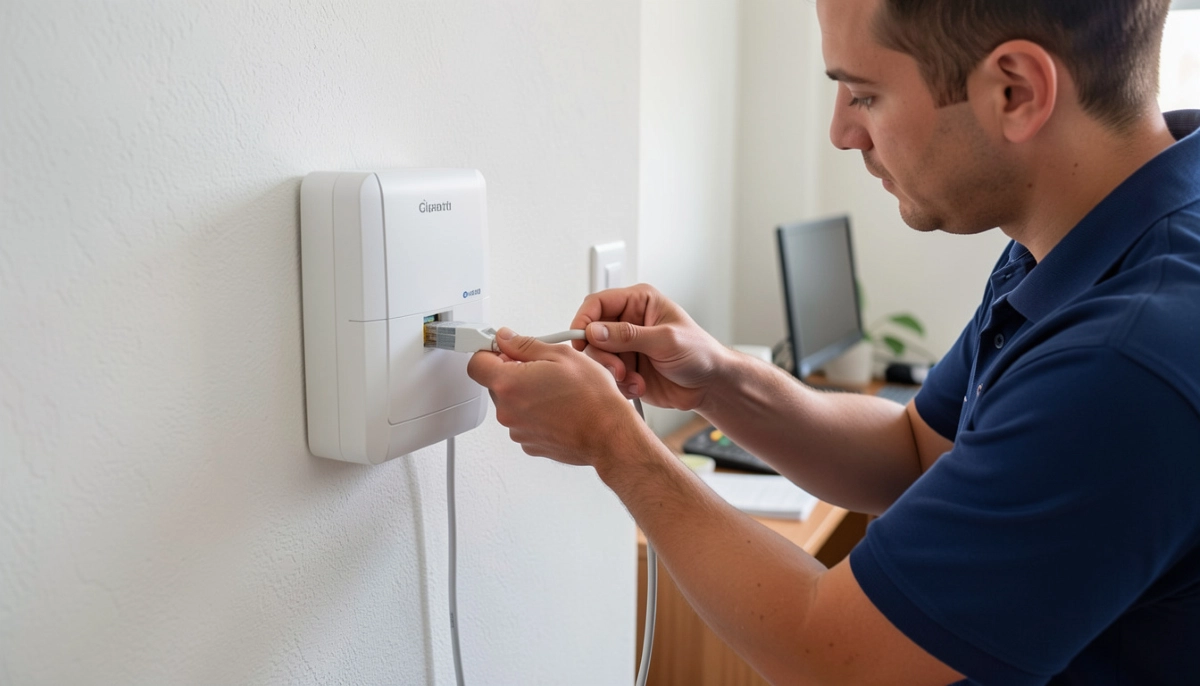
📦 Step 2: Unbox and Identify Your Router
Whether you bought your own or got one from your ISP, take everything out of the box. Inside, you should find:
- WiFi Router: The main device.
- Power Adapter: To plug the router into a wall socket.
- Ethernet Cable (usually yellow): To connect the router to your modem or ONT.
- Quick Start Guide: A simplified manual.
- Antennas (if detachable): Screw these into the designated ports on the back of the router.
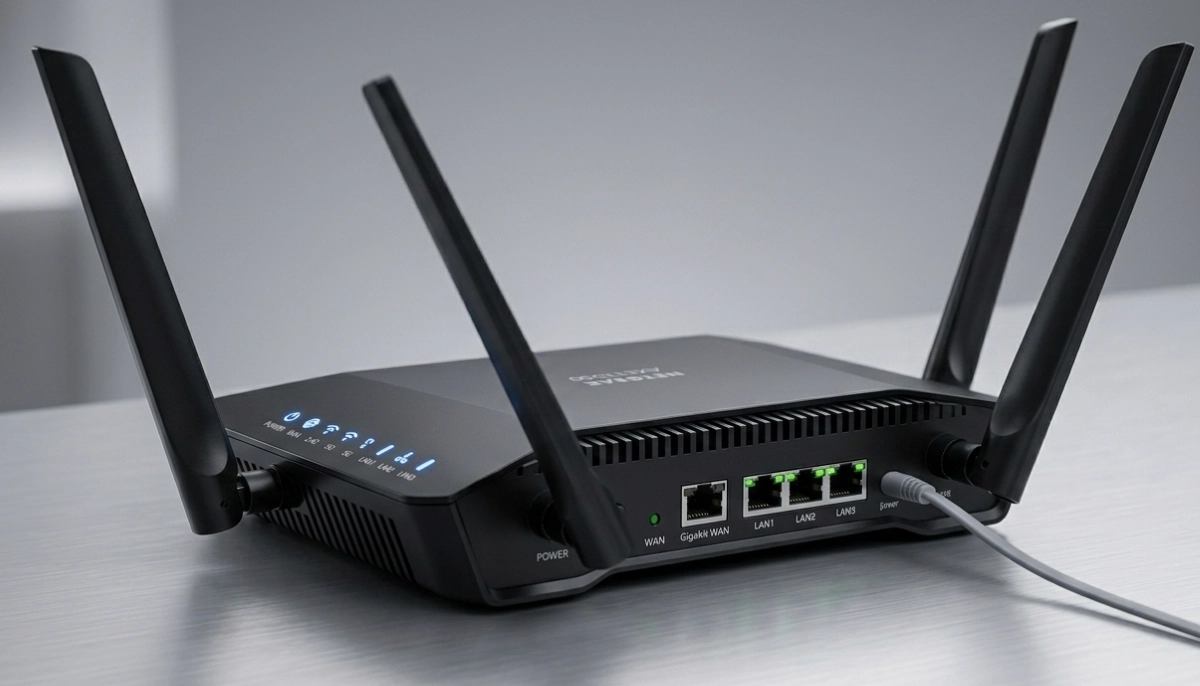
Take a moment to look at the back of the router. You’ll find the ports:
- WAN/Internet Port: Usually a different colour (often blue or yellow). This is where you’ll connect the Ethernet cable from your modem or ONT.
- LAN Ports: Usually numbered (1, 2, 3, 4). These are for connecting wired devices like a PC, gaming console, or smart TV.
- USB Port(s): Sometimes included for connecting a printer or a storage drive.
- Power Port: For the power adapter.
For WiFi setup for beginners, identifying these ports is the first step to a successful installation. If you’d prefer a professional to handle the router setup and configuration, ServiceLink SA can connect you with local specialists.
📍 Step 3: Find the Perfect Spot for Your Router
Router placement is the single most important factor for WiFi signal strength and coverage. Where you put it can make or break your network.
Key Takeaway: The Golden Rule of Router Placement
Centre, high, and clear. Put your router in the most central location in your home, as high as possible (e.g., on a shelf), and away from metal objects and electronics like microwaves and cordless phones.
Best Practices for Great WiFi Coverage:
- Centralise It: Place the router in a central room of the house. For example, if your house has a central hallway, that can be an ideal spot.
- Elevate the Router: The higher the router, the better the signal. A bookshelf or a high table works perfectly. Avoid placing it on the floor.
- Away from Interference: Keep it at least 1-2 meters away from other electronics, especially microwaves, cordless phones, baby monitors, and Bluetooth devices. These can all interfere with the 2.4 GHz frequency.
- Don’t Hide It: Avoid placing the router inside a cupboard, behind a TV, or in a metal filing cabinet. These materials significantly absorb and block WiFi signals.
- Consider the Antennas: If your router has adjustable antennas, point one up and the other at a 45-degree angle to spread the signal both horizontally and vertically.
A well-placed router is the first step to avoiding dead zones. For challenging homes with thick walls or multiple stories, you might also need to consider WiFi extender installation or a mesh network.
🔗 Step 4: Connect the Cables
Now that you’ve chosen the perfect spot, it’s time for the physical connection.
- Connect the Modem/ONT to the Router: Take the Ethernet cable (provided with your router) and plug one end into the WAN/Internet port on your router. Plug the other end into the Ethernet port on your modem or ONT (the device from your internet provider).
- Power On: Connect the power adapter to the router and plug it into a wall socket. Press the power button if it has one. The router’s lights will start to blink. Wait a minute or two for it to boot up completely.
You might notice the ONT and router have multiple lights. For a detailed explanation of what each light means, read our guide on fibre ONT setup and configuration explained.
⚙️ Step 5: Power On and Configure Your Router
This is where most people get stuck, but it’s simpler than it looks. Most routers have a web-based interface or a mobile app.
Option A: Using a Mobile App (Easiest for Most)
Most modern routers from brands like TP-Link, Huawei, and Netgear have an app. Download the app for your router brand (e.g., Tether for TP-Link, HUAWEI AI Life). The app will guide you through the setup step-by-step. It usually just asks you to create a new WiFi name and password.
Option B: Using a Web Browser
- Connect your computer or laptop to the router via Wi-Fi (the network name and password are on a sticker on the router) or via an Ethernet cable into one of the LAN ports.
- Open a web browser (like Chrome or Edge).
- Enter the router’s IP address (often 192.168.1.1 or 192.168.0.1). You can find the correct IP on the sticker at the bottom of the router.
- You’ll be prompted for a username and password. This is also on the sticker (often “admin” for both).
- Follow the setup wizard. It will guide you through setting up your new WiFi network name (SSID) and password.
For more advanced tips on configuring your router, check out our router setup guides.
Need a Professional WiFi Setup?
From router placement to connecting all your devices, local specialists can get it all done for you.
Get Free Quotes from Local Specialists
Expert help is just a click away for WiFi setup for beginners.
🔐 Step 6: Configure Your WiFi Network
During the setup wizard, you’ll be asked to create a WiFi network name (SSID) and password. Here are some key tips for the WiFi configuration phase.
- Create a Unique and Recognisable Network Name (SSID): Choose a name that you’ll easily recognise (e.g., “SmithFamilyWifi” or “TheCave”).
- Choose a Strong, Unique Password: Use a mix of uppercase and lowercase letters, numbers, and symbols. Avoid common words or personal information. A strong password is the first line of defence for your WiFi security.
- Set Up Separate 2.4 GHz and 5 GHz Networks: A dual-band router creates two networks. You can name them something like “MyWifi-2.4” and “MyWifi-5”. This gives you control over which devices connect where. The 5 GHz band is faster but has a shorter range, ideal for streaming and gaming. The 2.4 GHz band is slower but has a much longer range, perfect for web browsing and smart home devices.
For a more in-depth look at configuring dual-band settings, read our post on how to set up dual-band WiFi.
📱 Step 7: Connect Multiple Devices to WiFi
Once your new network is set up, you’ll want to connect all your devices. This is the fun part. How to connect multiple devices to WiFi is something every household needs to master.
For Mobile Devices (Phones, Tablets):
- Go to the Settings app.
- Select Wi-Fi.
- Look for your new network name (SSID) in the list.
- Tap it and enter the password you created.
For Smart TVs, Laptops, and Gaming Consoles:
- These devices will have a “Network” or “Internet” settings menu. The process is the same: find your network and enter the password.
- For a more reliable connection, you can connect these devices to the 5 GHz network if they support it.
For Smart Home Devices (Lights, Plugs, Speakers):
- These devices usually require using the manufacturer’s app (e.g., TP-Link Kasa, Philips Hue, Google Home). Follow the in-app instructions to add the device and select your Wi-Fi network.
⚠️ Important Tip for Smart Home Devices
Most smart home devices only work on the 2.4 GHz frequency band. If your phone is connected to the 5 GHz band, you might not be able to find the device during setup. Make sure your phone is connected to the 2.4 GHz network when setting up smart devices.
If you have a large household and are constantly struggling with how to connect multiple devices to WiFi without slowing everyone down, consider upgrading to a mesh WiFi system.
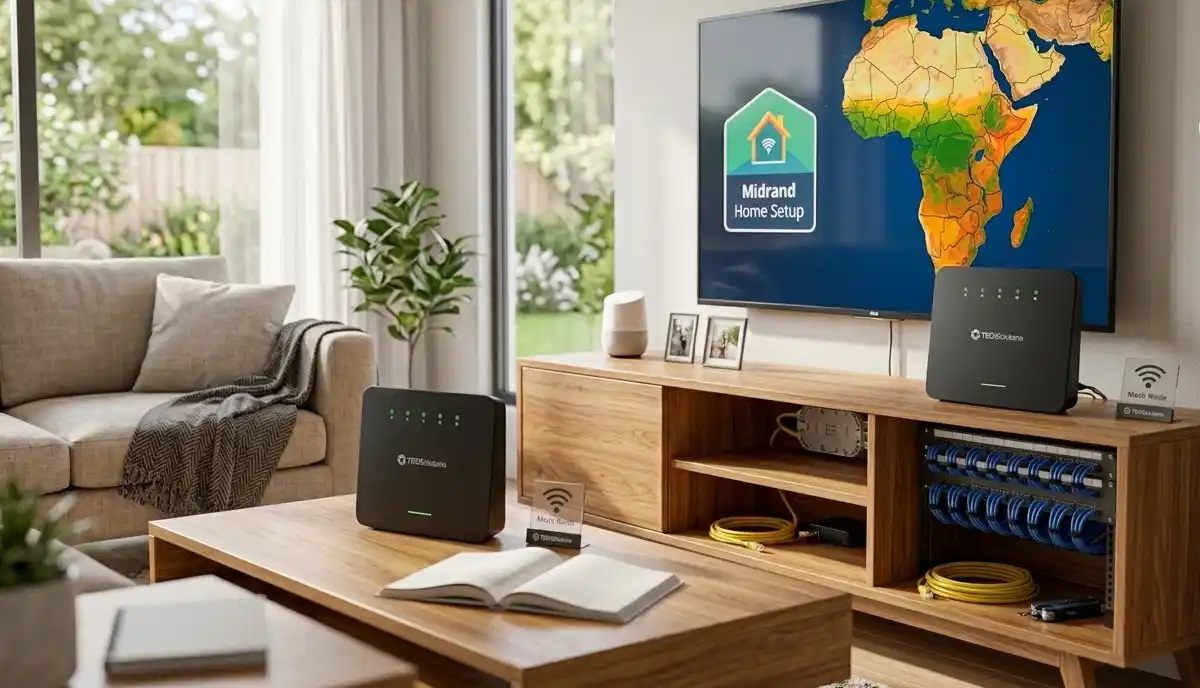
🚀 Step 8: Optimise WiFi Speed & Signal
You’re connected! But is it as fast as it should be? Here’s how to optimise your WiFi network setup for the best performance.
Update Your Router’s Firmware: Firmware updates often include performance improvements and security fixes. This is usually done via the router’s app or web interface.
Select the Best WiFi Channel: In crowded neighbourhoods, many routers on the same channel can cause interference. The auto-setting usually works well, but you can manually select a less congested channel (like 1, 6, or 11 for the 2.4 GHz band).
Use the 5 GHz Band for Bandwidth-Heavy Tasks: As mentioned, the 5 GHz band is faster and has less interference. Connect your TV, gaming consoles, and computers to this band. WiFi signal optimization is key to a great experience.
Consider a WiFi Extender or Mesh System: If you still have dead zones, a best WiFi extender installation or a mesh network is the solution. A mesh system, in particular, is excellent for large homes and eliminating dead zones.
If you suspect your hardware is the issue, our guide on slow WiFi troubleshooting can help.
🛠️ Step 9: Troubleshooting Common WiFi Issues
Even with the perfect setup, things can go wrong. Here are common issues and quick fixes:
- “I can’t find my network”: Make sure the router is powered on and broadcasting. Check the network name (SSID) and ensure it’s not hidden in the router settings.
- “The password isn’t working”: Double-check that you’re entering the correct password. Passwords are case-sensitive. If you’re locked out, you may need to reset the router.
- “Internet is slow”: Test your speed with a wired connection to see if it’s a router issue or an ISP issue. If it’s the router, try moving it to a better location, updating the firmware, or changing the WiFi channel.
- “My laptop keeps disconnecting”: This can be due to signal interference. Try moving the laptop closer to the router. Also, check the power management settings on the laptop to ensure the WiFi adapter isn’t being turned off to save power.
For more in-depth solutions, our dedicated guide on fixing slow WiFi issues has you covered.
✅ Step 10: Final WiFi Setup Checklist
Before you declare victory, run through this quick checklist:
| Task | Status | Notes |
|---|---|---|
| ONT/Modem is connected and online (solid light) | ✔️ | Contact ISP if not solid green |
| Router is placed centrally and elevated | ✔️ | Away from metal, microwaves, and large electronics |
| Ethernet cable is connected from ONT to router’s WAN port | ✔️ | WAN port is usually blue or yellow |
| New WiFi name (SSID) and password are set | ✔️ | Use a strong password for WiFi security |
| All devices connected | ✔️ | Connect high-bandwidth devices to 5 GHz network |
| Tested speed in all rooms | ✔️ | If weak, consider a WiFi extender |
Following this checklist, you can ensure your WiFi setup for fibre home is done right.
❓ Frequently Asked Questions About Home WiFi Setup
What is the best place to put my WiFi router for the best signal?
The best place is in the central part of your home, elevated (e.g., on a shelf or bookcase), and away from large metal objects and electronics like microwaves and cordless phones. This is crucial for WiFi signal strength and overall WiFi coverage. For more detailed WiFi router setup tips, see our guide on router setup.
How do I set up my home WiFi if I have fibre?
Fibre setup is straightforward. Your fibre provider will install an ONT. You’ll then connect your router’s WAN port to the ONT using an Ethernet cable. Your WiFi setup for fibre home will be guided by a quick-start app or web interface. For detailed instructions, refer to our fibre ONT setup guide.
What does “dual-band” mean for a WiFi router?
A dual-band router broadcasts two separate WiFi networks: one on the 2.4 GHz band and one on the 5 GHz band. The 2.4 GHz band has a longer range but slower speeds, while the 5 GHz band is faster but has a shorter range. This is common in home WiFi setup guides for optimizing performance. Learn more about dual-band WiFi setup.
How do I connect multiple devices to my WiFi network?
Connecting multiple devices is simple: find your WiFi network name (SSID) on the device and enter the password. For high-bandwidth devices (like TVs and gaming consoles), connect them to the 5 GHz band. For simple devices like smart plugs, use the 2.4 GHz band. This is a key part of learning how to connect multiple devices to WiFi.
Why is my WiFi still slow after following this guide?
Several factors can cause slow speeds: your internet plan’s speed, the number of devices connected, router placement, or interference. Check your WiFi signal strength in different rooms. If it’s a hardware problem, you might need a WiFi extender or a mesh network. Our slow WiFi troubleshooting guide can help you pinpoint the issue.
Is it safe to use the default WiFi password?
No, it is not safe. Default passwords are often easily found online and are a significant security risk. Always create a strong, unique password during your WiFi configuration. This is the first rule of good WiFi security.
How can I improve WiFi security at home?
Start by creating a strong, unique password for your network. Use WPA2 or WPA3 encryption (the most secure options). Regularly update your router’s firmware. You can also hide your network’s SSID (network name) for an extra layer of security. Good WiFi configuration means good WiFi security.
Do I need professional help for my home WiFi setup?
For simple setups, no. However, for large homes, complex WiFi network setup with multiple extenders, or if you just want a hassle-free installation, professional help is recommended. They can ensure the best WiFi coverage and WiFi signal strength across your entire home. Contact ServiceLink SA to find a local specialist.
Still Struggling with Your Home WiFi?
Skip the hassle and let a local professional handle your entire home WiFi setup. Get a robust, reliable network with zero frustration.
Written by: Innocent T Hanyani
Construction & Home Services Industry Specialist | 21+ Years Experience
Innocent T Hanyani has over two decades of experience working across South Africa’s construction, home services, and infrastructure sectors. Throughout his career, he has worked closely with electricians, network installers, and homeowners, gaining practical insight into how modern home WiFi setup and networks are installed and maintained. His expertise helps homeowners understand the intricacies of WiFi configuration, from choosing the right equipment to achieving optimal WiFi signal strength and WiFi coverage.
📚 Official resources & standards referenced:
- SANS 10400 – Guidelines for electrical and networking installations.
- SABS – Standards for electrical and electronic equipment safety.
Information provided for general guidance. For a professional home WiFi setup, always consult a qualified local technician.
📢 Are You a WiFi Installation Professional?
Join ServiceLink SA’s network of verified contractors and get access to qualified leads for home WiFi setup, router configuration, and network optimisation projects.