
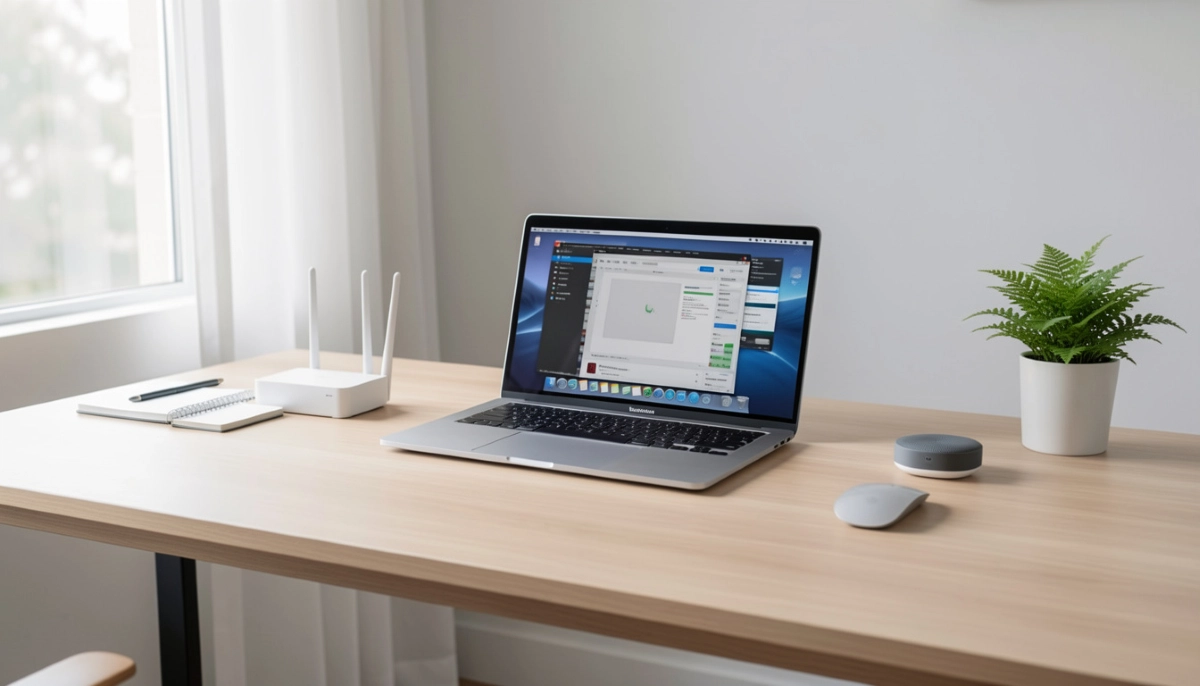
Struggling with Your Home Office WiFi?
Get professional help from local specialists who understand wifi setup for remote work and home office optimisation.
Servicing Fourways, Rondebosch, Westville, and across South Africa
Home Office WiFi Setup for Remote Work South Africa: The Complete Guide
💼 Your home office is only as good as your internet connection—here’s how to get it right.
Let me paint a familiar picture. You’re on a crucial video call with a client. You’re making an important point. Suddenly, your screen freezes. Your voice starts breaking up. You see the dreaded “Your connection is unstable” message. The client looks confused. Your credibility takes a hit.
I’ve been there. And I’ve helped dozens of professionals across South Africa fix their remote work connectivity issues. The problem isn’t always your internet plan—it’s often your home office wifi setup. With the right configuration, you can have crystal-clear video calls, fast file uploads, and a reliable connection that makes you look professional.
In this guide, I’ll walk you through everything you need for a best wifi setup for working from home. From choosing the right equipment to optimising your wifi for video calls, I’ll cover it all. Whether you’re in Fourways, Rondebosch, or Westville, these principles work.
For more detailed help, check out our router setup guide and WiFi signal optimisation resources. Let’s get your home office working like a professional setup.
📋 Table of Contents – Home Office WiFi Setup Guide
📡 Why WiFi Matters for Remote Work Success
Your home office wifi setup for remote work South Africa directly affects your professional image and productivity.
The Impact of Poor WiFi on Remote Work:
- Video Call Issues: Freezing, pixelation, and dropped calls make you look unprofessional.
- Reduced Productivity: Slow uploads and downloads waste valuable time.
- Missed Opportunities: Bad connections can cost you clients and contracts.
- Stress and Frustration: Constantly fighting with your connection is exhausting.
What Good WiFi Enables:
- Crystal-Clear Video Calls: Professional presence on Zoom, Teams, and Google Meet.
- Fast File Transfers: Quick uploads and downloads of large documents.
- Reliable Connectivity: No more dropped connections during important calls.
- Multiple Device Support: Connect your laptop, phone, and other devices simultaneously.
Key Metrics for Remote Work WiFi:
- WiFi Speed: Aim for at least 50 Mbps download and 20 Mbps upload.
- WiFi Latency: Keep it below 30ms for smooth video calls.
- WiFi Reliability: Consistent connection without frequent drops.
For more on improving your connection, see our WiFi signal optimisation guide.

🛠️ Essential Equipment for Home Office WiFi
To achieve the best wifi setup for working from home, you need the right equipment.
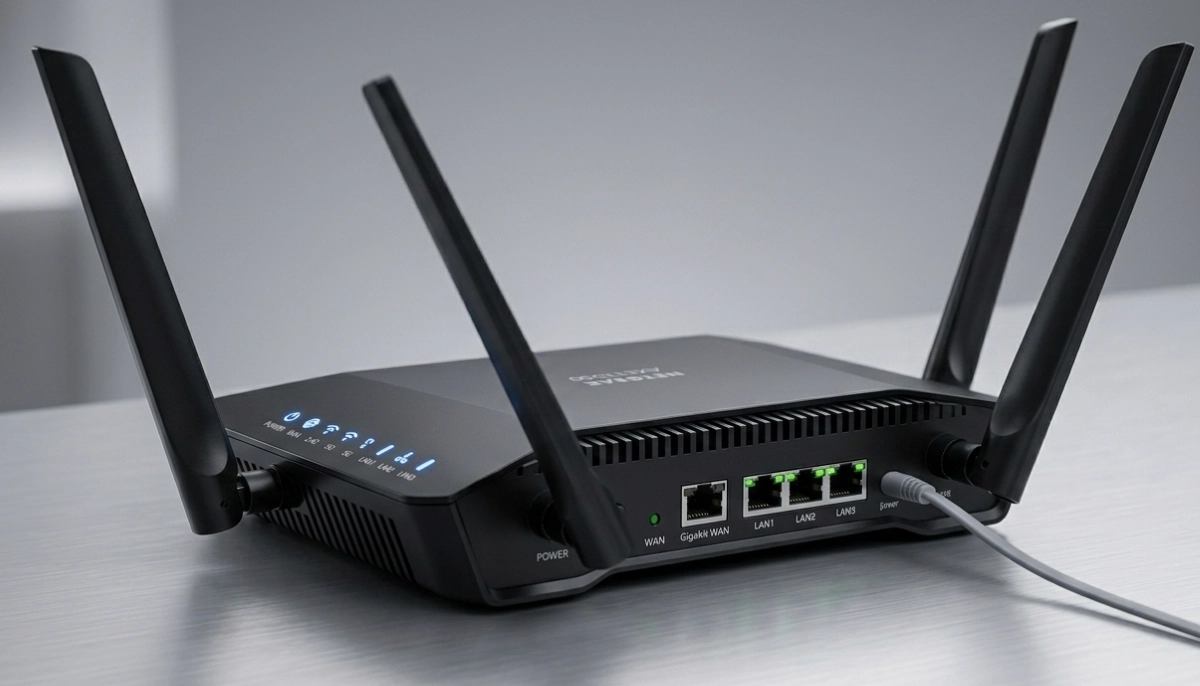
1. A Quality Router:
Your router is the heart of your home network. For remote work, invest in a dual band router with good reviews. Look for:
- Dual band support (2.4 GHz and 5 GHz).
- Gigabit Ethernet ports.
- Good coverage for your home size.
- WiFi 5 or WiFi 6 technology.
2. Ethernet Cables:
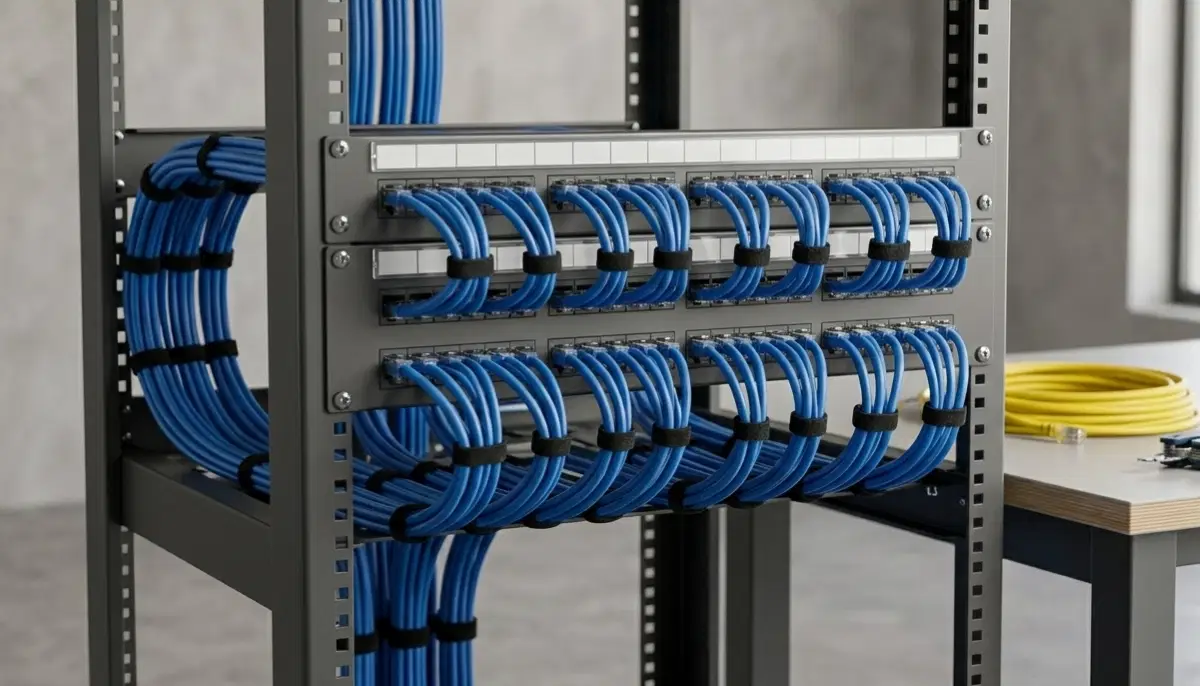
For the most reliable connection, use Ethernet cables (Cat5e or Cat6) for your main work devices. This eliminates wifi latency and ensures maximum wifi speed. See our ethernet wiring guide for more.
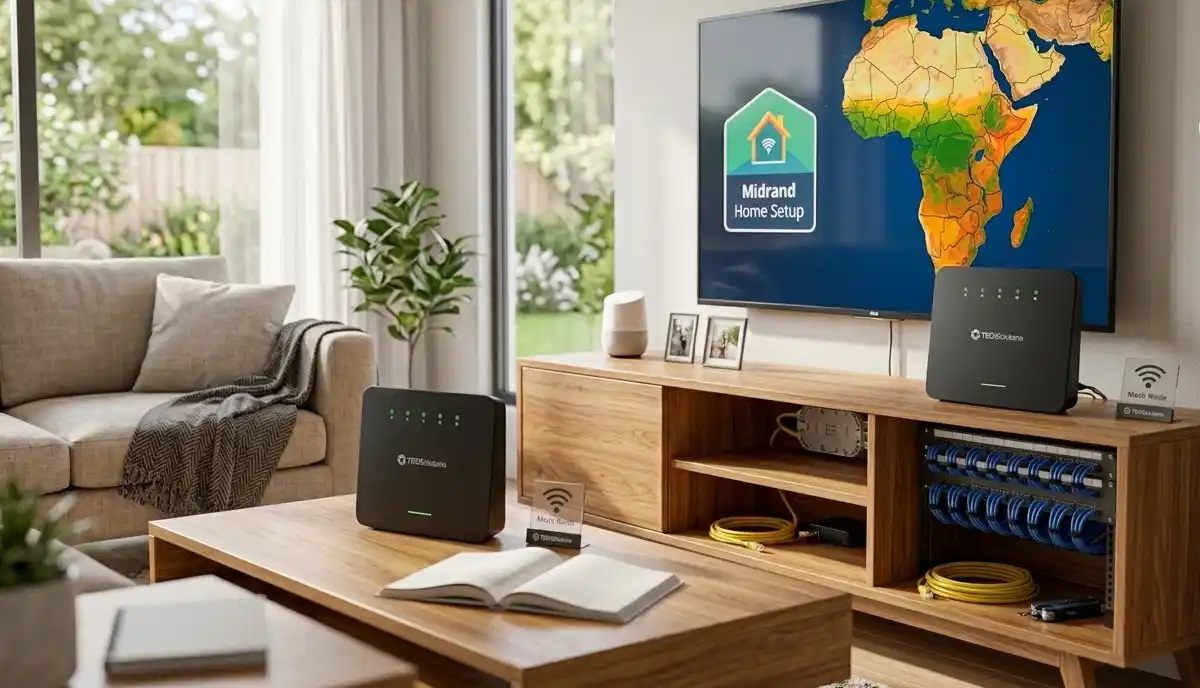
3. WiFi Extender or Mesh System:
If your home office is far from the router, a wifi extender installation or mesh network can improve coverage.
4. Backup Power for Loadshedding:
A UPS or backup power solution keeps your router running during loadshedding. See our best UPS for routers guide.
For more equipment recommendations, check our best routers guide.
📍 Router Placement for Home Office Success
Even the best router won’t perform well if it’s in the wrong place. Here’s how to position it for optimal wifi for video calls.
Golden Rules for Router Placement:
- Centralise: Place the router as centrally as possible in your home.
- Elevate: Put it on a shelf or high table, at least 1.5 metres off the ground.
- Away from Interference: Keep it away from microwaves, cordless phones, and metal objects.
- Close to Your Office: If possible, place the router closer to your home office than to other rooms.
If Your Office Is Far from the Router:
Consider these options:
- Use a wifi extender to boost the signal to your office.
- Install a mesh network for seamless coverage.
- Run an Ethernet cable from the router to your office.
For more on placement, see our WiFi router placement guide.
Need a Professional Home Office WiFi Setup?
Get expert help from local specialists who understand wifi setup for remote work and home office optimisation.
Free inspections available for home office setups.
🎥 WiFi for Video Calls: What You Need
Video calls are the most demanding application for wifi for video calls. Here’s what you need to know.
Bandwidth Requirements for Popular Platforms:
- Zoom: 3 Mbps download/upload for HD video.
- Microsoft Teams: 2-4 Mbps for HD video.
- Google Meet: 3.2 Mbps for HD video.
- Skype: 1.2 Mbps for HD video.
How to Optimise for Wifi for Microsoft Teams and Other Platforms:
- Use 5 GHz Band: Connect to 5 GHz for lower latency and higher speed.
- Position Yourself Close to the Router: Minimise distance for better signal.
- Close Unnecessary Apps: Reduce bandwidth usage from other applications.
- Use Ethernet When Possible: Wired connections are always more reliable for video calls.
WiFi for Google Meet and Zoom require low wifi latency for smooth, real-time communication. If you’re experiencing issues, check our slow WiFi troubleshooting guide.
🔌 Ethernet vs WiFi: Which Is Better for Remote Work?
For serious remote work, understanding the difference between Ethernet and WiFi is crucial.
| Feature | Ethernet | WiFi |
|---|---|---|
| Reliability | Excellent (stable, no interference) | Good (can be affected by interference) |
| Speed | Faster (up to 10 Gbps with Cat6a) | Fast but varies with distance and interference |
| Latency | Lower (more consistent wifi latency) | Higher (can spike during interference) |
| Mobility | Limited (requires cable) | Excellent (move freely around the house) |
| Best For | Desktop PCs, video calls, large file transfers | Laptops, tablets, phones, mobility |
Recommendation: For your primary work computer, use Ethernet if possible. This ensures maximum wifi reliability and wifi speed for video calls and large file transfers. For mobile devices, use WiFi.
See our ethernet wiring guide for installation tips.
📊 Bandwidth Management for Multiple Users
If you share your home with others, bandwidth management is crucial for wifi for remote work.
Quality of Service (QoS):
QoS is a router feature that prioritises certain types of traffic. For remote work:
- Prioritise video conferencing traffic (Zoom, Teams, Meet).
- Give your work computer priority over other devices.
- Limit bandwidth for non-work activities like streaming and gaming during work hours.
How to Set Up QoS:
- Access your router’s settings page.
- Look for QoS or bandwidth management.
- Add your work computer’s MAC address or IP.
- Assign it high priority.
- Save and apply the settings.
Tips for Shared Homes:
- Set work hours when streaming and gaming are limited.
- Use the 5 GHz band for your work devices.
- Consider upgrading to a faster internet plan if needed.
For more on router configuration, see our best router settings guide.
⚡ WiFi Optimisation Tips for Remote Work
Here are practical ways to improve your home office wifi setup for remote work South Africa.
1. Update Your Router’s Firmware:
Manufacturers release updates that improve performance and security. Check for updates regularly.
2. Choose the Right WiFi Channel:
Use a WiFi analyser app to find the least congested channel. For 2.4 GHz, use channels 1, 6, or 11.
3. Separate Work and Entertainment Devices:
Connect work devices to the 5 GHz band and entertainment devices to 2.4 GHz. This reduces competition for bandwidth.
4. Position Your Router Correctly:
Follow the golden rules: central, elevated, away from interference.
5. Use Ethernet for Critical Devices:
Connect your work computer directly to the router with an Ethernet cable for maximum wifi reliability.
6. Limit Connected Devices:
Disconnect devices not in use to free up bandwidth.
For more tips, see our improve WiFi speed guide.
🛠️ Common Home Office WiFi Issues and Fixes
⚠️ Warning: These Issues Ruin Remote Work Productivity
Avoid these common problems in your home office wifi setup for remote work South Africa.
Issue 1: Video Call Freezing or Dropping
Fix: Use Ethernet if possible. If not, move closer to the router and close other bandwidth-heavy apps. Check wifi latency and wifi speed.
Issue 2: Slow Internet During Work Hours
Fix: Set up QoS to prioritise work traffic. Limit streaming and gaming during work hours. Upgrade your internet plan if needed.
Issue 3: Frequent Disconnections
Fix: Check for wifi interference from other devices. Change your WiFi channel. Update router firmware. See our WiFi disconnecting guide.
Issue 4: Poor WiFi in Home Office
Fix: Move the router closer to your office, use a wifi extender, or install a mesh network.
🔋 WiFi During Loadshedding: Stay Connected
Loadshedding is a reality in South Africa. Here’s how to maintain your home office wifi setup for remote work during power outages.
Solution 1: UPS for Your Router
A UPS (Uninterruptible Power Supply) keeps your router running during loadshedding. See our best UPS for routers guide for recommendations.
Solution 2: LTE/5G Backup
An LTE or 5G router with a SIM card provides internet when fibre is down. See our LTE/5G backup guide.
Solution 3: Inverter and Battery
For longer outages, consider a small inverter and deep-cycle battery to power your router and other essential devices.
Solution 4: Mobile Hotspot
Use your phone as a mobile hotspot for short outages. See our mobile hotspot vs home WiFi guide.
For more on staying connected, read our WiFi during loadshedding guide.
❓ Frequently Asked Questions About Home Office WiFi
What is the best WiFi setup for working from home?
The best wifi setup for working from home includes a quality dual band router, proper placement, and a wired Ethernet connection for your main computer. Use 5 GHz for high-bandwidth activities and 2.4 GHz for distance. For homes with dead zones, consider a wifi extender or mesh network. This is the foundation of a reliable home office wifi setup for remote work South Africa.
How much internet speed do I need for remote work?
For remote work, aim for at least 50 Mbps download and 20 Mbps upload. This supports multiple video calls, file transfers, and other work activities. WiFi speed is crucial for productivity. If you have multiple family members working from home, consider a faster plan. See our best fibre packages guide for more.
How can I improve WiFi for video calls?
To improve wifi for video calls, use the 5 GHz band, position yourself closer to the router, and close unnecessary apps. For the best performance, use a wired Ethernet connection. Reduce wifi latency by minimising interference and using a quality router. This is especially important for wifi for Microsoft Teams and wifi for Google Meet.
Should I use Ethernet or WiFi for remote work?
Ethernet is more reliable and faster than WiFi, with lower wifi latency. Use Ethernet for your primary work computer if possible. WiFi is fine for mobile devices and general browsing. For the best home office wifi setup, use both: Ethernet for your main computer, WiFi for other devices.
How do I manage bandwidth with family members at home?
Set up QoS (Quality of Service) on your router to prioritise work traffic. Limit streaming and gaming during work hours. Use the 5 GHz band for work devices and 2.4 GHz for entertainment. This ensures wifi reliability for your remote work. See our best router settings guide for detailed instructions.
What causes poor WiFi in my home office?
Poor wifi for remote work is usually caused by distance from the router, thick walls (common in South African homes), or wifi interference from other devices. Check your wifi speed and wifi latency. Consider moving the router closer or using a wifi extender.
How do I stay connected during loadshedding?
Use a UPS to keep your router running during loadshedding. For longer outages, consider an LTE/5G backup router or a mobile hotspot. See our UPS for routers guide and WiFi during loadshedding guide for detailed solutions.
Do I need a mesh network for my home office?
A mesh network is ideal for large homes or homes with thick walls where a single router can’t provide adequate coverage. If your home office is far from the router and you’re experiencing poor wifi reliability, a mesh system or wifi extender can help. This is a key consideration for home office wifi setup for remote work South Africa.
✅ Final Thoughts: Create a Professional Home Office WiFi Setup
Your home office wifi setup for remote work South Africa is an investment in your professional success. With the right equipment, placement, and configuration, you can have a reliable connection that supports video calls, fast file transfers, and uninterrupted productivity.
Key Takeaways:
- Invest in Quality Equipment: A good dual band router and Ethernet cables are essential.
- Optimise Placement: Centralise, elevate, and isolate your router for maximum wifi speed.
- Use Ethernet for Your Main Computer: This ensures maximum wifi reliability for video calls.
- Manage Bandwidth: Use QoS to prioritise work traffic, especially for wifi for video calls.
- Prepare for Loadshedding: A UPS or LTE backup keeps you connected during power outages.
- Get Professional Help: If you’re struggling, ServiceLink SA can connect you with local specialists.
Your Next Step: Evaluate your current home office wifi setup. Are you experiencing issues with wifi for video calls or wifi latency? If so, implement the changes we’ve discussed. If you need professional assistance, ServiceLink SA can connect you with verified local specialists who understand remote work requirements.
Ready to Upgrade Your Home Office WiFi?
Get free quotes from verified local specialists for home office wifi setup and optimisation.
📞 Call us: 073 138 4726 for immediate help finding a specialist near you.
📢 Are You a WiFi Installation Professional?
Join ServiceLink SA’s network of verified contractors and get access to qualified leads for home office wifi setup and network optimisation projects.
📚 Official resources & standards referenced:
- SANS 10400 – Guidelines for electrical and networking installations in South African homes.
- Department of Energy – Information on energy-efficient electronic equipment.
Information provided for general guidance. For professional home office wifi setup, always consult a qualified local technician.
Written by: Innocent T Hanyani
Construction & Home Services Industry Specialist | 21+ Years Experience
Innocent T Hanyani has over two decades of experience working across South Africa’s construction, telecommunications, and home services sectors. Throughout his career, he has worked closely with network installers, IT professionals, and remote workers, gaining practical insight into how home office wifi setup and wifi for remote work affect productivity. His expertise helps professionals and homeowners understand the complexities of wifi speed, wifi latency, and wifi reliability, from choosing the right equipment to achieving optimal performance for wifi for video calls and wifi for video conferencing.