
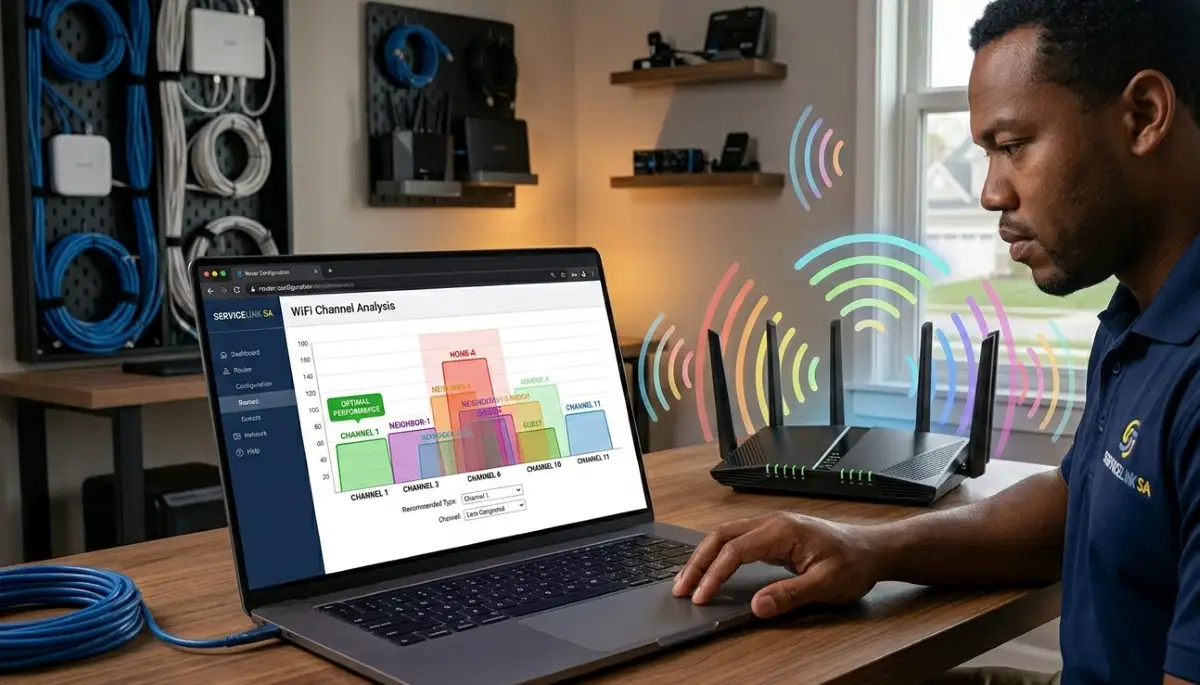
WiFi Interference Slowing You Down?
Get professional help from local specialists who understand router channel settings and wifi channel selection.
Servicing Constantia, Camps Bay, Sea Point, and across South Africa
Best Router Channel Settings to Reduce Interference: The Complete Guide
📡 Stop fighting with your neighbours over WiFi channels—here’s how to choose the best one.
You’ve tried everything. You’ve moved your router, updated firmware, and rebooted countless times. But your WiFi is still slow. The problem might be your WiFi channel. If you and your neighbours are on the same channel, you’re competing for bandwidth.
Finding the best router channel settings to reduce interference can dramatically improve your wifi speed. A simple channel change can reduce wifi interference and eliminate wifi congestion.
In this comprehensive guide, I’ll show you the best router channel settings to reduce interference. I’ll cover router channel settings, wifi channel selection, and answer questions like how to change wifi channel on router, best 2.4ghz channel for south africa, best 5ghz channel for home, and wifi channel overlap neighbours.
For more on WiFi optimisation, check out our improve WiFi speed and WiFi interference guides. Let’s find your perfect channel.
📋 Table of Contents – Router Channel Settings Guide
📡 What Are WiFi Channels?
Before we dive into best router channel settings to reduce interference, let’s understand what channels are.
What Is a WiFi Channel?
A WiFi channel is like a lane on a highway. Your router broadcasts on a specific channel. If multiple routers use the same channel, they cause wifi interference.
How Channels Work:
- 2.4 GHz: Has 11-14 channels (depending on region).
- 5 GHz: Has many more channels (up to 25).
Why This Matters:
Too many routers on the same channel cause wifi congestion. This slows down your wifi speed.
For more on wifi channel selection, see our WiFi interference guide.
🔍 Why Channels Matter for Interference
Understanding why channels matter helps with best router channel settings to reduce interference.
The Problem:
When multiple routers use the same channel, they compete for bandwidth. This causes wifi interference and slows down your wifi speed.
How Interference Affects You:
- Slower wifi speed.
- Higher latency (ping).
- Frequent disconnections.
- Buffering while streaming.
Why Channels Get Congested:
- Default settings: Most routers use the same default channel.
- Auto selection: Auto mode often chooses the same channel.
- Limited channels: Only 3 non-overlapping channels on 2.4 GHz.
Realistic Example:
In Constantia, 10 routers on channel 6 cause wifi congestion. Changing to channel 1 or 11 can improve wifi speed.
For more on wifi interference, see our WiFi interference guide.
📡 Best 2.4GHz Channel for South Africa
The best 2.4ghz channel for south africa depends on your environment.
Non-Overlapping Channels:
On 2.4 GHz, only channels 1, 6, and 11 don’t overlap. These are the only channels you should use.
Why These Channels:
- Channel 1: Lowest frequency, good for range.
- Channel 6: Middle frequency, commonly used.
- Channel 11: Highest frequency, good for range.
Which Channel Is Best?
The best channel is the least congested. Use a WiFi analyser app to check which channel is least used in your area.
Recommendation:
Try channel 1 or 11 first. These are often less congested than channel 6.
Realistic Example:
In Camps Bay, channel 6 is congested. Switching to channel 1 improves wifi speed.
For more on wifi channel selection, see our dual band WiFi guide.
📡 Best 5GHz Channel for Home
The best 5ghz channel for home depends on your router and environment.
5 GHz Channels:
- Low channels: 36, 40, 44, 48 (good for compatibility).
- High channels: 149, 153, 157, 161 (often less congested).
- DFS channels: 52-144 (may have radar interference).
Which 5 GHz Channel Is Best?
Try high channels (149-161) first. They are often less congested and have more power.
Recommendation:
- Start with: Channel 149 or 161.
- Avoid DFS: Unless you know there’s no radar.
Realistic Example:
In Sea Point, channel 36 is congested. Switching to channel 149 improves wifi speed.
For more on 5 GHz channels, see our dual band WiFi guide.
🔍 How to Check Channel Congestion
Before you change router channel settings, check which channels are congested.
Method 1: WiFi Analyser App
Download a WiFi analyser app (e.g., NetSpot, WiFi Analyzer). Scan for nearby networks and see which channels are most used.
Method 2: Router Admin Page
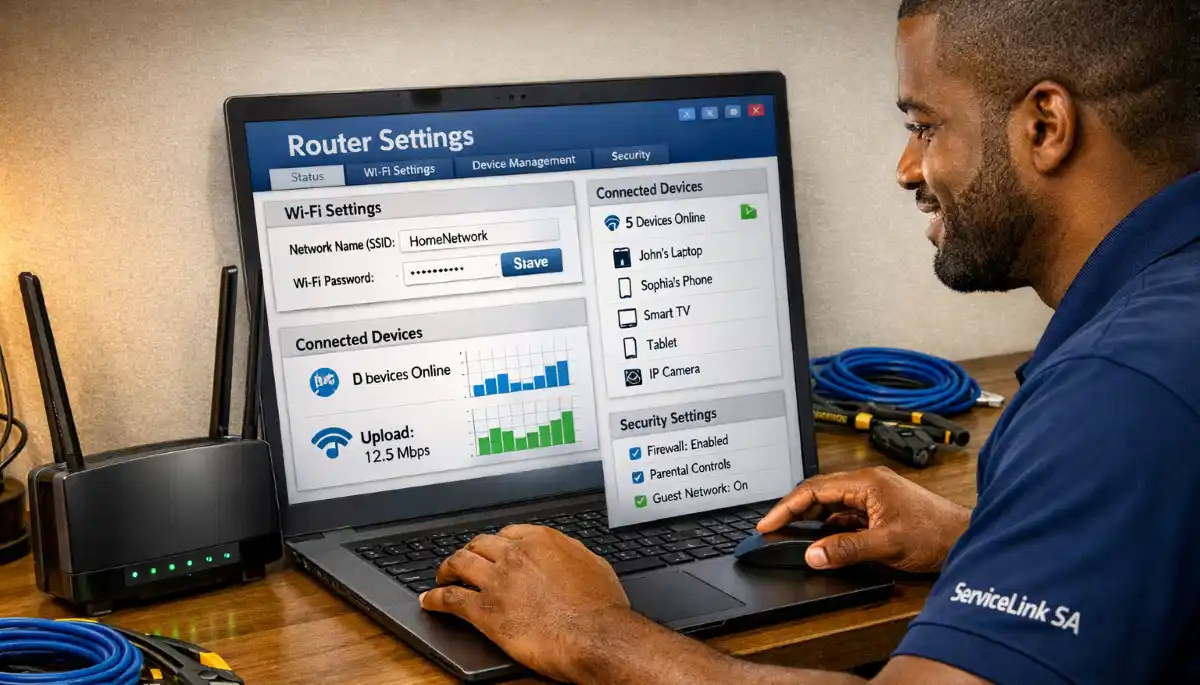
Some routers show nearby networks and channel usage. Check your router’s admin page.
Method 3: Manual Testing
Try different channels and run speed tests. See which channel gives the best wifi speed.
What to Look For:
- Congested channels: Many networks on the same channel.
- Empty channels: Few or no networks.
- Overlap: Avoid wifi channel overlap neighbours.
For more on wifi interference, see our WiFi interference guide.
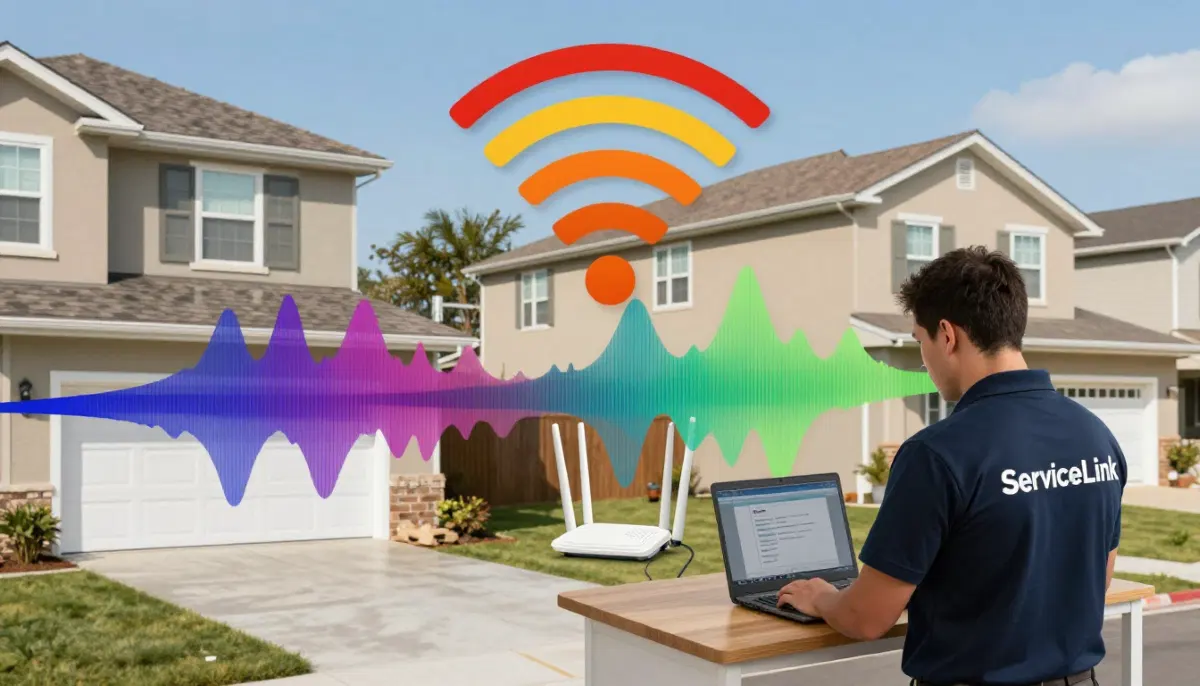
WiFi Interference Driving You Crazy?
Get professional help from local specialists who understand wifi channel selection and router channel settings.
Free consultations available for how to change wifi channel on router.
🔧 How to Change WiFi Channel on Router
How to change wifi channel on router is a simple process.
Step-by-Step Guide:
- Access router settings: Open a browser and enter your router’s IP address (usually 192.168.1.1).
- Log in: Enter your admin username and password.
- Find wireless settings: Look for “Wireless,” “WiFi,” or “Network Settings.”
- Find channel selection: Look for “Channel” or “Channel Selection.”
- Select a channel: Choose a channel (e.g., 1, 6, or 11 for 2.4 GHz).
- Save and apply: Save the settings and reboot the router.
For Different Routers:
- TP-Link: Wireless > Channel
- ASUS: Wireless > Channel
- Netgear: Wireless Settings > Channel
Important: Write down your current settings before changing. If you have issues, you can revert.
For more on router channel settings, see our router setup guide.
📡 WiFi Channel Overlap Neighbours
Wifi channel overlap neighbours is a common problem in congested areas.
What Is Channel Overlap?
When two routers use channels that overlap, they cause interference. On 2.4 GHz, channels 1, 6, and 11 don’t overlap. Other channels overlap with each other.
Why Overlap Is Bad:
- Interference: Signals interfere with each other.
- Slow speed: Wifi speed decreases.
- Connection drops: Frequent disconnections.
How to Avoid Overlap:
- Use channels 1, 6, or 11: These don’t overlap.
- Check neighbours: See what channels they’re using.
- Choose the least used: Pick the channel with fewest neighbours.
Realistic Example:
In Green Point, neighbours on channels 2, 4, and 7 cause wifi congestion. Switching to channel 11 avoids overlap.
For more on wifi interference, see our WiFi interference guide.
⚖️ Auto vs Manual Channel Selection
Choosing between auto and manual wifi channel selection is important.
Auto Selection:
- Pros: Router chooses the channel automatically.
- Cons: May choose a congested channel.
- Best for: Users who don’t want to manage channels.
Manual Selection:
- Pros: You can choose the least congested channel.
- Cons: Needs monitoring and adjusting.
- Best for: Users who want optimal wifi speed.
Recommendation:
Start with auto. If your wifi speed is slow, try manual selection. Use a WiFi analyser to find the best channel.
For more on best router channel settings to reduce interference, see our best router settings guide.
📊 Channel Comparison Table
Here’s a comparison of router channel settings for 2.4 GHz and 5 GHz.
| Band | Recommended Channels | Pros | Cons |
|---|---|---|---|
| 2.4 GHz | 1, 6, 11 | No overlap, best performance | Limited to 3 channels |
| 5 GHz | 36, 40, 44, 48 | Good compatibility | May be congested |
| 5 GHz | 149, 153, 157, 161 | Often less congested | Limited to newer devices |
Key Takeaway: For 2.4 GHz, use 1, 6, or 11. For 5 GHz, start with high channels (149-161).
❓ Frequently Asked Questions About Router Channel Settings
What are the best router channel settings to reduce interference?
The best router channel settings to reduce interference are channels 1, 6, or 11 for 2.4 GHz, and high channels (149-161) for 5 GHz. Use a WiFi analyser to find the least congested wifi channel selection.
How do I change the WiFi channel on my router?
How to change wifi channel on router—access your router settings, find wireless settings, select a channel, and save. This is the key to router channel settings optimisation.
What is the best 2.4GHz channel for South Africa?
The best 2.4ghz channel for south africa is the least congested among channels 1, 6, and 11. Use a WiFi analyser to find the best wifi channel selection for your area.
What is the best 5GHz channel for home?
The best 5ghz channel for home is often high channels like 149, 153, 157, or 161. These are typically less congested than low channels. This is part of best router channel settings to reduce interference.
Does changing WiFi channel reduce interference?
Yes, changing your wifi channel can reduce wifi interference. Choosing a less congested channel improves wifi speed and stability.
What is WiFi channel overlap with neighbours?
Wifi channel overlap neighbours occurs when neighbours use overlapping channels. This causes wifi congestion. Use channels 1, 6, or 11 to avoid overlap.
Should I use auto or manual channel selection?
Manual wifi channel selection is better if you want optimal wifi speed. Auto can choose congested channels. If you’re not sure, start with auto and test.
How can I check which WiFi channels are congested?
Use a WiFi analyser app to check wifi channel selection congestion. Apps like NetSpot or WiFi Analyzer show which channels are most used in your area.
✅ Final Thoughts: Optimise Your Router Channel Settings
Now you know the best router channel settings to reduce interference. With the right wifi channel selection, you can reduce wifi interference and improve your wifi speed.
Key Takeaways:
- 2.4 GHz: Use channels 1, 6, or 11.
- 5 GHz: Use high channels (149-161).
- Check congestion: Use a WiFi analyser app.
- Avoid overlap: Don’t use overlapping channels.
- Manual is better: Manual wifi channel selection offers better control.
Your Next Step: Check your current channel settings. Use a WiFi analyser to find the best channel. Change your router channel settings for better wifi speed. If you need professional help, ServiceLink SA can connect you with local specialists who understand best router channel settings to reduce interference.
Ready to Reduce WiFi Interference?
Get free advice from verified local specialists for wifi channel selection and router channel settings.
📞 Call us: 073 138 4726 for immediate help finding a specialist near you.
📢 Are You a WiFi Optimisation Professional?
Join ServiceLink SA’s network of verified contractors and get access to qualified leads for router channel settings and wifi interference projects.
📚 Official resources & standards referenced:
- SANS 10400 – Guidelines for electrical and networking installations in South African homes.
- Department of Energy – Information on energy-efficient electronic equipment.
Information provided for general guidance. For professional best router channel settings to reduce interference advice, always consult a qualified local technician.
Written by: Innocent T Hanyani
Construction & Home Services Industry Specialist | 21+ Years Experience
Innocent T Hanyani has over two decades of experience working across South Africa’s construction, telecommunications, and home services sectors. Throughout his career, he has worked closely with network installers, IT professionals, and homeowners, gaining practical insight into the best router channel settings to reduce interference. His expertise helps homeowners understand the complexities of router channel settings and wifi channel selection, from how to change wifi channel on router to best 2.4ghz channel for south africa, best 5ghz channel for home, and wifi channel overlap neighbours.