
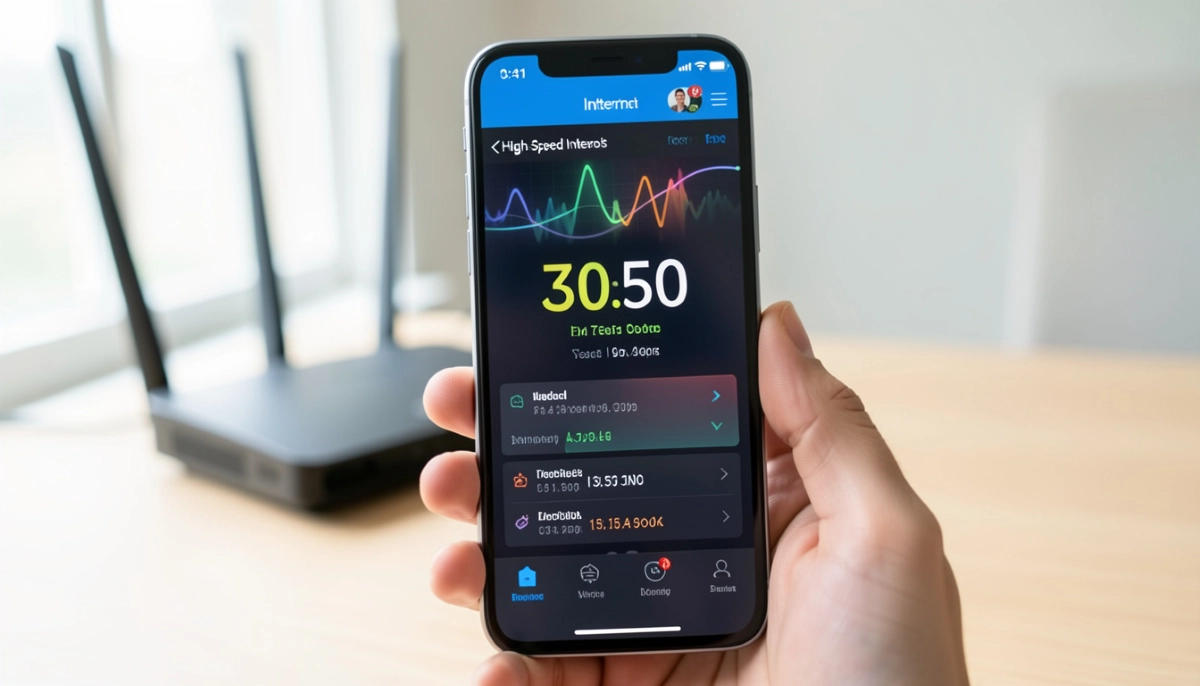
Slow WiFi Driving You Crazy?
Get professional help from local specialists who understand wifi speed optimisation and wifi network optimisation.
Servicing Pretoria East, Waterkloof, Menlyn, and across South Africa
How to Improve WiFi Speed Without Buying New Hardware
🚀 Slow WiFi? Don’t buy new equipment—try these free fixes first.
Your WiFi is slow. Pages take forever to load. Videos buffer. Video calls drop. You’re ready to buy a new router. But before you spend money, there are many free things you can try.
Knowing how to improve wifi speed without buying new hardware can save you hundreds of rands. Most slow WiFi problems are caused by configuration issues, not faulty hardware. With a few simple changes, you can speed up wifi without new router.
In this comprehensive guide, I’ll show you exactly how to improve wifi speed without buying new hardware. I’ll cover wifi speed optimisation tips, wifi network optimisation strategies, and provide wifi speed boost tips. I’ll also answer questions like how to speed up wifi without new router, wifi faster after changing settings, and wifi faster without mesh extender.
For more on WiFi optimisation, check out our best router settings and router channel settings guides. Let’s speed up your WiFi for free.
📋 Table of Contents – WiFi Speed Optimisation Guide
📊 Test Your Current Speed
Before you start how to improve wifi speed without buying new hardware, test your current speed.
How to Test:
- Run a wifi speed test on your device (Ookla Speedtest or Fast.com).
- Test with a wired connection (Ethernet) first.
- Test with WiFi in different rooms.
- Note the speeds.
What to Look For:
- Wired speed: Your actual internet speed.
- WiFi speed: Your WiFi performance.
- Difference: If WiFi is much slower, the problem is your WiFi.
Why This Matters:
You need a baseline to measure improvement. After making changes, test again to see if your wifi speed has improved.
For more on testing, see our how to test WiFi speed guide.
📍 Optimise Router Placement
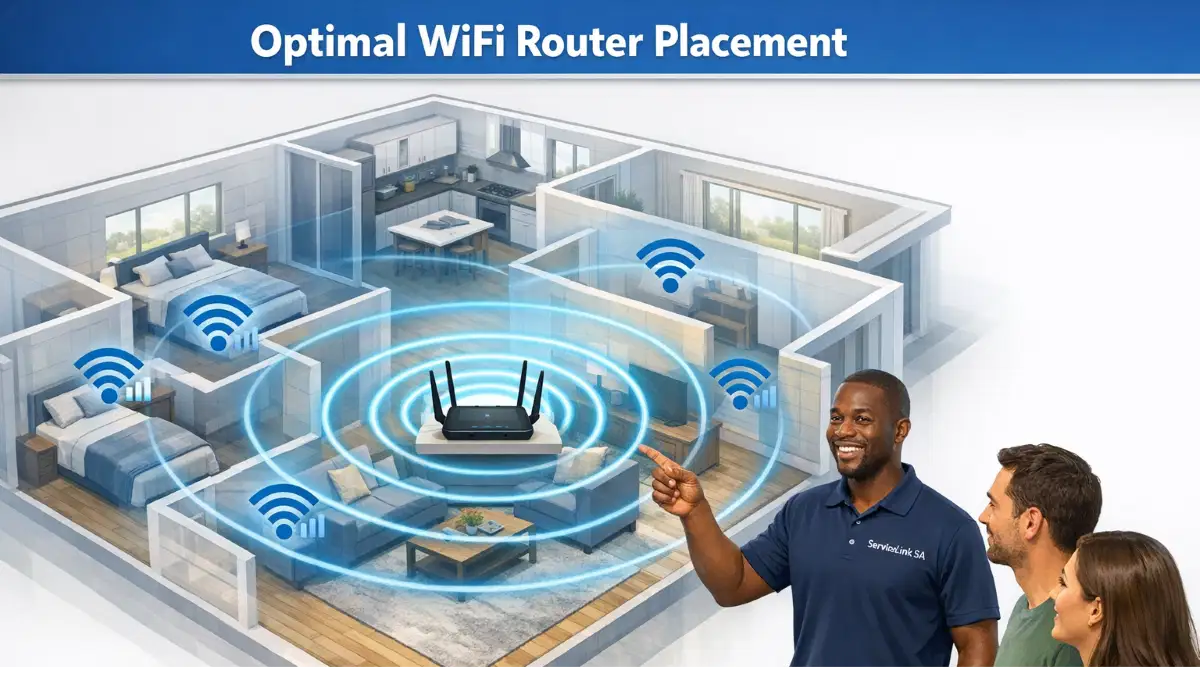
Router placement is one of the most effective wifi speed boost tips.
Why Placement Matters:
Where you place your router affects signal strength and wifi speed. A poorly placed router creates dead zones and slow speeds.
Golden Rules:
- Central location: Place the router in the centre of your home.
- Elevated: Place it on a shelf or high table.
- Away from walls: Keep it at least 0.5 metres from walls.
- Away from metal: Metal objects block signals.
What to Avoid:
- Corners: Wastes half the signal.
- Floors: Signals travel outward and downward.
- Cupboards: Blocks the signal.
Realistic Example:
Moving your router from a corner to the centre of your home in Pretoria East can improve wifi speed by 30-50%.
For more on placement, see our router placement guide.
📡 WiFi Channel Selection
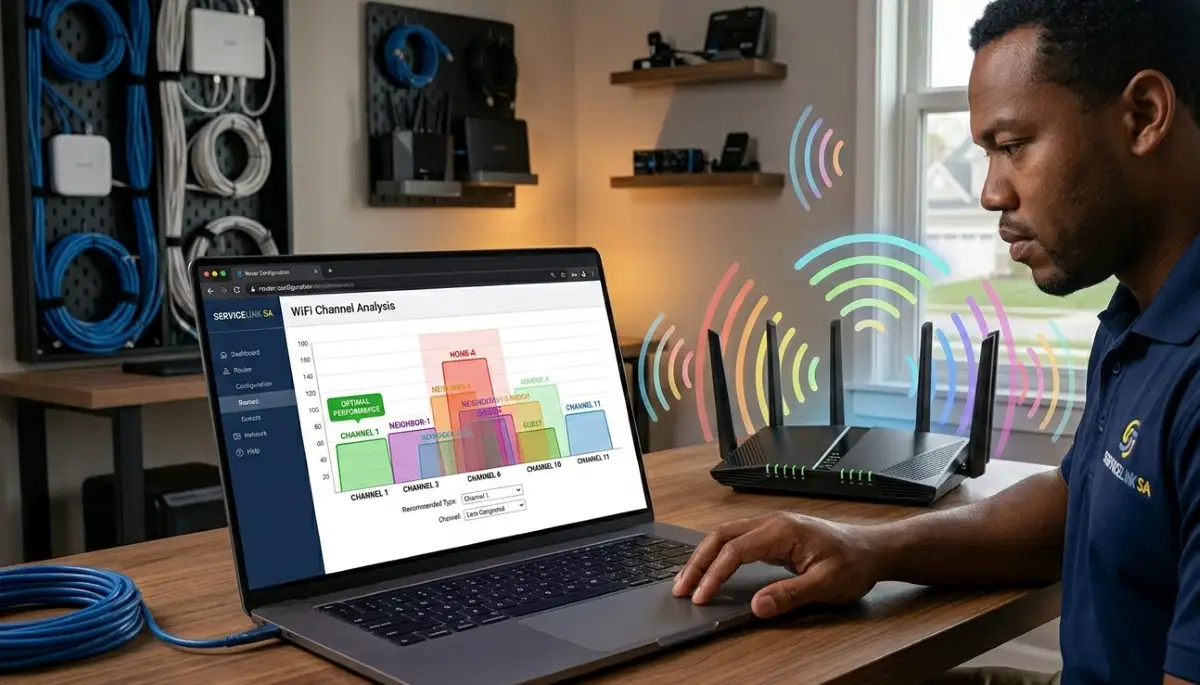
Wifi channel selection is a key part of wifi network optimisation.
Why Channels Matter:
If too many routers use the same channel, they interfere. This slows down your wifi speed.
How to Choose the Best Channel:
- Download a WiFi analyser app.
- Scan for nearby networks.
- Identify the least congested channel.
- For 2.4 GHz, use channels 1, 6, or 11.
- Change the channel in your router settings.
How to Change Your Channel:
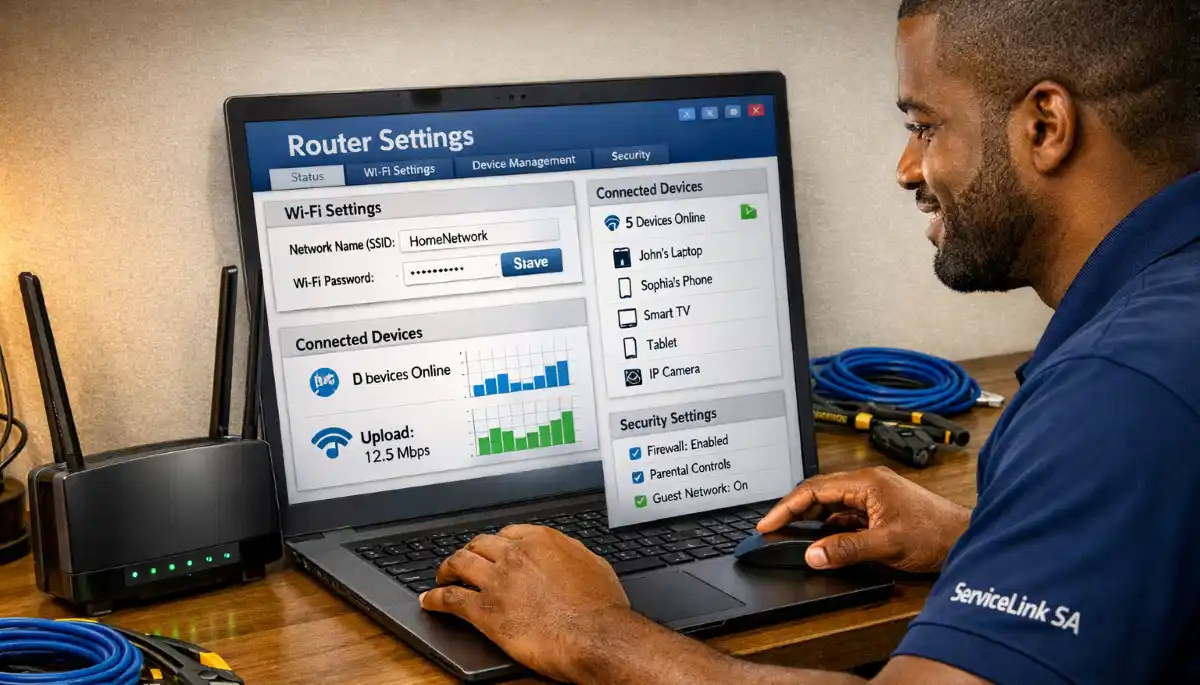
- Access your router settings.
- Find wireless settings.
- Find channel selection.
- Select your chosen channel.
- Save and reboot.
Realistic Example:
Changing the channel can improve wifi speed by 10-30% in congested areas.
For more on channels, see our router channel settings guide.
🚫 Reduce Interference
Interference is a common cause of slow wifi speed.
Common Interference Sources:
- Microwaves: Operate on 2.4 GHz.
- Cordless phones: Use 2.4 GHz.
- Baby monitors: Use 2.4 GHz.
- Neighbouring WiFi: Too many routers.
- Bluetooth: Can interfere.
How to Reduce Interference:
- Move the router: Keep it away from interference sources.
- Use 5 GHz: Less interference than 2.4 GHz.
- Change channels: Reduce interference from neighbours.
Realistic Example:
Moving your router away from the microwave in Waterkloof can improve wifi speed during microwave use.
For more on interference, see our WiFi interference guide.
⚙️ Update Router Firmware
Updating firmware is a simple wifi speed optimisation step.
Why Firmware Matters:
Router manufacturers release updates that improve performance, fix bugs, and enhance security.
How to Update:
- Access your router settings.
- Find “Firmware Update” or “System Update.”
- Check for updates.
- Install if available.
- Wait for the router to reboot.
How Often to Update:
Check every 3-6 months. Some routers have automatic updates.
Realistic Example:
A firmware update in Menlyn can improve wifi speed by fixing known bugs.
For more on firmware, see our router setup guide.
Still Struggling with Slow WiFi?
Get professional help from local specialists who understand wifi speed optimisation and wifi network optimisation.
Free consultations available for how to speed up wifi without new router.
📊 Enable QoS
QoS is a powerful tool for wifi network optimisation.
What Is QoS?
QoS (Quality of Service) prioritises certain types of traffic. This ensures important activities get priority.
How to Enable QoS:
- Access your router settings.
- Find QoS or bandwidth management.
- Enable QoS.
- Set streaming or gaming as high priority.
- Save and apply.
Why QoS Helps:
If someone is downloading large files while you’re streaming, QoS ensures your streaming gets priority. This improves your wifi speed for important activities.
For more on QoS, see our best router settings guide.
📱 Reduce Connected Devices
Too many devices can slow down your wifi speed.
Why This Helps:
Each device uses bandwidth. The more devices, the less bandwidth each device gets.
How to Reduce Devices:
- Disconnect unused devices: Turn off WiFi on devices not in use.
- Use Ethernet: Connect stationary devices via Ethernet.
- Use guest network: Isolate guest devices.
Realistic Example:
Disconnecting 5 unused devices in Lynnwood can improve wifi speed for active devices.
For more on device management, see our WiFi for many devices guide.
📡 Use 5 GHz Band
Using the 5 GHz band is a key wifi speed boost tips technique.
Why 5 GHz Is Faster:
- Less interference: Fewer devices use 5 GHz.
- Faster speeds: Supports higher speeds.
- Less congestion: Fewer networks on 5 GHz.
How to Use 5 GHz:
- Check if your device supports 5 GHz.
- Connect to the 5 GHz network.
- Use 5 GHz for streaming, gaming, and video calls.
Note: 5 GHz has shorter range. Use 2.4 GHz for distance.
For more on bands, see our dual band WiFi guide.
🔑 Change WiFi Password
Changing your password can improve wifi speed.
Why This Helps:
If someone is using your WiFi without permission, they’re using your bandwidth. Changing the password kicks them off.
How to Change Your Password:
- Access your router settings.
- Find wireless or WiFi settings.
- Change the WiFi password.
- Use a strong password.
- Save and apply.
- Reconnect all your devices.
Important: Use a strong password with at least 12 characters.
For more on passwords, see our best security settings guide.
❓ Frequently Asked Questions About Improving WiFi Speed
How can I improve WiFi speed without buying new hardware?
How to improve wifi speed without buying new hardware involves optimising router placement, changing WiFi channels, reducing interference, updating firmware, and enabling QoS. These free wifi speed optimisation techniques can significantly boost your wifi speed.
How can I speed up my WiFi without a new router?
How to speed up wifi without new router—move your router to a central location, change WiFi channels, use 5 GHz, and reduce connected devices. These are the best wifi speed boost tips for free improvements.
Does changing WiFi channel improve speed?
Yes, wifi channel selection can improve wifi speed. Changing to a less congested channel reduces interference. This is an effective wifi network optimisation technique.
Will updating router firmware improve speed?
Yes, updating router firmware can improve wifi speed. Manufacturers release performance improvements and bug fixes. Regular updates are part of good wifi optimisation.
Does router placement affect WiFi speed?
Yes, router placement significantly affects wifi speed. A centrally located, elevated router provides better coverage and speed. This is one of the most effective free wifi speed boost tips.
Can interference affect WiFi speed?
Yes, interference from microwaves, cordless phones, and neighbouring networks can slow down your wifi speed. Reducing interference is part of wifi network optimisation.
Does QoS improve WiFi speed?
QoS improves wifi speed for important traffic by prioritising it. This is a key wifi speed optimisation technique. Enable QoS in your router settings.
Can too many devices slow down WiFi?
Yes, too many devices can slow down your wifi speed. Each device uses bandwidth. Reducing connected devices is a simple wifi speed boost tips technique.
✅ Final Thoughts: Speed Up Your WiFi for Free
Now you know how to improve wifi speed without buying new hardware. These free wifi speed optimisation techniques can significantly boost your wifi speed.
Key Takeaways:
- Optimise placement: Central and elevated.
- Change channels: Reduce interference.
- Update firmware: Improve performance.
- Enable QoS: Prioritise important traffic.
- Reduce devices: Free up bandwidth.
Your Next Step: Try these free fixes today. If your wifi speed is still slow, consider professional help. ServiceLink SA can connect you with local specialists who understand wifi speed optimisation and wifi network optimisation.
Ready to Speed Up Your WiFi?
Get free advice from verified local specialists for wifi speed optimisation and wifi network optimisation.
📞 Call us: 073 138 4726 for immediate help finding a specialist near you.
Best Router Settings •
Channel Settings •
Interference Guide
📢 Are You a WiFi Optimisation Professional?
Join ServiceLink SA’s network of verified contractors and get access to qualified leads for wifi speed optimisation and wifi network optimisation projects.
📚 Official resources & standards referenced:
- SANS 10400 – Guidelines for electrical and networking installations in South African homes.
- Department of Energy – Information on energy-efficient electronic equipment.
Information provided for general guidance. For professional how to improve wifi speed without buying new hardware advice, always consult a qualified local technician.
Written by: Innocent T Hanyani
Construction & Home Services Industry Specialist | 21+ Years Experience
Innocent T Hanyani has over two decades of experience working across South Africa’s construction, telecommunications, and home services sectors. Throughout his career, he has worked closely with network installers, IT professionals, and homeowners, gaining practical insight into how to improve wifi speed without buying new hardware. His expertise helps homeowners understand the complexities of wifi speed optimisation and wifi network optimisation, from how to speed up wifi without new router to wifi speed boost tips, wifi faster after changing settings, and wifi faster without mesh extender.