
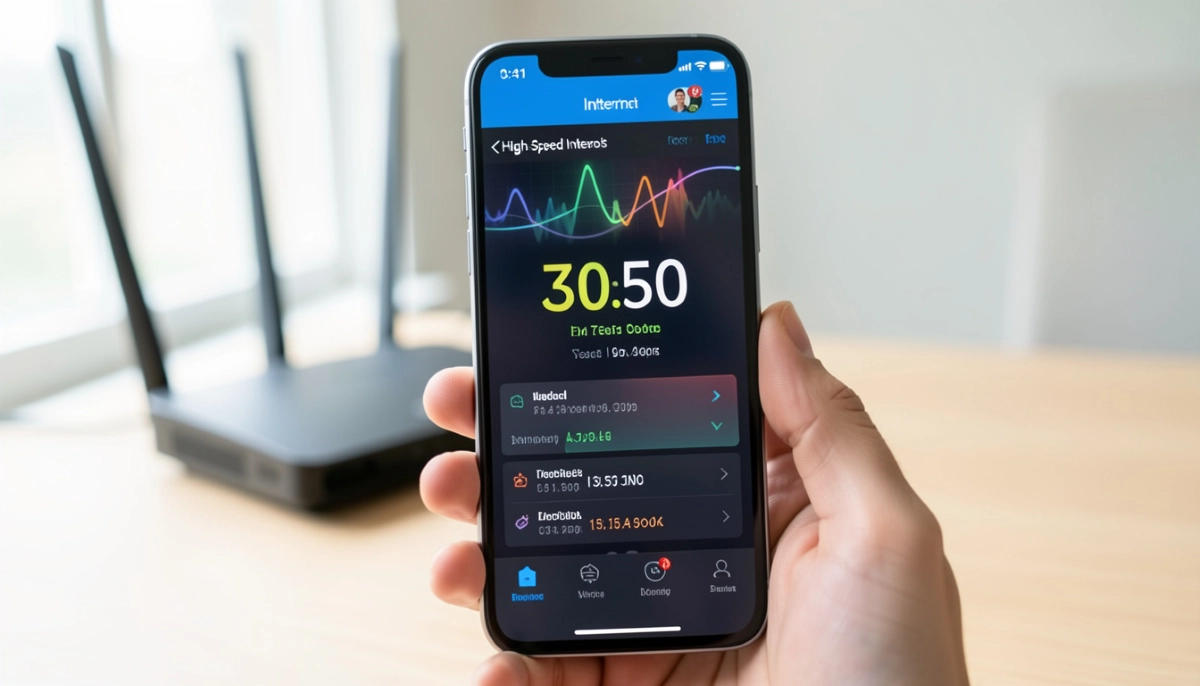
Not Sure If You’re Getting the Speeds You Pay For?
Get professional help from local specialists who can perform accurate wifi speed tests and diagnose issues.
Servicing Johannesburg, Pretoria, Cape Town, Durban, and across South Africa
How to Test WiFi Speed Properly at Home: The Complete Guide
📊 Are you really getting the internet speeds you’re paying for? Here’s how to find out.
You’re paying for a 100 Mbps fibre connection. But when you browse or stream, it feels more like 20 Mbps. You call your ISP, and they tell you everything is fine. You run a wifi speed test, and it shows a different speed every time. What’s going on?
The problem isn’t your internet—it’s how you’re testing it. Most people don’t know how to test wifi speed properly at home. They run a quick test on their phone while standing next to the router, get a decent result, and assume everything is fine. But that’s not the full picture.
In this guide, I’ll show you exactly how to test wifi speed properly at home, what the results mean, and how to use that information to fix your slow internet. Whether you’re in Johannesburg, Cape Town, or Durban, these steps will work for you.
For more detailed help, check out our slow WiFi causes guide and professional troubleshooting guide. Let’s get accurate results.
📋 Table of Contents – WiFi Speed Test Guide
📊 Why Testing Your WiFi Speed Matters
Before we dive into how to test wifi speed properly at home, let’s understand why it’s important.
What a Speed Test Tells You:
- Download speed: How fast data comes from the internet to your device.
- Upload speed: How fast data goes from your device to the internet.
- Latency (ping): The delay between sending and receiving data.
- Jitter: Variations in latency over time.
Why Accurate Testing Matters:
- Check if you’re getting what you pay for: Your ISP should deliver the speeds you’re paying for.
- Diagnose slow internet: A wifi speed check helps identify if the problem is your internet or your WiFi.
- Identify dead zones: Testing in different rooms shows where your wifi signal strength is weak.
- Monitor performance: Regular testing helps you spot problems early.
The Difference Between Internet Speed and WiFi Speed:
Your internet speed is the speed coming into your home. Your WiFi speed is the speed your router delivers to your devices. They’re often different. A proper internet speed test tests both.
For more on diagnosing internet issues, see our slow WiFi causes guide.
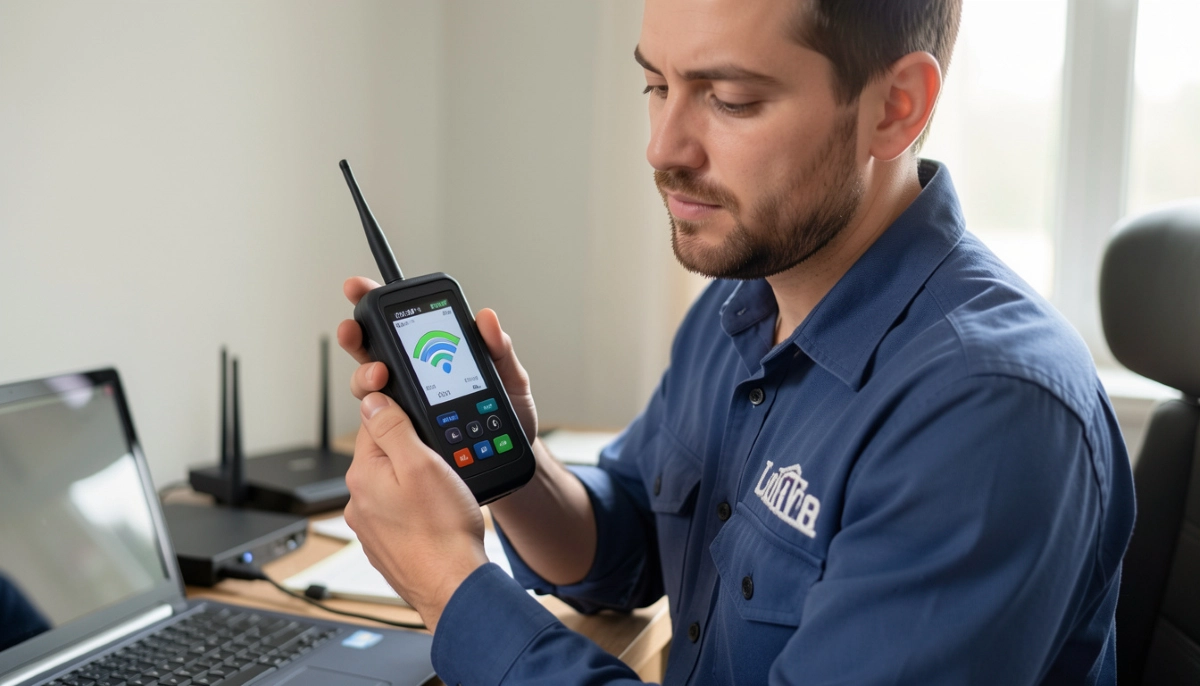
🛠️ What You Need Before Testing
Before you run a wifi speed test, make sure you have the right setup.
Essential Equipment:
- A device with Ethernet capability: A laptop or desktop computer with an Ethernet port. This is essential for testing your internet speed directly.
- An Ethernet cable: Cat5e or Cat6 cable to connect your device directly to the router.
- A WiFi-enabled device: A smartphone, tablet, or laptop for wireless testing.
- A speed test service: Ookla Speedtest, Fast.com, or Google’s speed test.
Best Practices Before Testing:
- Close other applications: Streaming, gaming, and downloads will affect your results.
- Disconnect other devices: Other devices using your network will consume bandwidth.
- Reboot your router: This clears any temporary issues.
- Test at different times: Test during the day and at night to see how bandwidth management affects your speed.
For more on router setup, see our router setup guide.
🔌 How to Test Your Internet Speed with a Wired Connection
This is the most important step in how to test wifi speed properly at home. A wired test gives you your true internet speed, without WiFi variables.
Step-by-Step Wired Speed Test:
- Connect your device: Plug one end of the Ethernet cable into your router’s LAN port and the other end into your laptop or computer.
- Disable WiFi: Turn off WiFi on your device to ensure it’s using the wired connection.
- Close background apps: Close any applications that might use bandwidth (streaming, downloads, updates).
- Choose a speed test service: Go to Ookla Speedtest (speedtest.net) or Fast.com.
- Run the test: Click “Go” or “Start” and wait for the results.
- Record the results: Note your download speed, upload speed, and latency.
- Test multiple times: Run the test 3 times and take the average.
What This Test Tells You:
This is your actual internet speed. If this speed is close to what you’re paying for, your internet is fine. The problem is your WiFi. If this speed is much lower, the problem is with your ISP.
For more on diagnosing ISP issues, see our internet slow at night guide.
📱 How to Test WiFi Speed on Laptop and Phone
Once you know your internet speed, it’s time to test your wifi speed. Here’s how to test wifi speed on laptop and how to test wifi speed on phone.
Testing on Laptop (Windows/Mac):
- Connect to WiFi: Ensure your laptop is connected to your WiFi network.
- Disconnect Ethernet: If you have an Ethernet cable connected, unplug it.
- Choose a test location: Stand near the router for the first test.
- Run the speed test: Use the same service (Ookla or Fast.com).
- Record the results: Note the download and upload speeds.
Testing on Phone (Android/iOS):
- Download a speed test app: Ookla Speedtest is available for both platforms.
- Connect to WiFi: Ensure your phone is on your WiFi network.
- Stand near the router: Start with a test close to the router.
- Run the test: Open the app and tap “Go”.
- Record the results: Note the speeds shown.
Why These Tests Matter:
These tests show your wifi speed check results. If they’re significantly lower than your wired test, your WiFi is the bottleneck.
For more on router configuration, see our router setup guide.
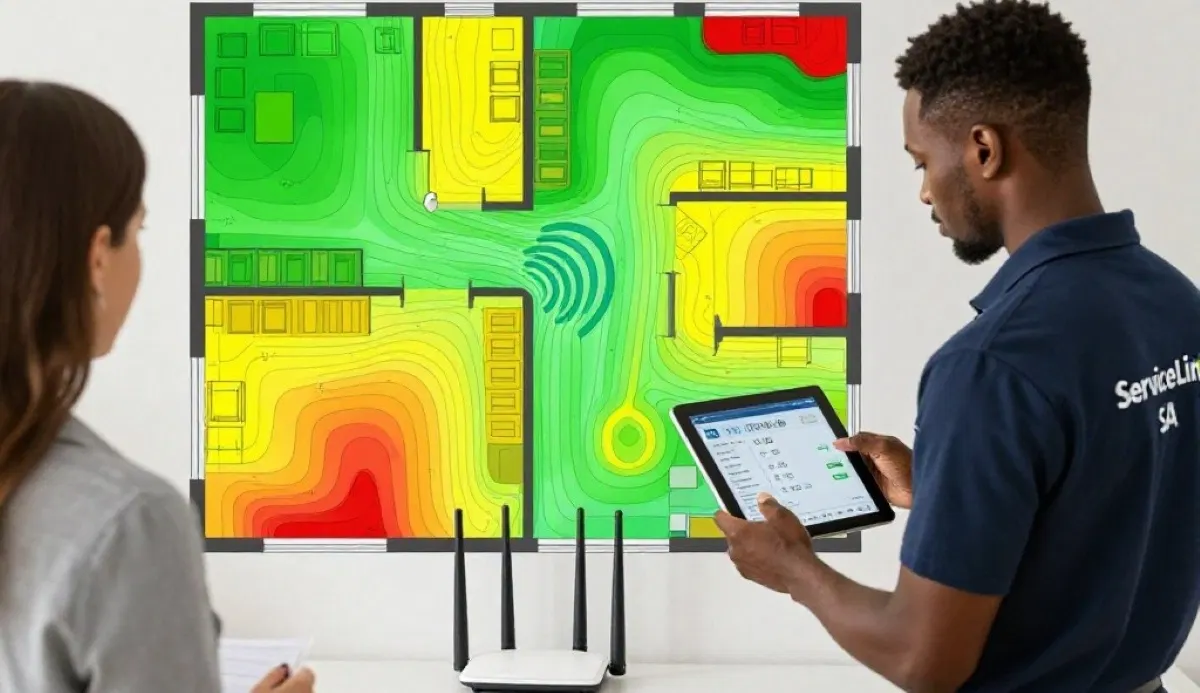
Need Help Interpreting Your Speed Test Results?
Get professional wifi speed check and diagnostics from local specialists who can identify and fix issues.
Free inspections available for wifi speed optimisation.
📏 WiFi Speed Test Near Router vs Far from Router
To get a complete picture of your network, you need to test wifi speed test near router and wifi speed test far from router.
Why Test Near the Router:
Testing near the router shows the maximum speed your WiFi can achieve. This is your WiFi’s potential speed.
Why Test Far from the Router:
Testing far from the router shows how wifi signal strength affects your speed. This helps identify dead zones.
How to Test Different Locations:
- Test near the router: Stand within 1-2 metres of the router.
- Test in the next room: Move to an adjacent room.
- Test on a different floor: If you have multiple floors, test on each floor.
- Test in distant rooms: Test in rooms where you typically have slow internet.
- Record all results: Note the speed at each location.
What the Results Tell You:
- If speed drops significantly near the router: There’s a problem with your router or configuration.
- If speed drops gradually with distance: This is normal. You need better coverage.
- If speed drops dramatically in one room: There’s an obstruction or interference in that room.
For more on improving coverage, see our weak WiFi signal guide.
📊 Understanding Your Speed Test Results
Now that you have results, let’s understand what they mean.
| Metric | What It Means | Good Range | Poor Range |
|---|---|---|---|
| Download Speed | Data coming from internet to your device | 80%+ of your plan’s speed | Below 50% of your plan’s speed |
| Upload Speed | Data going from your device to the internet | 80%+ of your plan’s upload speed | Below 50% of your plan’s upload speed |
| Latency (Ping) | Delay in data transmission | Less than 30ms | Over 100ms |
| Jitter | Variation in latency | Less than 10ms | Over 30ms |
What the Results Mean for You:
- Wired speed matches your plan: Your internet is fine. The problem is your WiFi.
- Wired speed is much lower: Contact your ISP to investigate.
- WiFi speed is significantly lower than wired: Your WiFi needs optimisation.
- High latency or jitter: You may be experiencing network congestion or ISP issues.
For more on interpreting results, see our speed test guide.
⏱️ How to Test WiFi Latency and Ping
WiFi latency is just as important as speed. Here’s how to test it.
What Is Latency?
Latency (or ping) is the time it takes for data to travel from your device to a server and back. It’s measured in milliseconds (ms). Lower latency is better for gaming, video calls, and real-time applications.
How to Test Latency:
- Run a standard speed test: Most speed tests show latency as part of the results.
- Use a ping test: Open Command Prompt (Windows) or Terminal (Mac) and type:
ping google.com - Check the results: The “time=” value is your latency in ms.
- Test different servers: Ping different servers to see if latency varies.
What Affects Latency:
- Network congestion: More traffic increases latency.
- Distance: Further from the server means higher latency.
- WiFi interference: Interference can cause latency spikes.
- ISP routing: How your ISP routes traffic affects latency.
For more on latency issues, see our internet slow at night guide.
🚫 Common Speed Test Mistakes
⚠️ Warning: These Mistakes Ruin Your Speed Test Accuracy
Avoid these errors when learning how to test wifi speed properly at home.
- Testing on WiFi only: This only tests your WiFi, not your internet. Always test with a wired connection first.
- Testing with other devices active: Streaming, gaming, or downloads on other devices will affect your results.
- Testing once and trusting the result: Run multiple tests and take the average.
- Testing near the router only: You need to test in different locations to identify dead zones.
- Using only one speed test service: Different services can give different results. Use multiple.
- Testing during off-peak hours: This gives you the best-case scenario. Also test during peak hours.
- Not checking for background updates: Windows updates, app updates, and cloud backups can consume bandwidth.
For more on avoiding these mistakes, see our WiFi signal optimisation guide.
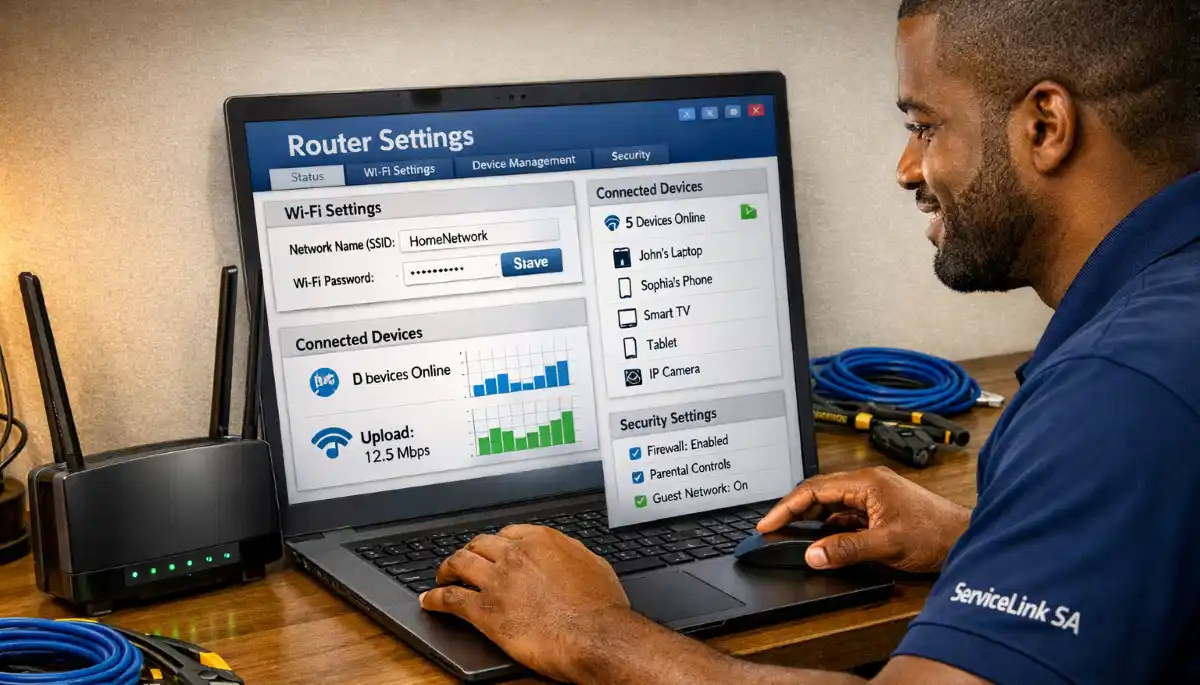
✅ Interpreting Results and Taking Action
Now that you know how to test wifi speed properly at home, here’s what to do with the results.
Scenario 1: Wired Speed Matches Your Plan, WiFi Speed Is Slow
Action: Your internet is fine. The problem is your WiFi. Try these fixes:
- Reposition your router to a more central location.
- Change your WiFi channel to reduce interference.
- Use the 5 GHz band for high-bandwidth devices.
- Consider a WiFi extender or mesh network.
Scenario 2: Wired Speed Is Much Lower Than Your Plan
Action: The problem is with your ISP. Contact them to investigate. Check for:
- Network congestion in your area.
- Line issues (faulty fibre or ADSL line).
- ISP throttling or traffic shaping.
Scenario 3: Speed Drops Significantly in Certain Rooms
Action: You have dead zones. Try these fixes:
- Move your router closer to those rooms.
- Install a WiFi extender.
- Consider a mesh network.
- Check for WiFi interference from neighbours.
Scenario 4: High Latency or Jitter
Action: This affects gaming and video calls. Try:
- Using a wired connection for latency-sensitive devices.
- Enabling QoS on your router.
- Contacting your ISP about routing issues.
For more on fixing these issues, see our professional troubleshooting guide.

❓ Frequently Asked Questions About WiFi Speed Testing
How do I test my WiFi speed properly at home?
How to test wifi speed properly at home involves testing with a wired Ethernet connection first, then testing wirelessly. Close all background applications, disconnect other devices, and run multiple tests at different times and locations. Compare your wired and wireless results to see if the issue is your internet or your WiFi. This is the most reliable wifi speed check method.
What is a good WiFi speed test result?
A good wifi speed test result depends on your internet plan. Your wired test should be at least 80% of your plan’s speed. Your wireless test should be at least 70% of your wired speed. Latency should be under 30ms, and jitter under 10ms. If your results are lower, you may need wifi speed optimisation.
How do I test WiFi speed on my phone?
How to test wifi speed on phone is simple: download the Ookla Speedtest app from your app store. Connect to your WiFi network, open the app, and tap “Go”. The app will test your download speed, upload speed, and latency. For the most accurate results, stand near the router and close other apps that might use bandwidth.
How do I test WiFi speed on my laptop?
How to test wifi speed on laptop follows the same principles. Connect to your WiFi, close background apps, and visit a speed test website like Speedtest.net or Fast.com. For the most accurate results, ensure you’re not running any downloads or uploads. Test in different locations to check wifi signal strength across your home.
Should I test WiFi speed near the router or far away?
You should test wifi speed test near router AND wifi speed test far from router. Testing near the router shows your WiFi’s maximum potential. Testing far from the router shows how wifi signal strength affects speed. This helps you identify dead zones and determine if you need a WiFi extender or mesh network.
What is the best WiFi speed test service?
Ookla Speedtest (speedtest.net) is the most widely used and reliable internet speed test service. Fast.com (by Netflix) is excellent for streaming speed tests. Google’s speed test (search “speed test” in Google) is also reliable. For the best results, use multiple services and compare the results. Each service may show slightly different wifi speed check results.
What is a good latency for WiFi?
Good wifi latency is under 30ms. Latency under 20ms is excellent for gaming and video calls. Latency between 30-60ms is acceptable but may be noticeable in fast-paced games. Latency over 100ms is poor and will cause lag. If your latency is high, check for network congestion or interference. See our slow internet at night guide for more.
Why are my WiFi speed test results inconsistent?
Inconsistent wifi speed test results are usually caused by network congestion, interference, or other devices using bandwidth. Test at different times of day. If results are inconsistent during peak hours, it’s likely network congestion. If results vary by location, it’s a wifi signal strength issue. Bandwidth management on your router can help prioritise traffic.
✅ Final Thoughts: Master Your WiFi Speed Testing
Knowing how to test wifi speed properly at home is one of the most valuable skills for any internet user. It allows you to hold your ISP accountable, diagnose problems, and optimise your home network.
Key Takeaways:
- Always test wired first: This gives you your true internet speed.
- Test wirelessly in different locations: Identify dead zones and wifi signal strength issues.
- Test at different times: Day and night tests reveal network congestion.
- Use multiple speed test services: Compare results for accuracy.
- Close background apps: Ensure accurate results.
- Use the results to take action: Whether it’s repositioning your router, installing an extender, or contacting your ISP.
Your Next Step: Run a wifi speed test right now. Test with a wired connection, then wirelessly in different rooms. Record your results. If you’re not getting the speeds you’re paying for, ServiceLink SA can connect you with verified local specialists who can diagnose and fix your issues.
Ready to Get Accurate Speed Test Results?
Get professional wifi speed check and diagnostics from verified local specialists.
📞 Call us: 073 138 4726 for immediate help finding a specialist near you.
📢 Are You a WiFi Optimisation Professional?
Join ServiceLink SA’s network of verified contractors and get access to qualified leads for wifi speed optimisation and bandwidth management projects.
📚 Official resources & standards referenced:
- SANS 10400 – Guidelines for electrical and networking installations in South African homes.
- Department of Energy – Information on energy-efficient electronic equipment.
Information provided for general guidance. For professional wifi speed check and optimisation, always consult a qualified local technician.
Written by: Innocent T Hanyani
Construction & Home Services Industry Specialist | 21+ Years Experience
Innocent T Hanyani has over two decades of experience working across South Africa’s construction, telecommunications, and home services sectors. Throughout his career, he has worked closely with network installers, IT professionals, and homeowners, gaining practical insight into how to test wifi speed properly at home and diagnose network issues. His expertise helps homeowners understand the complexities of wifi speed test results, wifi latency, and bandwidth management, from using an internet speed test to implementing effective wifi speed optimisation strategies.