
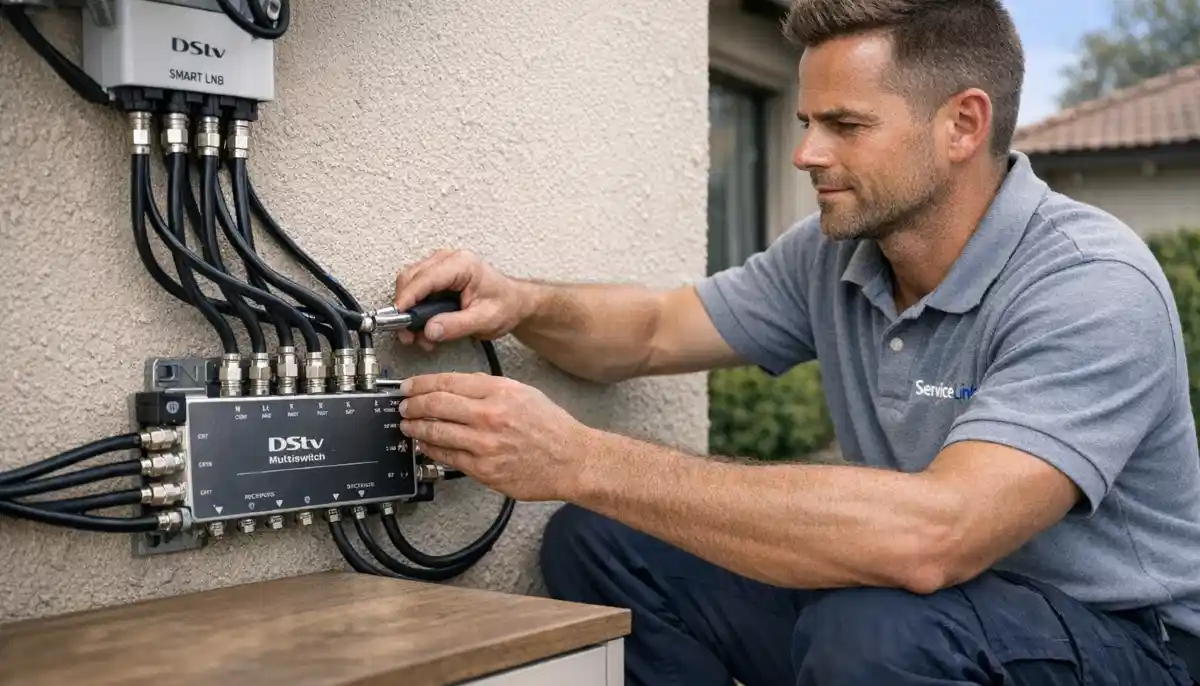
Need Help with Smart LNB Configuration?
Get professional setup from a verified, accredited DSTV installer near you.
We’ll configure your Smart LNB and Extra View system correctly.
Servicing North West, Potchefstroom, Brits, Klerksdorp, Mahikeng, Orkney, and across South Africa
Smart LNB User Band Configuration: Set Up DSTV Extra View Like a Pro
📡 One of the most confusing aspects of multi-room DSTV – demystified. Here’s how to configure user bands correctly.
You’ve installed a Smart LNB. You’ve run cables to three different rooms. You’ve connected your decoders.
But when you turn them on, only one works. Or they work intermittently. Or you get pixelation and freezing.
What went wrong?
The problem is almost certainly your smart lnb user band configuration. Unlike a standard Quad LNB,
a Smart LNB requires each decoder to be assigned a unique “user band” – a specific frequency range.
Get this wrong, and your multi-room system will never work properly.
In this guide, I’ll explain everything about dstv extra view lnb setup and
user band settings smart lnb. You’ll learn what user bands are, how to assign them,
and how to troubleshoot common configuration problems.
If you’re wondering “how to configure smart lnb for extra view”, you’ve come to the right place.
For general Smart LNB information, read our
Smart LNB vs Universal LNB guide.
For Smart LNB problems, see Smart LNB problems explained.
And for Extra View installation, read Extra View installation guide.
📋 Table of Contents – Smart LNB User Band Configuration Guide
🔢 What Are User Bands? Understanding the Basics
Before diving into lnb configuration, let’s understand what user bands actually are.
What is a user band?
A user band is a specific frequency range assigned to a decoder. Think of it like a radio station frequency.
Each decoder listens to its own frequency, so they don’t interfere with each other.
The Smart LNB sends different signals on different frequencies, and each decoder is tuned to receive one of them.
Why can’t we just use a splitter?
Satellite signals are different from TV aerial signals. You can’t simply split the signal from one LNB output
to multiple decoders – that would cause signal conflicts and damage equipment.
User bands allow multiple decoders to share the same physical cable (in some setups) or to coexist on the same LNB
without interfering.
💡 Key Concept:
Think of a Smart LNB as a radio tower broadcasting on multiple frequencies.
Each decoder is a radio tuned to its own frequency. They all receive from the same tower,
but each hears only its assigned channel. This is how multiple decoders can work independently
from one LNB.
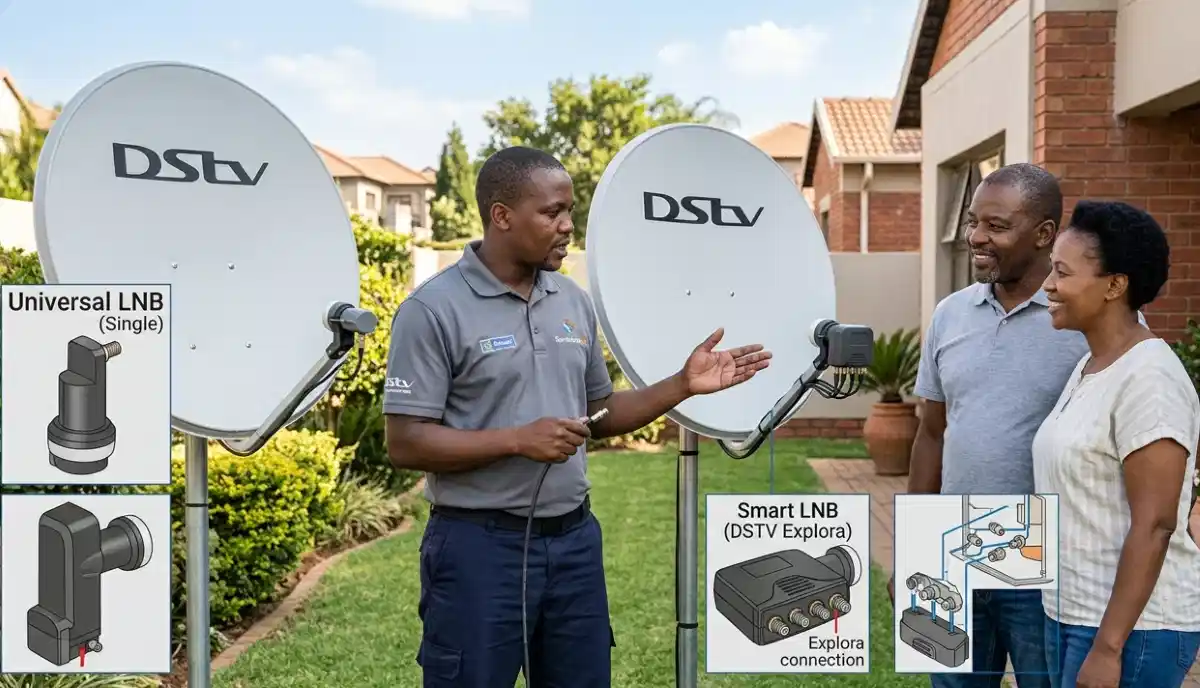
🔧 Why User Bands Are Needed for DSTV Extra View
Dstv extra view lnb setup requires user bands for several important reasons.
- Independent channel selection: Each decoder needs its own signal path to select different channels
- No signal conflicts: User bands prevent decoders from interfering with each other
- Return path for smart features: Smart LNBs use user bands for two-way communication (Catch Up, streaming)
- Scalability: User bands allow multiple decoders to work from one LNB
Without proper user band configuration:
- Decoders may show “No Signal” or E48-32 errors
- Some decoders work, others don’t
- Intermittent signal loss or pixelation
- Extra View features may not work
- Catch Up and streaming may fail
📡 Smart LNB Types & User Band Capacity
| Smart LNB Type | Output Ports | User Bands | Max Decoders | Best For |
|---|---|---|---|---|
| 2-port Smart LNB | 2 | 2 | 2 | Small homes, 2 TVs |
| 4-port Smart LNB | 4 | 4 | 4 | Most homes, 2-4 TVs |
| 8-port Smart LNB | 8 | 8 | 8 | Large homes, 5-8 TVs |
| Smart LNB + Multiswitch | 16-64+ | 8-32 | 16-64+ | Large estates, communal systems |
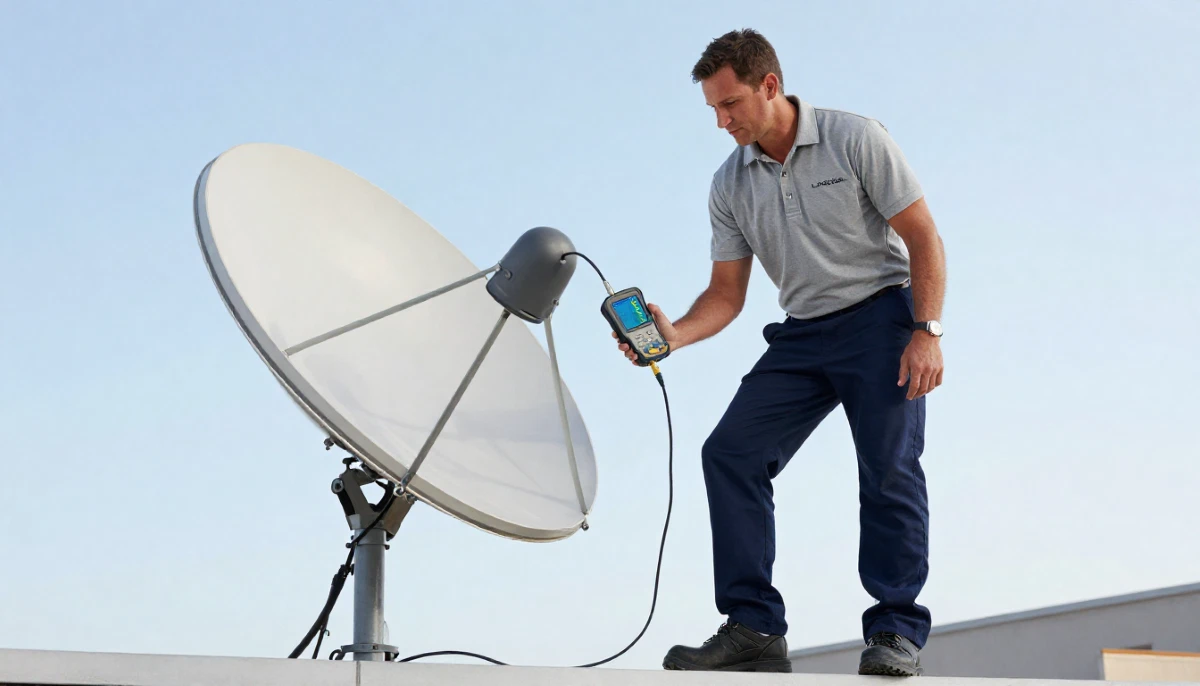
📊 Complete User Band Frequency Table
Here is the complete user band settings smart lnb frequency table.
Each user band corresponds to a specific frequency in MHz.
| User Band Index | Frequency (MHz) | Typical Use |
|---|---|---|
| 0 | 1210 | Primary Explora (main TV) |
| 1 | 1420 | Primary Explora (secondary band) |
| 2 | 1680 | Primary Explora (tertiary band – for recording) |
| 3 | 2040 | Secondary decoder – Bedroom |
| 4 | 1006 | Secondary decoder – Kids’ room |
| 5 | 1057 | Secondary decoder – Guest room |
| 6 | 1108 | Secondary decoder – Home office |
| 7 | 1159 | Secondary decoder – Kitchen |
| 8 | 1261 | Additional decoder |
| 9 | 1312 | Additional decoder |
| 10 | 1363 | Additional decoder |
| 11 | 1460 | Additional decoder |
| 12 | 1511 | Additional decoder |
| 13 | 1562 | Additional decoder |
| 14 | 1613 | Additional decoder |
| 15 | 1731 | Additional decoder |
| 16 | 1782 | Additional decoder |
| 17 | 1833 | Additional decoder |
| 18 | 1884 | Additional decoder |
| 19 | 1935 | Additional decoder |
| 20 | 1986 | Additional decoder |
📋 Step-by-Step Smart LNB User Band Configuration
Follow these steps to complete your smart lnb user band configuration.
Step 1: Identify your Smart LNB type
- Check how many output ports your Smart LNB has (2, 4, or 8)
- This determines how many decoders you can connect
- Also determines available user bands
Step 2: Plan your user band assignment
- Each decoder needs its own unique user band
- Primary Explora typically needs 3 user bands (0,1,2) for recording multiple shows
- Secondary decoders need 1 user band each
- Create a plan before configuring
Step 3: Configure the primary Explora decoder
- Press “Menu” on the remote
- Navigate to Settings → System Settings → LNB Configuration
- Select “Smart LNB” as the LNB type
- Assign user bands 0, 1, and 2 to the primary decoder
- Save settings
- Reboot the decoder
Step 4: Configure each secondary decoder
- For each secondary decoder (HD decoder or additional Explora)
- Go to Menu → Settings → System Settings → LNB Configuration
- Select “Smart LNB” as the LNB type
- Assign a unique user band (e.g., 3, 4, 5, etc.) – different from all others
- Save settings
- Reboot the decoder
Step 5: Test all decoders
- Turn on all decoders simultaneously
- Change to different channels on each – verify independent selection
- Check signal readings on each (should be 75%+ on both strength and quality)
- Test recording on primary Explora while others watch live TV
Smart LNB Configuration Giving You Trouble?
Get professional help from a verified, accredited DSTV installer near you.
We’ll configure your Smart LNB and Extra View system correctly.
Free quotes. Verified installers. No obligation.
📺 Decoder-Specific User Band Configuration
Explora Ultra / Explora 3 / Explora 2:
- Menu → Settings → System Settings → LNB Configuration
- Select “Smart LNB” from LNB type dropdown
- Primary decoder: assign user bands 0, 1, 2 (for recording multiple shows)
- Secondary Explora: assign a single user band (e.g., 3, 4, or 5)
- Save and reboot
HD Decoder (9S):
- Menu → Settings → Installation → LNB Settings
- Select “Smart LNB” as LNB type
- Assign a single user band (different from all other decoders)
- Save and reboot
Note: Older decoders may not support Smart LNBs. Check compatibility before attempting configuration.
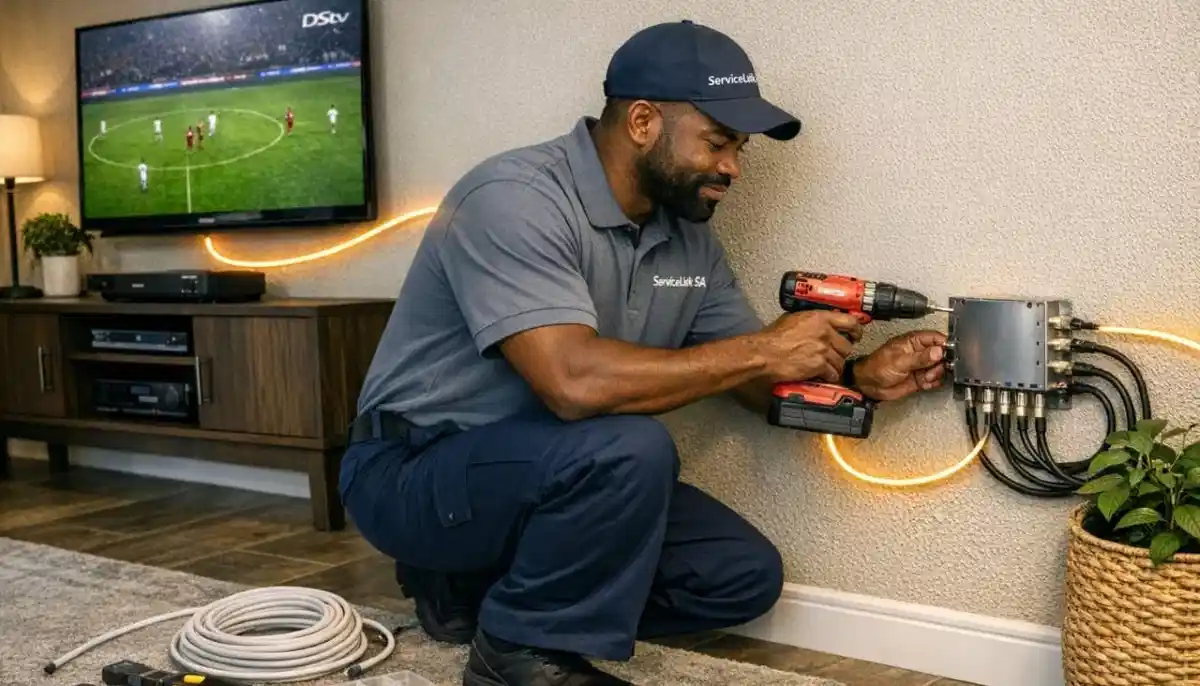
📝 User Band Assignment Strategy (3-Decoder Example)
| Decoder | Location | User Bands Assigned | Frequency (MHz) |
|---|---|---|---|
| Primary Explora | Living Room | 0, 1, 2 | 1210, 1420, 1680 |
| Secondary HD | Bedroom | 3 | 2040 |
| Secondary HD | Kids’ Room | 4 | 1006 |
✅ Pro Tip:
Document your user band assignments. Take a photo of each decoder’s LNB configuration screen.
This will save hours of troubleshooting if you ever need to reconfigure or replace a decoder.
❌ 5 Common Smart LNB Configuration Mistakes
⚠️ Avoid These Costly Errors
-
Assigning the same user band to multiple decoders: This causes signal conflicts,
pixelation, and “No Signal” errors. Each decoder must have a unique user band. -
Using a Universal LNB instead of Smart LNB: User bands don’t exist on Universal LNBs.
If you’re trying to configure user bands but the option isn’t there, you have the wrong LNB type. -
Not giving the primary Explora enough user bands: Primary Explora needs 3 user bands
(0,1,2) for recording multiple shows. Giving it only 1 band limits recording to one show at a time. -
Forgetting to reboot after configuration: User band changes don’t take effect until
the decoder is rebooted. Always reboot after saving settings. -
Not documenting assignments: When a decoder fails or needs replacement,
you need to know which user band to assign. Document everything.
🔧 Troubleshooting Smart LNB User Band Issues
Problem: One decoder works, others don’t
- Likely cause: User band conflict or incorrect LNB type
- Solution: Check that all decoders have unique user bands. Verify LNB is Smart LNB, not Universal.
Problem: Intermittent signal or pixelation on one decoder
- Likely cause: User band conflict (two decoders sharing same band) or cable issue
- Solution: Verify user bands are all unique. Swap cables with a working decoder to test.
Problem: Primary Explora can’t record multiple shows
- Likely cause: Primary Explora only assigned one user band
- Solution: Assign user bands 0, 1, and 2 to the primary Explora, then reboot.
Problem: “No Signal” on all decoders
- Likely cause: Dish alignment, LNB failure, or cable problem – not user band configuration
- Solution: Check signal readings, dish alignment, and cable connections first.
Problem: Smart LNB option not showing in menu
- Likely cause: Decoder doesn’t support Smart LNB, or LNB is not Smart LNB
- Solution: Check decoder compatibility. Verify LNB is actually a Smart LNB (look for “Smart LNB” label).
For more troubleshooting, read our
Smart LNB problems guide.
🏢 Advanced Configuration for Large Setups (5+ Decoders)
For homes with 5+ decoders, you’ll need a more advanced setup:
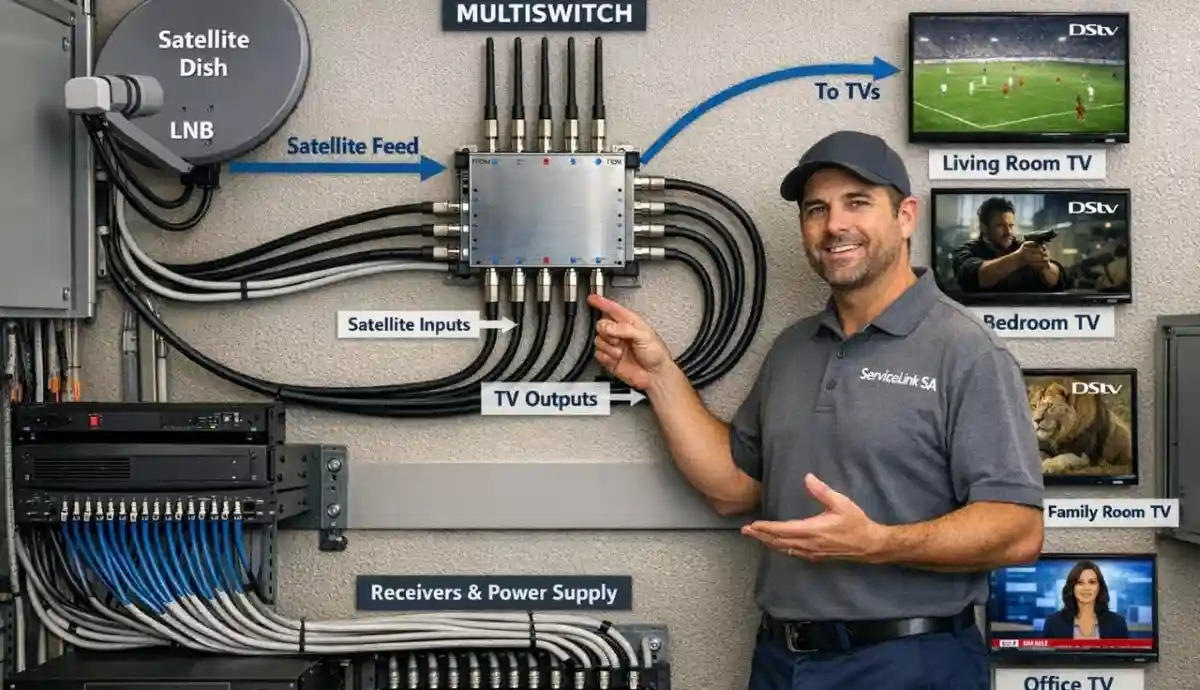
- Use a Quattro LNB + multiswitch instead of (or in addition to) a Smart LNB
- Multiswitch distributes user bands to many outputs
- Each decoder still needs its own unique user band
- Professional design and installation strongly recommended
Read our multiswitch installation guide
and communal installation guide.
🔄 Replacing a Smart LNB: What You Need to Know
If you need to replace a faulty Smart LNB, here’s what to expect for lnb configuration:
- Purchase a replacement Smart LNB (same port count or upgrade)
- Professional installation recommended (roof access, alignment required)
- After installation, you may need to reconfigure user bands on all decoders
- If replacing with the exact same model, user band settings may persist
- If upgrading to a different model, reconfigure all user bands
Read our LNB replacement guide.
❓ Frequently Asked Questions About Smart LNB User Bands
What is a user band on a Smart LNB?
A user band is a specific frequency assigned to a decoder. Smart lnb user band configuration
allows multiple decoders to receive independent signals from one LNB. Each decoder needs its own unique user band.
Think of it like radio stations – each decoder listens to its own frequency.
How do I configure user bands for DSTV Extra View?
For dstv extra view lnb setup, go to Menu → Settings → System Settings → LNB Configuration on each decoder.
Select “Smart LNB” as LNB type, then assign a unique user band to each decoder.
Primary Explora needs user bands 0,1,2. Secondary decoders need one user band each.
Save and reboot each decoder.
What happens if two decoders have the same user band?
If two decoders share the same user band, you’ll experience signal conflicts.
Symptoms include intermittent signal loss, pixelation, “No Signal” errors,
and decoders interfering with each other. Each decoder must have a unique user band.
How many user bands does a Smart LNB have?
A 2-port Smart LNB has 2 user bands (supports 2 decoders).
A 4-port Smart LNB has 4 user bands (supports 4 decoders).
An 8-port Smart LNB has 8 user bands (supports 8 decoders).
Some systems can combine multiple Smart LNBs or add multiswitches for more user bands.
Why does my primary Explora need 3 user bands?
The primary Explora needs 3 user bands (0,1,2) because it can record up to 3 shows simultaneously
while watching a fourth. Each recording stream needs its own user band.
Secondary decoders only need 1 user band because they only watch live TV (no recording).
Can I use a Universal LNB for Extra View?
Yes, but with limitations. A Quad Universal LNB can support up to 4 decoders without user bands.
However, you lose Smart LNB features (Catch Up, streaming apps, return path).
For user band settings smart lnb to work, you need a Smart LNB.
How do I know if my LNB is a Smart LNB?
Look at the LNB on your dish arm. Smart LNBs are clearly marked “Smart LNB” on the casing.
Universal LNBs may say “Universal” or have no marking.
If you’re unsure, take a photo and ask a professional installer.
My decoder doesn’t have a “Smart LNB” option in the menu – why?
Your decoder may be too old to support Smart LNB technology.
HD Decoder (9S) and older Explora 2 models may not have Smart LNB options.
Check your decoder’s specifications. For how to configure smart lnb for extra view,
you need a compatible decoder (Explora 3 or Ultra recommended).
Do I need to reconfigure user bands after a power outage?
No. User band settings are stored in the decoder’s memory and survive power outages.
However, if you experience issues after load shedding, try rebooting each decoder
(unplug 60 seconds). This often resolves temporary glitches without reconfiguration.
Can I configure user bands myself or do I need a professional?
You can configure user bands yourself using the steps in this guide.
However, if you’re uncomfortable with decoder menus, or if you have a complex multi-room setup
(5+ decoders), professional installation is recommended.
Request professional help.
✅ Final Thoughts: Master Smart LNB Configuration
Smart lnb user band configuration is the key to a reliable Extra View system.
Without proper user band assignment, your multi-room DSTV will never work correctly.
The process is straightforward: identify your Smart LNB type, plan your user band assignments,
configure each decoder with unique user bands, and test thoroughly. Document your assignments
for future reference.
If you run into trouble, don’t hesitate to call a professional.
A qualified installer can diagnose and fix user band conflicts quickly.
ServiceLink SA connects you with verified, accredited installers who specialise in Smart LNB and Extra View setups.
Need Help with Smart LNB Configuration?
Get professional help from a verified, accredited DSTV installer near you.
We’ll configure your Smart LNB and Extra View system correctly.
📞 Call us: 073 138 4726 for immediate configuration assistance.
Free site inspection •
How to choose an installer •
Beat Your Quote guarantee
📚 Official resources & standards referenced:
- Official DSTV Smart LNB guide – Official Smart LNB information.
- SABS – South African Bureau of Standards LNB configuration standards.
Information provided for general guidance. DSTV is a registered trademark of MultiChoice.
User band frequencies may vary by LNB model. Always verify compatibility before configuration.
Written by: Innocent T Hanyani
Satellite & Home Entertainment Installation Specialist | 21+ Years Experience
Innocent T Hanyani has over two decades of experience in satellite television installations across South Africa.
He has configured hundreds of Smart LNB systems for Extra View, understanding the technical nuances of user band
assignment and troubleshooting common configuration errors. His expertise helps homeowners achieve reliable multi-room DSTV.
For more help with Smart LNB configuration, explore our related resources:
Smart LNB vs Universal LNB,
Smart LNB problems,
Extra View installation,
multi-room installation,
LNB replacement guide.
See our service areas page for coverage in your region.