Need Help with Decoder Activation?
Get professional installation and setup from a verified, accredited DSTV installer near you.
We’ll handle activation, smartcard pairing, and decoder configuration.
Servicing Gauteng, KwaZulu-Natal, Durban, Umhlanga, Westville, Pinetown, and across South Africa
DSTV Decoder Activation & SmartCard Pairing: Step-by-Step Guide (No Tech Skills Needed)
📺 Your dish is installed, cables are connected – now it’s time to activate your decoder and start watching.
Your satellite dish is installed. The cables are connected. The decoder is plugged in.
You turn on the TV, and… nothing. Or worse, you see an error message: “E47-4” or “Smartcard not authorised.”
Don’t panic. This is completely normal. Your decoder needs to be activated, and your smartcard needs to be paired
before you can watch any channels. The good news? It’s a simple process that takes 5-10 minutes.
In this guide, I’ll walk you through everything about dstv decoder activation and
smartcard pairing dstv. You’ll learn how to activate new dstv decoder models,
pair your smartcard, and troubleshoot common activation errors.
If you’re wondering “how to activate dstv decoder after installation”, you’ve come to the right place.
For general DSTV problems, read our
why is my DSTV not working guide.
For reset instructions, see how to reset your decoder.
And for the MyDSTV app, read MyDSTV app guide.
📋 Table of Contents – DSTV Decoder Activation Guide
📋 What You Need Before You Start DSTV Decoder Activation
Before beginning dstv decoder activation, gather these items to ensure a smooth process.
- Your DSTV smartcard – The small card that came with your decoder (usually inserted already)
- Your decoder’s serial number – Found on a sticker on the back or bottom of the decoder (starts with 20 digits)
- Your smartcard number – Printed on the smartcard itself (starts with 9 or 11 digits)
- Your ID number – For account verification
- Your DSTV account number (if you have one) – If you’re an existing customer
- A working TV connected to your decoder – To confirm activation is complete
- Access to the MyDSTV app or website – For online activation
- Your phone – For phone activation if needed
💡 Pro Tip:
Take a photo of your smartcard and the decoder’s serial number sticker before you start.
This way you have the numbers handy without having to unplug anything or struggle to read small print.
💳 Understanding Your DSTV Smartcard
Your smartcard is the key to your DSTV subscription. It tells DSTV which channels you’re allowed to watch.
Without proper smartcard pairing dstv, your decoder won’t show any channels.
What is a smartcard?
- A small plastic card (similar to a credit card) that inserts into your decoder
- Contains a microchip that stores your subscription information
- Must be paired (linked) to your specific decoder
- Each decoder needs its own smartcard
Where to find your smartcard number:
- Printed directly on the smartcard (usually a 9 or 11-digit number)
- On your DSTV account statement
- In the MyDSTV app under “My Account”
Smartcard position:
- Most decoders: Inserted into the front or side slot (gold chip facing down/inward)
- Explora models: Usually on the right-hand side or front panel
- HD Decoder (9S): Front panel, left side
💻 Method 1: Activate Online Using MyDSTV (Easiest)
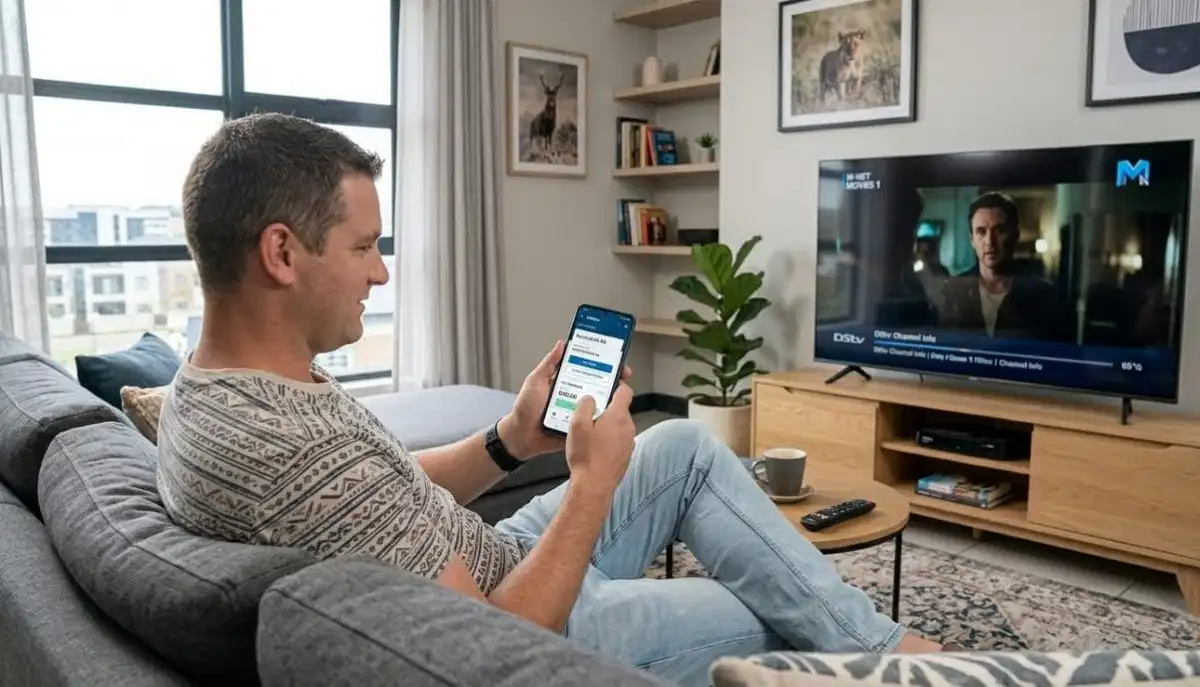
The fastest way to complete dstv decoder activation is online through the MyDSTV website or app.
This method works 24/7 and takes about 5 minutes.
Step-by-step online activation:
- Go to mydstv.co.za or open the MyDSTV app
- Log in to your DSTV account (or create one if you’re a new customer)
- Click on “Activate Device” or “Add Decoder”
- Enter your smartcard number (found on the card itself)
- Enter your decoder’s serial number (found on the back/bottom sticker)
- Confirm your ID number for verification
- Select your package (Access, Family, Compact, Compact Plus, or Premium)
- Submit the activation request
- Wait 2-5 minutes for the activation signal to be sent
- Your decoder should automatically update and start showing channels
✅ Success Indicator:
After activation, your decoder will typically show a message saying “Updating” or “Please wait.”
Within 5 minutes, channels should appear. If you still see error messages, try rebooting your decoder
(unplug for 60 seconds, then plug back in).
📞 Method 2: Activate by Phone (Call DSTV Customer Care)
If you prefer speaking to someone or don’t have internet access, you can activate by phone.
Step-by-step phone activation:
- Call DSTV customer care on 073 138 4726 or the number on your DSTV documentation
- Tell the agent you need to activate a new decoder
- Provide your smartcard number (have it ready)
- Provide your decoder’s serial number
- Provide your ID number for verification
- Confirm your package selection
- The agent will send the activation signal
- Wait 2-5 minutes for the activation to complete
- Reboot your decoder if channels don’t appear within 10 minutes
Tip: Call during off-peak hours (mid-morning or mid-afternoon) to avoid long wait times.
Avoid calling on Monday mornings or the day after major holidays when call volumes are highest.
Still Having Activation Problems?
Get professional help from a verified, accredited DSTV installer near you.
We’ll handle activation, smartcard pairing, and full decoder setup.
Free quotes. Verified installers. No obligation.
🖥️ Method 3: Self-Service Activation on Your Decoder
Some newer decoders (especially Explora models) offer self-service activation directly through the menu.
Step-by-step decoder self-activation:
- Press “Menu” on your remote
- Navigate to Settings → System Settings → Activation
- Select “Activate Now” or “Self Activation”
- Follow the on-screen prompts (may require entering your smartcard number)
- The decoder will attempt to activate automatically
- Wait 2-5 minutes for completion
Note: This method requires your decoder to have a working satellite signal.
If you’re still seeing “No Signal” (E48-32), use Method 1 or 2 instead.
📝 Complete Step-by-Step Activation Walkthrough
Here’s a complete decoder setup walkthrough from unboxing to watching channels.
Step 1: Physical setup
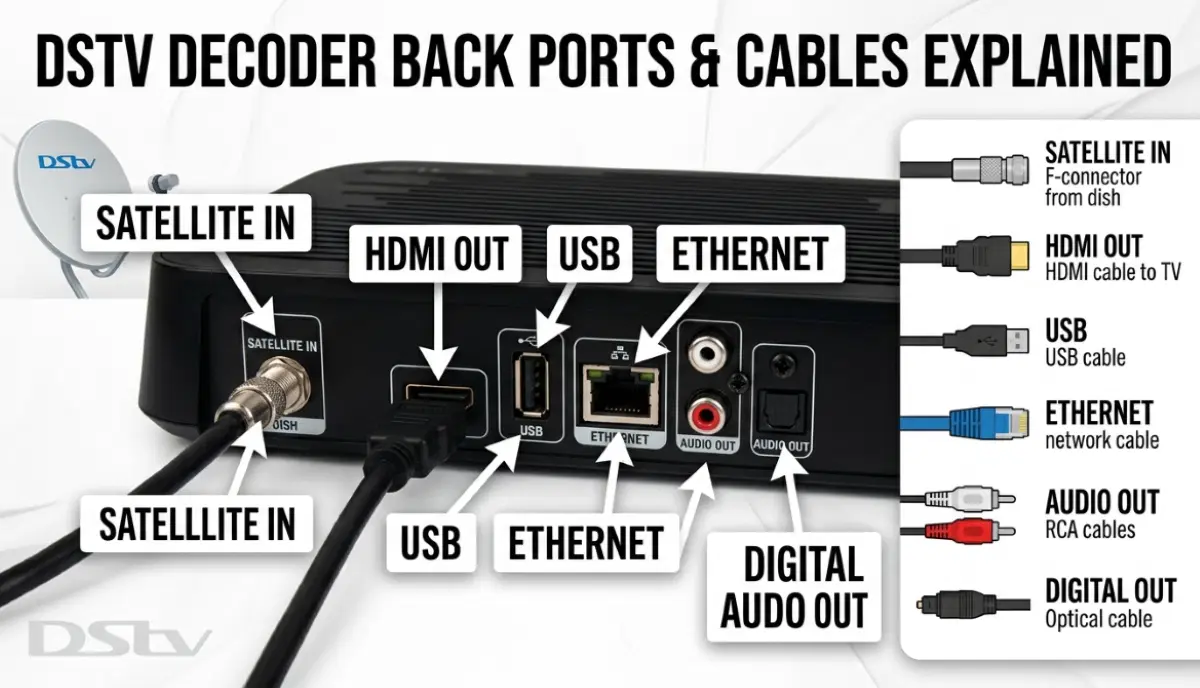
- Connect the satellite cable from your dish to the “SAT IN” port on your decoder
- Connect HDMI cable from decoder to TV
- Plug in the power cable
- Insert your smartcard (gold chip facing down/inward, usually in the front or side slot)
Step 2: Power on and initial scan
- Turn on your TV and select the correct HDMI input
- Turn on the decoder (power button on front or remote)
- The decoder will automatically scan for channels (2-5 minutes)
- You may see a “No Signal” or “E48-32” error if the dish isn’t aligned – this is normal before activation
Step 3: Activation (choose one method)
- Use the MyDSTV app/website (recommended)
- Call DSTV customer care
- Use decoder self-activation (if available)
Step 4: Wait for activation signal
- After submitting activation, wait 2-5 minutes
- The decoder may show “Updating” or “Please wait”
- Do not turn off the decoder during this time
Step 5: Verify and enjoy
- Channels should appear automatically
- If not, reboot the decoder (unplug 60 seconds, then plug back in)
- Check a few different channels to confirm all are working
🔢 Common Activation Error Codes & How to Fix Them
| Error Code | What It Means | How to Fix |
|---|---|---|
| E47-4 / E47-5 | Smartcard not authorised – not paired or subscription issue | Complete activation process. If already activated, remove and reinsert smartcard, then reboot decoder. |
| E48-32 | No satellite signal – decoder can’t see the dish | Check cable connections, ensure dish is aligned. This is an installation issue, not activation. |
| E30-4 | Searching for signal – weak signal detected | Check dish alignment and cable connections. May need professional realignment. |
| E140-3 | Smartcard not inserted or not recognised | Remove smartcard, clean gold contacts with soft cloth, reinsert firmly. Reboot decoder. |
| E16-4 | Hard drive failure (Explora models) | Not activation-related – decoder needs repair. Contact DSTV or an installer. |
| E2-64 | Network connection error (for streaming features) | Check internet connection. Not required for basic channel viewing. |
🔧 Troubleshooting DSTV Decoder Activation Problems
Problem: “E47-4” or “Smartcard not authorised” after activation
- Remove the smartcard, clean the gold contacts with a soft, dry cloth
- Reinsert the smartcard firmly until it clicks
- Reboot the decoder (unplug 60 seconds, then plug back in)
- Wait 5-10 minutes for the signal to re-sync
- If still not working, contact DSTV customer care – the activation may not have completed
Problem: Decoder shows “No Signal” (E48-32)
- This is NOT an activation problem – it’s a signal problem
- Check that the satellite cable is firmly connected to the “SAT IN” port
- Check that your dish is properly aligned (professional help may be needed)
- Read our no signal guide
Problem: Activation submitted but no channels after 30 minutes
- Reboot your decoder (unplug 60 seconds)
- Check that your smartcard is inserted correctly
- Verify your subscription is active (check MyDSTV app)
- Call DSTV customer care to confirm activation was successful
Problem: Wrong channels or missing channels
- You may have been activated on the wrong package
- Check your package in the MyDSTV app
- If incorrect, contact DSTV to correct your package
- Perform a channel scan: Menu → Settings → Scan for Channels
✅ What to Do After DSTV Decoder Activation
Once activate new dstv decoder is complete, here’s what to do next.
- Check all channels: Browse through the guide to ensure all channels in your package are working
- Set up favourites: Create a favourites list for quick access to channels you watch most
- Connect to Wi-Fi (Explora models): Go to Settings → Network → Wi-Fi setup
- Set up parental controls: If you have children, set a PIN and restrict mature content
- Schedule recordings (Explora): Set up recordings for your favourite shows
- Download the MyDSTV app: Manage your account, access Catch Up, and use your phone as a remote
- Read our MyDSTV app guide
🏠 Activating Multiple Decoders (Extra View / Multi-Room)
If you have multiple decoders (Extra View), each decoder needs its own smartcard and activation.
Process for multiple decoders:
- Activate the primary decoder first (usually your main Explora)
- Once the primary is working, activate each secondary decoder one at a time
- Each decoder needs its own smartcard (provided with each decoder)
- You’ll need to add Extra View to your account (monthly fee R105 per extra decoder)
- Secondary decoders can watch different channels independently
For more on multi-room, read our
Extra View setup guide and
Extra View installation guide.
🔄 Replacing an Existing DSTV Decoder
If you’re replacing an old decoder with a new one, the process is slightly different.
- Don’t activate the new decoder yet – you need to deactivate the old one first
- Log into MyDSTV and remove the old decoder from your account
- Or call DSTV customer care to have them swap the decoders
- Once the old decoder is removed, activate the new decoder using the methods above
- Your subscription and package will transfer to the new decoder
- If you have recordings on the old Explora, you will lose them – watch them before replacing
For decoder upgrades, read our
Explora Ultra upgrade guide and
HD and Explora installation guide.
❓ Frequently Asked Questions About DSTV Decoder Activation
How do I activate my new DSTV decoder?
To activate new dstv decoder, use the MyDSTV app or website: log in, click “Activate Device,”
enter your smartcard number and decoder serial number, select your package, and submit.
Activation takes 2-5 minutes. You can also call DSTV customer care for phone activation.
What is smartcard pairing and why do I need it?
Smartcard pairing dstv links your smartcard to your specific decoder.
This tells DSTV which decoder is authorised to access your subscription.
Without pairing, you’ll see error E47-4 or “Smartcard not authorised.”
Pairing happens automatically during activation.
How long does DSTV decoder activation take?
Dstv decoder activation typically takes 2-5 minutes after you submit the request.
In some cases, it can take up to 15 minutes. If you don’t see channels after 30 minutes,
reboot your decoder (unplug 60 seconds) and check your subscription status in MyDSTV.
Why is my DSTV decoder showing E47-4 after activation?
E47-4 means your smartcard is not authorised. First, remove and reinsert the smartcard,
then reboot the decoder. If that doesn’t work, the activation may not have completed.
Call DSTV customer care to confirm your smartcard is properly paired to your decoder.
Can I activate my DSTV decoder without internet?
Yes. You can activate by phone – call DSTV customer care and provide your smartcard number,
decoder serial number, and ID number. The agent will send the activation signal.
You don’t need internet for the decoder to work once activated.
Do I need a separate smartcard for each decoder?
Yes. Each decoder requires its own smartcard. For Extra View (multi-room),
each secondary decoder comes with its own smartcard. You’ll need to activate each one
and add Extra View to your account (R105 per extra decoder per month).
What if I lost my smartcard number?
Your smartcard number is printed on the card itself. If you’ve lost the card,
you may need to contact DSTV customer care for assistance. They may be able to look it up
using your account details, or you may need to purchase a replacement smartcard.
How do I activate DSTV after moving to a new house?
How to activate dstv decoder after installation at a new house:
First, update your address in MyDSTV. Then, if you’re using the same decoder,
you shouldn’t need to reactivate – just connect it to your new dish.
If you have a new decoder, follow the activation steps above.
Read our relocation guide.
Why is my decoder activated but still showing “No Signal”?
“No Signal” (E48-32) is not an activation problem – it’s a signal problem.
Your decoder is activated, but it’s not receiving signal from your dish.
Check cable connections, ensure your dish is aligned, and consider professional help.
Read our no signal guide.
Can I activate a second-hand DSTV decoder?
Yes, but the previous owner must first remove it from their account.
If they haven’t, you won’t be able to activate it. Always buy second-hand decoders
from reputable sources and ask for proof that it’s been deregistered.
Read our scam avoidance guide.
✅ Final Thoughts: Activation Is Easy – Follow These Steps
Dstv decoder activation and smartcard pairing dstv might seem intimidating,
but it’s actually a simple process that takes less than 10 minutes. The MyDSTV app makes it easiest –
you can activate your decoder from your phone while sitting on your couch.
Remember: activation requires a working satellite signal. If you’re still seeing “No Signal” (E48-32)
after installation, fix the signal problem first – activation won’t work without a signal.
Once activated, enjoy your DSTV! And if you run into any issues, professional help is just a click away.
ServiceLink SA connects you with verified, accredited installers who can help with installation,
activation, and setup.
Need Help with Decoder Activation or Installation?
Get free quotes from verified, accredited DSTV installers near you.
We’ll handle installation, activation, smartcard pairing, and full setup.
📞 Call us: 073 138 4726 for immediate activation assistance.
Free site inspection •
How to choose an installer •
12-month warranty
📚 Official resources & standards referenced:
- Official DSTV activation portal – Official decoder activation information.
- MyDSTV – Account management and online activation.
Information provided for general guidance. DSTV is a registered trademark of MultiChoice.
Activation times may vary. Always have your smartcard and decoder serial numbers ready before starting.
Written by: Innocent T Hanyani
Satellite & Home Entertainment Installation Specialist | 21+ Years Experience
Innocent T Hanyani has over two decades of experience in satellite television installations across South Africa.
He has helped thousands of homeowners activate new decoders, pair smartcards, and troubleshoot activation errors.
His practical, step-by-step guidance makes decoder setup simple for anyone.
For more help with DSTV decoder activation and setup, explore our related resources:
how to install DSTV,
why is my DSTV not working,
how to reset decoder,
decoder not booting fix,
MyDSTV app guide.
See our service areas page for coverage in your region.