
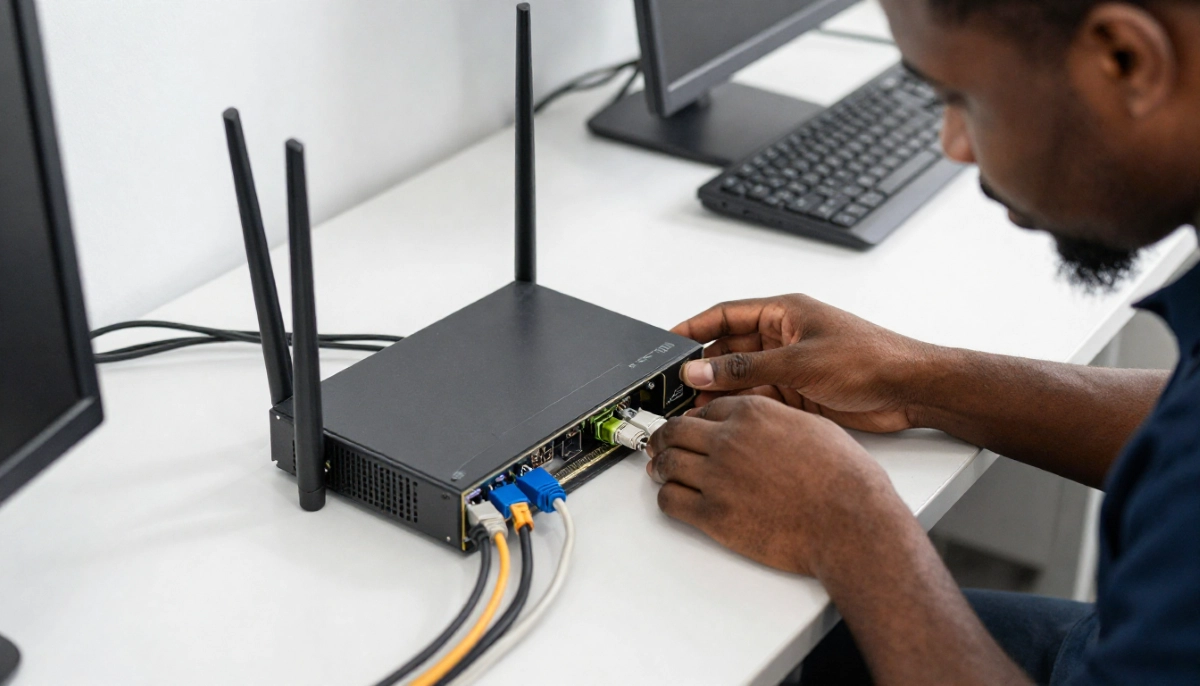
Tired of Your WiFi Disconnecting?
Get professional help from local specialists who understand wifi disconnecting and wifi troubleshooting.
Servicing Bryanston, Sea Point, Hillcrest, and across South Africa
WiFi Keeps Disconnecting: Causes and Solutions That Actually Work
📡 Nothing is more frustrating than a connection that won’t stay connected—here’s how to fix it.
You’re in the middle of something important. A video call with a client. An online meeting with your team. A crucial moment in your favourite game. And then—disconnected. Your wifi keeps disconnecting at the worst possible moment.
I’ve been there. And I’ve helped hundreds of people across South Africa solve this exact problem. The frustration of wifi disconnecting is real, but the solutions are often simpler than you think.
In this guide, I’ll walk you through the most common causes of wifi connection drops, why your wifi keeps disconnecting at night, and what you can do about it. Whether you’re in Bryanston, Sea Point, or Hillcrest, these wifi troubleshooting tips will help.
For more detailed help, check out our router failing signs guide and router overheating fixes. Let’s stop those disconnections for good.
📋 Table of Contents – WiFi Disconnecting Guide
🤔 Why Does WiFi Keep Disconnecting?
Before we fix the problem, let’s understand why wifi keeps disconnecting causes and solutions exist in the first place.
Common Causes of WiFi Disconnecting:
- Signal interference: Other electronics or neighbouring networks causing wifi connection drops.
- Router overheating: Routers can overheat and reset, causing disconnections.
- Outdated firmware: Old router firmware can cause wifi stability issues.
- Device driver issues: Outdated or corrupt wifi driver on your computer or phone.
- ISP issues: Problems with your internet service provider.
- Too many devices: Overloading the router can cause wifi disconnecting.
- Distance from router: Being too far from the router weakens the signal.
Quick Diagnostic Steps:
- Check if other devices are affected: If only one device disconnects, it’s likely a device issue. If all devices disconnect, it’s a router or ISP issue.
- Check the router lights: Look for unusual patterns or blinking that might indicate a problem.
- Note when it happens: Does your wifi keeps disconnecting at night? This points to interference or network congestion.
For more on diagnosing the problem, see our WiFi troubleshooting guide.
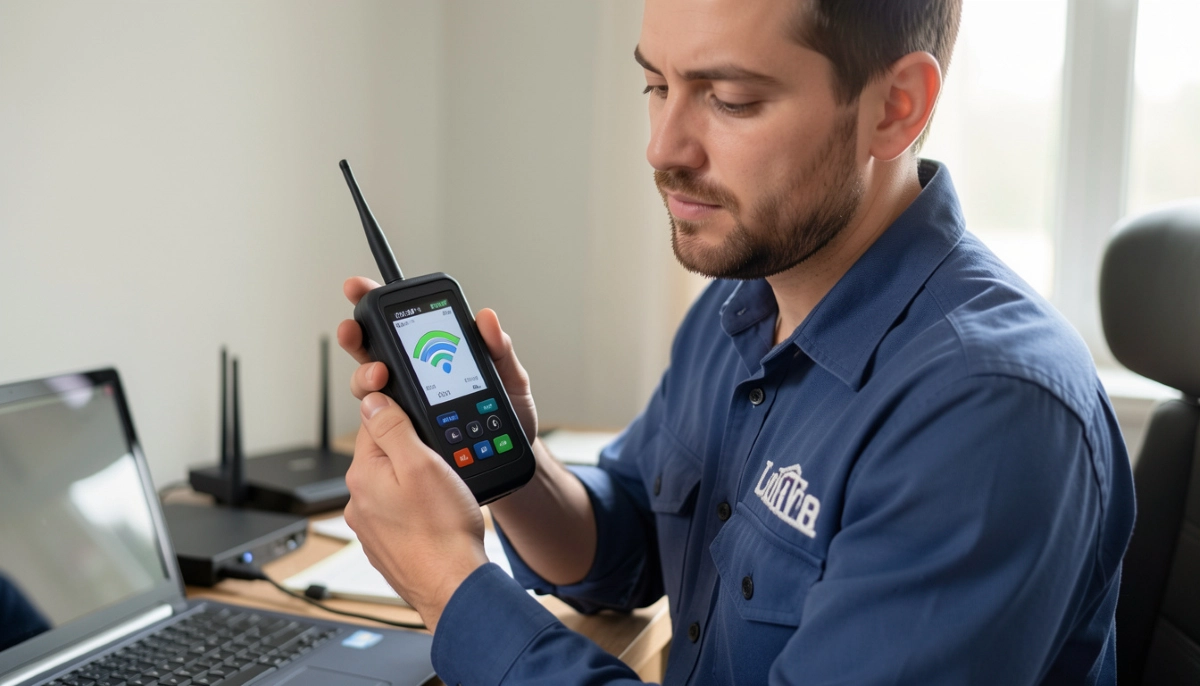
📡 Signal Interference and Channel Congestion
Signal interference is one of the most common causes of wifi disconnecting.
Sources of Interference:
- Neighbouring networks: Too many routers on the same channel.
- Microwaves: They emit signals that interfere with 2.4 GHz WiFi.
- Cordless phones: Many use the 2.4 GHz band.
- Baby monitors: Can cause interference.
- Bluetooth devices: Also use the 2.4 GHz band.
How to Fix Interference Issues:
- Change your WiFi channel: Use a WiFi analyser app to find the least congested channel. For 2.4 GHz, use channels 1, 6, or 11.
- Use 5 GHz band: If your router supports it, connect to 5 GHz. This band has less interference.
- Move your router: Keep it away from microwaves, cordless phones, and other electronics.
- Update router firmware: Manufacturers sometimes improve channel selection algorithms.
For more on this, see our WiFi interference guide.
🌡️ Router Overheating and Hardware Issues
Router overheating is a surprisingly common cause of wifi disconnecting.
Why Routers Overheat:
- Poor ventilation: Routers need airflow. If they’re in a cupboard or behind furniture, they can overheat.
- Dust buildup: Dust can block vents and cause overheating.
- Continuous use: Routers are always on and can generate heat.
- Faulty hardware: Some routers have manufacturing defects that cause overheating.
Signs of Router Overheating:
- The router feels very hot to the touch.
- Wifi connection drops happen more frequently during heavy use.
- The router restarts on its own.
- Performance is worse during hot weather.
How to Prevent Router Overheating:
- Ensure proper ventilation: Place the router in an open area with good airflow.
- Clean regularly: Dust the router and its vents.
- Elevate the router: Place it on a raised surface to improve airflow.
- Consider a cooling fan: Small USB fans can help circulate air.
For more detailed information, see our router overheating fixes guide.
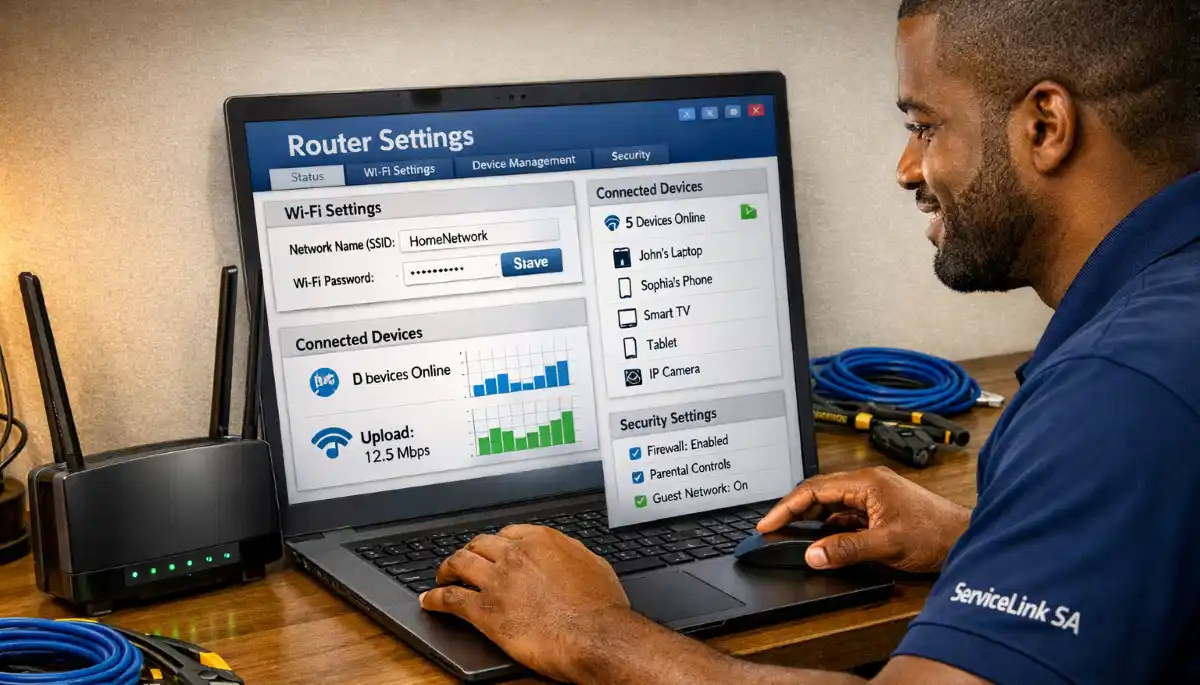
Still Dealing with WiFi Disconnections?
Get professional wifi troubleshooting from local specialists who can diagnose and fix your wifi stability issues.
Emergency services available for urgent wifi connection drops.
📱 Device-Specific Disconnection Issues
If your wifi keeps dropping on phone or wifi keeps dropping on laptop, the problem might be device-specific.
Why WiFi Drops on Phones:
- Power saving settings: Some phones turn off WiFi to save battery.
- Outdated OS: Old operating systems can have WiFi bugs.
- Network overload: Too many apps using WiFi simultaneously.
- Hardware issues: Faulty WiFi antenna in the phone.
Why WiFi Drops on Laptops:
- Outdated WiFi driver: Old or corrupt wifi driver can cause disconnections.
- Power management: Windows power settings can turn off the WiFi adapter.
- Network congestion: Too many devices connected.
- Distance from router: Being too far from the router.
How to Fix Device-Specific Issues:
- Update your device: Install the latest OS updates and wifi driver updates.
- Check power settings: Ensure your device isn’t turning off WiFi to save power.
- Forget and reconnect: Remove the network from your device and reconnect.
- Reset network settings: On phones, reset network settings to default.
For more on this, see our slow WiFi troubleshooting guide.
🏢 ISP and Internet Connection Issues
Sometimes, the problem isn’t your equipment—it’s your ISP. This is particularly relevant if your router keeps disconnecting wifi but you have a stable wired connection.
Common ISP-Related Issues:
- Network congestion: Your ISP’s network might be overloaded.
- Line faults: Problems with your fibre or ADSL line.
- DNS issues: DNS server problems can cause disconnections.
- Configuration errors: Your ISP might have misconfigured your connection.
How to Check for ISP Issues:
- Test with a wired connection: Connect a computer directly to your ONT or modem with an Ethernet cable. If the wired connection is stable but WiFi drops, it’s a router issue. If both drop, it’s an ISP issue.
- Check for outages: Contact your ISP or check their social media for reported outages.
- Run a speed test: A wifi speed test can help identify if you’re getting the speeds you’re paying for.
For more on ISP-related issues, see our fibre installation delays guide.

⚙️ Outdated Firmware and WiFi Drivers
Outdated firmware and wifi driver issues are common causes of wifi disconnecting.
Why Firmware Matters:
Router manufacturers release firmware updates to fix bugs, improve performance, and enhance wifi stability. Running old firmware can cause disconnections.
How to Update Router Firmware:
- Access your router’s settings page (usually 192.168.1.1).
- Look for a “Firmware Update” or “System Update” option.
- Check for updates and install them if available.
- Reboot the router after the update.
How to Update WiFi Drivers on Windows:
- Open Device Manager.
- Find “Network Adapters” and expand it.
- Right-click your WiFi adapter and select “Update Driver”.
- Choose “Search automatically for drivers”.
How to Update WiFi Drivers on Mac:
macOS updates usually include WiFi driver updates. Install the latest macOS updates.
For more on router configuration, see our router setup guide.
🌙 Why WiFi Keeps Disconnecting at Night
If your wifi keeps disconnecting at night, you’re not imagining it—there are specific reasons for this.
Common Causes of Night-Time Disconnections:
- Network congestion: Everyone in your neighbourhood is using the internet at night, causing congestion.
- Interference: More electronics are active at night (TVs, lights, etc.).
- ISP throttling: Some ISPs throttle traffic during peak hours.
- Firmware updates: Some routers check for updates at night and restart.
How to Fix Night-Time Disconnections:
- Change WiFi channel: Use a less congested channel.
- Use 5 GHz band: Less congestion on 5 GHz.
- Contact your ISP: Ask if they’re throttling during peak hours.
- Schedule updates: Change your router’s update schedule to a less disruptive time.
For more on this, see our internet slow at night guide.
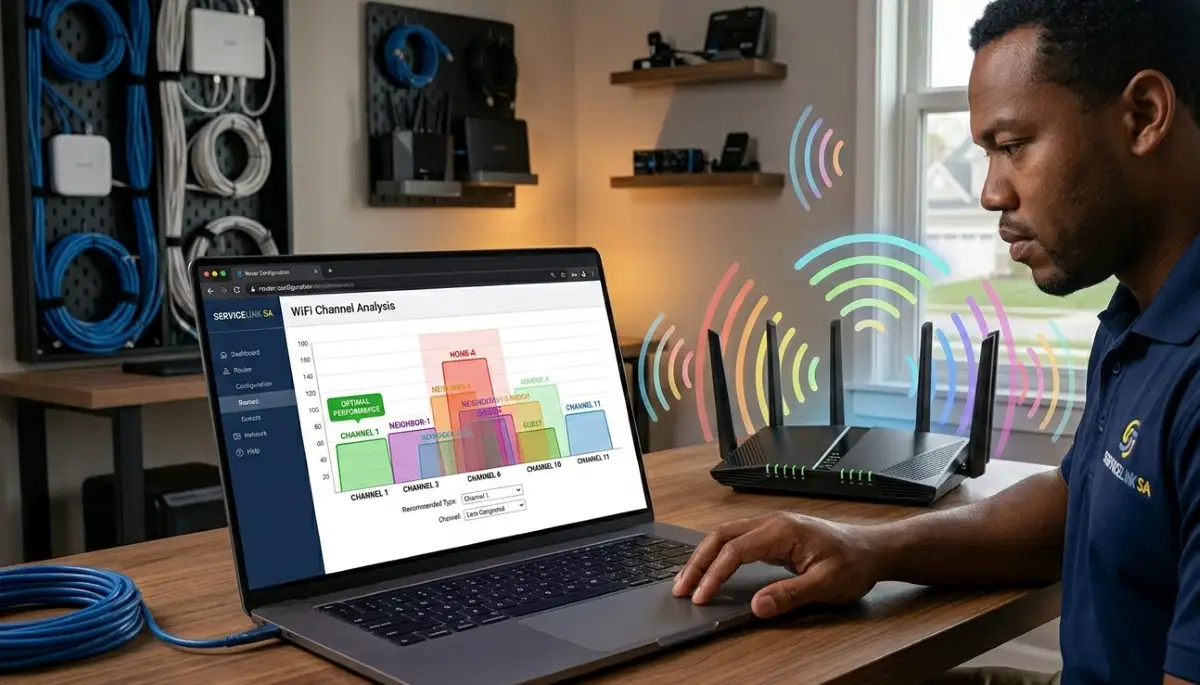
🔧 Step-by-Step Troubleshooting Guide
Here’s a systematic approach to fix wifi keeps disconnecting causes and solutions.
Step 1: Power Cycle Everything
Unplug your router, ONT/modem, and any extenders. Wait 30 seconds. Plug the ONT/modem back in first, wait for it to fully start, then plug in the router. This often fixes temporary issues.
Step 2: Check Physical Connections
Ensure all cables are securely connected. Check the Ethernet cable between the ONT and router. Look for any damage to cables.
Step 3: Update Firmware
Check for and install router firmware updates.
Step 4: Change WiFi Channel
Use a WiFi analyser app to find a less congested channel. Change the channel in your router settings.
Step 5: Check for Overheating
Ensure your router has proper ventilation. Move it if it’s in a cupboard or behind furniture.
Step 6: Reduce Devices
Disconnect devices that aren’t in use. Consider upgrading to a better router if you have many devices.
Step 7: Update Device Drivers
Update your wifi driver on Windows computers. Ensure phones have the latest OS updates.
Step 8: Contact Your ISP
If nothing works, contact your ISP to check for line issues or outages.
For a complete guide, see our professional troubleshooting guide.
🔄 When to Replace Your Router
Sometimes, the best solution for wifi disconnecting is a new router.
Signs It’s Time to Replace Your Router:
- It’s more than 3-5 years old.
- It’s a single-band router (only 2.4 GHz).
- You’ve tried all wifi troubleshooting steps and still have issues.
- It restarts on its own frequently.
- It feels very hot even when not in heavy use.
What to Look for in a New Router:
- Dual-band or tri-band: Supports both 2.4 GHz and 5 GHz.
- WiFi 5 or WiFi 6: Newer standards for better performance.
- Good reviews for wifi stability.
- Gigabit Ethernet ports.
For more on this, see our router failing signs guide and best routers guide.
❓ Frequently Asked Questions About WiFi Disconnecting
Why does my WiFi keep disconnecting?
Wifi keeps disconnecting causes and solutions include signal interference, router overheating, outdated firmware, wifi driver issues, ISP problems, and too many connected devices. Start with a power cycle, then work through the other potential causes. If your wifi keeps disconnecting at night, it’s likely network congestion or interference.
Why does my WiFi keep dropping on my phone?
Wifi keeps dropping on phone is often caused by power saving settings that turn off WiFi to save battery. Check your phone’s WiFi and battery settings. Also ensure your phone’s OS is updated. If the problem persists, try forgetting the network and reconnecting. A faulty wifi driver is less likely on phones but can happen.
Why does my WiFi keep dropping on my laptop?
Wifi keeps dropping on laptop is often caused by outdated or corrupt wifi driver issues. Update your driver through Device Manager. Also check Windows power settings—sometimes Windows turns off the WiFi adapter to save power. For more wifi troubleshooting, see our troubleshooting guide.
Why does my WiFi keep disconnecting at night?
Wifi keeps disconnecting at night is usually caused by network congestion or interference. Everyone in your neighbourhood is using the internet at night, causing congestion on your ISP’s network. Try changing your WiFi channel or using the 5 GHz band. Contact your ISP if it’s a persistent issue.
Can router overheating cause WiFi disconnections?
Yes, router overheating is a common cause of wifi disconnecting. When a router overheats, it can freeze, reset, or drop connections. Ensure your router has proper ventilation and isn’t in a cupboard or behind furniture. Dust can also cause overheating—clean your router regularly.
How do I check if my router is overheating?
Check if your router feels very hot to the touch. Look for signs of wifi connection drops during heavy use. Check for frequent router restarts. If you suspect router overheating, move it to a cooler, more ventilated area. See our router overheating fixes guide for more.
How do I update my router’s firmware?
Access your router’s settings page (usually 192.168.1.1). Look for a “Firmware Update” or “System Update” option. Check for updates and install them. This can fix wifi stability issues and improve performance. For step-by-step instructions, see our router setup guide.
When should I replace my router?
Replace your router if it’s more than 3-5 years old, if it’s a single-band router, if you’ve tried all wifi troubleshooting steps and still have issues, or if it restarts on its own frequently. A new dual band router can dramatically improve wifi stability. See our router failing signs guide for more.
✅ Final Thoughts: Stop WiFi Disconnections for Good
Dealing with wifi keeps disconnecting causes and solutions can be frustrating, but most problems are fixable without replacing your equipment.
Key Takeaways:
- Start with a power cycle: This fixes many temporary issues.
- Check for interference: Change your channel and use 5 GHz.
- Prevent overheating: Ensure proper ventilation for your router.
- Update firmware and drivers: Keep everything up to date.
- Check device-specific issues: Update drivers and check power settings.
- Contact your ISP: Sometimes the problem is on their end.
- Consider replacement: If your router is old, a new one can solve wifi stability issues.
Your Next Step: Go through the troubleshooting steps in this guide. If you’re still experiencing wifi connection drops, ServiceLink SA can connect you with verified local specialists who can diagnose and fix your wifi disconnecting issues.
Ready to Fix Your WiFi Disconnections?
Get free quotes from verified local specialists for wifi troubleshooting and wifi stability solutions.
📞 Call us: 073 138 4726 for immediate help finding a specialist near you.
📢 Are You a WiFi Troubleshooting Professional?
Join ServiceLink SA’s network of verified contractors and get access to qualified leads for wifi disconnecting and wifi stability projects.
📚 Official resources & standards referenced:
- SANS 10400 – Guidelines for electrical and networking installations in South African homes.
- SABS – Standards for electronic equipment and safety.
Information provided for general guidance. For professional wifi troubleshooting, always consult a qualified local technician.
Written by: Innocent T Hanyani
Construction & Home Services Industry Specialist | 21+ Years Experience
Innocent T Hanyani has over two decades of experience working across South Africa’s construction, telecommunications, and home services sectors. Throughout his career, he has worked closely with network installers, IT professionals, and homeowners, gaining practical insight into how wifi disconnecting and wifi connection drops affect home and work networks. His expertise helps homeowners understand the complexities of wifi stability and wifi troubleshooting, from diagnosing router overheating issues to resolving wifi driver problems and implementing effective wifi keeps disconnecting causes and solutions.