

Struggling with Buffering on Netflix?
Get professional help from local specialists who understand wifi for 4k streaming and router settings for streaming.
Servicing Alberton, Goodwood, Vryheid, and across South Africa
Best Router Settings for Streaming Netflix 4K Smoothly: The Complete Guide
📺 Tired of buffering during your favourite shows? Here’s how to optimise your router for flawless 4K streaming.
You’ve just settled in for a movie night. You’ve got the popcorn ready, the lights are dimmed, and you’re about to watch the latest blockbuster in stunning 4K. You press play. And then… buffering. The spinning circle of doom. Your movie night is ruined.
This is one of the most frustrating experiences for streaming enthusiasts. The good news is that with the best router settings for streaming Netflix 4K smoothly, you can eliminate buffering and enjoy uninterrupted 4K streaming.
In this comprehensive guide, I’ll show you exactly how to stream Netflix 4K without buffering by optimising your router settings. I’ll cover router settings for 4K streaming on smart TV, wifi for Netflix Disney Plus, and the best wifi for multiple streaming devices. Whether you’re in Alberton, Goodwood, or Vryheid, these tips will help you get the best wifi for Netflix experience.
For more on streaming, check out our WiFi buffering fix guide and WiFi for multiple devices guide. Let’s get your 4K streaming working perfectly.
📋 Table of Contents – Streaming Router Settings Guide
📺 What You Need for 4K Streaming
Before we optimise your router settings for streaming, let’s understand the requirements for wifi for 4k streaming.
Netflix 4K Requirements:
- Internet speed: At least 25 Mbps per 4K stream.
- Data usage: Approximately 7 GB per hour of 4K streaming.
- Device support: A 4K-compatible device and Netflix Premium plan.
- WiFi speed: Your WiFi should support at least 25 Mbps.
Other Streaming Services’ Requirements:
- Disney+ 4K: 25 Mbps
- Amazon Prime 4K: 25 Mbps
- YouTube 4K: 20 Mbps
- Showmax: 10-15 Mbps (HD), 25+ Mbps (4K when available)
Important: These are minimum requirements. For wifi for Netflix Disney Plus and other services, aim for 50+ Mbps for a buffer-free experience.
What Happens If You Don’t Have Enough Speed:
- Buffering and stuttering.
- Video quality drops to HD or SD.
- Loading times are slow.
For more on speed requirements, see our router speed guide.

📊 Enable QoS for Streaming Priority
QoS (Quality of Service) is one of the most important router settings for streaming.
What Is QoS?
QoS prioritises certain types of traffic. By giving streaming traffic priority, you ensure that Netflix and other services get the bandwidth they need, even when others are using the internet.
How to Enable QoS:
- Access your router’s settings (usually 192.168.1.1).
- Find QoS or bandwidth management.
- Enable QoS and set streaming or video as a priority.
- Add your streaming devices to the high-priority list.
- Save and apply the settings.
What If Your Router Doesn’t Have QoS?
Most modern routers have QoS. If yours doesn’t, consider upgrading to a router with QoS features.
Real-World Example:
If someone in your home starts a large download while you’re streaming 4K, QoS ensures your streaming traffic gets priority. This is how you stream Netflix 4K without buffering.
For more on QoS, see our best router settings guide.
📡 Use 5 GHz for 4K Streaming
Using the 5 GHz band is essential for wifi for 4k streaming.
Why 5 GHz Is Better:
- Higher speeds: Supports the bandwidth needed for 4K.
- Less interference: Fewer devices use 5 GHz.
- Lower latency: Faster data transmission.
How to Connect to 5 GHz:
- Ensure your smart TV or streaming device supports 5 GHz.
- Check your router for the 5 GHz network name (SSID).
- Connect your streaming device to that network.
- If your router has band steering, you may need to disable it to see both networks.
What If Your Streaming Device Doesn’t Support 5 GHz?
Most modern smart TVs and streaming devices support 5 GHz. If yours doesn’t, consider upgrading to a newer device or using a mesh network.
For more on bands, see our dual band WiFi guide.
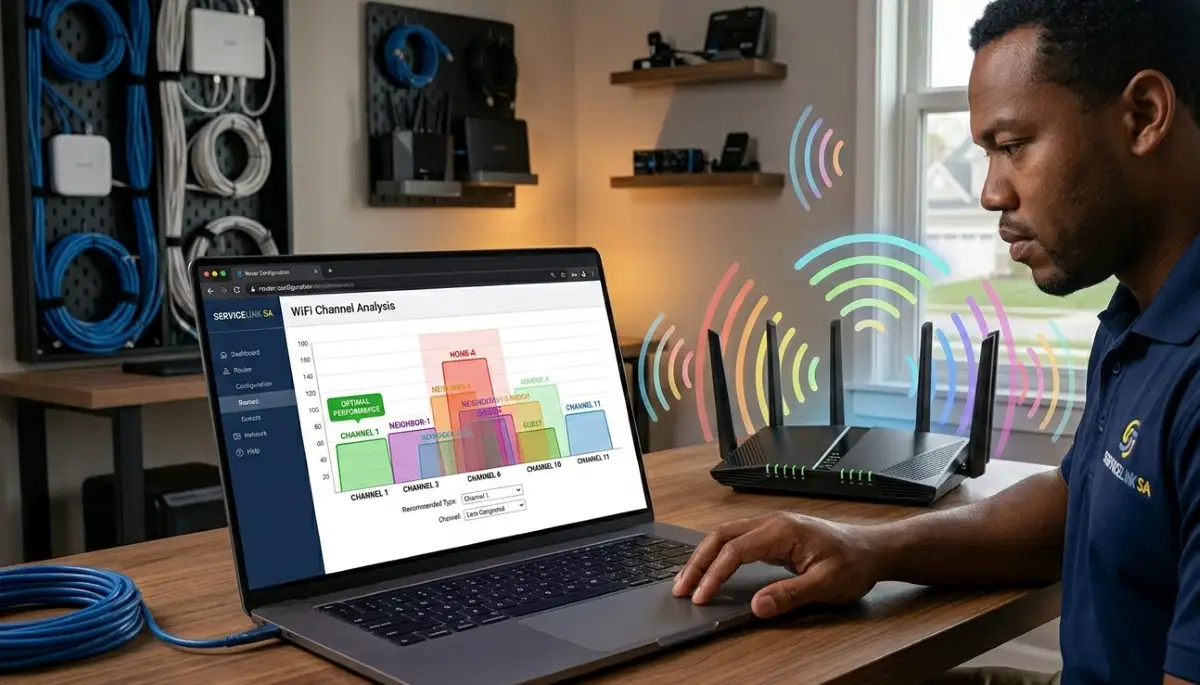
📡 Choose the Best WiFi Channel
Choosing the right channel is another important router setting for streaming.
Why Channels Matter:
If too many routers are on the same channel, they interfere with each other. This can cause buffering and slow wifi speed.
How to Find the Best Channel:
- Download a WiFi analyser app on your phone.
- Scan for nearby networks and see which channels they’re using.
- Choose a channel that’s least congested.
- For 2.4 GHz, use channels 1, 6, or 11.
- For 5 GHz, choose any available channel.
How to Change Your Channel:
- Access your router’s settings.
- Find wireless settings.
- Find the channel selection option.
- Select your chosen channel.
- Save and reboot your router.
For more on channels, see our router channel settings guide.
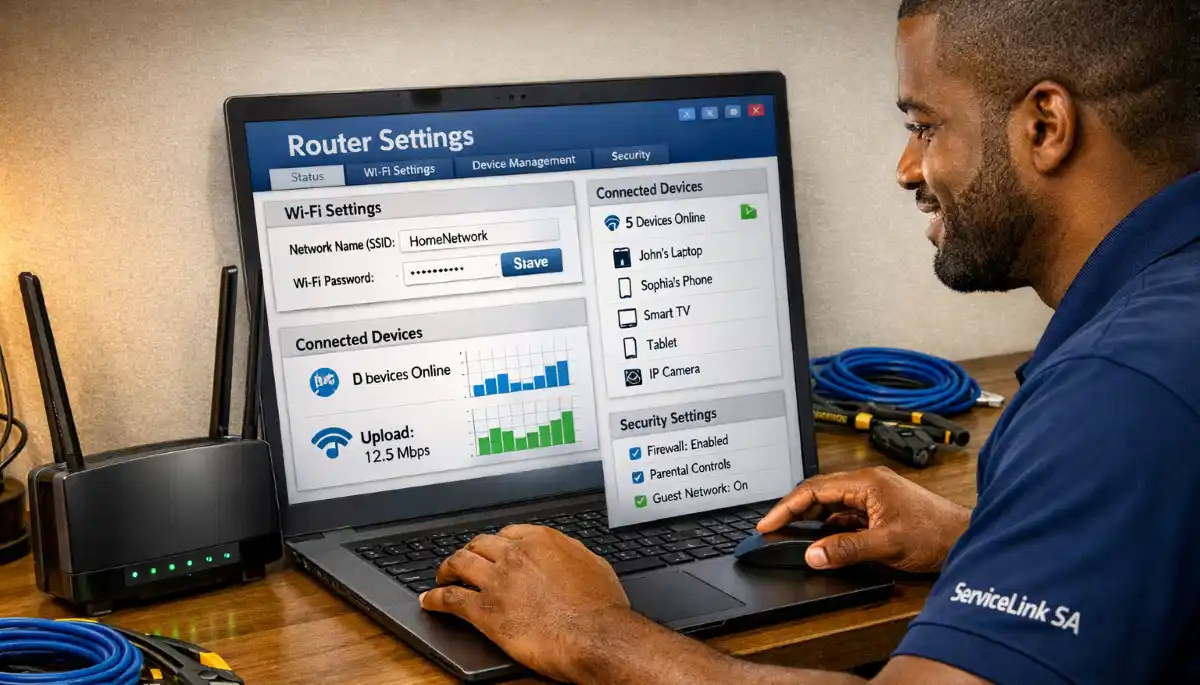
Still Getting Buffering on Netflix?
Get professional help from local specialists who understand wifi for 4k streaming and router settings for 4K streaming on smart TV.
Free inspections available for best wifi for Netflix.
📍 Router Placement for Streaming
Where you place your router affects your wifi for 4k streaming performance.
Golden Rules for Streaming:
- Close to your TV: The closer the router is to your streaming device, the better.
- Elevated: Place it on a shelf or table.
- Line of sight: Minimise obstructions between router and streaming device.
- Away from interference: Keep it away from other electronics.
If Your TV Is Far from the Router:
- Use a mesh network to extend coverage.
- Run an Ethernet cable to your TV (best for 4K).
- Use a WiFi extender near your TV.
For more on placement, see our router placement guide.
⚙️ Update Router Firmware
Keeping your router’s firmware updated is essential for best wifi for Netflix.
Why Firmware Matters:
Manufacturers release updates that improve performance, stability, and security. Outdated firmware can cause buffering and slow wifi speed.
How to Update Firmware:
- Access your router’s settings.
- Look for “Firmware Update” or “System Update”.
- Check for updates.
- If available, install the update.
- Wait for the router to reboot.
How Often to Update:
Check for updates every 3-6 months. Some routers have automatic updates.
For more on firmware, see our router setup guide.
📊 Bandwidth Management for Streaming
Proper bandwidth management ensures streaming gets the speed it needs.
Why Bandwidth Matters:
If other devices are using too much bandwidth, streaming can suffer. This causes buffering and poor wifi speed.
How to Manage Bandwidth:
- Enable QoS: Prioritise streaming traffic.
- Set bandwidth limits: Limit bandwidth for other devices during streaming.
- Schedule heavy downloads: Schedule downloads for off-peak hours.
- Use a separate network: Some routers allow a separate network for streaming.
Real-World Example:
If someone in your home is downloading a large file while you’re streaming 4K, bandwidth management ensures your streaming gets priority. This is how you stream Netflix 4K without buffering.
For more on bandwidth, see our WiFi for many devices guide.
📺 WiFi for Multiple Streaming Devices
If you have multiple TVs or streaming devices, you need the best wifi for multiple streaming devices.
Challenges of Multiple Streams:
- Each 4K stream needs 25-50 Mbps.
- Total bandwidth must support all streams.
- WiFi congestion can cause buffering.
Recommended Setup:
- Use 5 GHz: For all streaming devices.
- Enable QoS: Prioritise streaming traffic.
- Use a mesh network: If your home is large.
- Consider a tri-band router: For multiple streams.
Real-World Example:
If you have three TVs streaming 4K simultaneously in Jeffreys Bay, you need at least 150 Mbps and a router that can handle multiple streams. A tri-band mesh network is ideal.
For more on multiple devices, see our WiFi for many devices guide.
🖥️ Smart TV Settings for 4K Streaming
In addition to router settings for streaming, optimise your smart TV settings.
1. Check Your TV’s WiFi Connection:
Ensure your TV is connected to the 5 GHz band. Check the TV’s network settings.
2. Update Your TV’s Firmware:
Smart TV manufacturers release updates that improve streaming performance.
3. Disable Unnecessary Features:
Some smart TVs have features that use bandwidth in the background. Disable automatic app updates and background data usage.
4. Position Your TV Well:
If your TV has a built-in WiFi antenna, avoid placing it behind metal objects or in corners.
5. Use Ethernet If Possible:
If your TV is near your router, use an Ethernet cable for the most reliable connection.
For more on TV settings, see our WiFi buffering fix guide.
❓ Frequently Asked Questions About Streaming Router Settings
What are the best router settings for streaming Netflix 4K smoothly?
The best router settings for streaming Netflix 4K smoothly include enabling QoS, using 5 GHz, choosing the least congested channel, and positioning your router close to your TV. These router settings for streaming ensure buffer-free wifi for 4k streaming.
How can I stream Netflix 4K without buffering?
How to stream Netflix 4K without buffering requires sufficient internet speed (25+ Mbps), proper router settings for 4K streaming on smart TV, and a strong WiFi signal. Use 5 GHz, enable QoS, and position your router well. For wifi for Netflix Disney Plus, these same principles apply.
What internet speed do I need for 4K streaming?
For wifi for 4k streaming, you need at least 25 Mbps per 4K stream. For a buffer-free experience with multiple streams, aim for 50+ Mbps. Your wifi speed should be at least as fast as your internet connection.
Does QoS help with streaming?
Yes, QoS is essential for router settings for streaming. It prioritises streaming traffic over other traffic, ensuring you stream Netflix 4K without buffering even when others are using the internet. Enable QoS in your router settings for the best wifi for Netflix.
Which WiFi band is best for 4K streaming?
The 5 GHz band is best for wifi for 4k streaming. It offers higher speeds, less interference, and lower wifi latency than 2.4 GHz. If you’re streaming on multiple devices, 5 GHz is essential for best wifi for multiple streaming devices.
Can I stream 4K on 2.4 GHz WiFi?
While possible, 2.4 GHz is not recommended for wifi for 4k streaming. It has lower speeds, more interference, and higher wifi latency. For reliable 4K streaming, use 5 GHz. This is one of the most important router settings for streaming.
What is the best WiFi for Netflix and Disney Plus?
The best wifi for Netflix Disney Plus is a fast, stable connection with good bandwidth management. Use 5 GHz, enable QoS, and ensure your wifi speed is at least 50 Mbps for multiple streams. A mesh network can help if your home is large.
How do I check if my WiFi is fast enough for 4K streaming?
Run a wifi speed test on your streaming device. If your wifi speed is at least 25 Mbps, you can stream 4K. For multiple streams, aim for 50+ Mbps. Also check wifi latency—low latency is important for router settings for streaming.
✅ Final Thoughts: Enjoy Buffer-Free 4K Streaming
Getting the best router settings for streaming Netflix 4K smoothly is achievable with the right configuration. By enabling QoS, using 5 GHz, choosing the best channel, and positioning your router properly, you can eliminate buffering and enjoy your favourite shows.
Key Takeaways:
- Enable QoS: Prioritise streaming traffic.
- Use 5 GHz: For faster, more reliable wifi for 4k streaming.
- Choose the best channel: Reduce interference for better wifi speed.
- Position your router: Close to your TV for the best signal.
- Manage bandwidth: Ensure streaming gets priority.
- Update firmware: Keep your router optimised.
Your Next Step: Check your wifi speed and wifi latency. If you’re experiencing buffering, implement the router settings for streaming in this guide. For personalised help, ServiceLink SA can connect you with local specialists who understand best wifi for Netflix and can help you achieve the perfect wifi for 4k streaming setup.
Ready to Stream 4K Without Buffering?
Get free quotes from verified local specialists for router settings for streaming and wifi for 4k streaming.
📞 Call us: 073 138 4726 for immediate help finding a specialist near you.
WiFi Buffering Fix •
Multiple Devices •
Best Router Settings
📢 Are You a WiFi Optimisation Professional?
Join ServiceLink SA’s network of verified contractors and get access to qualified leads for wifi for 4k streaming and router settings for streaming projects.
📚 Official resources & standards referenced:
- SANS 10400 – Guidelines for electrical and networking installations in South African homes.
- Department of Energy – Information on energy-efficient electronic equipment.
Information provided for general guidance. For professional best router settings for streaming Netflix 4K smoothly advice, always consult a qualified local technician.
Written by: Innocent T Hanyani
Construction & Home Services Industry Specialist | 21+ Years Experience
Innocent T Hanyani has over two decades of experience working across South Africa’s construction, telecommunications, and home services sectors. Throughout his career, he has worked closely with network installers, IT professionals, and streaming enthusiasts, gaining practical insight into the best router settings for streaming Netflix 4K smoothly. His expertise helps homeowners and streamers understand the complexities of wifi for 4k streaming and router settings for streaming, from how to stream Netflix 4K without buffering to implementing effective bandwidth management and achieving the best wifi for Netflix experience.